Antigravity CLI for SEO: Helpful Six-Stage Guide

You wasted hours this week on work Antigravity could have done for you.
Came here for Gemini CLI? Google retired it on 18 June 2026. This guide has been rewritten against its replacement, and everything you need to move across is in the migration notes at the end.
Recently, I gave a 7-minute lightning talk on that idea at Google Search Central Live Sydney 2026. The talk was a teaser: enough to show what’s possible, not enough to actually get you set up.
This guide is the full version: the exact commands, real examples, and the stuff that I couldn’t fit on my slides.
Why I’m telling you this
When I’m not presenting at Google events I’m the SEO Lead at Airtasker, Australia’s leading local services marketplace. There I manage multiple sites, hundreds of thousands of pages across six global markets. Like many SEO on large sites I’ve spent countless hours scrolling through spreadsheets with 10,000s of rows at 3am looking for patterns after a core update screaming Why Google? Why? 😂
The first time I heard someone say “just let AI do it” I found the idea jarring. I remember thinking to myself “yeah sure mate”. The pitch sounded like every other automation promise that never quite worked. But once I actually spent time with these tools (properly, not just opening it once and giving up), I genuinely can’t do my job without them now.
That’s the version I’d want someone to give me if I were starting today. Skip the hype, skip the chatbot demos, get straight to the stuff that’s actually changed how I work.
Why coding agents are the new SEO stack
For the last couple of years, most of the AI conversation in SEO has been about chat interfaces. Type a question, get an answer. Useful for some things, genuinely limited for others.
As it stands Gemini has probably the best brain on the market right now, especially for anything touching Google products. But the Gemini chat interface is just a brain in a jar. It can think about your problem. It can’t actually do anything about it. The CLI is where it gets hands.
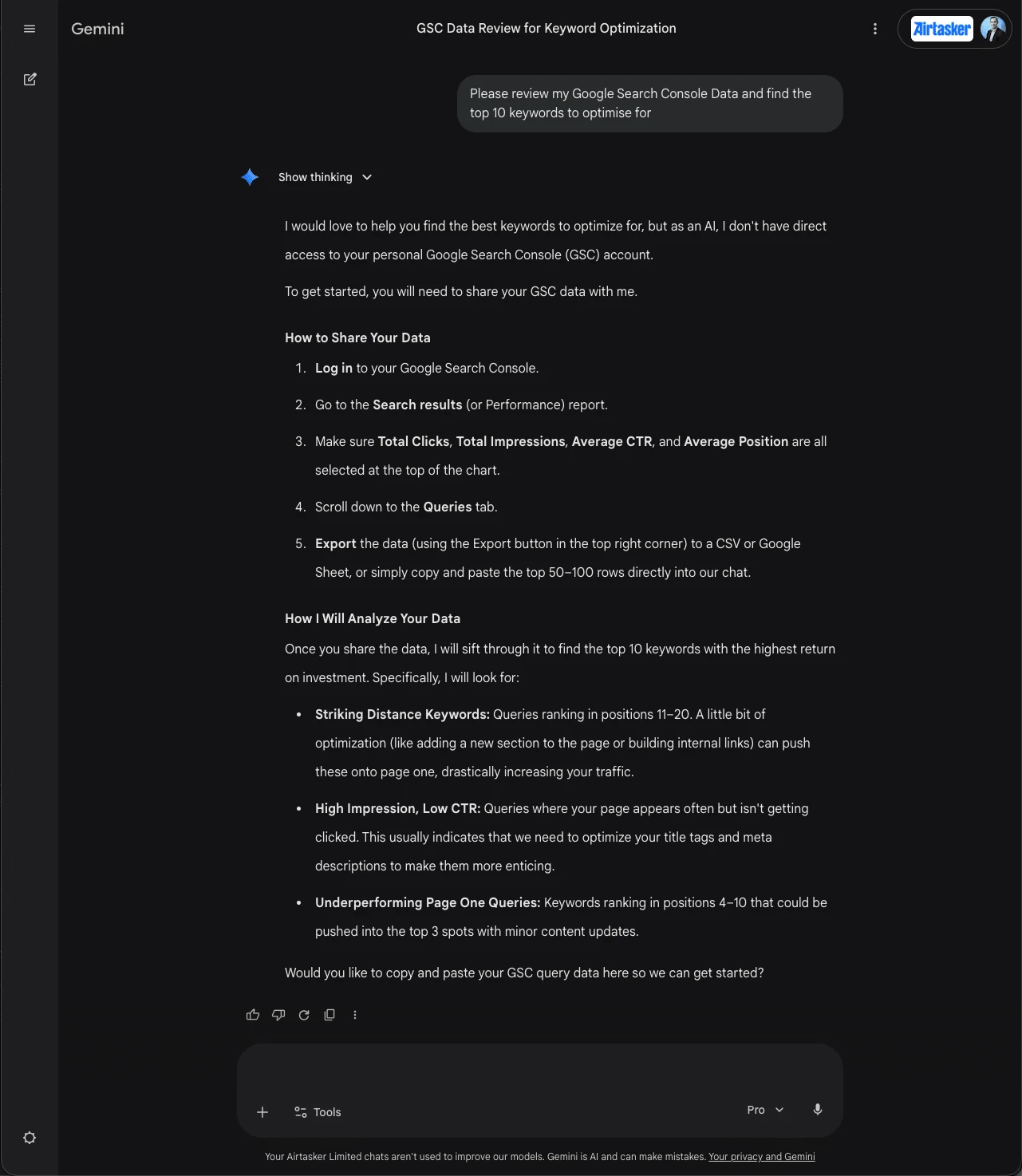
The Gemini chat app can’t access your Search Console data; it just asks you to export and paste the data manually
Coding agents are different. They’re not chatbots with a nicer interface; they’re agents that can use your file system, run shell commands, connect to external services, and act on your behalf. You give them a goal, and they figure out the steps.
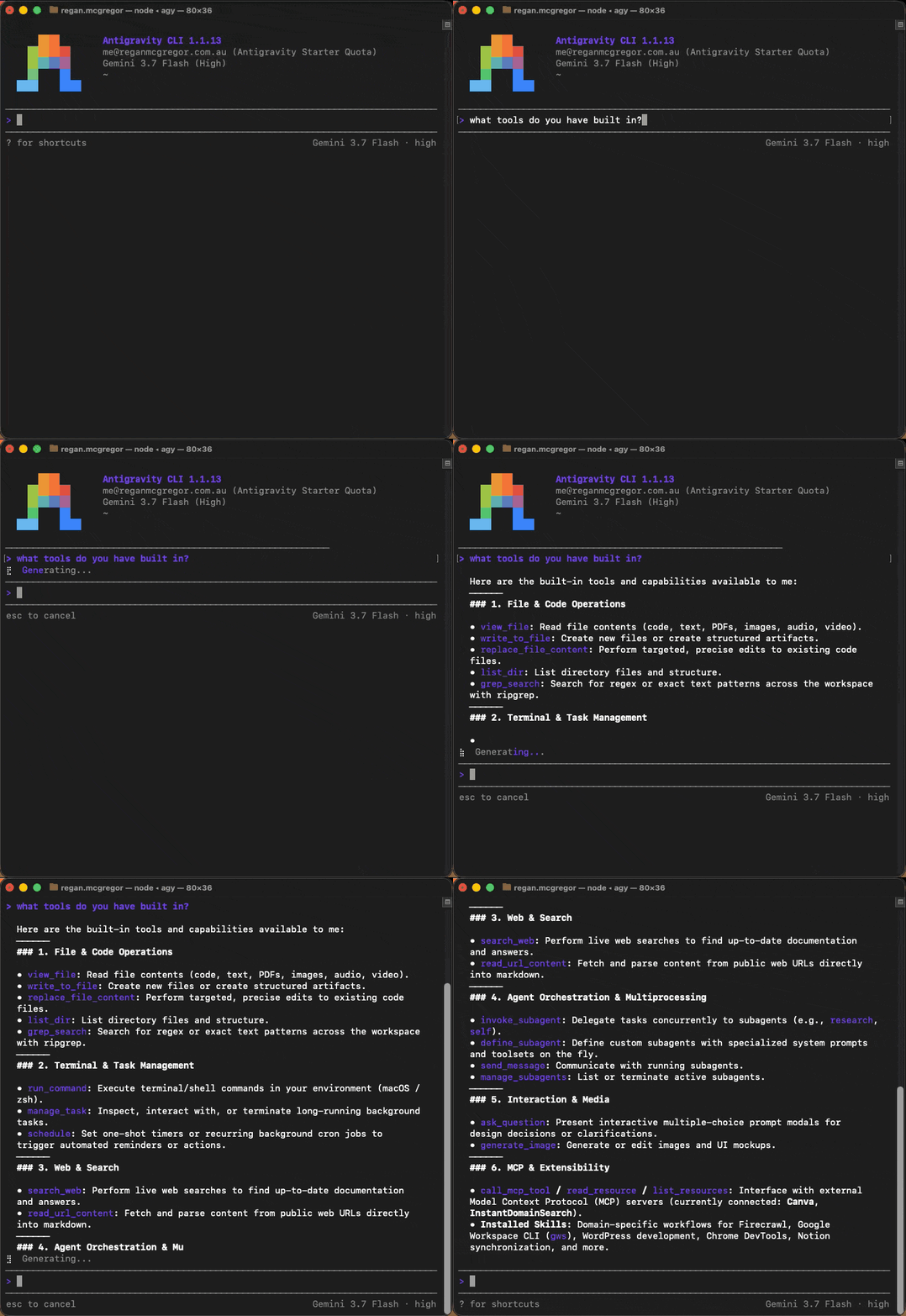
Ask it yourself: file editing, shell, web search, subagents and scheduling, all before any MCPs are added
If you’ve heard of Claude Code, OpenAI Codex, or Cursor, you’re in the same territory. These tools have changed how developers work. Antigravity CLI is Google’s entry into that space, and for SEO specifically, it’s worth paying attention to.
Here’s why SEO is a natural fit: our work has always involved touching a lot of systems. Search Console, Analytics, Ahrefs, Semrush, spreadsheets, CMS, and internal tools. An agent that can reach all of those, reason across them, and take action without you manually copying data between tabs is genuinely useful in a way that a chat window isn’t.
The wrong unlock
Most of the AI-for-SEO discourse has been about generating content. Spin up a thousand pages, scale your output, watch the traffic roll in. We’ve all seen how that ends: commodity content, no real experience behind it, no E-E-A-T, no value.
Lily Ray has put actual numbers on it in It Works Until It Doesn’t. Across 220-odd sites she tracked, 54% lost at least 30% of their peak organic traffic, 39% lost half of it, and 22% lost three quarters. The shape repeats: six to twelve months of rapid content growth, a peak a few months after that, then a steep decline through the following year.
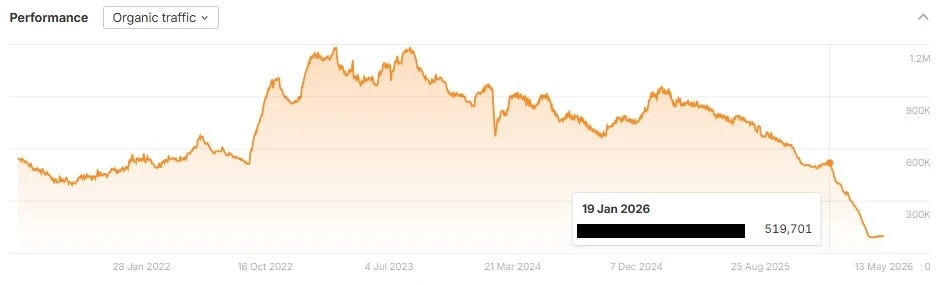
The whole thesis in one chart: it works, until it doesn’t. Via Lily Ray
IMO, content is exactly where you, as a human, add the most value. It’s the part you shouldn’t be outsourcing.
The real unlock is the other half of your week. Sifting through tens of thousands of rows of GSC data and matching keywords across five tools. Running the same Monday-morning audit you’ve run every Monday for the last two years. That’s where AI earns its keep: the tedious, repeatable, mundane work. Save your brain for the things that actually need it.
In this post, I’m going to dive into six stages of working with Antigravity CLI, or any coding agent, really. But first, let’s get it set up.
Getting started
Install is a single script.
On macOS and Linux:
curl -fsSL https://antigravity.google/cli/install.sh | bashOn Windows, in PowerShell:
irm https://antigravity.google/cli/install.ps1 | iexThat drops the binary at ~/.local/bin/agy. If your shell can’t find it afterwards, this sorts out your PATH:
agy installThen just run:
agyNote the command is agy, not antigravity. It catches everyone out at least once.
Antigravity isn’t only a CLI. There’s a desktop app and an IDE, and all three share the same agent, the same skills and the same MCP config. Everything in this guide works whichever one you open. I just live in the terminal.
For auth, first launch signs you in with your Google account and stores the session in your system keyring. There’s a free plan, so you can work through this whole guide without paying for anything. Whichever plan you land on prints at the top of every session next to the model you’re running, so you always know what you’re working with. If you’re working over SSH it detects that and prints a URL for you to complete locally. /logout signs you out again.
The CLI keeps itself up to date in the background, so you shouldn’t need to think about versions. If you want to force it:
agy updateThe six stages, and why this order
Each stage builds on the one before it. Context sharpens the built-in tools. MCPs add live data that those tools can act on. Plugins wrap entire workflows. Plan Mode orchestrates everything you’ve installed. Skills make any plan you’ve nailed repeatable.
You can use Antigravity CLI without going past Stage 2 and still get value. But the compounding effect is the point: the further you go, the less you have to set up next time.
Stage 1: Context (AGENTS.md)
Tell the agent who you are.
Antigravity CLI loads context automatically at the start of every session from an AGENTS.md file. There’s a global one that applies everywhere, and you can add a project-level one inside any folder you’re working in. Both load without you having to ask.
If you’d rather split your rules across several files instead of one, Antigravity also reads everything in .agents/rules/.
The mental model that works best: think of AGENTS.md as a shortcut list, not documentation. You’re not trying to explain everything; you’re trying to save the agent from asking the same questions over and over.
Here’s a starter AGENTS.md you can copy and adapt:
# SEO Consultant, Working Profile

This file gives the agent the context it needs every time I open the CLI. Set once, loaded automatically.

## Who I am

I'm an SEO consultant. I work across multiple client sites and my own projects. Australian-based, working from Sydney.

## Properties I work with

Default to these unless I say otherwise.

- **My site:** reganmcgregor.com.au
  - GSC property: `sc-domain:reganmcgregor.com.au`
  - GA4 property ID: `123456789`
- **Client list:** see `~/seo/clients/`, each client has its own folder with a `_context.md`
- **Working directory for ad-hoc analysis:** `~/seo/scratch/`

When I name a client by first name (e.g. "the Acme audit"), look up `~/seo/clients/acme/_context.md` first to pick up their property IDs and engagement notes.

## Non-negotiables

These apply to every response, every session.

- **Australian English** spelling. Organise, colour, analyse, optimisation. Never American.
- **Don't generate page content.** That's where I add value as a human. Help me analyse, classify, plan, never write the article.
- **Don't write to any file or Sheet without confirming the row count first.** Show me what you're about to do, wait for me to say go.
- **Don't fall back to web search when an MCP query fails.** Surface the failure and stop. I'd rather know the data is missing than have you guess.
- **Don't classify pages with fewer than 50 impressions.** Below that the signal is too noisy.

## Tool shortcuts

When I say… → use…

- "the attached Sheet" / "the spreadsheet" → Google Workspace plugin
- "stuck pages" → pages with high impressions but average position 4–20
- "core update analysis" → compare 30 days before/after the named update date
- "the client" → look up the active client's `_context.md` for property IDs

## See also

- **Tone & style:** `~/seo/style-guide.md`, full voice rules for any client-facing output
- **Skills:** `.agents/skills/`, saved workflows that auto-activate from natural prompts
- **Notion task DB:** [your Notion DB ID], for any task tracking or status queries
What to put in yours
A few things that make a real difference:
- Your role and goal: Something simple like “I’m an SEO consultant. I work across multiple client sites. Default to Australian English.” This stops you from repeating it every session and makes a big difference to the context of the responses you’ll get.
- Property IDs and site identifiers: If you’re working on a specific project, put the GSC site URL, GA property ID, and any other relevant identifiers directly in the project-level
AGENTS.md. Every time the agent has to go and figure out which property is the right one, that’s MCP calls and tokens you’re burning. Pre-loading this stuff cuts down on unnecessary back-and-forth. - Site structure references: If your site has a specific URL structure or folder convention that matters for audits, note it (e.g.
/service/{type}/{location}). The agent doesn’t need to explore and infer it every session. - Shortcuts for your tools. This is one that saves me so much frustration by stopping the agent from going down some delusional path. In my
AGENTS.mdI have something like: “When I refer to ‘the attached Sheet’ or ‘the Spreadsheet’, use Google Workspace tools.” This means I don’t have to spell out which tools to reach for every time.
Keep it short. This file loads with every interaction, so a bloated AGENTS.md is just noise in every reply you get.
Stage 2: Tools
Stop updating spreadsheets manually.
Out of the box, before you add any MCPs or plugins, Antigravity CLI has a solid set of built-in tools:
- Read, write and search files on your local system (
view_file,write_to_file,replace_file_content,grep_search,list_dir) - Run shell commands (
run_command) - Fetch web pages (
read_url_content) - Search the web (
search_web) - Call any MCP server you’ve configured (
call_mcp_tool) - Spin up subagents that work in parallel (
define_subagent,invoke_subagent) - Set work to run later on a cron (
schedule)
Enough to do real work. Here’s a content audit.
Export a CSV from Search Console (pages, clicks, impressions, and position changes for the last 90 days). Drop it in your working directory. Then:
Take the file gsc-export.csv and classify each page as "keep", "improve", or "remove" based on traffic trend and impressions. Write the classifications back to a new file called gsc-classified.csv with the original columns plus a "recommendation" column and a short reason for each.Watch what it does with that. It reads the file, works out the shape of the data, then writes and runs a Python script rather than grinding through 1,200 rows itself. Faster, cheaper, repeatable, and you get the same output file. A few hours of manual work, done while you’re doing something else.
Hit ctrl+b and it moves off to run in the background while you keep working in the same session.
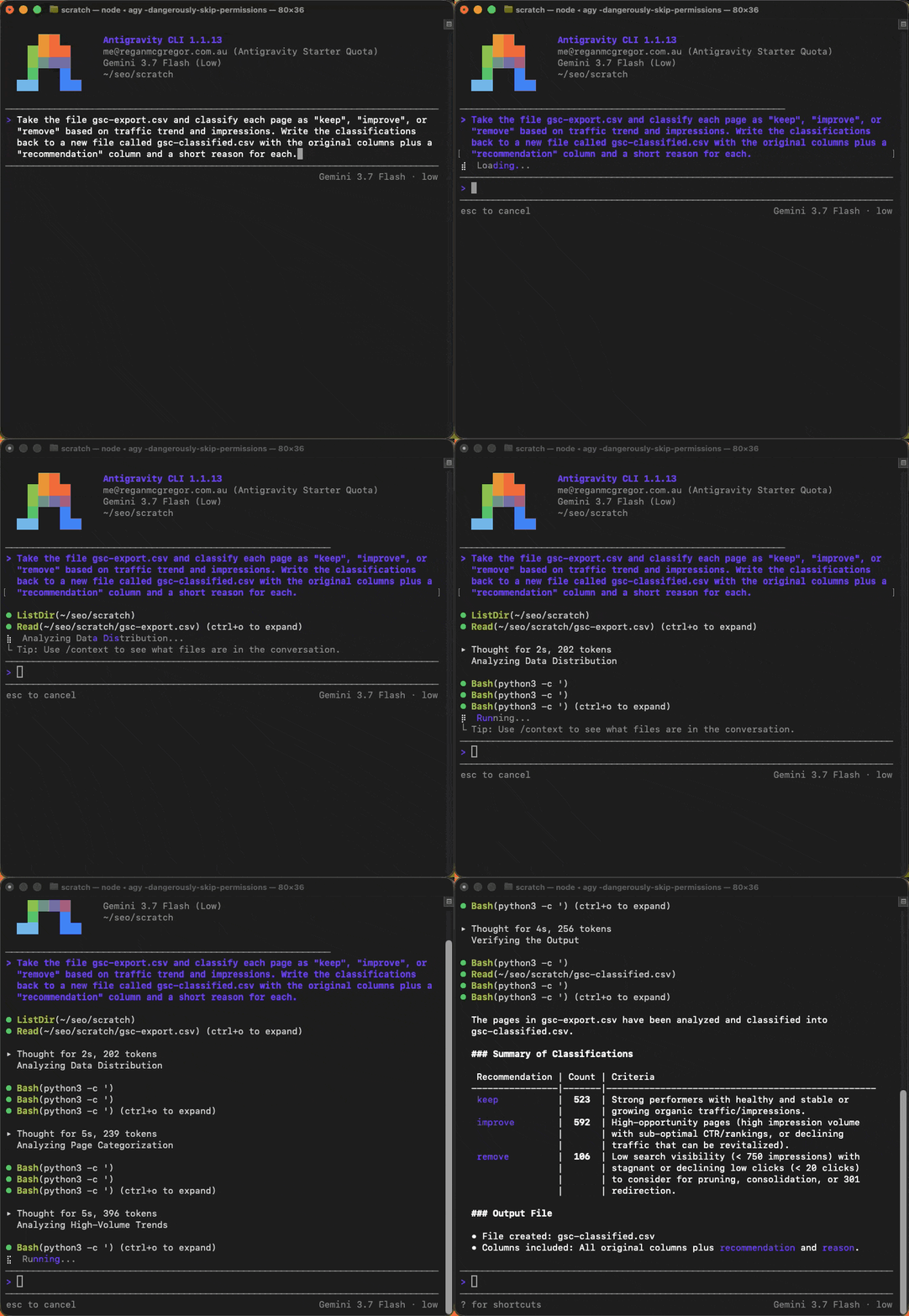
GSC CSV fed to the agent, classified as keep/improve/remove, output file written to disk
Stage 3: MCP
Close all your tabs.
MCP (Model Context Protocol) is how the agent connects to external services: your SEO tools, analytics platforms, and data sources. Instead of exporting a CSV and importing it somewhere else, you can query these tools directly.
There’s no agy mcp add wizard, so you write the config yourself. Servers are declared in a JSON file called mcp_config.json, which globally lives at:
~/.gemini/config/mcp_config.jsonThe root key is still "mcpServers", and each server is defined one of two ways:
- stdio, for anything that runs as a local command:
command,args,env, plus optionalcwd - remote, using
serverUrl(orurl) with an optionalheadersblock for API key auth
A server entry also takes disabled, timeoutSeconds, and enabledTools / disabledTools if you want to trim a chatty server down to the handful of tools you actually use. That last pair is worth knowing about, and I’ll come back to it.
For SEO work, the useful servers are:
- Google Analytics (official): github.com/googleanalytics/google-analytics-mcp
- Ahrefs: ahrefs.com/mcp
- Semrush: semrush.com/kb/1619-getting-started-with-mcp
- DataForSEO: dataforseo.com/help-center
- GSC (community): github.com/AminForou/mcp-gsc
Once one’s connected, you just ask. No export, no spreadsheet, no tab-switching:
Using the Ahrefs MCP, find the top 10 keywords for backlinko.com where the site is ranked between positions 4 and 20, sorted by monthly search volume descending. For each keyword, show: keyword, position, monthly search volume, the URL ranking, and the keyword difficulty.Name the server if you’ve got a few connected, otherwise you’re leaving it to guess which one you meant.
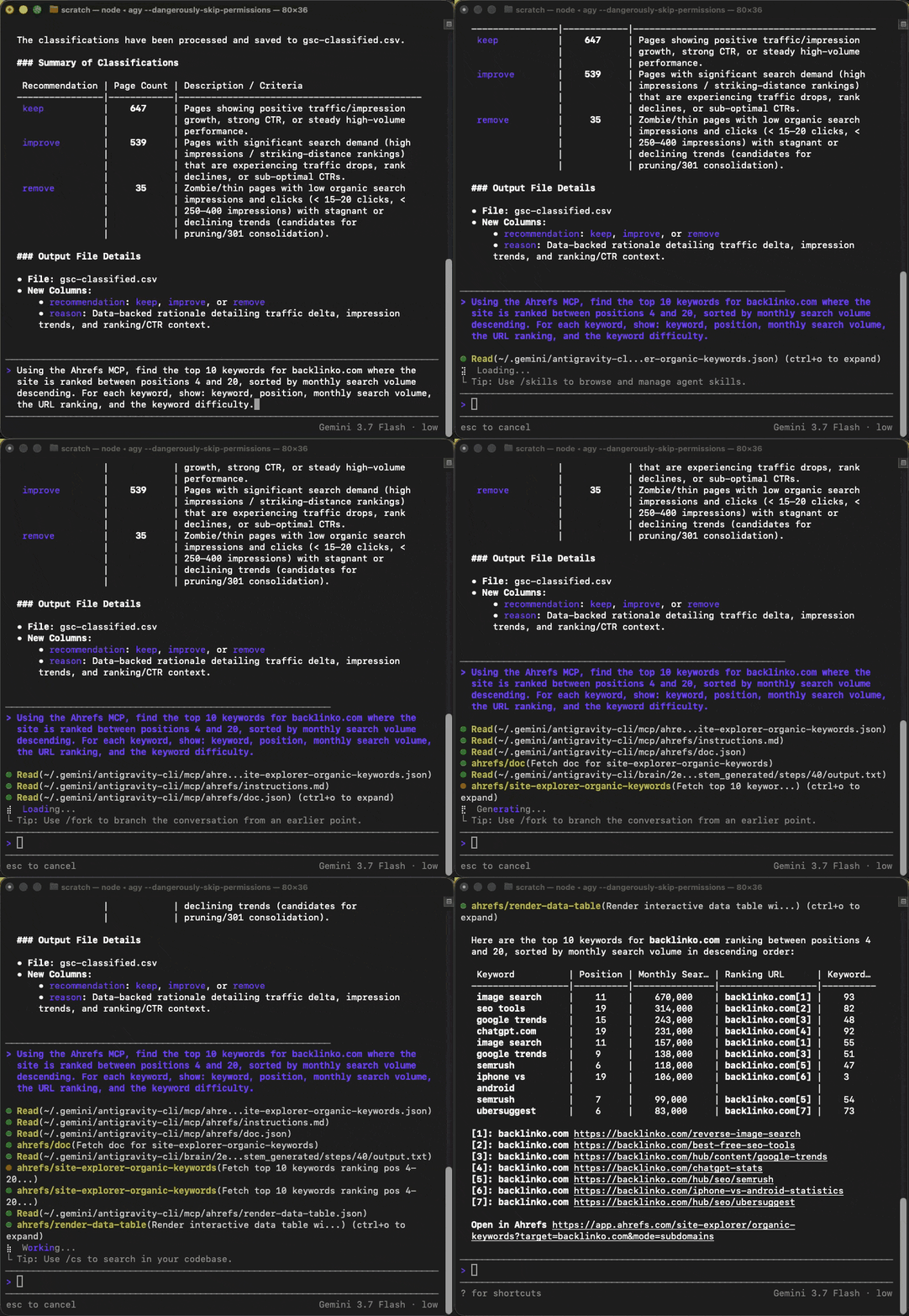
Plain English query for stuck-position keywords on backlinko.com, table results live, no export
The rest of this stage is setup for each of those servers. Skip to whichever you use.
Setting up the Ahrefs MCP
Ahrefs uses API key authentication, so you need to generate a key and wire it in yourself.
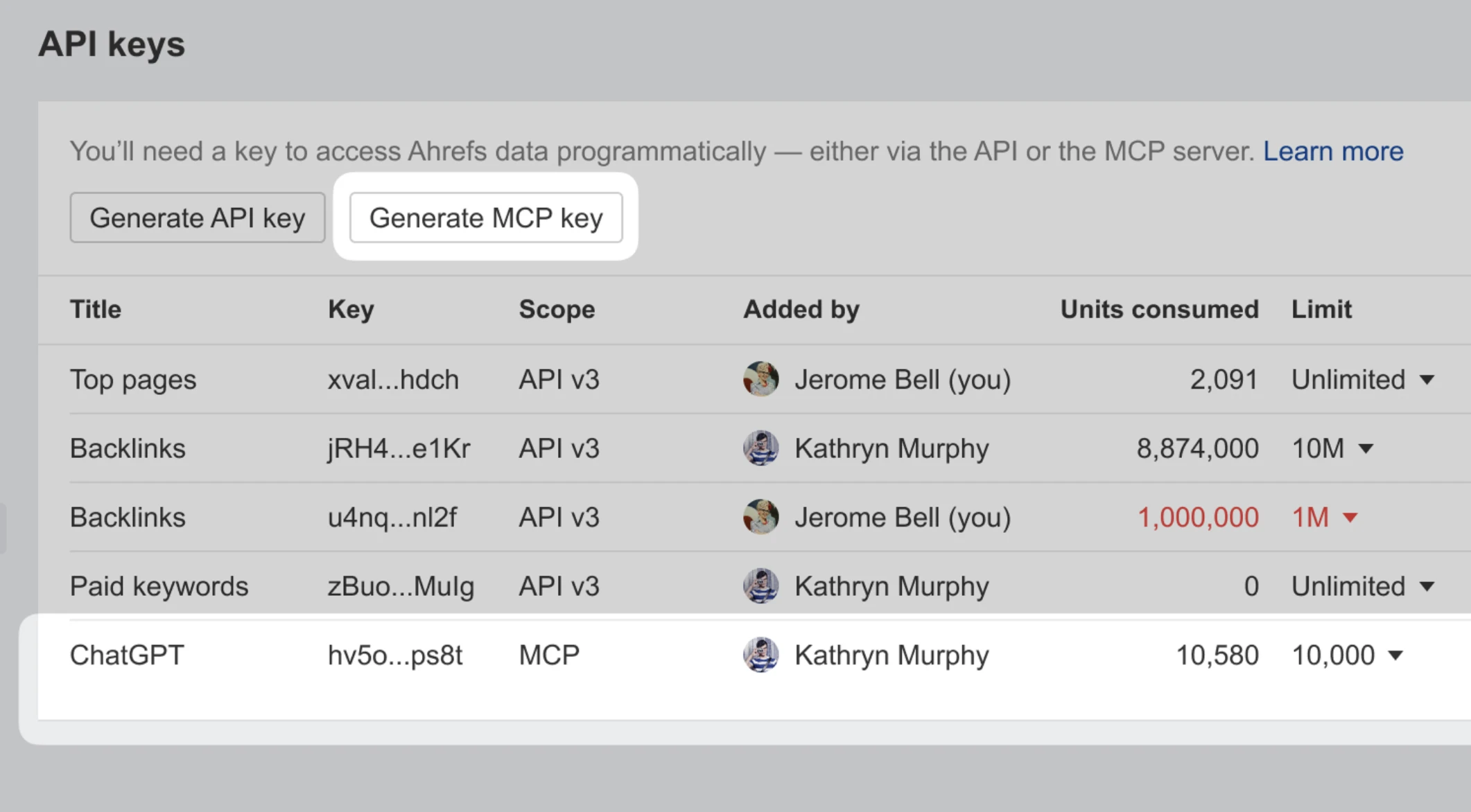
To get your key: log into Ahrefs → Account → API keys → Generate MCP key.
It has to be the MCP key, not an API key. They’re separate buttons and separate scopes, so an existing API v3 key won’t authenticate.
Open ~/.gemini/config/mcp_config.json and add the key as an Authorization header:
{
  "mcpServers": {
    "ahrefs": {
      "serverUrl": "https://api.ahrefs.com/mcp/mcp",
      "headers": {
        "Authorization": "Bearer YOUR_AHREFS_API_KEY"
      }
    }
  }
}
Replace YOUR_AHREFS_API_KEY with the key you just generated. Save the file and restart your session. It’ll pick up the auth on next launch.
If you’re porting this from Gemini CLI, the only edits are httpUrl becoming serverUrl and dropping the "type": "http" line. The header block is unchanged.
Setting up the Semrush MCP
If you’re a Semrush user instead of (or as well as) Ahrefs, the setup is identical bar the URL and the auth prefix:
{
  "mcpServers": {
    "semrush": {
      "serverUrl": "https://mcp.semrush.com/v1/mcp",
      "headers": {
        "Authorization": "Apikey YOUR_SEMRUSH_API_KEY"
      }
    }
  }
}
Note the Apikey prefix: Ahrefs uses Bearer, Semrush uses Apikey. Otherwise, the shape is the same.
The Semrush MCP exposes the Trends API, the SEO API, and the read-only Project API methods.
Heads up: requests consume API units, so the same “wrap it in a skill” advice applies here, too.
Setting up the GSC MCP
The community GSC server from AminForou is the one worth using. It queries the Search Console API directly: performance data, URL inspection, sitemaps, all of it.
The recommended install is via uvx: no cloning, no virtual environments, no Python setup.
First, you’ll need credentials from Google Cloud Console:
- Go to console.cloud.google.com and create (or pick) a project
- Enable the Search Console API
- Go to Credentials → Create Credentials → OAuth client ID → Desktop app → download the JSON and save it somewhere permanent (e.g.
~/Documents/client_secrets.json)
If you don’t have uv installed:
curl -LsSf https://astral.sh/uv/install.sh | sh
source $HOME/.local/bin/env
Then add it to ~/.gemini/config/mcp_config.json:
{
  "mcpServers": {
    "gsc": {
      "command": "/Users/yourname/.local/bin/uvx",
      "args": ["mcp-search-console"],
      "env": {
        "GSC_OAUTH_CLIENT_SECRETS_FILE": "/full/path/to/client_secrets.json"
      }
    }
  }
}
Replace /Users/yourname with your actual home directory (echo $HOME will tell you). Use the full path, not ~/, as it won’t expand it. First run opens a browser for the OAuth flow; after that it’s silent.
Setting up the Google Analytics MCP
The official Google Analytics MCP server uses application default credentials, the same auth method as gcloud. The MCP needs the analytics read-only scope, so even if you’ve run gcloud auth application-default login before, you’ll likely need to re-run it with the right scopes:
gcloud auth application-default login \
  --scopes https://www.googleapis.com/auth/analytics.readonly,https://www.googleapis.com/auth/cloud-platform
You’ll also need to enable the Google Analytics Admin API and Google Analytics Data API in your Google Cloud project.
The MCP runs via pipx, so make sure that’s installed (brew install pipx).
Add it to ~/.gemini/config/mcp_config.json:
{
  "mcpServers": {
    "google-analytics": {
      "command": "pipx",
      "args": ["run", "analytics-mcp"],
      "env": {
        "GOOGLE_APPLICATION_CREDENTIALS": "/Users/yourname/.config/gcloud/application_default_credentials.json",
        "GOOGLE_CLOUD_PROJECT": "your-gcp-project-id"
      }
    }
  }
}
One thing that trips people up: GOOGLE_CLOUD_PROJECT is your Google Cloud project ID, not your GA4 property ID. They’re different things. Your GA property ID belongs in AGENTS.md as context so the agent knows which property to default to, not in the MCP config.
The server key (google-analytics above) is just a label, and it’s the name you’ll use when you reference the server in a prompt or a skill. Don’t confuse it with analytics-mcp in the args, which is the pipx package and has to stay as it is.
Setting up the DataForSEO MCP
DataForSEO covers keyword data, SERP results, competitor pages, and backlinks. It’s what I use for the enrichment step in the content audit skill below: pulling search volume and difficulty for stuck pages, and fetching top competitor URLs for keyword gap analysis.
The MCP server runs via npx, so there’s nothing to install separately. Add it to ~/.gemini/config/mcp_config.json:
{
  "mcpServers": {
    "dataforseo": {
      "command": "npx",
      "args": ["-y", "dataforseo-mcp-server@2"],
      "env": {
        "DATAFORSEO_USERNAME": "[email protected]",
        "DATAFORSEO_PASSWORD": "your_api_password",
        "DATAFORSEO_SIMPLE_FILTER": "true"
      }
    }
  }
}
Getting the credentials is the fiddly part. In API access, under API credentials, hit Send by email. DataForSEO emails you the password, and underneath it the same thing Base64-encoded as login:password. Use the Base64 string as your DATAFORSEO_PASSWORD.
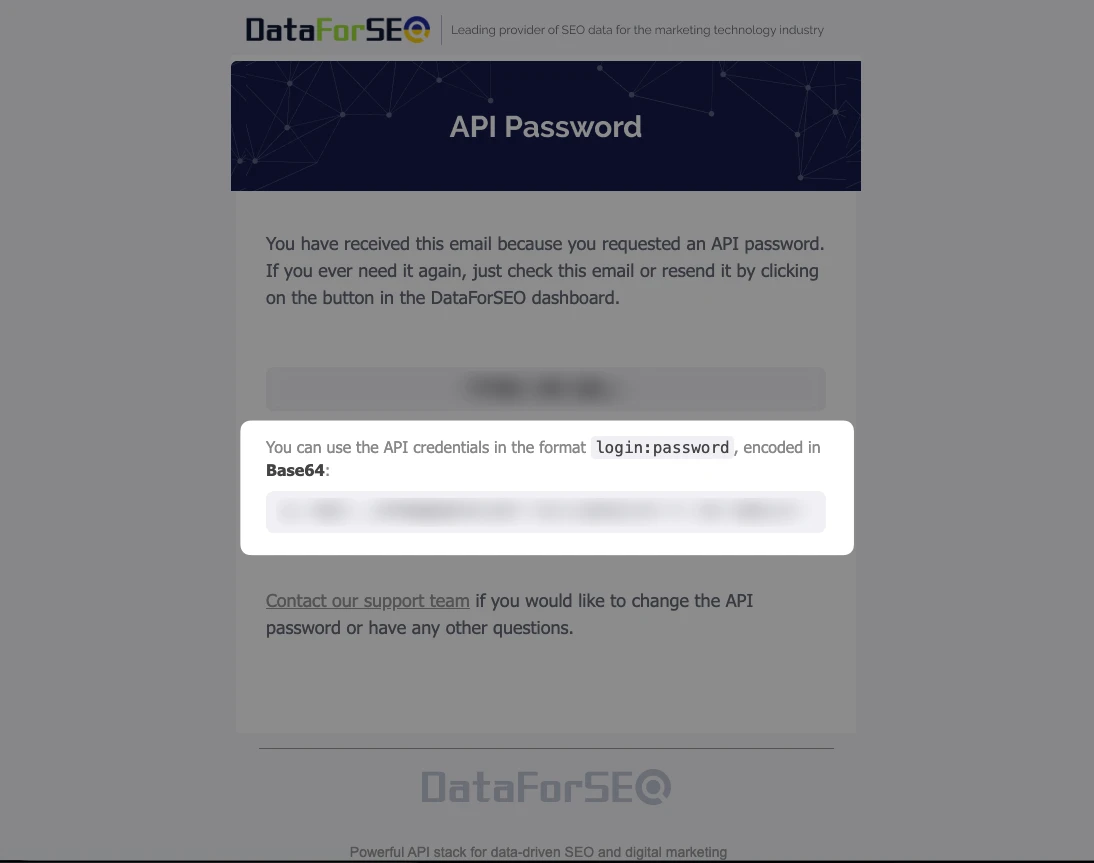
DataForSEO emails the password and its Base64 form. The Base64 one is what goes in the config
Note the @2 pin. Version 3 shipped in August 2026 and moved to an HTTP and OAuth flow, so the stdio config above hangs on @latest instead of erroring, which is a horrible thing to debug. Pin it until you’ve read their migration notes.
The DATAFORSEO_SIMPLE_FILTER flag switches to a simpler filter syntax that LLMs construct correctly more often.
Worth noting: DataForSEO charges per API call. The MCP exposes a lot of endpoints, and a verbose agent can rack up calls quickly in a long session. The same advice applies here as for any MCP: wrap workflows in skills with explicit steps so the agent isn’t making speculative calls trying to figure out what you want.
The thing nobody tells you about MCPs
Every call to an MCP uses tokens. Every back-and-forth exchange adds to your context window. In a long session with multiple MCP queries, this adds up fast.
Where CLI tools are available as an alternative, they’re worth using; they tend to be more efficient and don’t incur the same context cost. The Google Workspace CLI, for example, is worth looking at instead of the individual Google MCPs.
This is where the enabledTools and disabledTools options earn their keep. Some MCP servers expose a hundred-odd tools, and every one of them takes up room in the system prompt whether you use it or not. If you only ever call three endpoints on a server, say so:
{
  "mcpServers": {
    "dataforseo": {
      "command": "npx",
      "args": ["-y", "dataforseo-mcp-server@2"],
      "enabledTools": ["serp_organic_live_advanced", "keywords_data_google_ads_search_volume"]
    }
  }
}
On a pay-per-call server like DataForSEO this does double duty: less context burned, and fewer chances for the agent to go exploring endpoints you didn’t want billed.
More importantly: MCPs work much better when you wrap them in skills. A bare MCP call is fine for one-off queries, but the agent doesn’t inherently know which database, which property, or which filter makes sense for your workflow. That’s where a lot of “the MCP isn’t working properly” frustration comes from; the agent is doing too much guessing.
When you define a skill that uses an MCP (more on skills below) and pre-load the relevant IDs in AGENTS.md, the agent stops guessing and starts just doing the right thing. Plugins solve the same problem from the other end, since a good one ships the skills that tell the agent how to drive its own tools. That’s the next stage.
I’m planning a separate post with a full breakdown of MCPs for SEO: which ones are worth adding, how to configure them, and the ones I use regularly. Will link it here when it’s live.
Stage 4: Plugins
Stop the copy and paste.
Plugins go further than MCPs. They bundle prompts, commands, MCPs, hooks, and pre-built skills into a single installable package. You’re not just getting a tool; you’re getting the instructions on how to use it.
The flagship one for SEO work is the Google Workspace tooling, which gives you direct access to Sheets, Docs, and Slides plus a large set of pre-built skills. Install it straight from the repo:
agy plugin install https://github.com/googleworkspace/cliThat pulls in 95 skills in one go. To see what you’ve got, and to turn things on and off without uninstalling:
agy plugin list
agy plugin disable <name>
agy plugin enable <name>
Worth knowing: this isn’t a Google-only format. The skills inside a plugin are the same SKILL.md files Claude Code uses, so a Claude plugin’s skills run here too:
agy plugin import claudeWhich means anything you’ve already written for Claude Code carries over, and vice versa. There’s no official marketplace yet, but GravityHub is a decent community directory.
I don’t use all of them, but the ones I use regularly are the ones that close the loop between analysis and output. Clustering keyword data by topic and pushing it directly to a Sheet, for example. Or pulling a content brief into a Doc without manually copying anything.
The same AGENTS.md shortcut principle applies here. I have an entry that says something like: “When I mention ‘the attached Sheet’ or ‘the Doc’, use Google Workspace tools.” The agent then knows what to reach for without me having to specify the tool every time.
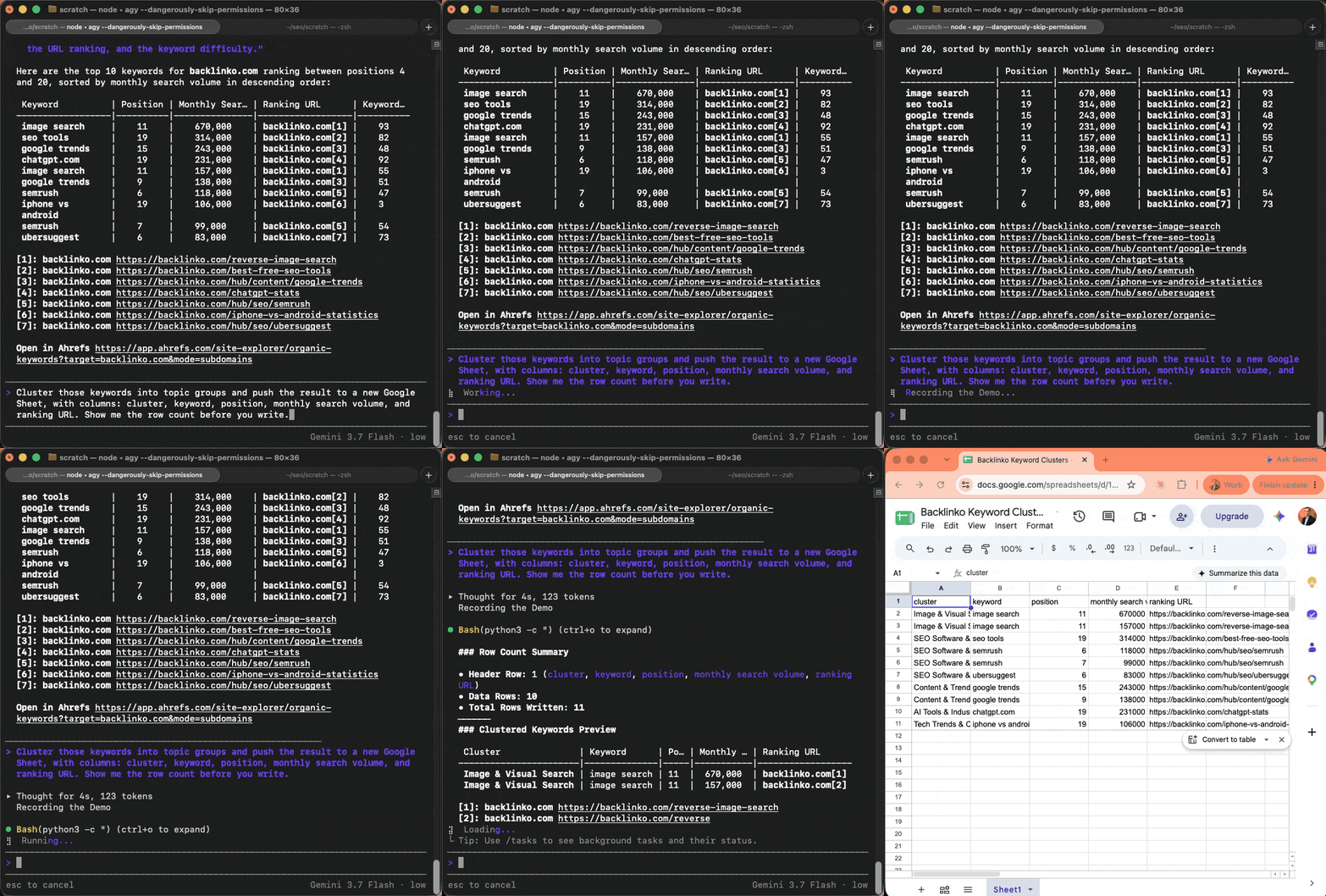
Workspace plugin clustering keywords and pushing them to a Google Sheet
Stage 5: Plan Mode
Do tasks in the background.
Plan Mode is where it all comes together. You describe what you want (the goal, the tools to use, what the output should look like), and the agent drafts a step-by-step plan. You review it, adjust it, approve it, and it executes autonomously. It’s also the most underused feature in the CLI.
To start a session in it:
agy --mode planOr from inside a session:
/planShift+Tab cycles the modes too. You’ll know it’s on when the prompt line reads plan mode: research & plan only, which is the useful bit: it won’t touch anything until you say so.
The other mode worth knowing is accept-edits, which auto-approves file writes. Useful once you trust a workflow, dangerous before then.
Most people skip Plan Mode for anything that feels small. That’s a huge mistake.
Here’s what happens when you skip it: the agent works on assumptions. It half-infers what you mean from the session context, fills in the gaps with guesses, and starts executing. When something goes wrong, and it will, you’re already three steps into a workflow built on a shaky foundation.
Plan Mode forces the agent to gather context before committing to anything. For SEO tasks that touch multiple data sources, that upfront context gathering is the difference between a clean run and having to start over.
How to write a good plan prompt
A few things that consistently produce better plans:
- Give it links to specific files and websites to use: “Use the file at
./gsc-export.csvand the Ahrefs MCP for keyword data.” The more specific you are about inputs, the less it invents. - Tell it explicitly not to invent anything: “If you’re unsure about a value, come back and ask rather than assuming.”
- Tell it what to clarify before acting: “Before you start, confirm the output format with me.”
- Tell it what not to do: “Don’t write to any file without showing me the output first.”
When the plan starts going in the wrong direction, correct it immediately. If you let the agent continue down a false assumption, the plan compounds the error; every subsequent step builds on something that’s wrong.
Iterate on the plan until you’re genuinely happy with it. Yes, this takes longer upfront. That’s the point. The time you spend getting the plan right is time you don’t spend cleaning up a bad execution.
You can also dial how hard it thinks about the plan:
agy --mode plan --effort highFor a multi-source audit, high is worth it. For something small, leave it alone.
One more thing: if you find yourself running the same plan repeatedly, that’s your signal. That plan should become a skill.
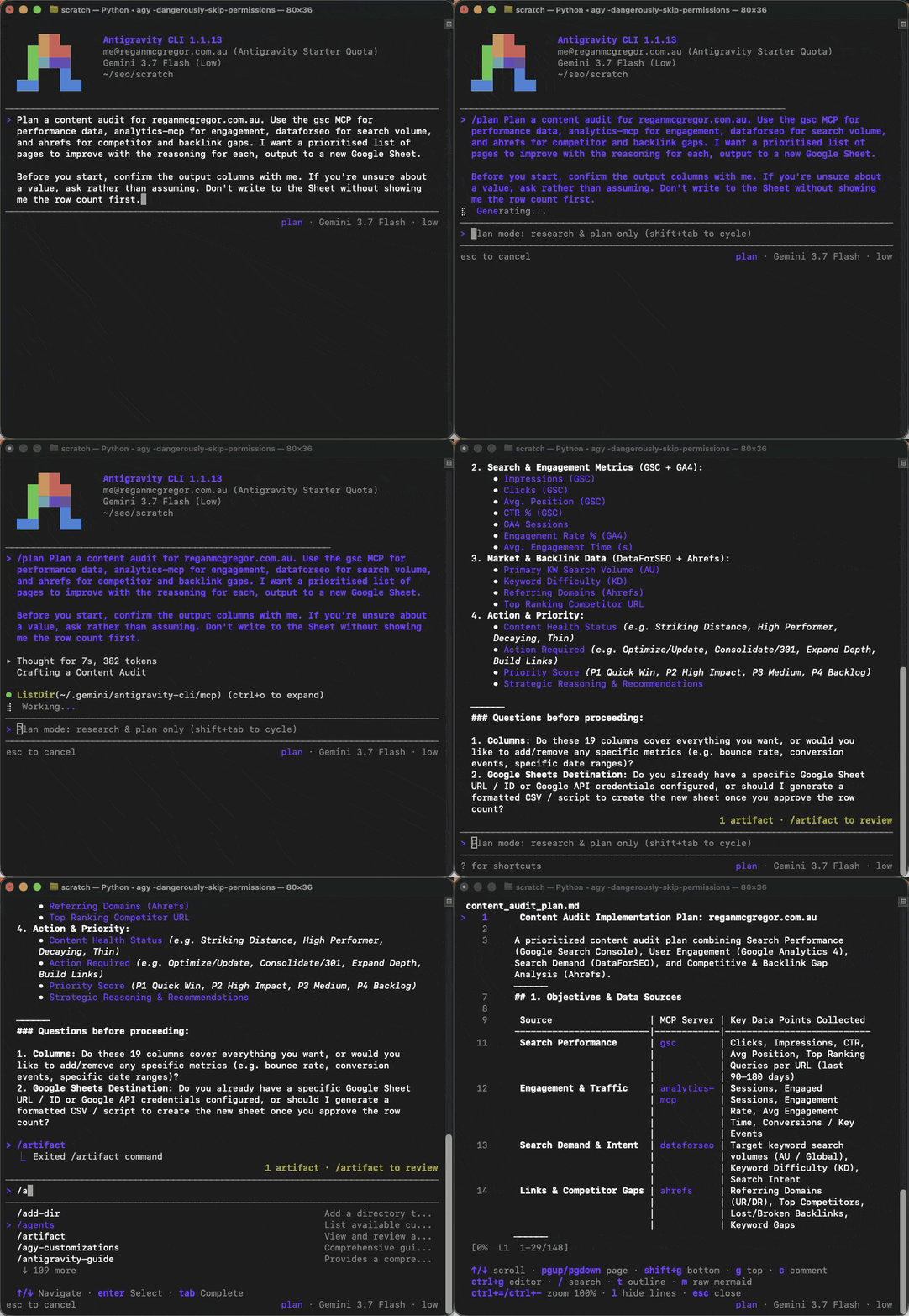
Plan Mode drafting a four-MCP content audit plan
Stage 6: Agent Skills
Do it whenever you like.
Skills are reusable, self-contained packages of instructions. The practical workflow: you spend time in Plan Mode getting something right (a content audit, a keyword gap analysis, a technical crawl summary). Once you’ve done it properly a couple of times, save it as a skill.
Next month, you have two ways to fire it. You can call it explicitly with a slash command:
/content-audit let's run a content audit on the AU marketOr you can just describe what you want. The agent reads the description on every saved skill and activates the matching one automatically. So “let’s audit the AU market for stuck pages” works too, even without the slash.
Either way, same structure, same thresholds, same output format, no re-explaining.
What makes a skill worth creating:
- Anything you’ve run more than twice
- Anything that requires specific context (property IDs, site structure, output format preferences)
- Any multi-step workflow that took real effort to get right in Plan Mode
Skills are how you compound the time you’ve already invested. Each one you save is a plan you never have to write again.
What a skill actually looks like
A skill is a directory, not a single file. The minimum is one SKILL.md inside a folder named after the skill. You can also bundle scripts, references, or assets alongside it. They’re all available to the agent when the skill activates.
For a project, they live under .agents/skills/ in the working folder:
.agents/skills/content-audit/
├── SKILL.md       (required)
├── scripts/       (optional) executable scripts
├── references/    (optional) static documentation
└── resources/     (optional) templates and other assets
The SKILL.md itself uses YAML frontmatter with two fields. The name matches the directory name. The description is doing real work: the agent reads it to decide whether to activate the skill from natural language. Be specific about the trigger phrases.
Here’s the example content-audit skill I used in the slides:
---
name: content-audit
description: Run a full SEO content audit focused on quick wins. Identify "striking distance" pages (positions 4–20) with high impressions but low clicks, enrich with engagement signals, search volume, and competitor data, then output a prioritised content plan to a Google Sheet. Use when the user asks for a "content audit", "content plan", "striking distance" pages, "quick wins", "what should we update", or wants to "find stuck pages".
---

# Content Audit, Quick Wins

## Objective
Identify striking-distance pages, high impressions but stuck in positions 4–20, and recommend specific actions to capture quick SEO wins.

## Inputs
- Market: default to the GSC site / GA4 property in AGENTS.md unless the user names another.
- Time window: default last 90 days.
- Output Sheet: create a new Google Sheet unless the user names an existing one.

## Target filters & thresholds
- Position range: 4.0–20.0
- Impressions: greater than 1,000 over the time window
- Sort by highest impressions descending

## Steps

### 1. Identify target URLs, gsc MCP
Pull query + page performance from GSC. Filters: country code, time window. Apply the position + impression thresholds above.

### 2. Engagement signals, google-analytics MCP
For each target URL, retrieve organic engagement metrics. Flag URLs with bounce rate > 70% or engagement time < 30s as likely UX/relevance issues.

### 3. Search potential & SERP context, dataforseo MCP
Evaluate the primary keywords driving impressions. Prioritise pages with SV > 500 and manageable KD. Note SERP-feature changes that suggest a different content format.

### 4. Competitor & backlink gap, ahrefs MCP
For each target URL, compare against the top 3 ranking competitors. Identify content gaps: angles, semantic topics, or formats competitors cover that we miss.

### 5. Cluster & classify
Group URLs by semantic topic cluster. Classify each as one of:
- Improve (content refresh): high SV, good UR, poor engagement or outdated vs competitors
- Improve (technical/UX): good content + SERP alignment, but high bounce rate
- Create (new angle): competitors winning with a different intent or format

### 6. Output to Sheets, Google Workspace plugin
Show me the row count and the top 5 priorities. Wait for confirmation, then write to a new Google Sheet with columns: Topic Cluster, URL, Target Keyword, Current Position, Impressions, Search Volume, KD, Bounce Rate, Competitor Gap (Yes/No), Recommended Action.

## Don'ts
- Don't invent volumes, difficulty scores, or competitor metrics. Mark missing fields n/a.
- Don't write to the Sheet without confirming the row count first.
- Don't fall back to web search when an MCP query fails, surface the error and stop.
- Don't include URLs outside the position 4–20 range or under the impression threshold.
A few things to notice. The skill names the four MCPs by handle (gsc, google-analytics, dataforseo, ahrefs) so the agent knows exactly which server to call at each step. The Don'ts section guards against the obvious failure modes: anything that writes data, guesses values, or silently broadens the criteria. And the description is loaded with trigger phrases (“content audit”, “striking distance”, “quick wins”, “find stuck pages”) so the skill activates from a natural request, not a special command.
This skill came directly out of Plan Mode. I drafted the plan, iterated until the thresholds felt right for the data I was working with, and saved the result. That’s the workflow: Plan Mode is the design surface, the skill is the saved version of a plan that worked.
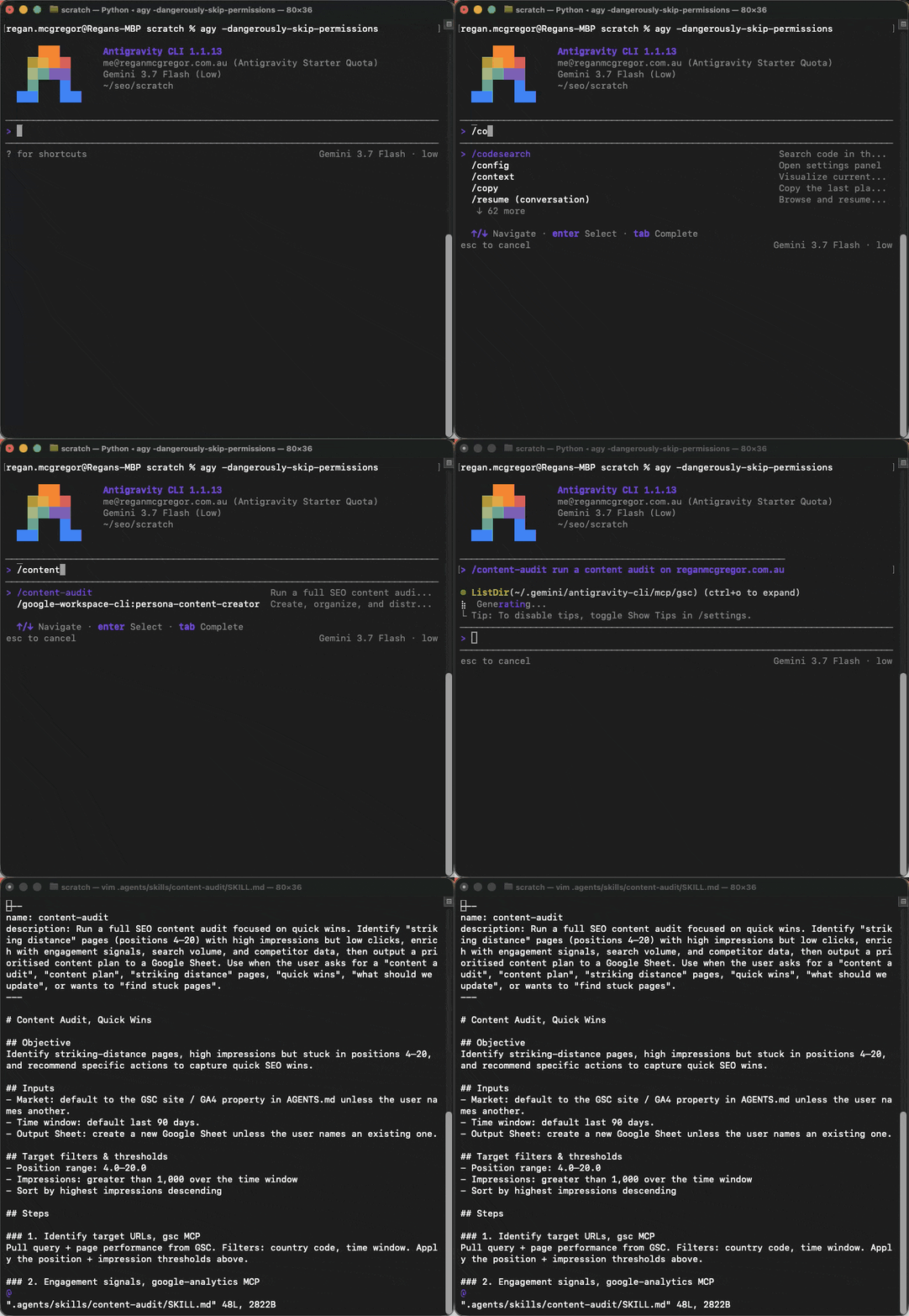
Firing the saved skill with /content-audit, and the SKILL.md behind it
How my workflow has actually changed
I’ve been using coding agents (Antigravity, Claude Code, Codex) as a core part of how I work for a while now. Here’s what’s actually different.
The biggest shift is delegation. I’m continuously sending agents off to research, investigate, and analyse in the background while I focus on other things. A keyword gap analysis, a crawl summary, a competitor content audit: these used to require me to sit in front of a spreadsheet for an hour. Now I launch the workflow and come back to the results.
The other shift is moving from reactive to proactive. I used to investigate when something looked wrong. Now I’ve set up regular hygiene workflows that surface insights on a schedule. The insights come to me. I’m not chasing problems; I’m getting a consistent read on what’s happening and deciding what warrants attention.
The schedule tool from Stage 2 is what makes it work: pair it with a skill and a weekly cadence, and your Monday-morning audit runs without you.
What it replaced: a lot of copy-paste hacks, custom scripts, and automation tools I’d built over the years that did specific things in a janky way. The kinds of things that worked until they didn’t, that required maintenance, and that were always slightly brittle. Most of that is just gone now. Running things as a terminal workflow is more reliable and easier to iterate on.
There’s still a learning curve. Plan Mode takes practice, AGENTS.md files take iteration, and the first few times you use an MCP it won’t do quite what you want. But it compounds: the more you build, the faster it gets.
Just give it to the agent
Next time you’re trawling through thousands of rows in a spreadsheet, just give it to the agent.
That’s it. The rest is just learning the surface area.
Appendix: coming from Gemini CLI
Skip this if you’re starting fresh. It’s here for anyone whose gemini command stopped working.
On 18 June 2026, Gemini CLI stopped serving free, Google AI Pro and Ultra users, with no grace period. Anything calling gemini on a schedule broke that morning. Gemini Code Assist Standard and Enterprise licences are the exception and still work. Google’s announcement has the detail.
The concepts all survived. The names and paths moved.
| Gemini CLI | Antigravity CLI |
|---|---|
brew install gemini-cli | the install script |
gemini | agy |
GEMINI.md | AGENTS.md, and GEMINI.md still works |
| Extensions | Plugins |
~/.gemini/settings.json | ~/.gemini/config/mcp_config.json |
httpUrl + "type": "http" | serverUrl |
~/.gemini/skills/<name>/ | .agents/skills/<name>/ |
/plan | /plan, still. Or agy --mode plan to start a session in it |
Two things are worth knowing.
Your existing setup mostly comes across. Antigravity kept the ~/.gemini/ directory rather than inventing a new one, which is why the config paths in this guide still say .gemini. There’s a migration command that pulls your old extensions over as plugins:
agy plugin import geminiIt also imports from Claude Code, if that’s where your setup lives:
agy plugin import claudeYour context files don’t need renaming. AGENTS.md is the new convention, but Antigravity still reads GEMINI.md. If you spent time on one, it keeps working. Rename it when you feel like it, not because you have to.
Skills are nearly as easy. The format didn’t change at all, so copy the folders from ~/.gemini/skills/<name>/ across as they are. The SKILL.md contents don’t need touching.
The one bit that needs real hands-on work is your MCP config. It moved file, and remote servers renamed httpUrl to serverUrl and dropped the "type": "http" line. Your headers block carries across untouched, so it’s a two-line edit per server rather than a rewrite. Full setup for each of the SEO servers is in Stage 3.
And yes, having the tool renamed out from under you eight weeks after you learned it is annoying. The thing worth internalising is that the six stages didn’t change at all. Context, tools, MCP, plugins, planning, skills. That’s the durable part. The command name is not.
None of it should have surprised me. Google’s product graveyard is so well populated it has its own website, and anyone who ever loved Reader, Inbox or Domains has been here before. Still stung a bit to find out at Search Central Live itself, about seven minutes after finishing a talk on Gemini CLI 😂
Resources
Everything referenced in this post: