Build Human-in-the-Loop Slack Approvals With n8n and Block Kit: Approve, Edit and Reject Without Leaving Slack (+ Free Template)

Last tested on n8n 2.46, November 2026.
Anyone who has built AI automations in n8n knows the output is never right 100% of the time. AI is probabilistic, so it will miss the mark every now and then, which is why human-in-the-loop review matters. You get the confidence and control of checking the work before it goes live, and you still save hours compared to doing the job by hand.
Approving your own workflows in Telegram or WhatsApp is fine when you’re the only reviewer, but getting a team to use AI is a different story. Not everyone is going to pick up a new tool, and building a custom review app just gives people one more place they have to remember to go. The easiest way to get your team involved is to meet them in Slack where they already work.
The catch is that n8n’s built-in Send and Wait node for Slack only covers the basics like a yes or no button, a free-text reply, or a link out to a form. For real reviews, your team needs to be able to fix the bit that’s wrong right there in Slack without opening another tool, and you need a queue that can hold hundreds of items without leaving hundreds of n8n executions running in the background.
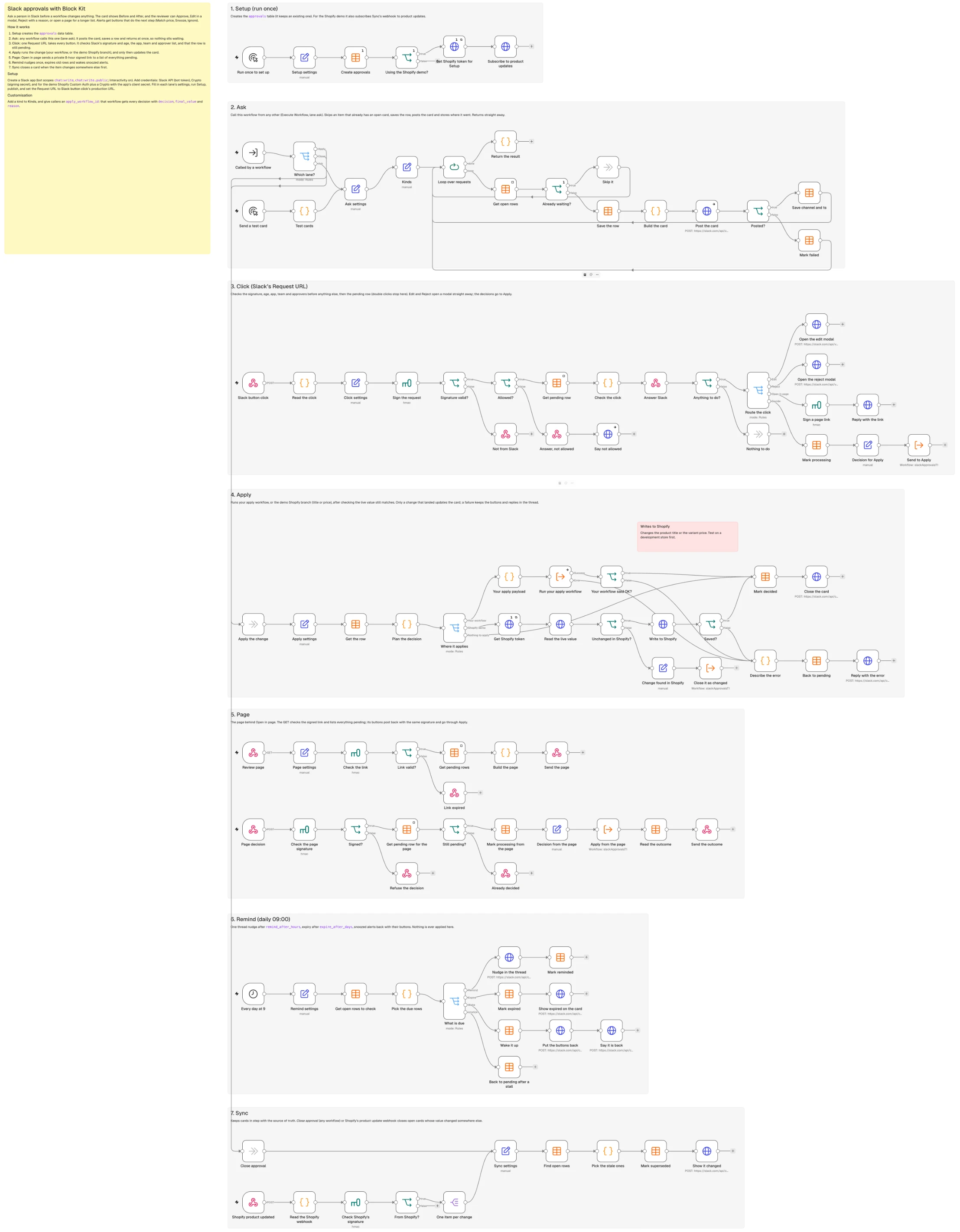
By the end of this guide, you’ll have a seven-lane n8n workflow and a Block Kit Slack app for proper team reviews. Reviewers can approve items, edit them in a modal, reject them with a reason, snooze alerts, or work through a batch on a web page generated on the fly, using cards that stay open until the change actually lands and update themselves if someone edits the item at the source first.
What you’ll build
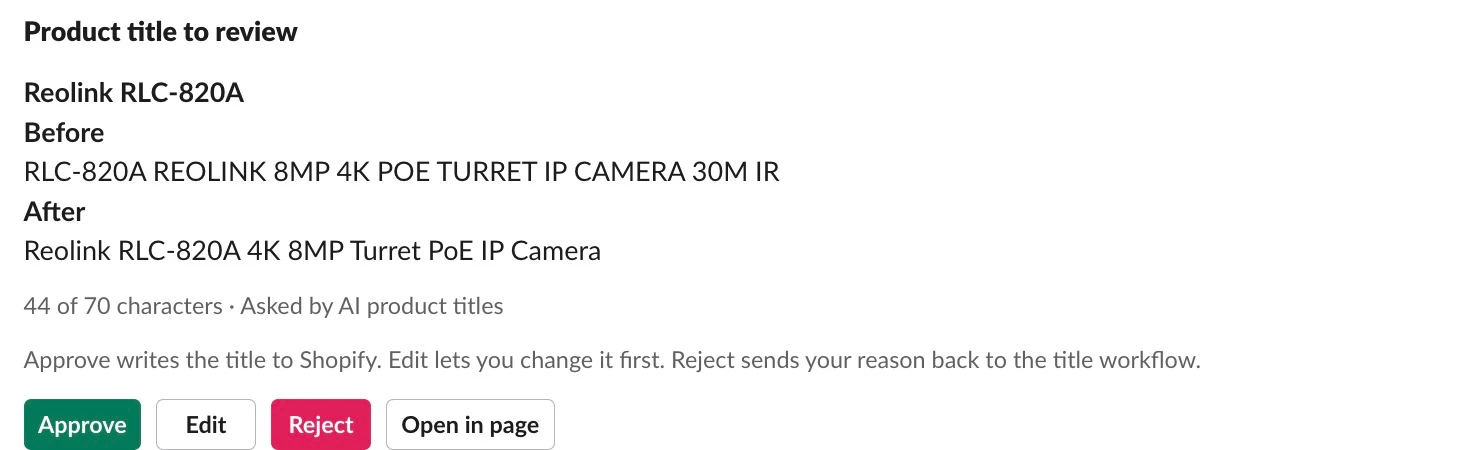
We’ll follow an AI rewrite of a Shopify product title from start to finish, alongside a competitor price alert for the same product. The card arrives in #approvals for the Reolink RLC-820A, showing the supplier’s raw title (RLC-820A REOLINK 8MP 4K POE TURRET IP CAMERA 30M IR) under Before, the proposed rewrite (Reolink RLC-820A 4K 8MP Turret PoE IP Camera) under After, and a context line reading 44 of 70 characters · Asked by AI product titles. A grey line above the buttons says what each one does: Approve writes the title to Shopify, Edit lets you change it first, and Reject sends your reason back to the title workflow.
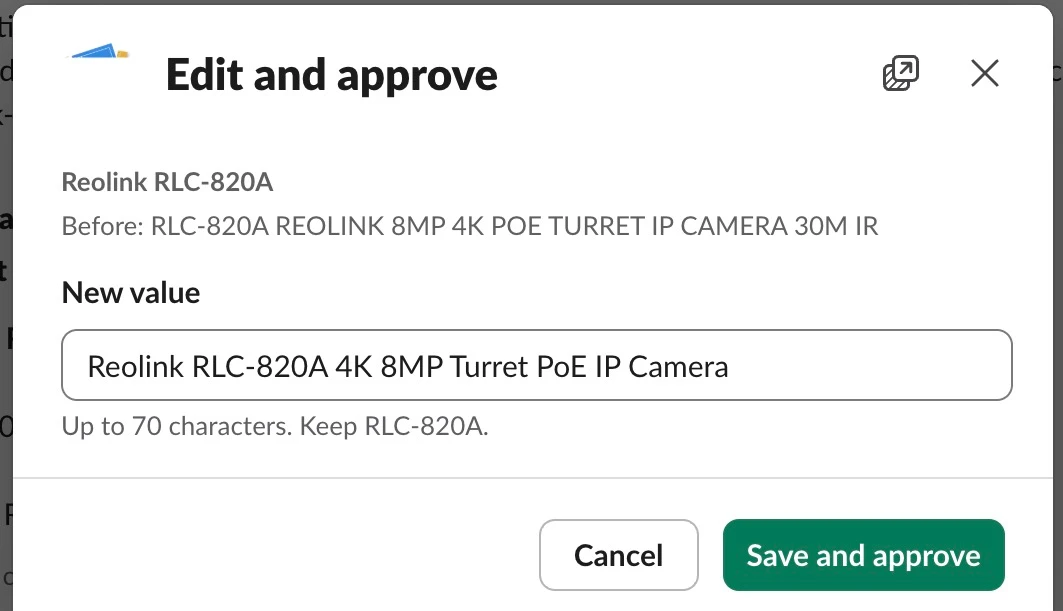
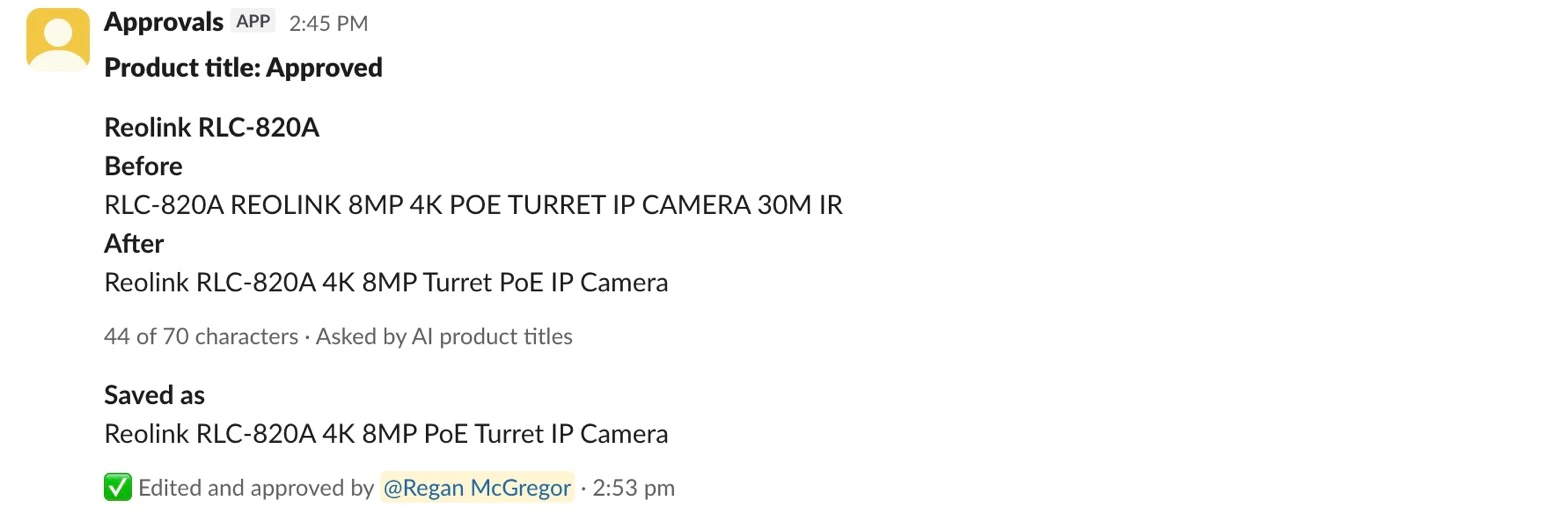
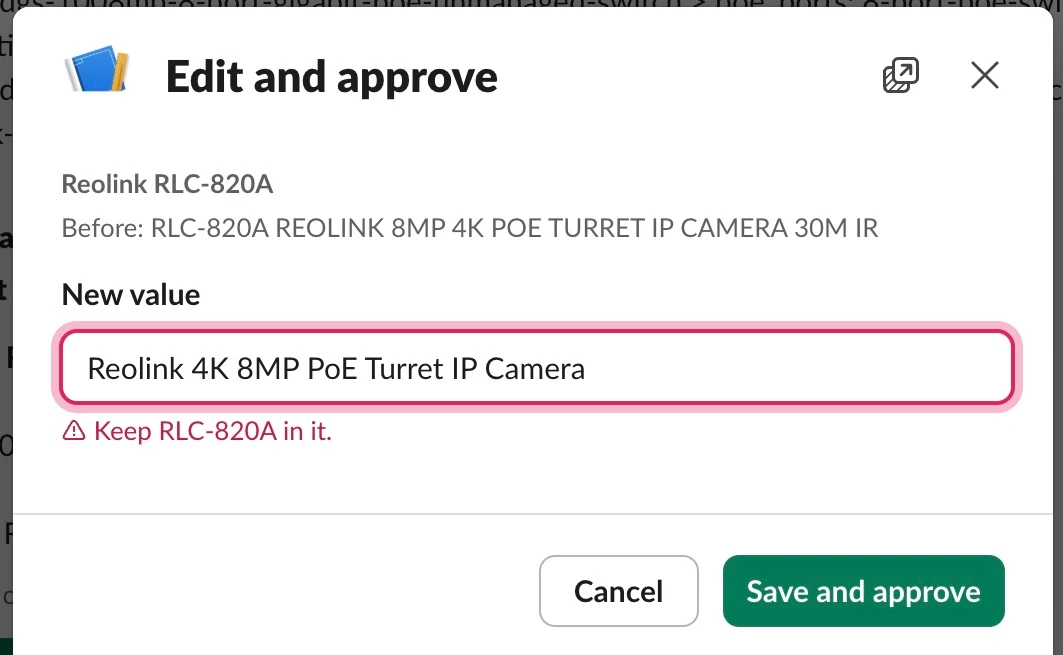
Clicking Edit opens a Slack modal pre-filled with the proposed title and a hint (Up to 70 characters. Keep RLC-820A.) so the reviewer can swap the word order to Reolink RLC-820A 4K 8MP PoE Turret IP Camera and save. Once the new title lands in Shopify, the workflow replaces the card’s buttons with the outcome (Product title: Approved), displays the edited title under Saved as, and stamps Edited and approved by @Regan McGregor · 2:53 pm at the bottom.
Why Slack for human-in-the-loop review
Human-in-the-loop (HITL) automation pauses at a decision gate: the automation drafts a change, a person approves, edits or rejects it, and only then does the change take effect in a live system. It’s often confused with human-on-the-loop (HOTL), where the automation runs on its own and a person supervises, stepping in only when something looks wrong. n8n’s comparison of the two puts HITL on high-risk or irreversible changes and low-confidence output, and HOTL on high-volume, low-risk work that’s easy to undo, and notes that one workflow can use both.
This template does both. Approval cards are HITL, because nothing reaches Shopify until someone clicks Approve. Actionable alerts are HOTL, because your monitoring runs unattended and only asks for a person when something needs a decision. n8n also points out that many systems start with tight HITL controls and move toward HOTL as they prove reliable, and the approvals table gives you the record to judge that: how often each kind was approved as is, edited or rejected.
Where that reviewer already works decides whether the review actually happens, because approvals hidden inside an admin dashboard get forgotten and approval emails quickly get buried under daily traffic.
Slack is where a lot of teams already run the business, startups and tech companies most of all. Because the reviewer is already in Slack on both desktop and phone, a channel becomes a shared queue the whole team can see, a decision takes a single click, and the card itself becomes the permanent record of who decided what and when.
Building an n8n human-in-the-loop review inside Slack also means you don’t have to ship and maintain a separate web app. A custom review tool requires hosting, logins, SSO and a security review before anyone can touch it, which in a larger company can take months. A Slack app goes through one workspace approval and immediately inherits Slack’s logins, channel permissions and mobile apps, making the card your entire interface.
Just as importantly, this build stays connected to the source of truth. A card that still says “pending” hours after someone already fixed the product title directly in Shopify wastes a reviewer’s time and trains the team to ignore the channel. Our workflow closes the Slack card automatically when a change happens elsewhere first, and only marks the card decided after its own write has succeeded at the source.
There are a few places where a Slack card doesn’t fit: long documents that don’t belong in a chat message (which is what our review page lane handles), regulated sign-off that requires a formal compliance audit trail, or a team that lives in Microsoft Teams (which we cover under Make it your own).
n8n also ships two built-in options for simpler cases. The Slack node’s Send and Wait for Response operation pauses an execution for an Approval, Free Text or Custom Form response, and turning on Capture Who Responded switches to interactive buttons with a list of who can approve and the outcome shown on the message. For AI Agent workflows, n8n’s human review for AI tools lets a person approve or deny a tool call before the agent runs it, in Slack and eight other channels.
| Send and Wait (Slack node) | This build | |
|---|---|---|
| Edit the value in Slack | No (Free Text or a form page) | Yes, in a modal with checks |
| Card you design | Fixed layout | Any Block Kit card |
| What waits | One open execution per approval | A row in a table; nothing runs |
| Survives editing the workflow | Waiting executions keep the old version | Yes |
| Reminders and expiry | A wait limit, then a timeout branch | One nudge, then expiry |
| Many at once | One message each | A page listing everything pending |
| Closes when the item changes elsewhere | No | Yes |
| Setup | One node | Seven lanes and a Slack app |
If you only need a single yes or no inside one workflow, use Send and Wait. When reviewers need to edit drafts in place, queue hundreds of items without holding executions open, or keep cards synced with another system, build the table-backed workflow below.
What teams use it for
Because the template separates asking from applying, any workflow that produces a draft, a routing question or an alert can hand it to the same Slack app. The cards that get decided quickly show the thing itself (the pin, the chart, the price gap), mark which way the numbers moved, and say what each button will do.
Reviewing generative AI output
The most common human-in-the-loop AI pattern is a content approval workflow where an automation drafts copy and a person checks it before anything goes public. Roundups on human-in-the-loop automation and agent approval steps consistently land on the same rule: draft automatically, then review before anything customer-facing goes out.
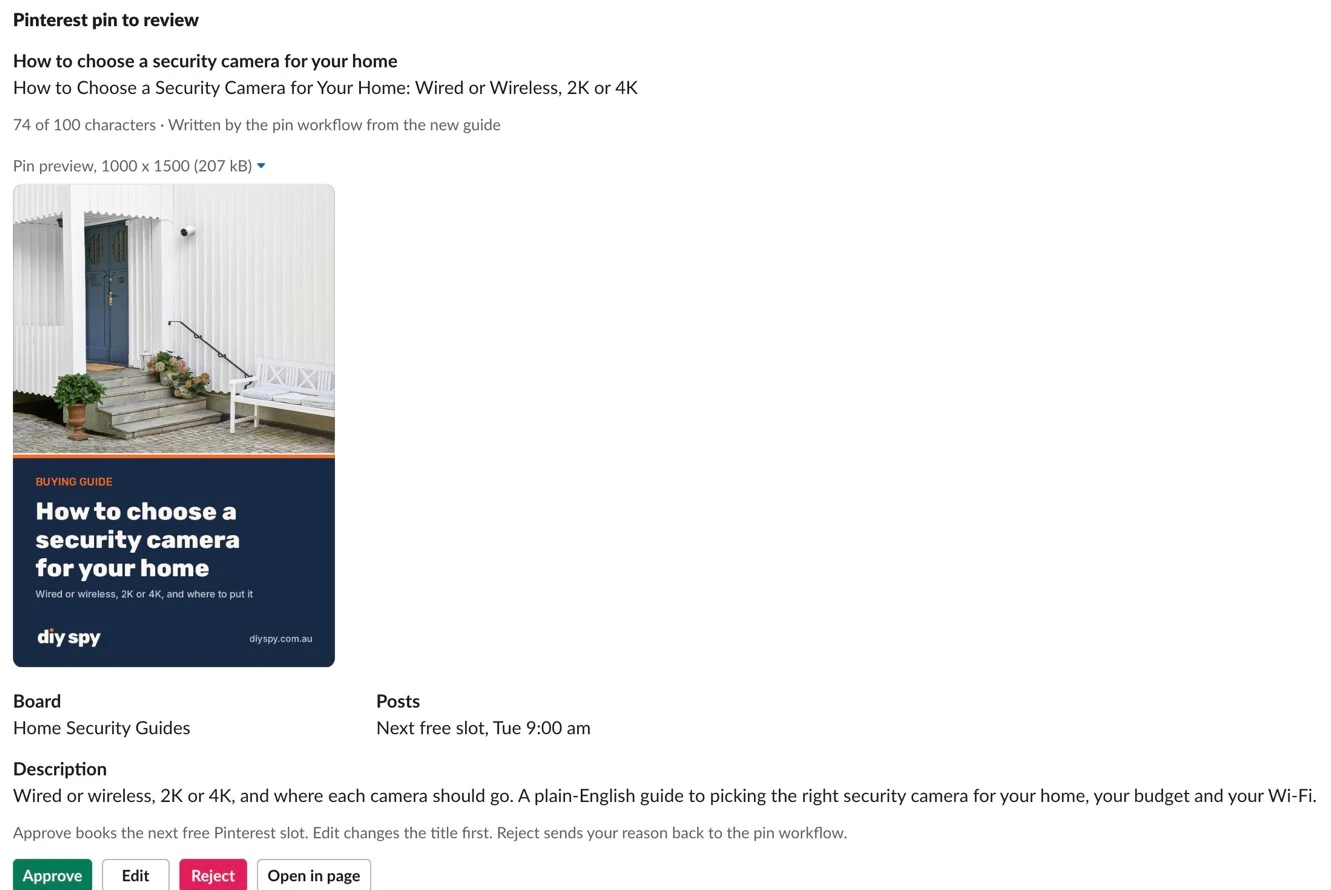
I’ve built workflows that rewrite new blog posts into social posts for Threads and X, where the social reviewer either approves the post or rejects it with feedback; when they reject it, the reject reason becomes the input to the next prompt so the workflow writes a fresh version and asks again. I’ve also built a workflow that frames a post’s main image into a Pinterest pin and shows the generated pin right on the Slack card for an Approve or Reject click, alongside another that turns trends in customer data into press release drafts for PR to review. Beyond those, the same approval card fits brand and creative reviews, legal and compliance sign-off (where the table stores who approved what), SEO copy and customer service drafts.
| Team | What lands in Slack | The buttons | What a click does |
|---|---|---|---|
| Social media | A blog post rewritten for Threads or X, with character count | Approve, Edit, Reject | Schedules the post, saves the edited copy, or feeds the reject reason back into a new draft |
| Social / creative | A Pinterest pin framed from the article’s main image, shown on the card | Approve, Reject | Publishes the pin to the board, or discards it |
| PR | A draft press release generated from customer data trends | Approve, Edit, Reject, Open in page | Sends the approved or edited draft to the PR doc, or logs the rejection note |
| Brand and creative | Ad copy variants or generated product lifestyle images | Approve, Edit, Reject | Pushes approved variants to the ad account |
| Legal and compliance | Promotional terms or product claims | Approve, Edit, Reject | Records the approver and timestamp in the table and releases the copy |
| SEO | Product titles, meta descriptions or collection intros | Approve, Edit, Reject, Open in page | Writes the approved or edited text to the CMS or store |
| Customer service | A drafted reply to a complex support ticket | Approve, Edit, Reject | Sends the reply in the helpdesk, or leaves the ticket open for a human agent |
Routing work to the right team
Not every decision is a text edit. Often a scheduled workflow spots an opportunity or a problem in your data, and a person just needs to decide which kind of work it is before the click puts a task onto the right team’s board in Jira, Asana, Trello, Monday or a Slack List. That turns recurring analysis into a one-click handoff so SEO and support data can inform other teams without calling a meeting.
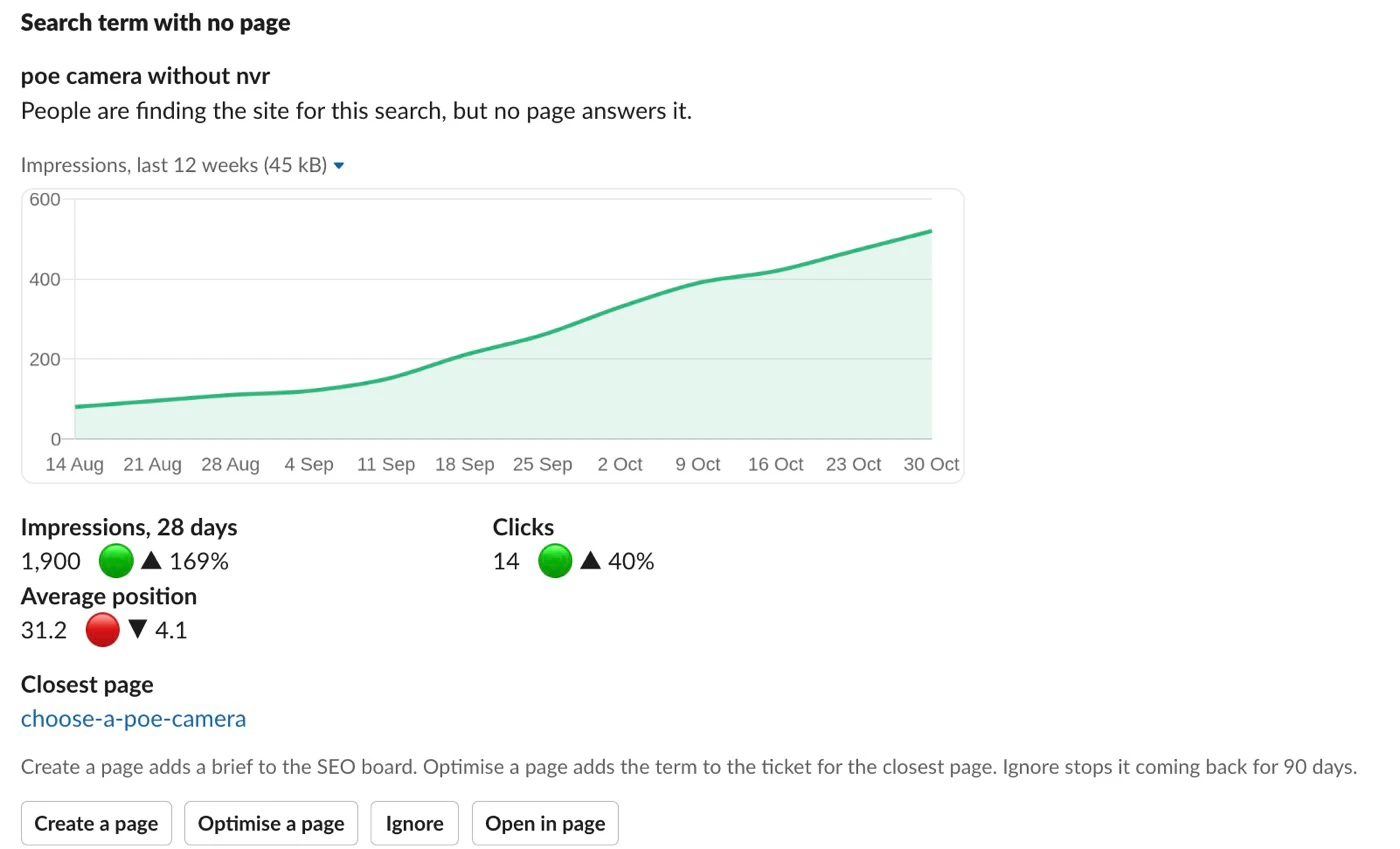
I’ve built four workflows around this pattern: a content decay check that flags pages losing organic traffic so a reviewer can send each one to the content board as Rewrite or Update (which is the template’s content_decay kind), a Search Console check for new queries getting impressions where the site has no matching page (Create a page or Optimise a page), a support ticket analyser that spots questions customer service keeps answering and routes them to the help centre team (New article or Update article), and a search trend detector that sends rising queries where organic isn’t converting yet to the paid media team for bidding.
| Team | What lands in Slack | The buttons | What a click does |
|---|---|---|---|
| Content / SEO | A page whose organic clicks dropped over 90 days (content_decay) | Rewrite, Update, Ignore | Creates a brief on the content team’s board with the traffic numbers, or marks it ignored |
| SEO | A search query with rising impressions and no dedicated landing page | Create a page, Optimise a page, Ignore | Adds a new page task or an on-page optimisation ticket to the SEO backlog |
| Help centre / support | A recurring question spotted across recent customer support tickets | New article, Update article, Ignore | Opens a documentation task with sample ticket links for the help centre team |
| Paid media | A rising or seasonal search term where organic isn’t converting yet | Send to paid, Ignore | Posts the keyword and volume data to the paid search backlog for bidding |
Actionable alerts
Standard Slack alerts that only announce something happened force someone to open another tab, log in and fix it by hand, which is why noisy alert channels quickly get muted. Turning those notifications into actionable alerts means putting the next step right on the card so the person reading the alert can act on it in one click.
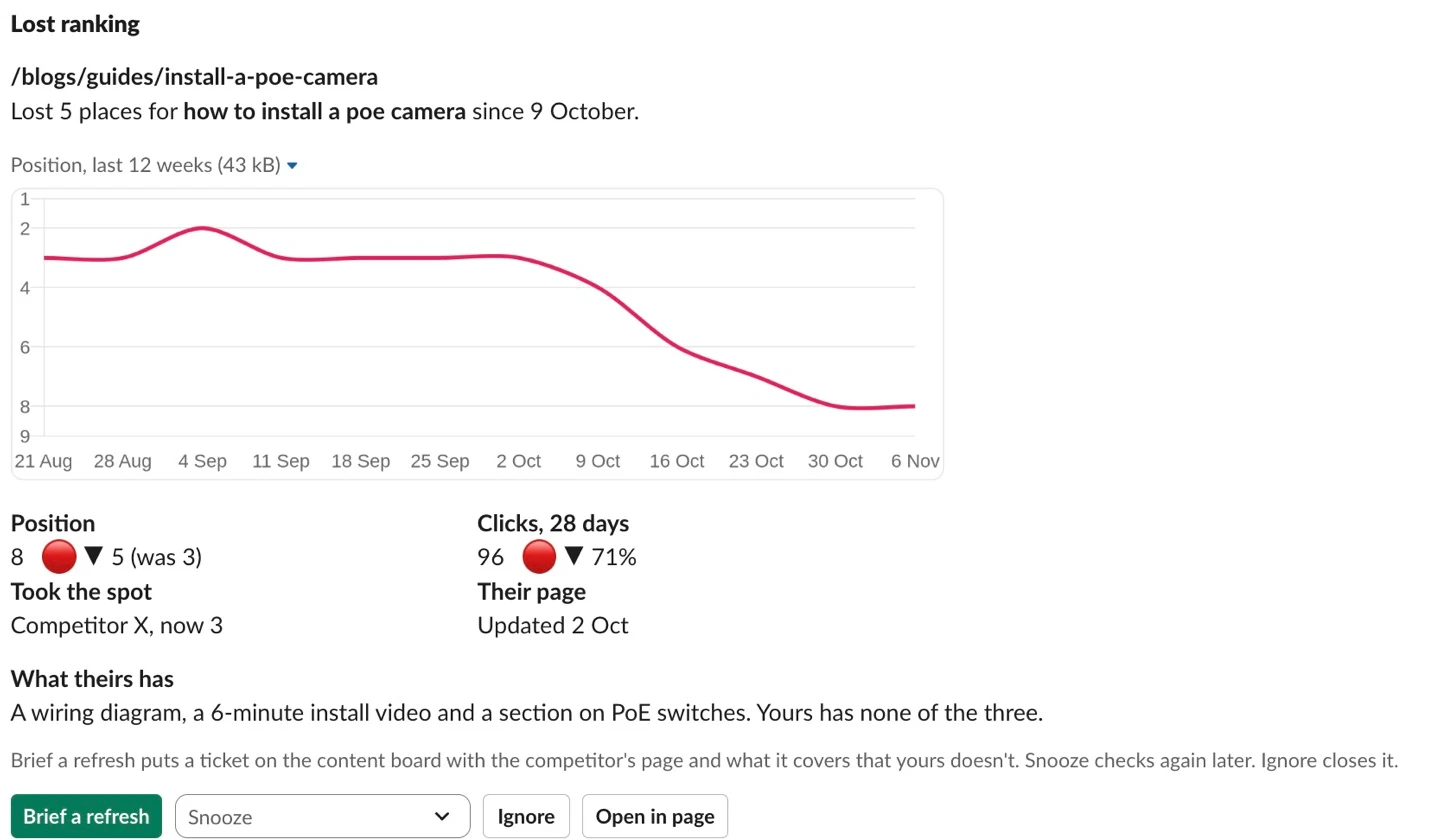
The template’s second demo kind (price_alert) shows this for pricing: when a competitor undercuts the Reolink RLC-820A, the card shows both prices with the gap marked ▼ 21% and offers Match price (behind a confirmation dialog), a Snooze menu and Ignore. The same layout works across SEO, paid media, PR and customer service. One of the most common in SEO is a page that slips down the results because a competitor published something better: the card shows the slide, who took the spot and what their page has that yours doesn’t, and Brief a refresh puts all of that on the content board.
| Team | What lands in Slack | The buttons | What a click does |
|---|---|---|---|
| Pricing / merchandising | Competitor X is A$40.00 under your price (price_alert) | Match price, Snooze, Ignore | Updates the variant price in Shopify after confirmation, snoozes for 1h/1d/1w, or ignores |
| Content / SEO | A page that lost its ranking to a competitor’s better page | Brief a refresh, Snooze, Ignore | Adds a refresh brief to the content board with the competitor’s page and what yours is missing |
| SEO / engineering | A key page returning 404, a 404 spike after a release, or a Merchant Center disapproval | Assign to dev, Acknowledge, Snooze | Creates an engineering bug with the URL and status, records acknowledgement, or snoozes |
| Paid media | A campaign pacing ahead of budget, a CPA spike, or a disapproved ad | Pause, Raise budget, Ignore | Pauses the campaign or bumps its daily cap via API |
| PR and media | A new brand mention or incoming journalist request | Draft a response, Share with the team, Ignore | Triggers an AI draft workflow (which returns as an approval card) or reposts to the team channel |
| Customer service | A high-value order stuck in fulfilment or a ticket SLA about to breach | Take it, Escalate | Assigns the ticket to the clicker or moves it to the tier-2 queue |
A useful rule of thumb comes from Data-Mania’s human oversight risk tiers: internal drafting and summarising are low risk, whereas outbound sends, pricing and discounts, and refunds are high risk. Let the automation run the low-risk drafting step unattended, and put the person on the high-risk step that changes the outside world.
What you need
- n8n (tested on 2.46) with Data Tables on a public HTTPS URL so Slack can reach your webhooks, either self-hosted (free) or on n8n Cloud. The GitHub repo also includes a Supabase (Postgres) version if you prefer an external database.
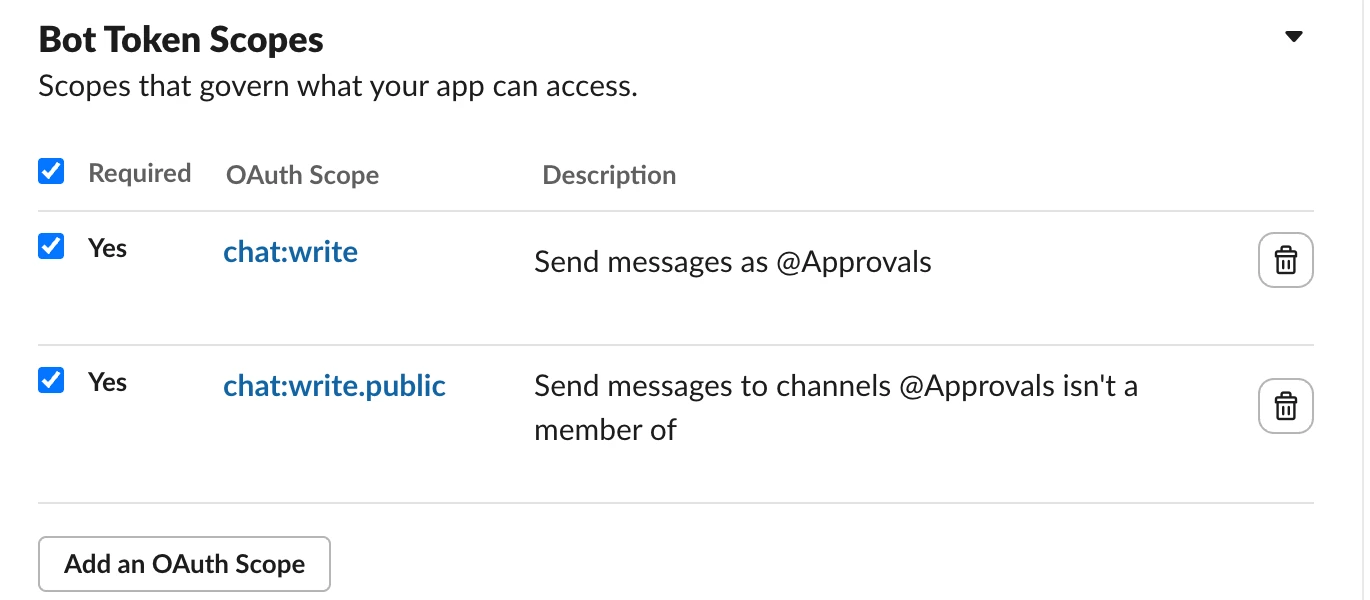
- A Slack app with Interactivity enabled, the bot token scopes
chat:writeandchat:write.public, its Bot User OAuth Token saved in an n8n Slack API credential, and its Signing Secret saved in an n8n Crypto credential (Slack signing secret). Slack’s free plan works well here (it keeps 90 days of message history, so the Data Table is your long-term record). - Optional for the Shopify demo apply and sync lanes: a custom Shopify app with
read_productsandwrite_productsscopes connected via a Custom Auth credential (seeSETUP.mdin the repo), plus its client secret in a second Crypto credential (Shopify webhook secret) to verifyproducts/updatewebhooks.
How it works
The template sits on one canvas divided into seven lanes, so asking never pauses an execution with a Wait node and your workflows never pile up waiting runs:
- Setup: creates the
approvalsData Table (reusing it if it already exists) and, if you use the Shopify demo, subscribes the Sync webhook to Shopify’sPRODUCTS_UPDATEtopic. - Ask: any workflow calls this template via Execute Workflow; it skips items that already have an open card for the same kind, inserts a pending row in
approvals, posts the Block Kit card, saves the message’schannel,tsandcardblocks, and returns immediately so nothing sits waiting. - Click: because Slack gives an app a single Request URL for every interactive element, this lane verifies the HMAC-SHA256 signature and 5-minute timestamp window on the raw body first, checks the app ID, workspace and approver list, looks up the pending row, answers Slack inside 3 seconds, and routes by
action_id. - Apply: runs your custom apply workflow (or the demo Shopify branch after checking that the live title or price hasn’t changed since the card was posted) and only updates the Slack card via
chat.updateonce the change has landed; if the write fails, it puts the row back topendingand posts the error in the card’s thread. - Page: clicking Open in page on any card signs a fresh 8-hour link with your Slack signing secret and replies privately to the clicker, opening an HTML page that lists every pending item with working decision buttons.
- Remind: runs daily at 09:00 to post a single thread nudge after 24 hours, expire untouched cards after 7 days without applying anything, wake snoozed alerts by putting their buttons back, and release any row stuck in
processingfor over an hour. - Sync: closes open cards as
Already changedwhenever another workflow calls thecloselane or Shopify sends aproducts/updatewebhook showing the live value changed outside this workflow.
Step 1: Create the Slack app and connect it to n8n
Start by creating a dedicated Slack app from a manifest so its scopes and interactivity settings are configured in one go. Open api.slack.com/apps, click Create New App > From a manifest, pick your workspace, and paste this YAML manifest (replacing https://your-n8n.example.com with your n8n instance’s public URL):
display_information:
  name: Approvals
features:
  bot_user:
    display_name: Approvals
    always_online: false
oauth_config:
  scopes:
    bot:
      - chat:write
      - chat:write.public
settings:
  interactivity:
    is_enabled: true
    request_url: https://your-n8n.example.com/webhook/slack-approvals
  org_deploy_enabled: false
  socket_mode_enabled: false
  token_rotation_enabled: false
Click Create, then Install to Workspace on the Basic Information page. Copy the Bot User OAuth Token (xoxb-...) from OAuth & Permissions into a new Slack API credential in n8n, and copy the Signing Secret from Basic Information > App Credentials into a new Crypto credential in n8n (put the secret into the Hmac Secret field and name the credential Slack signing secret).
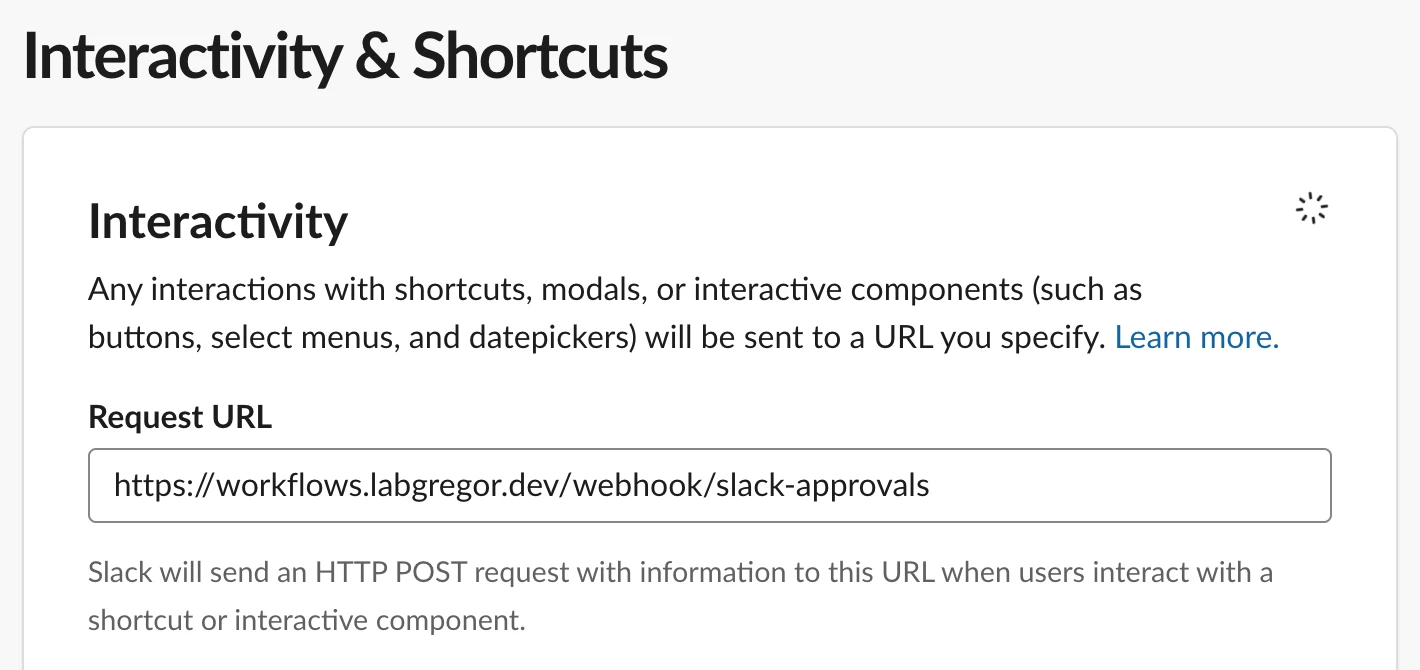
Because Slack allows only one Interactivity Request URL per app, create a second Slack app if you run both a test and a production n8n instance; otherwise every button press in Slack will go to whichever instance owns that single URL. You can verify the setup on the Interactivity & Shortcuts page: the Request URL saves right away because Slack doesn’t send a verification ping until you actually click a button on a card (make sure your n8n workflow is published before you click, so the production /webhook/slack-approvals endpoint is live).
Step 2: Create the approvals table
Storing every approval in an n8n Data Table instead of a paused workflow execution is what makes the rest of this build possible: you can query open items to stop duplicate cards, render all pending approvals on a single web page, nudge or expire old items on a schedule, and edit or republish the workflow at any time without breaking in-flight approvals. Each row moves through a clear set of statuses over its life: pending, processing, approved, edited, rejected, routed, acknowledged, snoozed, superseded, expired and failed.
In the Setup lane, add a Manual Trigger named Run once to set up and connect it to an Edit Fields (Set) node named Setup settings. Leave store_domain as your-store.myshopify.com if you don’t need the Shopify demo:
| Setting | Value |
|---|---|
| store_domain (string) | your-store.myshopify.com |
| sync_webhook_url (string) | https://your-n8n.example.com/webhook/shopify-product-updated |
Next, connect a Data table node named Create approvals (with Execute Once turned on in node settings) to create the approvals table with its 20 columns:
| Setting | Value |
|---|---|
| Resource | table |
| Operation | create |
| Table name | approvals |
| Options > Reuse existing table | on |
| Column: kind | string |
| Column: item_id | string |
| Column: item_label | string |
| Column: current_value | string |
| Column: proposed_value | string |
| Column: final_value | string |
| Column: context | string |
| Column: status | string |
| Column: channel | string |
| Column: ts | string |
| Column: requested_at | date |
| Column: decided_by | string |
| Column: decided_at | date |
| Column: reason | string |
| Column: apply_workflow_id | string |
| Column: reminded_at | date |
| Column: snooze_until | date |
| Column: max_length | number |
| Column: must_include | string |
| Column: card | string |
To wire up the optional Shopify Sync webhook during setup, connect an If node named Using the Shopify demo? (Execute Once: on, Convert types where required: on, condition {{ !$('Setup settings').first().json.store_domain.startsWith('your-store') }} is true). On its true branch, add an HTTP Request node named Get Shopify token for Setup that posts grant_type=client_credentials (Form URL-encoded) to https://{{ $('Setup settings').first().json.store_domain }}/admin/oauth/access_token using your httpCustomAuth credential, followed by an HTTP Request node named Subscribe to product updates that registers the webhookSubscriptionCreate mutation:
| Setting | Value |
|---|---|
| Method | POST |
| URL | https://{{ $('Setup settings').first().json.store_domain }}/admin/api/2026-10/graphql.json |
| Header X-Shopify-Access-Token | {{ $('Get Shopify token for Setup').first().json.access_token }} |
| Specify Body | Using JSON (Expression) |
Set the JSON body expression on Subscribe to product updates to:
{{ JSON.stringify({ query: `mutation Subscribe($uri: String!) {
  webhookSubscriptionCreate(topic: PRODUCTS_UPDATE, webhookSubscription: { uri: $uri, format: JSON }) {
    webhookSubscription { id uri }
    userErrors { field message }
  }
}`, variables: { uri: $('Setup settings').first().json.sync_webhook_url } }) }}
Run Run once to set up and check that the approvals table appears under Data Tables in n8n; if you set a real store_domain, Subscribe to product updates returns the new webhookSubscription.id (running it a second time returns a duplicate error from Shopify, which is fine).
Step 3: Design the card in Block Kit
Every message the workflow posts uses Slack Block Kit, which lets you combine headers, formatted text, images, context lines and interactive buttons in up to 50 blocks per message. You can preview and tweak any card layout visually in the Slack Block Kit Builder before pasting the structure into n8n, or read Knock’s Block Kit guide for a deeper breakdown of how block elements fit together.
A good approval card shows Before and After right above the buttons because a reviewer is approving a change rather than judging a line of text in a vacuum. When Build the card runs for our Reolink RLC-820A title rewrite (row 15 in testing), it produces this Slack Block Kit JSON:
{
  "blocks": [
    { "type": "header", "text": { "type": "plain_text", "text": "Product title to review" } },
    { "type": "section", "text": { "type": "mrkdwn", "text": "*Reolink RLC-820A*\n*Before*\nRLC-820A REOLINK 8MP 4K POE TURRET IP CAMERA 30M IR\n*After*\nReolink RLC-820A 4K 8MP Turret PoE IP Camera" } },
    { "type": "context", "elements": [{ "type": "mrkdwn", "text": "44 of 70 characters · Asked by AI product titles" }] },
    { "type": "context", "block_id": "approval_hint", "elements": [{ "type": "mrkdwn", "text": "Approve writes the title to Shopify. Edit lets you change it first. Reject sends your reason back to the title workflow." }] },
    { "type": "actions", "block_id": "approval_actions", "elements": [
      { "type": "button", "text": { "type": "plain_text", "text": "Approve" }, "action_id": "approval_approve", "value": "15", "style": "primary" },
      { "type": "button", "text": { "type": "plain_text", "text": "Edit" }, "action_id": "approval_edit", "value": "15" },
      { "type": "button", "text": { "type": "plain_text", "text": "Reject" }, "action_id": "approval_reject", "value": "15", "style": "danger" },
      { "type": "button", "text": { "type": "plain_text", "text": "Open in page" }, "action_id": "approval_page", "value": "15" }
    ] }
  ]
}
Notice how each button element is put together: Approve uses "style": "primary" (green) and Reject uses "style": "danger" (red), while every button’s value carries only the row ID ("15"). A Slack button’s value is capped at 2,000 characters and is visible to anyone inspecting the message payload in the channel, so keeping the proposed text in the Data Table avoids hitting Slack’s size limit on long descriptions and keeps full payloads out of the button JSON. We also pass a top-level text fallback (Product title: Reolink RLC-820A) when posting the message, because Slack uses text for push notifications and screen readers.
The grey line above the buttons (block ID approval_hint) says what each button will do. A reviewer who has never seen the workflow shouldn’t have to guess whether Approve publishes something straight away or only queues it, and a card that answers that up front gets decided faster. When the card closes, the workflow drops the hint along with the buttons, since there’s nothing left to click.
Instead of hard-coding one card layout, the Ask lane uses an Edit Fields (Set) node named Kinds (with Include other input fields turned on) to define three card shapes in one kinds object: approval (Approve, Edit, Reject), alert (a primary action button with an optional confirm dialog, a static_select Snooze dropdown, and Ignore), and route (one button per destination team plus Ignore). Each kind also carries its hint line, and a kind that sends a picture worth reading (a generated pin, a chart) can set large_image: true to show it full width instead of as a thumbnail:
{{ {
  product_title: { label: 'Product title', type: 'approval',
    hint: 'Approve writes the title to Shopify. Edit lets you change it first. Reject sends your reason back to the title workflow.' },
  price_alert: { label: 'Competitor price', type: 'alert', value_prefix: 'A$',
    action: { text: 'Match price', confirm: 'Set your price to the competitor\'s price in Shopify?' },
    snooze_hours: [1, 24, 168],
    hint: 'Match price sets your price in Shopify. Snooze brings this back later. Ignore closes it.' },
  content_decay: { label: 'Content decay', type: 'route',
    routes: [{ id: 'rewrite', text: 'Rewrite' }, { id: 'update', text: 'Update' }],
    hint: 'Rewrite or Update puts the page on the content board. Ignore closes it.' }
} }}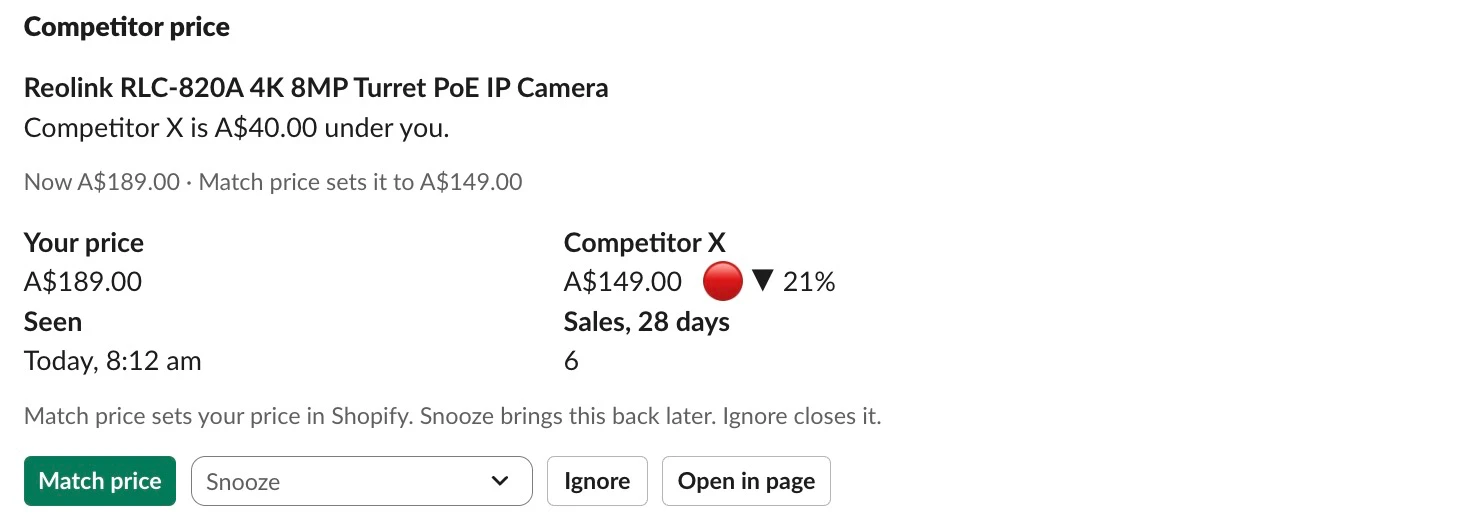
Numbers are what make an alert worth acting on, so the Ask lane also accepts an optional details object of { label: value } pairs from the calling workflow. Short values sit side by side in two columns and long ones get a line of their own. Slack doesn’t let you colour text, so put the direction in the value itself: '1,900 :large_green_circle: ▲ 169%' for a gain and 'A$149.00 :red_circle: ▼ 21%' for a drop read at a glance. For a trend, pass a chart as image_url with an image_title caption. Any service that returns a chart as an image URL works; the mock-ups in this guide use QuickChart, which draws a Chart.js config passed in the URL.
Later in the Ask lane, the Code node named Build the card reads Kinds and the newly inserted table row to assemble the exact blocks for any of those three types. It adds the image (as a thumbnail, or full width for large_image kinds), the details, the hint and the buttons, and appends Open in page when page_button is true:
// Builds the Block Kit card. Every button's value is only the row id: the text lives in the table.
const s = $('Ask settings').first().json;
const kinds = $('Kinds').first().json.kinds;
const req = $('Loop over requests').first().json;
const r = $input.first().json;
const k = kinds[r.kind] || { label: r.kind, type: 'approval' };
const id = String(r.id);
const pre = k.value_prefix || '';
const name = req.link ? `<${req.link}|${r.item_label}>` : r.item_label;
const plain = t => ({ type: 'plain_text', text: t });
const btn = (text, action, extra = {}) => ({ type: 'button', text: plain(text), action_id: 'approval_' + action, value: id, ...extra });

const blocks = [{ type: 'header', text: plain((k.type === 'approval' ? `${k.label} to review` : k.label).slice(0, 150)) }];
const main = k.type !== 'approval' ? `*${name}*\n${r.context}`
  : r.current_value ? `*${name}*\n*Before*\n${r.current_value}\n*After*\n${r.proposed_value}`
  : `*${name}*\n${r.proposed_value}`;
const section = { type: 'section', text: { type: 'mrkdwn', text: main.slice(0, 3000) } };
const image = req.image_url ? { type: 'image', image_url: req.image_url, alt_text: r.item_label.slice(0, 2000),
  ...(req.image_title ? { title: plain(String(req.image_title).slice(0, 2000)) } : {}) } : null;
if (image && !k.large_image) section.accessory = image;
blocks.push(section);

// The fact line sits under what it describes: the length of the proposed text, or the alert's numbers.
const facts = (k.type === 'approval'
  ? [`${r.proposed_value.length}${r.max_length ? ' of ' + r.max_length : ''} characters`, r.context]
  : k.type === 'alert' ? [r.current_value ? `Now ${pre}${r.current_value}` : '', r.proposed_value ? `${k.action.text} sets it to ${pre}${r.proposed_value}` : ''] : []).filter(Boolean);
if (facts.length) blocks.push({ type: 'context', elements: [{ type: 'mrkdwn', text: facts.join(' · ') }] });
if (image && k.large_image) blocks.push(image);

// details: { label: value } from the caller. Short values sit side by side; long ones get their own line.
const details = Object.entries(req.details || {}).filter(([, v]) => v !== '' && v != null);
const short = details.filter(([, v]) => String(v).length <= 60);
if (short.length) blocks.push({ type: 'section', fields: short.slice(0, 10).map(([l, v]) => ({ type: 'mrkdwn', text: `*${l}*\n${v}` })) });
for (const [l, v] of details.filter(([, v]) => String(v).length > 60))
  blocks.push({ type: 'section', text: { type: 'mrkdwn', text: `*${l}*\n${v}`.slice(0, 3000) } });

if (k.hint) blocks.push({ type: 'context', block_id: 'approval_hint', elements: [{ type: 'mrkdwn', text: k.hint }] });

const hours = h => h < 24 ? `${h} hour${h > 1 ? 's' : ''}` : h % 168 === 0 ? `${h / 168} week${h > 168 ? 's' : ''}` : `${h / 24} day${h > 24 ? 's' : ''}`;
let elements;
if (k.type === 'alert') elements = [
  btn(k.action.text, 'action', { style: 'primary', ...(k.action.confirm ? { confirm: {
    title: plain(k.action.text + '?'), text: { type: 'mrkdwn', text: k.action.confirm }, confirm: plain('Yes'), deny: plain('Cancel') } } : {}) }),
  { type: 'static_select', action_id: 'approval_snooze', placeholder: plain('Snooze'),
    options: (k.snooze_hours || [24]).map(h => ({ text: plain(hours(h)), value: id + '|' + h })) },
  btn('Ignore', 'ignore'),
];
else if (k.type === 'route') elements = [...k.routes.map(x => btn(x.text, 'route_' + x.id)), btn('Ignore', 'ignore')];
else elements = [btn('Approve', 'approve', { style: 'primary' }), btn('Edit', 'edit'), btn('Reject', 'reject', { style: 'danger' })];
if (s.page_button) elements.push(btn('Open in page', 'page'));
blocks.push({ type: 'actions', block_id: 'approval_actions', elements });

return [{ json: { row_id: r.id, channel: s.slack_channel, text: `${k.label}: ${r.item_label}`.slice(0, 300), blocks } }];
Step 4: Ask for approval from any workflow
n8n always starts a sub-workflow at its first Execute Workflow Trigger, so if you place three Execute Workflow Triggers on one canvas, only the first one ever runs. To let one workflow handle asking, applying and closing, the Ask lane starts with a single Execute Workflow Trigger named Called by a workflow (Input data mode: Accept all data) connected to a Switch node named Which lane?. That Switch checks $json.lane and sends "apply" to the Apply the change No Operation node in the Apply lane, "close" to the Close approval No Operation node in the Sync lane, and everything else (including callers that don’t set lane at all) to Ask settings:
| Setting | Value |
|---|---|
| Output 0: Apply | {{ $json.lane === 'apply' }} |
| Output 1: Close | {{ $json.lane === 'close' }} |
| Fallback output: Ask | Extra output |
For testing on the canvas without another workflow, add a Manual Trigger named Send a test card connected to a Code node named Test cards that feeds into Ask settings with our two Reolink RLC-820A demo items. The price alert also passes details, the label and value pairs from Step 3:
// One title approval and one price alert for the same camera. Change the IDs to a product on your store.
return [
  { json: {
    kind: 'product_title',
    item_id: 'gid://shopify/Product/1234567890',
    item_label: 'Reolink RLC-820A',
    current_value: 'RLC-820A REOLINK 8MP 4K POE TURRET IP CAMERA 30M IR',
    proposed_value: 'Reolink RLC-820A 4K 8MP Turret PoE IP Camera',
    context: 'Asked by AI product titles',
    image_url: '', link: '', max_length: 70, must_include: 'RLC-820A', apply_workflow_id: '',
  } },
  { json: {
    kind: 'price_alert',
    item_id: 'gid://shopify/ProductVariant/1234567890',
    item_label: 'Reolink RLC-820A 4K 8MP Turret PoE IP Camera',
    current_value: '189.00',
    proposed_value: '149.00',
    context: 'Competitor X is A$40.00 under you.',
    image_url: '', link: '', max_length: 0, must_include: '', apply_workflow_id: '',
    // details: any { label: value } pairs to show on the card. Emoji and arrows make the change easy to see.
    details: { 'Your price': 'A$189.00', 'Competitor X': 'A$149.00   :red_circle: ▼ 21%', 'Seen': 'Today, 8:12 am', 'Sales, 28 days': '6' },
  } },
];
In Ask settings (Edit Fields (Set), Include other input fields: on), set slack_channel (string) to #approvals and page_button (boolean) to true, then connect the Kinds node from Step 3 and a Loop Over Items node named Loop over requests (batch size 1). Inside the loop (its loop output), add a Data table node named Get open rows (Always Output Data: on) to check whether this item already has a card waiting:
| Setting | Value |
|---|---|
| Resource | row |
| Operation | get |
| Data table | approvals |
| Must match | All conditions |
| Condition: item_id | eq {{ $('Loop over requests').first().json.item_id }} |
| Condition: kind | eq {{ $('Loop over requests').first().json.kind }} |
| Return all | on |
Connect an If node named Already waiting? (Execute Once: on, Convert types where required: on) with the condition {{ $input.all().some(r => ['pending', 'processing', 'snoozed'].includes(r.json.status)) }}. If true, send the item to a No Operation node named Skip it and loop back to Loop over requests so a scheduled workflow never floods #approvals with duplicate cards for the same product. If false, connect a Data table node named Save the row first, because inserting the row before building the card is what gives Build the card the auto-incremented row id for the button values:
| Setting | Value |
|---|---|
| Resource | row |
| Operation | insert |
| Data table | approvals |
| Column: kind | {{ $('Loop over requests').first().json.kind }} |
| Column: item_id | {{ $('Loop over requests').first().json.item_id }} |
| Column: item_label | {{ $('Loop over requests').first().json.item_label }} |
| Column: current_value | {{ String($('Loop over requests').first().json.current_value ?? '') }} |
| Column: proposed_value | {{ String($('Loop over requests').first().json.proposed_value ?? '') }} |
| Column: context | {{ $('Loop over requests').first().json.context || '' }} |
| Column: status | pending |
| Column: requested_at | {{ $now.toISO() }} |
| Column: max_length | {{ Number($('Loop over requests').first().json.max_length) || 0 }} |
| Column: must_include | {{ $('Loop over requests').first().json.must_include || '' }} |
| Column: apply_workflow_id | {{ $('Loop over requests').first().json.apply_workflow_id || '' }} |
Connect Save the row to Build the card (from Step 3), and then to an HTTP Request node named Post the card (On Error: Continue using regular output). We use an HTTP Request node to call chat.postMessage instead of n8n’s built-in Slack node because it takes our raw blocks array directly and returns the resolved channel ID and message timestamp (ts) that chat.update needs later:
| Setting | Value |
|---|---|
| Method | POST |
| URL | https://slack.com/api/chat.postMessage |
| Authentication | Predefined credential type: slackApi |
| Specify Body | Using JSON (Expression) |
| Body | {{ JSON.stringify({ channel: $json.channel, text: $json.text, blocks: $json.blocks, unfurl_links: false, unfurl_media: false }) }} |
Connect an If node named Posted? checking {{ $json.ok === true }}. On the true branch, add a Data table node named Save channel and ts that updates the row (id eq {{ $('Build the card').first().json.row_id }}) with channel ({{ $json.channel }}), ts ({{ $json.ts }}) and card ({{ JSON.stringify($('Build the card').first().json.blocks) }}). Saving the posted card JSON in the table means any lane can later close or restore the message without rebuilding the blocks. On the false branch of Posted?, add a Data table node named Mark failed that updates status to failed and reason to {{ 'Slack: ' + ($json.error || $json.message || 'no response') }}. Loop both branches back to Loop over requests, and connect the loop’s done output (Output 0) to a Code node named Return the result:
// What the caller gets back, straight away.
// The loop runs these nodes once per request, so read every run.
const run = n => { const out = []; for (let i = 0; i < 1000; i++) { let r; try { r = $(n).all(0, i); } catch (e) { break; } if (!r.length) break; out.push(...r.map(x => x.json)); } return out; };
return [{ json: {
  asked: run('Save channel and ts').map(r => ({ row_id: r.id, status: 'pending', channel: r.channel, ts: r.ts })),
  skipped: run('Skip it').length,
  failed: run('Mark failed').map(r => ({ row_id: r.id, reason: r.reason })),
} }];
Calling the template from a separate workflow was tested on 8 November 2026; the mapping below is written for the AI product titles workflow. In the calling workflow, add an Edit Fields (Set) node named Approval request (Mode: JSON) after whatever produces the proposal, then an Execute Workflow node named Ask for approval (Source: Database, Workflow: this template by ID, Mode: Run once for each item). Because the template’s trigger accepts all data, the fields arrive as they are. This is the mapping for the AI product titles workflow, whose Check the title node outputs product_id, old_title and new_title:
{
  "kind": "product_title",
  "item_id": "={{ $json.product_id }}",
  "item_label": "={{ $json.new_title.split(' ').slice(0, 2).join(' ') }}",
  "current_value": "={{ $json.old_title }}",
  "proposed_value": "={{ $json.new_title }}",
  "context": "Asked by AI product titles",
  "max_length": 70,
  "must_include": "",
  "image_url": "",
  "link": "",
  "apply_workflow_id": ""
}
It returns at once with what happened, for example:
{ "asked": [{ "row_id": 3, "status": "pending", "channel": "C0C85QHH9QW", "ts": "1794103093.378679" }], "skipped": 0, "failed": [] }To test the lane now, click Execute Workflow on Send a test card: both the RLC-820A title card and the price alert appear in #approvals, and running Send a test card a second time returns "skipped": 2 with no new messages posted.
Step 5: Answer Slack within 3 seconds and prove the click is real
Whenever someone clicks a button, picks a Snooze option or submits a modal, Slack posts the interaction payload to your app’s single Request URL. According to Slack’s documentation on handling user interaction, your app must respond within 3 seconds of receiving the payload or the Slack user who interacted with the app will see an error message. Because that webhook sits on a public URL, anyone who discovers the address could also POST fake approval payloads to it unless you verify requests from Slack by concatenating v0:, the X-Slack-Request-Timestamp header, a colon and the raw request body before it has been deserialised, hashing that string with HMAC-SHA256 using your Signing Secret, and rejecting any timestamp more than five minutes from local time so a captured request can’t be replayed.
In the Click lane, add a Webhook node named Slack button click with Raw Body turned on so n8n keeps the exact bytes Slack sent:
| Setting | Value |
|---|---|
| HTTP Method | POST |
| Path | slack-approvals |
| Respond | Using Respond to Webhook node |
| Options > Raw Body | on |
Connect Slack button click directly to a Code node named Read the click. Do not place an Edit Fields (Set) node before Read the click: a Set node drops the binary data buffer that holds the raw body, which causes every signature check after it to fail. Read the click extracts the raw bytes first, checks that the timestamp is within 300 seconds, and parses both block_actions (buttons and the Snooze menu) and view_submission (the Edit and Reject modals):
// Reads the raw body first: Slack signs the exact bytes it sent. (A Set node before this would drop them.)
const raw = (await this.helpers.getBinaryDataBuffer(0, 'data')).toString('utf8');
const h = $input.first().json.headers;
const field = raw.split('&').find(kv => kv.startsWith('payload=')) || ''; // no URLSearchParams in the Code node
let p = {};
try { p = JSON.parse(decodeURIComponent(field.slice(8).replace(/\+/g, ' '))); } catch (e) {}
const c = {
  base: `v0:${h['x-slack-request-timestamp']}:${raw}`, expected: h['x-slack-signature'] || '',
  fresh: Math.abs(Date.now() / 1000 - Number(h['x-slack-request-timestamp'])) <= 300,
  retry: !!h['x-slack-retry-num'], type: p.type || '', app_id: p.api_app_id || '', team_id: p.team?.id || p.user?.team_id || '',
  user_id: p.user?.id || '', response_url: p.response_url || '', trigger_id: p.trigger_id || '',
};
if (p.type === 'view_submission') {
  const m = JSON.parse(p.view.private_metadata || '{}');
  const v = p.view.state.values;
  if (p.view.callback_id === 'approval_edit')
    return [{ json: { ...c, action: 'edit_submit', row_id: Number(m.row_id), value: (v.value?.value?.value || '').trim() } }];
  return [{ json: { ...c, action: 'reject_submit', row_id: Number(m.row_id),
    reason: [v.reason?.reason?.selected_option?.value, (v.note?.note?.value || '').trim()].filter(Boolean).join(': ') } }];
}
const a = p.actions?.[0] || {};
const action = String(a.action_id || '').replace(/^approval_/, '');
if (action === 'snooze') {
  const [row, hours] = String(a.selected_option?.value || '').split('|');
  return [{ json: { ...c, action, row_id: Number(row), snooze_hours: Number(hours) } }];
}
return [{ json: { ...c, action, row_id: Number(a.value) || 0 } }];
Now connect an Edit Fields (Set) node named Click settings (Include other input fields: on) to hold your optional workspace/app locks, allowed approvers, reject reasons and review page URL:
| Setting | Value |
|---|---|
| slack_app_id (string) | (empty) |
| slack_team_id (string) | (empty) |
| approver_ids (array) | {{ [] }} |
| reject_reasons (array) | {{ ['Wrong details', 'Reads badly', 'Not needed'] }} |
| page_url (string) | https://your-n8n.example.com/webhook/slack-approvals-page |
| link_hours (number) | 8 |
Connect a Crypto node named Sign the request to hash $json.base with your Slack signing secret:
| Setting | Value |
|---|---|
| Action | Hmac |
| Type | SHA256 |
| Value | {{ $json.base }} |
| Property Name | sig |
| Encoding | hex |
| Credential | Crypto: Slack signing secret |
Follow Sign the request with an If node named Signature valid? checking {{ 'v0=' + $json.sig === $json.expected && $json.fresh }}. On its false branch, connect a Respond to Webhook node named Not from Slack (Respond With: Text, Response Body: {{ 'Bad signature' }}, Response Code: 401). On its true branch, connect an If node named Allowed? that checks whether the click came from your app, your workspace and a permitted user:
{{ (!$json.slack_app_id || $json.app_id === $json.slack_app_id) && (!$json.slack_team_id || $json.team_id === $json.slack_team_id) && (!$json.approver_ids.length || $json.approver_ids.includes($json.user_id)) }}If Allowed? is false, connect a Respond to Webhook node named Answer, not allowed (Respond With: No Data) so Slack gets its 200 response inside 3 seconds, followed by an HTTP Request node named Say not allowed (POST to {{ $json.response_url }}, On Error: Continue using regular output) with the JSON body {{ JSON.stringify({ response_type: 'ephemeral', replace_original: false, text: 'Only approvers can decide these cards.' }) }}. In testing with signed payloads, a bad signature or a 10-minute-old timestamp got a 401 right away, an unauthorised user saw the private ephemeral message, and valid clicks answered Slack in 33 to 38 milliseconds.
Step 6: Stop double clicks and stale cards
Even when a click is genuine, two reviewers in the same channel can click Approve at the same time, someone can click a card that was already decided on the review page, or Slack can retry a request (carrying the x-slack-retry-num header). Looking up the row with status = pending before answering Slack, and flipping the status to processing before calling Shopify or your apply workflow, stops every one of those duplicates cleanly.
On the true branch of Allowed?, add a Data table node named Get pending row (Always Output Data: on):
| Setting | Value |
|---|---|
| Resource | row |
| Operation | get |
| Data table | approvals |
| Must match | All conditions |
| Condition: id | eq {{ $json.row_id }} |
| Condition: status | eq pending |
| Limit | 1 |
Connect Get pending row to a Code node named Check the click (shown in Step 7, where it also validates modal submissions), and connect Check the click to a Respond to Webhook node named Answer Slack:
| Setting | Value |
|---|---|
| Respond With | Text |
| Response Body | {{ $json.errors ? JSON.stringify({ response_action: 'errors', errors: $json.errors }) : '' }} |
| Header content-type | {{ $json.errors ? 'application/json' : 'text/plain' }} |
After Answer Slack, add an If node named Anything to do? checking {{ $json.found && !$json.errors && !$json.retry }}. Its false branch goes to a No Operation node named Nothing to do, so a second click, a Slack retry or an invalid modal edit stops right there. Its true branch connects to a Switch node named Route the click:
| Setting | Value |
|---|---|
| Output 0: Edit | {{ $json.action === 'edit' }} |
| Output 1: Reject | {{ $json.action === 'reject' }} |
| Output 2: Open in page | {{ $json.action === 'page' }} |
| Output 3: Decide | {{ ['approve', 'edit_submit', 'reject_submit', 'action', 'ignore', 'snooze'].includes($json.action) || $json.action.startsWith('route_') }} |
On Output 3 (Decide), connect a Data table node named Mark processing before calling the Apply lane. Setting status to processing and storing final_value right away ensures a fast second click finds no pending row, and tells the Sync lane what value is currently being written to Shopify:
| Setting | Value |
|---|---|
| Resource | row |
| Operation | update |
| Data table | approvals |
| Must match | All conditions |
| Condition: id | eq {{ $json.row.id }} |
| Column: status | processing |
| Column: final_value | {{ $json.action === 'edit_submit' ? $json.value : $json.row.proposed_value }} |
Step 7: Edit in a modal
Most AI drafts are nearly right: the model puts Turret PoE where you want PoE Turret, or runs three characters over a limit. If a card only offers Approve and Reject, the reviewer has to reject the draft and wait for a new run or go edit the item in Shopify by hand. Opening a Slack modal lets them fix the text in two seconds and approve it in one step.
Because Slack states that a trigger_id expires 3 seconds after it’s sent to your app and views.open refuses used or expired tokens with exchanged_trigger_id or expired_trigger_id, Open the edit modal is the very first Slack API call on Output 0 (Edit) of Route the click. Add an HTTP Request node named Open the edit modal (POST to https://slack.com/api/views.open, Authentication: slackApi, Specify Body: Using JSON as an expression):
{{ JSON.stringify((c => ({
  trigger_id: c.trigger_id,
  view: {
    type: 'modal', callback_id: 'approval_edit', private_metadata: JSON.stringify({ row_id: c.row.id }),
    title: { type: 'plain_text', text: 'Edit and approve' },
    submit: { type: 'plain_text', text: 'Save and approve' },
    close: { type: 'plain_text', text: 'Cancel' },
    blocks: [
      { type: 'context', elements: [{ type: 'mrkdwn', text: ('*' + c.row.item_label + '*\nBefore: ' + (c.row.current_value || '_empty_')).slice(0, 3000) }] },
      { type: 'input', block_id: 'value', label: { type: 'plain_text', text: 'New value' },
        hint: { type: 'plain_text', text: [c.row.max_length ? 'Up to ' + c.row.max_length + ' characters.' : '', c.row.must_include ? 'Keep ' + c.row.must_include + '.' : ''].filter(Boolean).join(' ') || 'Saving approves it.' },
        element: Object.assign({ type: 'plain_text_input', action_id: 'value', initial_value: c.row.proposed_value, multiline: c.row.proposed_value.length > 150 },
          c.row.max_length ? { max_length: c.row.max_length } : {}) }
    ]
  }
}))($('Check the click').first().json)) }}
When the reviewer clicks Save and approve inside the modal, Slack sends a view_submission payload to the exact same Slack button click webhook. Read the click turns that submission into action: 'edit_submit', and Check the click (placed between Get pending row and Answer Slack in Step 6) checks that the edited text isn’t blank, isn’t over max_length, and still includes every comma-separated term in must_include (such as the model number RLC-820A):
// Validates a modal submission, so Slack can show the error under the field.
const c = $('Sign the request').first().json;
const row = $input.first().json;
const found = !!row.id;
let errors = null;
if (found && c.action === 'edit_submit') {
  const v = c.value, max = Number(row.max_length) || 0;
  const must = String(row.must_include || '').split(',').map(w => w.trim()).filter(Boolean);
  const missing = must.filter(w => !v.toLowerCase().includes(w.toLowerCase()));
  if (!v) errors = { value: 'Enter a value, or close this and press Reject.' };
  else if (max && v.length > max) errors = { value: `That's ${v.length} characters. The limit is ${max}.` };
  else if (missing.length) errors = { value: `Keep ${missing.join(', ')} in it.` };
}
const exp = Math.floor(Date.now() / 1000) + 3600 * (Number(c.link_hours) || 8);
const { base, expected, sig, ...click } = c;
return [{ json: { ...click, found, errors, exp, row: found ? row : null } }];
When errors is set, Answer Slack returns { "response_action": "errors", "errors": { "value": "Keep RLC-820A in it." } } keyed by the input’s block_id, and Slack displays that validation error right under the input field while keeping the modal open. When errors is null, Answer Slack returns an empty HTTP 200, which closes the modal while the execution continues through Mark processing to apply the edited value.
Step 8: Apply the change, then update the card
A card should only say “Approved” after the change has actually landed in your store or downstream tool. On top of that, a modal submission payload doesn’t include a response_url at all, and a button click’s response_url expires after 30 minutes. By storing channel, ts and card in the Data Table when the card is posted, the Apply lane can call chat.update days later from a button click, a modal submission or the web page, and if the write fails it can put the row back to pending so the buttons still work.
First, finish the Click lane’s handoff and the Reject modal. On Output 1 (Reject) of Route the click, add an HTTP Request node named Open the reject modal (POST to https://slack.com/api/views.open, Authentication: slackApi, Specify Body: Using JSON as an expression). Because opening this modal already gives the reviewer a second step before rejecting, our confirmation dialog in Kinds sits on Match price instead (the one button that changes live data immediately), and the optional reason and note from this modal go straight to your apply workflow so a rejected draft can be regenerated with feedback:
{{ JSON.stringify((c => ({
  trigger_id: c.trigger_id,
  view: {
    type: 'modal', callback_id: 'approval_reject', private_metadata: JSON.stringify({ row_id: c.row.id }),
    title: { type: 'plain_text', text: 'Reject' },
    submit: { type: 'plain_text', text: 'Reject' },
    close: { type: 'plain_text', text: 'Cancel' },
    blocks: [
      { type: 'context', elements: [{ type: 'mrkdwn', text: ('*' + c.row.item_label + '*\n' + (c.row.proposed_value || c.row.context)).slice(0, 3000) }] },
      { type: 'input', block_id: 'reason', optional: true, label: { type: 'plain_text', text: 'Why?' },
        element: { type: 'static_select', action_id: 'reason', placeholder: { type: 'plain_text', text: 'Pick a reason' },
          options: c.reject_reasons.map(r => ({ text: { type: 'plain_text', text: r }, value: r })) } },
      { type: 'input', block_id: 'note', optional: true, label: { type: 'plain_text', text: 'Anything to add' },
        element: { type: 'plain_text_input', action_id: 'note', multiline: true, max_length: 500 } }
    ]
  }
}))($('Check the click').first().json)) }}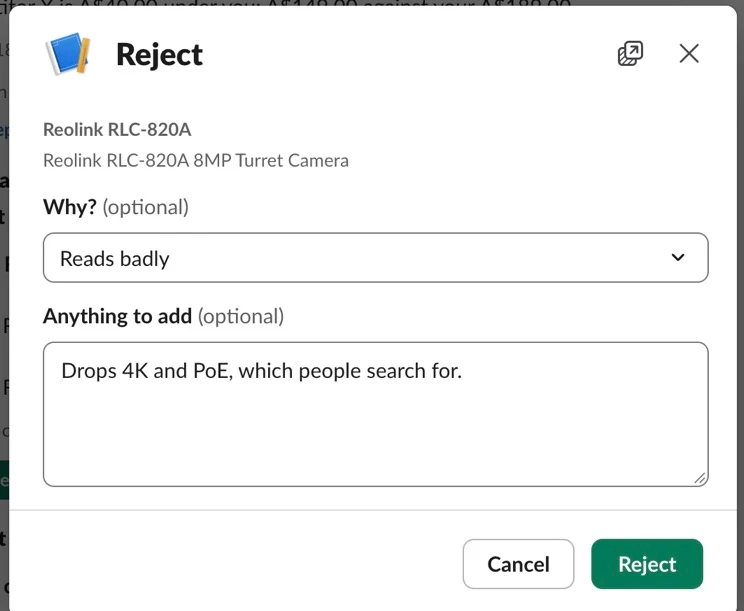
After Mark processing in the Click lane, connect an Edit Fields (Set) node named Decision for Apply (Include other input fields: off) followed by an Execute Workflow node named Send to Apply (Source: Database, Workflow: {{ $workflow.id }} by ID, Wait for sub-workflow completion: on). Because Called by a workflow accepts all data, Decision for Apply builds the clean input object for the Apply lane:
| Setting | Value |
|---|---|
| lane (string) | apply |
| row_id (number) | {{ $('Check the click').first().json.row.id }} |
| decision (string) | {{ ({ edit_submit: 'edit', reject_submit: 'reject' })[$('Check the click').first().json.action] || $('Check the click').first().json.action }} |
| final_value (string) | {{ $('Check the click').first().json.value || '' }} |
| reason (string) | {{ $('Check the click').first().json.reason || '' }} |
| snooze_hours (number) | {{ $('Check the click').first().json.snooze_hours || 0 }} |
| user_id (string) | {{ $('Check the click').first().json.user_id }} |
| via (string) | slack |
Now build the Apply lane. Start with the No Operation node named Apply the change (connected from Output 0 of Which lane?), followed by an Edit Fields (Set) node named Apply settings (Include other input fields: on, store_domain set to your-store.myshopify.com, timezone set to UTC), and a Data table node named Get the row (Resource: row, Operation: get, Data table: approvals, id eq {{ Number($('Apply the change').first().json.row_id) }}, Limit: 1). Connect Get the row to a Code node named Plan the decision:
// Turns the decision into a status, the value to apply and the line the card will show.
const t = $('Apply the change').first().json;
const s = $('Apply settings').first().json;
const row = $input.first().json;
if (!row.id) throw new Error('No approval row ' + t.row_id);
const d = String(t.decision);
const button = (JSON.parse(row.card || '[]').find(b => b.type === 'actions')?.elements || [])
  .find(e => e.action_id === 'approval_' + d)?.text?.text;
const edited = d === 'edit' && t.final_value !== row.proposed_value;
const plans = {
  approve: { status: 'approved', changes: true, value: row.proposed_value, word: 'Approved', icon: ':white_check_mark:', label: 'Approved' },
  edit: { status: edited ? 'edited' : 'approved', changes: true, value: t.final_value, word: 'Approved', icon: ':white_check_mark:', label: edited ? 'Edited and approved' : 'Approved' },
  action: { status: 'approved', changes: true, value: row.proposed_value, word: 'Done', icon: ':white_check_mark:', label: button || 'Done' },
  reject: { status: 'rejected', changes: false, value: '', word: 'Rejected', icon: ':no_entry:', label: 'Rejected' },
  ignore: { status: 'acknowledged', changes: false, value: '', word: 'Ignored', icon: ':heavy_minus_sign:', label: 'Ignored' },
  snooze: { status: 'snoozed', changes: false, value: '', word: 'Snoozed', icon: ':zzz:', label: 'Snoozed' },
};
const plan = plans[d] || (d.startsWith('route_')
  ? { status: 'routed', changes: false, value: d.slice(6), word: 'Sent', icon: ':arrow_right:', label: 'Sent to ' + (button || d.slice(6)) } : null);
if (!plan) throw new Error('Unknown decision ' + d);
const fmt = (date, o) => date.toLocaleString('en-AU', { timeZone: s.timezone, ...o });
const snooze_until = d === 'snooze' ? new Date(Date.now() + 3600e3 * (Number(t.snooze_hours) || 24)) : null;
const who = t.via === 'page' ? `<@${t.user_id}> on the page` : `<@${t.user_id}>`;
let note = `${plan.icon} ${plan.label} by ${who} · ${fmt(new Date(), { hour: 'numeric', minute: '2-digit' })}`;
if (snooze_until) note = `${plan.icon} Snoozed by ${who} until ${fmt(snooze_until, { weekday: 'short', hour: 'numeric', minute: '2-digit' })}`;
if (t.reason) note += `\n>${t.reason}`;
return [{ json: { ...row, decision: d, ...plan, final_value: plan.value, reason: t.reason || '', user_id: t.user_id,
  note, snooze_until: snooze_until ? snooze_until.toISOString() : null, decided_at: new Date().toISOString() } }];
Connect Plan the decision to a Switch node named Where it applies:
| Setting | Value |
|---|---|
| Output 0: Your workflow | {{ !!$json.apply_workflow_id }} |
| Output 1: Shopify demo | {{ $json.changes && ['product_title', 'price_alert'].includes($json.kind) }} |
| Fallback output: Nothing to apply | Extra output |
On Output 0 (Your workflow), connect a Code node named Your apply payload:
// What your apply workflow receives, for every decision on its kind.
const p = $input.first().json;
return [{ json: { row_id: p.id, kind: p.kind, item_id: p.item_id, item_label: p.item_label, decision: p.decision,
  final_value: p.final_value, reason: p.reason, decided_by: p.user_id, context: p.context } }];
Connect Your apply payload to an Execute Workflow node named Run your apply workflow (Source: Database, Workflow: {{ $('Plan the decision').first().json.apply_workflow_id }} by ID, Wait for sub-workflow completion: on, On Error: Continue using error output). Your apply workflow receives every decision for its kind, for example:
{
  "row_id": 4,
  "kind": "content_decay",
  "item_id": "https://example.com/blog/choose-a-poe-camera",
  "item_label": "How to choose a PoE camera",
  "decision": "route_rewrite",
  "final_value": "rewrite",
  "reason": "",
  "decided_by": "U0C6X2GCFHA",
  "context": "Organic clicks down 46% in 90 days (1,240 to 670)."
}
decision is one of approve, edit, reject, action, ignore, snooze or route_<id>. final_value is the approved or edited value (or the route id). reason is the reject reason and note, joined with a colon, such as Reads badly: Drops 4K and PoE, which people search for. Its trigger should accept all data, and the workflow must be published (calling an unpublished sub-workflow fails with Workflow is not active and cannot be executed). Connect the regular output of Run your apply workflow to an If node named Your workflow said OK? checking {{ $json.ok !== false }}, so returning { "ok": false, "error": "..." } or throwing an error sends the execution to Describe the error and keeps the card open.
On Output 1 (Shopify demo) of Where it applies, connect Get Shopify token, then Read the live value and Unchanged in Shopify? (covered in Step 9), and on the true branch of Unchanged in Shopify?, add an HTTP Request node named Write to Shopify (place a red sticky note above it noting that it changes live product titles or variant prices, so test on a development store first). Write to Shopify posts to https://{{ $('Apply settings').first().json.store_domain }}/admin/api/2026-10/graphql.json with X-Shopify-Access-Token: {{ $('Get Shopify token').first().json.access_token }} and uses productVariantsBulkUpdate for price alerts or productUpdate for product titles:
{{ JSON.stringify((p => p.kind === 'price_alert'
  ? { query: `mutation Price($product: ID!, $variants: [ProductVariantsBulkInput!]!) {
  productVariantsBulkUpdate(productId: $product, variants: $variants) {
    productVariants { id price }
    userErrors { field message }
  }
}`, variables: { product: $('Read the live value').first().json.data.node.product.id, variants: [{ id: p.item_id, price: p.final_value }] } }
  : { query: `mutation Title($product: ProductUpdateInput!) {
  productUpdate(product: $product) {
    product { id title }
    userErrors { field message }
  }
}`, variables: { product: { id: p.item_id, title: p.final_value } } })($('Plan the decision').first().json)) }}
Connect Write to Shopify to an If node named Saved? checking {{ !$json.errors && !(($json.data?.productUpdate || $json.data?.productVariantsBulkUpdate)?.userErrors || []).length }}. When Saved? is true, when Your workflow said OK? is true, or when Where it applies takes its fallback Nothing to apply branch (for Reject, Ignore or Snooze when no apply_workflow_id is set), connect a Data table node named Mark decided:
| Setting | Value |
|---|---|
| Resource | row |
| Operation | update |
| Data table | approvals |
| Must match | All conditions |
| Condition: id | eq {{ $('Plan the decision').first().json.id }} |
| Column: status | {{ $('Plan the decision').first().json.status }} |
| Column: final_value | {{ $('Plan the decision').first().json.final_value }} |
| Column: decided_by | {{ $('Plan the decision').first().json.user_id }} |
| Column: decided_at | {{ $('Plan the decision').first().json.decided_at }} |
| Column: reason | {{ $('Plan the decision').first().json.reason }} |
| Column: snooze_until | {{ $('Plan the decision').first().json.snooze_until }} |
Connect Mark decided to an HTTP Request node named Close the card (POST to https://slack.com/api/chat.update, Authentication: slackApi, Specify Body: Using JSON as an expression), which strips the actions block from the stored card JSON, updates the header with the outcome word, adds *Saved as* if the reviewer edited the text, and appends the attribution line:
{{ (p => JSON.stringify({ channel: p.channel, ts: p.ts, text: p.word + ': ' + p.item_label, blocks: ((card, word, note, saved) => { const b = JSON.parse(card || '[]').filter(x => x.type !== 'actions' && x.block_id !== 'approval_hint'); if (b[0] && b[0].type === 'header') b[0] = { type: 'header', text: { type: 'plain_text', text: (b[0].text.text.replace(/ to review$/, '') + ': ' + word).slice(0, 150) } }; if (saved) b.push({ type: 'section', text: { type: 'mrkdwn', text: ('*Saved as*\n' + saved).slice(0, 3000) } }); b.push({ type: 'context', elements: [{ type: 'mrkdwn', text: note }] }); return b; })(p.card, p.word, p.note, p.status === 'edited' ? p.final_value : '') }))($('Plan the decision').first().json) }}For the failure path (the error output of Run your apply workflow, or the false branches of Your workflow said OK? and Saved?), connect a Code node named Describe the error:
// Gathers the reason from whichever branch failed.
const j = $input.first().json;
const msgs = [j.error?.message || (typeof j.error === 'string' ? j.error : ''), ...(j.errors || []).map(e => e.message),
  ...((j.data?.productUpdate || j.data?.productVariantsBulkUpdate)?.userErrors || []).map(e => e.message)].filter(Boolean);
return [{ json: { error: msgs.join('; ') || 'unknown error' } }];
Follow Describe the error with a Data table node named Back to pending (updating row {{ $('Plan the decision').first().json.id }} with status: pending and reason: {{ $json.error }}), and an HTTP Request node named Reply with the error (POST to https://slack.com/api/chat.postMessage, Authentication: slackApi) with this JSON body expression:
{{ JSON.stringify({ channel: $('Plan the decision').first().json.channel, thread_ts: $('Plan the decision').first().json.ts, text: ':x: That didn\'t apply: ' + $('Describe the error').first().json.error + '. The buttons still work, so try again.' }) }}Test it by clicking Edit on the RLC-820A card, changing the title to Reolink RLC-820A 4K 8MP PoE Turret IP Camera, and clicking Save and approve: the title updates in Shopify admin and the Slack card switches to Product title: Approved with Saved as and your name.
Step 9: Keep the card in step with the source of truth
Nothing erodes trust in an approval channel faster than clicking Approve and overwriting a manual edit someone already made in Shopify an hour ago. We prevent that from both sides: a webhook closes open cards as soon as the item changes in the source system, and a click-time check catches any change the webhook missed right before writing.
First, add the click-time check in the Apply lane between Get Shopify token and Write to Shopify. Add an HTTP Request node named Read the live value (POST to https://{{ $('Apply settings').first().json.store_domain }}/admin/api/2026-10/graphql.json with X-Shopify-Access-Token: {{ $('Get Shopify token').first().json.access_token }}) using this JSON body expression:
{{ JSON.stringify({ query: `query Live($id: ID!) {
  node(id: $id) {
    ... on Product { title }
    ... on ProductVariant { price product { id } }
  }
}`, variables: { id: $('Plan the decision').first().json.item_id } }) }}
Connect Read the live value to an If node named Unchanged in Shopify? (Convert types where required: on):
{{ (n => n && ($('Plan the decision').first().json.kind === 'price_alert' ? Number(n.price) === Number($('Plan the decision').first().json.current_value) : n.title === $('Plan the decision').first().json.current_value))($json.data?.node) }}Its true branch goes to Write to Shopify (Step 8). Its false branch connects to an Edit Fields (Set) node named Change found in Shopify (Include other input fields: off) and an Execute Workflow node named Close it as changed (calling {{ $workflow.id }}), which hands the stale card to the Sync lane:
| Setting | Value |
|---|---|
| lane (string) | close |
| item_id (string) | {{ $('Plan the decision').first().json.item_id }} |
| kind (string) | {{ $('Plan the decision').first().json.kind }} |
| new_value (string) | {{ (n => $('Plan the decision').first().json.kind === 'price_alert' ? n.price : n.title)($('Read the live value').first().json.data.node) }} |
| source (string) | Shopify |
Now build the Sync lane so cards close automatically before anyone even clicks them. The lane has two entry points: the No Operation node Close approval (from Output 1 of Which lane?, so any workflow can call lane: "close" with item_id, new_value, source and optional kind), and a Webhook node named Shopify product updated (HTTP Method: POST, Path: shopify-product-updated, Respond: Immediately, Options > Raw Body: on).
Per Shopify’s documentation on webhooks over HTTPS, Shopify signs the raw body with your app’s client secret as a base64 HMAC in X-Shopify-Hmac-SHA256, enforces a five-second request timeout, and deletes an Admin API webhook subscription after 8 failed deliveries in a row over 4 hours (so keep the workflow published once you run Setup). Connect Shopify product updated to a Code node named Read the Shopify webhook:
// Raw body first (Shopify signs the exact bytes), then one change per thing a card can be about.
const raw = (await this.helpers.getBinaryDataBuffer(0, 'data')).toString('utf8');
const h = $input.first().json.headers;
let p = {};
try { p = JSON.parse(raw); } catch (e) {}
const changes = [{ item_id: p.admin_graphql_api_id, kind: 'product_title', new_value: p.title, source: 'Shopify' },
  ...(p.variants || []).map(v => ({ item_id: v.admin_graphql_api_id, kind: 'price_alert', new_value: v.price, source: 'Shopify' }))];
return [{ json: { raw, expected: h['x-shopify-hmac-sha256'] || '', changes: changes.filter(c => c.item_id) } }];
Connect a Crypto node named Check Shopify's signature (Action: Hmac, Type: SHA256, Value: {{ $json.raw }}, Property Name: sig, Encoding: base64, Credential: Crypto: Shopify webhook secret), followed by an If node named From Shopify? ({{ $json.sig === $json.expected }}), and a Split Out node named One item per change (Field to split out: changes).
Both Close approval and One item per change feed into an Edit Fields (Set) node named Sync settings (Include other input fields: on, statuses_to_close array set to {{ ['pending', 'processing', 'snoozed'] }}), then a Data table node named Find open rows (Operation: get, Data table: approvals, item_id eq {{ $json.item_id }}, Return all: on). Connect Find open rows to a Code node named Pick the stale ones. In live testing on 8 November 2026, a Shopify products/update webhook arrived while the Apply lane’s own row was still in processing; checking [r.current_value, r.proposed_value, r.final_value] in Pick the stale ones is what makes Sync skip this workflow’s own writes:
// Keeps open rows whose current value no longer matches the source.
// A change that matches what was proposed or approved is this workflow's own write landing, so it's skipped.
const changes = $('Sync settings').all().map(i => i.json);
const open = $('Sync settings').first().json.statuses_to_close;
const same = (a, b) => (isFinite(a) && isFinite(b) && a !== '' && b !== '') ? Number(a) === Number(b) : String(a) === String(b);
const out = [], seen = new Set();
for (const { json: r } of $input.all()) {
  const c = changes.find(c => c.item_id === r.item_id && (!c.kind || c.kind === r.kind));
  if (!c || !open.includes(r.status) || seen.has(r.id)) continue;
  if ([r.current_value, r.proposed_value, r.final_value].some(v => v != null && v !== '' && same(v, c.new_value))) continue;
  seen.add(r.id);
  out.push({ json: { ...r, new_value: String(c.new_value ?? ''), source: c.source || 'the source' } });
}
return out;
Connect Pick the stale ones to a Data table node named Mark superseded (updating row {{ $json.id }} with status: superseded, final_value: {{ $json.new_value }}, decided_by: {{ $json.source }}, and decided_at: {{ $now.toISO() }}), followed by an HTTP Request node named Show it changed (POST to https://slack.com/api/chat.update, Authentication: slackApi):
{{ (r => JSON.stringify({ channel: r.channel, ts: r.ts, text: 'Already changed: ' + r.item_label, blocks: ((card, word, note, saved) => { const b = JSON.parse(card || '[]').filter(x => x.type !== 'actions' && x.block_id !== 'approval_hint'); if (b[0] && b[0].type === 'header') b[0] = { type: 'header', text: { type: 'plain_text', text: (b[0].text.text.replace(/ to review$/, '') + ': ' + word).slice(0, 150) } }; if (saved) b.push({ type: 'section', text: { type: 'mrkdwn', text: ('*Saved as*\n' + saved).slice(0, 3000) } }); b.push({ type: 'context', elements: [{ type: 'mrkdwn', text: note }] }); return b; })(r.card, 'Already changed', ':information_source: Already changed in ' + r.source + ': ' + r.new_value + '. Nothing to do.') }))($('Pick the stale ones').item.json) }}Test it by sending a fresh test card, then editing the RLC-820A product title directly in Shopify admin: within a couple of seconds the Slack buttons disappear and the card reads Already changed in Shopify: <your new title>. Nothing to do.
Step 10: Open the big ones in a page
When 30 items land at once or a draft is too long to read comfortably in a chat column, clicking Open in page on any card opens a clean web view of everything waiting. Because n8n serves webhook HTML in a sandbox with no cookies, n8n’s own login cannot protect that page, and putting a pre-signed URL onto a Slack card would leave an expiring link on a card that might sit in the channel for days. Instead, clicking Open in page signs a fresh 8-hour link (user_id|expiry) for whoever clicked using the same Slack signing secret credential and replies privately in the channel.
First, wire Output 2 (Open in page) of Route the click in the Click lane. Add a Crypto node named Sign a page link (Action: Hmac, Type: SHA256, Value: {{ $json.user_id + '|' + $json.exp }}, Property Name: page_sig, Encoding: hex, Credential: Crypto: Slack signing secret), followed by an HTTP Request node named Reply with the link (POST to {{ $json.response_url }}) with this JSON body expression:
{{ JSON.stringify((c => ({
  response_type: 'ephemeral', replace_original: false, text: 'Open the approvals page',
  blocks: [{ type: 'section', text: { type: 'mrkdwn', text: '*Everything waiting for a decision*\nYour link works for ' + c.link_hours + ' hours.' },
    accessory: { type: 'button', style: 'primary', action_id: 'approval_link', text: { type: 'plain_text', text: 'Open page' },
      url: c.page_url + '?u=' + encodeURIComponent(c.user_id) + '&exp=' + c.exp + '&sig=' + c.page_sig } }]
}))($json)) }}
Now build the Page lane with its two webhooks. For the GET request that renders the list, add a Webhook node named Review page (HTTP Method: GET, Path: slack-approvals-page, Respond: Using Respond to Webhook node), connected to an Edit Fields (Set) node named Page settings (Include other input fields: on, decide_url set to https://your-n8n.example.com/webhook/slack-approvals-decide, timezone set to UTC). Connect a Crypto node named Check the link (Action: Hmac, Type: SHA256, Value: {{ $json.query.u + '|' + $json.query.exp }}, Property Name: expected, Encoding: hex, Credential: Crypto: Slack signing secret), and an If node named Link valid? checking {{ $json.expected === $json.query.sig && Number($json.query.exp) > $now.toSeconds() }}.
On the false branch of Link valid?, connect a Respond to Webhook node named Link expired (Respond With: Text, Response Code: 403, Header content-type: text/html; charset=utf-8) with the body {{ '<!doctype html><meta charset="utf-8"><meta name="viewport" content="width=device-width,initial-scale=1"><body style="font:16px system-ui;padding:24px">This link has expired. Press <b>Open in page</b> on any card for a new one.</body>' }}. On the true branch, connect a Data table node named Get pending rows (Operation: get, Data table: approvals, status eq pending, Return all: on, Always Output Data: on), followed by a Code node named Build the page and a Respond to Webhook node named Send the page (Respond With: Text, Response Body: {{ $json.html }}, Header content-type: text/html; charset=utf-8):
// A plain list of everything pending, with the buttons from each card.
const s = $('Page settings').first().json;
const q = s.query;
const rows = $input.all().map(i => i.json).filter(r => r.id);
const esc = t => String(t ?? '').replace(/[&<>"']/g, c => ({ '&': '&', '<': '<', '>': '>', '"': '"', "'": ''' })[c]);
const md = t => esc(t).replace(/\*([^*\n]+)\*/g, '<b>$1</b>').replace(/<(https?:[^|]+)\|([^&]+)>/g, '<a href="$1">$2</a>').replace(/\n/g, '<br>');
const cards = rows.map(r => {
const blocks = JSON.parse(r.card || '[]');
const head = blocks.find(b => b.type === 'header')?.text?.text || r.kind;
const body = blocks.find(b => b.type === 'section')?.text?.text || esc(r.item_label);
const note = blocks.find(b => b.type === 'context')?.elements?.[0]?.text || '';
const buttons = (blocks.find(b => b.type === 'actions')?.elements || [])
.filter(e => e.type === 'button' && !['approval_edit', 'approval_page'].includes(e.action_id))
.map(e => `<button class="${e.style || ''}" data-d="${esc(e.action_id.replace('approval_', ''))}">${esc(e.text.text)}</button>`).join('');
const asked = new Date(r.requested_at).toLocaleString('en-AU', { timeZone: s.timezone, day: 'numeric', month: 'short', hour: 'numeric', minute: '2-digit' });
return `<section class="card" data-id="${r.id}"><div class="kind">${esc(head)} · asked ${esc(asked)}</div><div class="body">${md(body)}</div>`
+ `<div class="note">${md(note)}</div><div class="buttons">${buttons}</div><div class="done"></div></section>`;
}).join('');
const auth = JSON.stringify({ u: q.u, exp: q.exp, sig: q.sig });
const html = `<!doctype html><html lang="en"><head><meta charset="utf-8"><meta name="viewport" content="width=device-width,initial-scale=1">
<title>Approvals</title><style>
body{margin:0;background:#f8f8f8;color:#1d1c1d;font:15px/1.5 -apple-system,BlinkMacSystemFont,"Segoe UI",Roboto,sans-serif}
main{max-width:860px;margin:0 auto;padding:24px 16px}h1{font-size:22px;margin:0 0 16px}
.card{background:#fff;border:1px solid #ddd;border-radius:8px;padding:14px 16px;margin:0 0 12px}
.kind{font-size:12px;color:#616061;text-transform:uppercase;letter-spacing:.04em;margin-bottom:6px}.note{color:#616061;font-size:13px;margin-top:6px}
button{font:inherit;font-weight:600;border:1px solid #bbb;background:#fff;border-radius:6px;padding:5px 14px;margin:10px 8px 0 0;cursor:pointer}
button.primary{background:#007a5a;border-color:#007a5a;color:#fff}button.danger{color:#e01e5a;border-color:#e01e5a}button:disabled{opacity:.5}
.done{margin-top:8px;font-weight:600}</style></head><body><main>
<h1>${rows.length} waiting for a decision</h1>${cards || '<p>Nothing waiting. Nice.</p>'}</main>
<script>
const AUTH = ${auth}, DECIDE = ${JSON.stringify(s.decide_url)};
document.querySelectorAll('.card button').forEach(b => b.addEventListener('click', async () => {
const card = b.closest('.card'), out = card.querySelector('.done');
card.querySelectorAll('button').forEach(x => x.disabled = true);
out.textContent = 'Working...';
try {
const r = await fetch(DECIDE, { method: 'POST', body: new URLSearchParams({ ...AUTH, row_id: card.dataset.id, decision: b.dataset.d }) });
const j = await r.json();
out.textContent = j.message;
if (!j.ok) card.querySelectorAll('button').forEach(x => x.disabled = false);
} catch (e) { out.textContent = 'Could not reach n8n. Try again.'; card.querySelectorAll('button').forEach(x => x.disabled = false); }
}));
</script></body></html>`;
return [{ json: { html } }];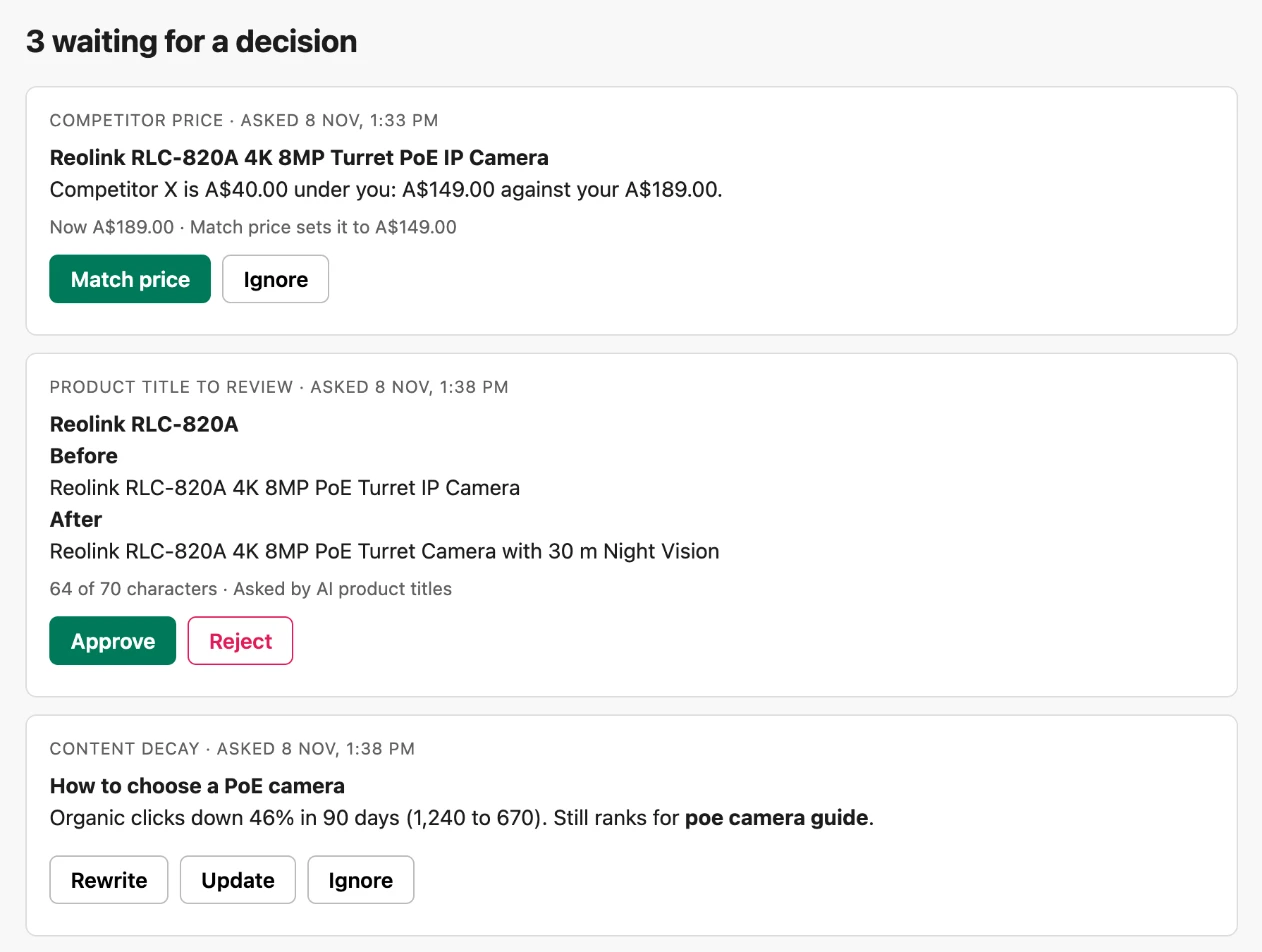
For the POST request when someone clicks a button on that page, add a second Webhook node in the Page lane named Page decision (HTTP Method: POST, Path: slack-approvals-decide, Respond: Using Respond to Webhook node), connected to a Crypto node named Check the page signature (Value: {{ $json.body.u + '|' + $json.body.exp }}, Property Name: expected, Encoding: hex, Credential: Crypto: Slack signing secret) and an If node named Signed? ({{ $json.expected === $json.body.sig && Number($json.body.exp) > $now.toSeconds() }}). If false, respond via Refuse the decision (403 JSON { "ok": false, "message": "Link expired. Open a new one from any card." }).
If Signed? is true, connect Get pending row for the page (id eq {{ Number($json.body.row_id) }}, status eq pending, Always Output Data: on) and Still pending? ({{ !!$json.id }}). If false, respond via Already decided ({ "ok": true, "message": "Someone already decided this one." }). If true, connect Mark processing from the page (status: processing, final_value: {{ $json.proposed_value }}), an Edit Fields (Set) node named Decision from the page (lane: apply, row_id: {{ $('Get pending row for the page').first().json.id }}, decision: {{ $('Check the page signature').first().json.body.decision }}, final_value: "", reason: "", snooze_hours: 0, user_id: {{ $('Check the page signature').first().json.body.u }}, via: page), and an Execute Workflow node named Apply from the page (calling {{ $workflow.id }}). Because Execute Workflow returns the output of whichever node ran last inside the sub-workflow, add a Data table node named Read the outcome (id eq {{ $('Get pending row for the page').first().json.id }}) and a Respond to Webhook node named Send the outcome (Header content-type: application/json):
{{ JSON.stringify({ ok: $json.status !== 'pending', status: $json.status, message: ({ approved: 'Approved.', edited: 'Approved.', rejected: 'Rejected.', acknowledged: 'Ignored.', routed: 'Sent.', superseded: 'Already changed at the source, nothing to do.', pending: 'That didn\'t apply: ' + $json.reason })[$json.status] || $json.status }) }}Step 11: Remind, snooze, then expire
An approval that sits untouched for three weeks is usually wrong by the time someone finally clicks it, because prices, stock and pages have moved on. Instead of auto-approving stale items or nagging the channel every hour, the Remind lane runs once a day to send a single thread nudge after 24 hours, expire untouched items after 7 days (so the next run of the calling workflow can propose a fresh value if it’s still needed), wake snoozed alerts when their timer is up, and unstick any row that stalled in processing for over an hour. Nothing is ever applied automatically in this lane.
Add a Schedule Trigger named Every day at 9 (Trigger interval: Days, Days between triggers: 1, Trigger at hour: 9), connected to an Edit Fields (Set) node named Remind settings (remind_after_hours: 24, expire_after_days: 7), and a Data table node named Get open rows to check (Operation: get, Data table: approvals, Must match: Any condition, status eq pending, status eq snoozed, status eq processing, Return all: on). Connect Get open rows to check to a Code node named Pick the due rows:
// One nudge, then expiry; snoozed alerts wake up; a row stuck in processing for an hour goes back to pending.
const s = $('Remind settings').first().json;
const now = Date.now(), hour = 3600e3;
const out = [];
for (const { json: r } of $input.all()) {
  const age = (now - new Date(r.requested_at).getTime()) / hour;
  let todo = null;
  if (r.status === 'snoozed') { if (r.snooze_until && new Date(r.snooze_until).getTime() <= now) todo = 'wake'; }
  else if (age >= 24 * s.expire_after_days) todo = 'expire';
  else if (r.status === 'processing') { if ((now - new Date(r.updatedAt).getTime()) / hour >= 1) todo = 'unstick'; }
  else if (age >= s.remind_after_hours && !r.reminded_at) todo = 'remind';
  if (todo && r.ts) out.push({ json: { ...r, todo, age_hours: Math.round(age) } });
}
return out;
Connect Pick the due rows to a Switch node named What is due with four outputs (Remind when $json.todo === 'remind', Expire when 'expire', Wake when 'wake', and Unstick when 'unstick'), and wire each branch:
- Output 0 (Remind): connect an HTTP Request node named
Nudge in the thread(POST tohttps://slack.com/api/chat.postMessage, body{{ JSON.stringify({ channel: $('Pick the due rows').item.json.channel, thread_ts: $('Pick the due rows').item.json.ts, text: ':bell: Still waiting for a decision. Asked ' + $('Pick the due rows').item.json.age_hours + ' hours ago.' }) }}) followed by a Data table node namedMark reminded(settingreminded_atto{{ $now.toISO() }}on row{{ $('Pick the due rows').item.json.id }}). - Output 1 (Expire): connect a Data table node named
Mark expired(settingstatus: expiredanddecided_at: {{ $now.toISO() }}), followed by an HTTP Request node namedShow expired on the card(POST tohttps://slack.com/api/chat.update) with this body expression:
{{ (r => JSON.stringify({ channel: r.channel, ts: r.ts, text: 'Expired: ' + r.item_label, blocks: ((card, word, note, saved) => { const b = JSON.parse(card || '[]').filter(x => x.type !== 'actions' && x.block_id !== 'approval_hint'); if (b[0] && b[0].type === 'header') b[0] = { type: 'header', text: { type: 'plain_text', text: (b[0].text.text.replace(/ to review$/, '') + ': ' + word).slice(0, 150) } }; if (saved) b.push({ type: 'section', text: { type: 'mrkdwn', text: ('*Saved as*\n' + saved).slice(0, 3000) } }); b.push({ type: 'context', elements: [{ type: 'mrkdwn', text: note }] }); return b; })(r.card, 'Expired', ':hourglass: Expired after ' + $('Remind settings').first().json.expire_after_days + ' days with no decision. Nothing was applied.') }))($('Pick the due rows').item.json) }}- Output 2 (Wake): connect a Data table node named
Wake it up(settingstatus: pending,snooze_until: {{ null }},decided_by: "",decided_at: {{ null }}), an HTTP Request node namedPut the buttons back(POST tohttps://slack.com/api/chat.update, body{{ JSON.stringify({ channel: $('Pick the due rows').item.json.channel, ts: $('Pick the due rows').item.json.ts, text: 'Back from snooze: ' + $('Pick the due rows').item.json.item_label, blocks: JSON.parse($('Pick the due rows').item.json.card) }) }}), and an HTTP Request node namedSay it is back(POST tohttps://slack.com/api/chat.postMessagewithreply_broadcast: trueandthread_ts: $('Pick the due rows').item.json.tsso the thread reply also surfaces in the main channel). - Output 3 (Unstick): connect a Data table node named
Back to pending after a stallthat resetsstatustopendingon row{{ $('Pick the due rows').item.json.id }}.
What it costs
Because sub-workflow executions don’t count towards your plan’s monthly execution limits, asking is free when another workflow calls this template via Execute Workflow, and Apply also runs as a free sub-workflow. Each button press in Slack is one webhook execution, an Edit or a Reject is two (opening the modal plus submitting it), Remind uses 30 executions a month, and Sync uses one execution per Shopify product update if enabled. Assuming about 1.5 executions per decision, here is what the workflow costs to run (checked November 2026):
| Item | 100 approvals a month | 500 | 2,000 |
|---|---|---|---|
| n8n self-hosted | Free | Free | Free |
| n8n Cloud | Starter, €20 a month (about 180 of 2,500 executions) | Starter (about 780) | Pro, €50 a month (about 3,030 of 10,000) |
| Slack | Free plan works | Free | Free |
| Shopify Admin API (demo apply only) | Free | Free | Free |
| Chat model | None in this template | None | None |
If you turn on the Shopify Sync webhook, add one execution per product update on your store. To keep execution counts low on high-volume workflows, you can batch low-risk items into one card, auto-approve items above a confidence threshold in the calling workflow, skip reminders, or leave the Sync webhook off for kinds where nothing else edits the items.
Common mistakes
Doing work before answering Slack
Calling Shopify, an AI model or a slow database before your Respond to Webhook node pushes your response past Slack’s 3-second limit, showing an error to the reviewer. Verify the signature, check the pending row, answer Slack immediately, and run the apply step afterwards.
Checking the signature against parsed JSON instead of the raw body
Slack computes X-Slack-Signature over the exact URL-encoded bytes it sent, so re-serialising parsed JSON or placing an Edit Fields (Set) node before Read the click drops the binary buffer and breaks every signature check. Turn Raw Body on in the Webhook node and read getBinaryDataBuffer(0, 'data') in the very first node after the trigger.
Opening the modal after a slow node
Slack’s trigger_id expires 3 seconds after the click and works only once. Call views.open as the first Slack request on the Edit and Reject branches right after Route the click.
Updating the card before the change lands
If you remove the buttons as soon as someone clicks Approve and the downstream API call fails, the card says “Approved” while the data is still unchanged and the reviewer has no button left to retry. Only call chat.update after your apply workflow or Shopify mutation succeeds, and revert status to pending on failure.
Putting signed links or the full text in button values
Button values are capped at 2,000 characters, are visible to anyone in the channel, and outlive signed links. Put only the row ID in value, keep the text in the Data Table, and sign a fresh page link when someone clicks Open in page.
One Slack app for test and live n8n
A Slack app has a single Interactivity Request URL, so sharing one app across two n8n instances sends every click to whichever URL is saved in Slack. Create a separate test Slack app from the same manifest for your test n8n instance.
Approvals waiting forever
A three-week-old price alert or title proposal is usually out of date by the time someone clicks it. Expire untouched rows in the Remind lane after 7 days without applying them, and let the calling workflow ask again on its next run if the change is still needed.
Leaving a card pending after the change happened somewhere else
When someone edits an item directly in the source system, an open Slack card becomes a trap that can overwrite their work. Re-read the live value before applying, and close stale cards via the Sync lane when the source changes.
Alerts with no buttons
Posting an alert with no actions forces the reader to context-switch into another tool, so most alerts get ignored. Add the primary fix (with a confirm dialog if it changes live data), a Snooze menu and Ignore right on the card.
Giving a workflow several Execute Workflow Triggers
n8n only runs the first Execute Workflow Trigger on a canvas and ignores any others. Use a single Called by a workflow trigger with Accept all data and route to your lanes with a Switch node on $json.lane.
Make it your own
Other workflows
To add a new approval, alert or routing card, add an entry to Kinds in the Ask lane and pass your caller’s apply_workflow_id when calling Execute Workflow. Any n8n workflow can ask for approval and receive the decision payload (decision, final_value, reason, decided_by) in its own apply workflow.
Several reviewers
To restrict who can click buttons, list their Slack member IDs (U0...) in approver_ids inside Click settings. If you need two-person sign-off on high-value changes (such as price drops over 20%), store an array of approver IDs in decided_by and only forward the row to Send to Apply once two distinct users have clicked Approve.
Microsoft Teams
If your team works in Microsoft Teams instead of Slack, the seven-lane table architecture stays the same. Swap the Block Kit JSON in Build the card for an Adaptive Card payload and verify the incoming webhook’s HMAC or bearer token in the Click lane before updating the card.
A slash command or Home tab
You can point a /approvals slash command in your Slack app settings to the same Slack button click Request URL and route command === '/approvals' to Sign a page link (slash commands arrive as form fields rather than a payload, so Read the click needs a branch for them; Slack also asks for the commands scope), or publish the output of Get pending rows to your app’s Home tab with views.publish.
FAQ
Can’t I just use n8n’s Slack Send and Wait?
For a single yes-or-no step in one workflow, n8n’s built-in Slack Send and Wait node is the fastest option and takes one node to set up. Use this build when reviewers need to edit the proposed value inside a Slack modal, when you want to queue hundreds of approvals without leaving hundreds of executions running, or when cards need to close automatically if the item changes in the source system first.
Does this work on Slack’s free plan?
Yes, interactive Block Kit messages, modals, chat.update and up to 10 installed apps all work on Slack’s free plan. Because the free plan keeps 90 days of message history, the approvals Data Table in n8n serves as your permanent audit log of who approved, edited or rejected each item.
Can I limit who can approve?
Yes, add the Slack user IDs (U0...) of your reviewers to the approver_ids array in Click settings. Anyone in the channel can still see the queue, and if someone outside that list clicks a button, the workflow leaves the card untouched and sends them a private ephemeral reply saying only approvers can decide these cards.
What if someone changes it in Shopify before anyone clicks?
If the Sync webhook is enabled, Shopify’s products/update webhook triggers the Sync lane within seconds, marking the row superseded and replacing the card’s buttons with Already changed in Shopify. Even without the webhook, the Apply lane re-reads the live value right before writing, so if the title or price no longer matches current_value, nothing is written and the card closes safely.
Can I use it for alerts, not just approvals?
Yes, any kind in the Kinds node with type: 'alert' builds an actionable alert card with a primary action button (and an optional confirmation dialog), a Snooze dropdown menu and an Ignore button. When a snoozed alert passes its snooze_until timestamp, the daily Remind lane puts the action buttons back on the original card and replies in the thread with reply_broadcast: true so it surfaces in the channel again.
Does it work on the Slack mobile app?
Yes, every Block Kit button, confirmation dialog, Snooze dropdown, and both the Edit and Reject modals render natively in the Slack iOS and Android apps. The signed Open in page link also uses a responsive mobile layout, so you can clear a batch of approvals from your phone.
Create the Slack app from the YAML manifest in Step 1, run Run once to set up to create the approvals table, trigger Send a test card, and press Edit in Slack to see the modal and live card update in action.