How to Improve and Automate Internal Linking on Shopify (+ Free n8n Template)

Last tested on n8n 2.46, November 2026.
Good ecommerce internal linking is how Google finds and weighs a store’s pages, yet most Shopify stores add collections, brand pages and products every week without anyone linking to them, because a store’s links come from its theme and data rather than from someone typing them. A crawl with Screaming Frog or Sitebulb is the right way to see that link graph, and it shows what’s broken on the day you run it; between crawls the catalogue keeps moving, so the structural links the store’s own data can generate are worth keeping true automatically, which turns the next crawl into a check rather than a to-do list. By the end of this guide, you’ll have a map of every place a Shopify store’s internal links come from, the steps to set up the structural ones by hand on a stock theme, and an optional free n8n template that fills them in every day and tells you every week what nothing links to.
Where you can add internal links on a Shopify store
Because rules and product feeds generate most of a Shopify store’s pages, almost all of its internal links come from theme templates and structured store data rather than links typed into paragraphs. Separating the surfaces you set once in your theme from those that drift as stock and categories change lets you fix the theme once and automate the rest.
Everything here is built and tested on Horizon 4.4, Shopify’s default theme, without editing its code. “Horizon out of the box” in the table says whether Horizon already renders the link or you add it with a Custom Liquid block or metafield.
| Opportunity | Where the link sits | Horizon out of the box | Set up in | Worth |
|---|---|---|---|---|
| Main menu | Every page | Built in | Theme editor | High |
| Footer | Every page | Built in | Theme editor | Medium |
| Homepage | Homepage | Built in | Theme editor | High |
| Category breadcrumbs | Collection pages | Needs Custom Liquid | Step 4 | High |
| Sub-collections | Collection pages | Needs Custom Liquid | Step 5 | High |
| Brand collections | Collection pages | Needs Custom Liquid | Step 6 | High |
| Product grid | Collection pages | Built in (cards link to the product only) | Make it your own | High |
| Pagination | Collection pages | Built in (turn auto-load off) | Step 1 | High |
| Category description | Collection pages | Built in | Category page guide | Medium |
| Category buyer’s guide | Collection pages | Needs a metafield | Category page guide | Medium |
| Categories page | /collections or a Categories page | Built in (first 20 collections only) | Step 8 | Low to Medium |
| Product breadcrumbs | Product pages | Needs Custom Liquid | Step 7 | High |
| Product brand | Product pages | Needs Custom Liquid | Step 6 | High |
| Product specs | Product pages | Needs Custom Liquid | Step 7 | Medium |
| Related collections | Product pages | Needs Custom Liquid | Step 7 | Medium |
| Related products | Product pages | Built in, not crawlable (JavaScript) | Theme editor | Low for crawling |
| Accessories | Product pages | Needs Custom Liquid | Make it your own | Medium |
| Product groups | Product pages | Needs Custom Liquid (swatches aren’t links) | Make it your own | Medium |
| Product description | Product pages | Built in | Make it your own | Low |
| Blog posts | Articles | Built in | Step 8 | Medium |
| Links to avoid | Filter, vendor, tag and other generated URLs | Generated by Shopify | Link the real page instead | None |
Whichever surface a link sits on, its anchor tells search engines what the destination page is about, and Seobility’s internal linking wiki notes that image links use the image’s alt text as their anchor. Avoid generic anchors like “click here” or “view all”, give collection images descriptive alt text, and use short menu labels as aliases (such as “PoE Switches” instead of “Managed and Unmanaged Power over Ethernet Network Switches”) while keeping collection titles fully descriptive.
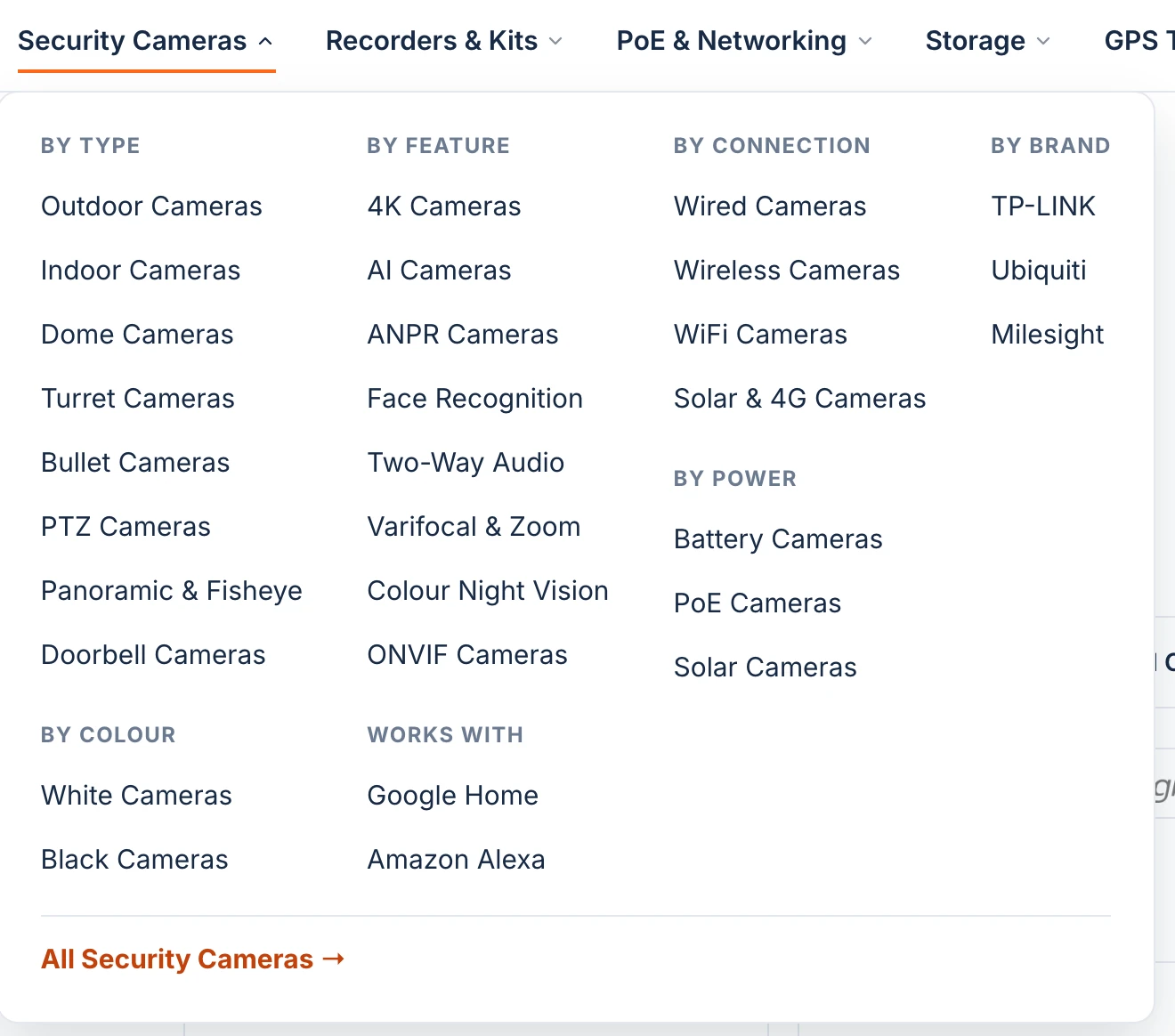
Main menu
Your header navigation sits on every page of your store, which makes it the strongest hierarchy signal you control. Google’s ecommerce site structure documentation explains that menus and cross-page links shape its understanding of site structure, and recommends linking from menus directly to category pages. Fire & Spark’s collection page internal linking guide notes that linking pages in your top navigation transfers the most internal authority possible to them.
Worth is High because every page on the site passes weight through these links. Keep your menu to the main categories people shop by (prioritising higher-margin ranges), nested two or three levels deep, because a mega menu that links every collection dilutes the pages that convert and overwhelms shoppers. This surface drifts because rule-based smart collections, brand pages and narrower attribute collections never add themselves to the menu, and a menu link goes stale when its collection empties, so the template’s weekly audit reports both collections nothing links to and menu links to empty collections.
Footer
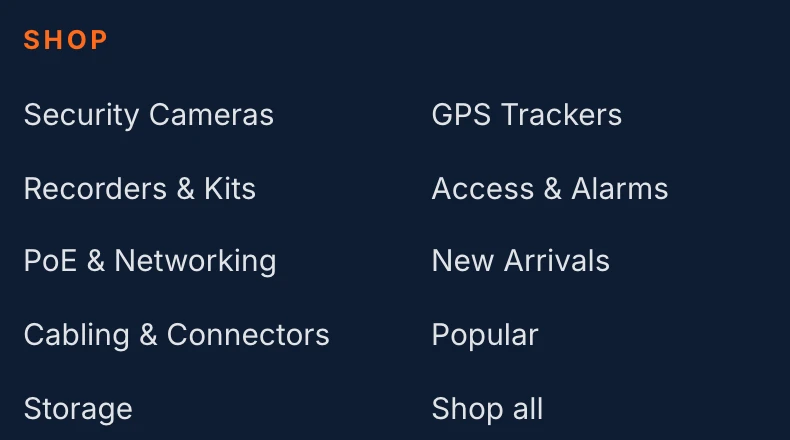
The footer appears on every URL, though search engines and shoppers treat it as secondary to the header and body content. That gives it Medium worth: it won’t carry a competitive category on its own, but it guarantees a crawl path from every page. Use it for policies, primary contact pages and a short list of core categories, and as Out of the Sandbox notes, use menu alias labels for long collection names so the navigation stays clean and legible.
Homepage
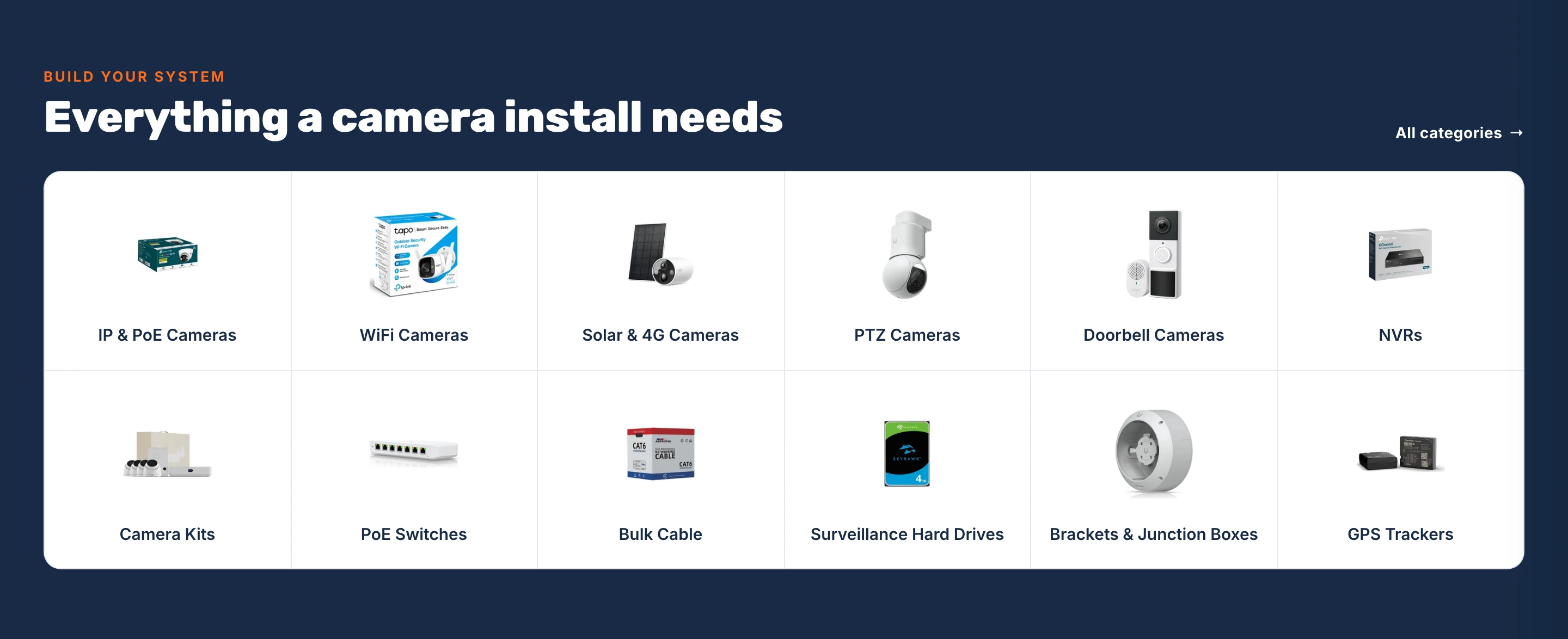
Your homepage almost always earns the most backlinks, which makes its outbound links unusually strong. Ahrefs’ internal links guide advises linking from your “power pages” (the ones with the most backlinks) to pages that need a lift, and Google’s ecommerce structure guide suggests linking to a best-selling product from the homepage.
Worth is High, even though it’s one page, because no other page on your domain concentrates as much authority. Feature your top-level categories and a row of active best sellers, and tie product rows to an automated best-sellers collection rather than hard-coding products that may go out of stock.
Collection pages
A collection page links up to its parents, down to its children, across to its brands and out to every product it holds, so most of a store’s structural links start here.
Category breadcrumbs
Breadcrumbs sit near the top of every collection and product page and link each step back up the hierarchy on a single line. For breadcrumbs SEO, Google’s breadcrumb structured data documentation states that a trail indicates the page’s position in the site hierarchy, and recommends breadcrumbs that represent a typical user path to a page rather than mirroring the URL structure. Google’s ecommerce site structure guide adds that it generally doesn’t look at URL structure to work out a site’s structure. Google stopped showing breadcrumbs in mobile search results in January 2025, but keeps them in desktop results and still reads BreadcrumbList structured data to understand page relationships.
Worth is High because breadcrumbs consolidate authority upward from every child collection to its parent categories. On Shopify, all collections sit at /collections/<handle> with no built-in parent field, so a theme can’t show more than Home / Collection unless you store the parent relationship yourself. Horizon shows no breadcrumb. Step 4 adds one.

Sub-collections
Sub-collection links are a row of “Shop by type” pills or cards right below the H1 on a parent category page, linking to every direct child collection so a shopper landing on Security Cameras immediately sees narrower collections like 4K Security Cameras, Hikvision Security Cameras and TP-LINK Security Cameras. Worth is High, and this is the most useful drifting surface in an online store, because Google’s ecommerce site structure guide explains that it analyses the links between pages to judge importance and uses the number of links it must follow to reach a page. When a parent category links directly to its children, every new child category sits one click below an established category page the day it’s created.
A leaf collection at the bottom of the tree, such as 8 Port PoE Switches, has no children to link down to. Sibling links (the other categories that share its parent) have Medium worth because they keep visitors and crawlers moving across the same topical cluster instead of hitting a dead end on a narrow sub-category. Horizon has neither; Step 5 adds both.

Brand collections
Out of the box, many Shopify themes use url_for_vendor to link a product’s brand name to /collections/vendors?q=Brand, a query-string filter page where you can’t set a custom title tag, meta description or clean URL handle. A smart collection for each vendor (a single rule where vendor equals TP-LINK at /collections/tp-link, or Ubiquiti at /collections/ubiquiti) turns every manufacturer into an indexable landing page, which you can build by hand or generate with the template in the Shopify collections SEO guide. On a store I run, 122 vendor query pages (/collections/vendors?q=) earned 0 clicks before brand collections replaced them.
Worth is High because brand searches carry strong buying intent and your category and product pages can pass concentrated internal authority straight to those brand collections. A brand page doesn’t need special link blocks; it only needs to exist so your catalogue data can link to it. On a category page, a “Shop by brand” row links every vendor in that collection to its brand page. Horizon has no such row; Step 6 adds one.

Product grid
Worth is High because the collection product grid is the main path crawlers follow from categories to product pages, and Google’s ecommerce site structure guide strongly recommends linking to every product you want indexed.
Each card can also carry a small link beyond the product, such as the brand name linking to its brand collection, or the product type or a key spec like 4MP linking to the collection that holds it. A category page shows 24 or more cards, so these links add up fast and suit the one or two collections that matter most to buyers, under the same rules as the specs table: link only to collections that exist and have products, and never to filter URLs. The grid can also hold a tile that sends shoppers to the category’s accessories, such as PoE switches on a cameras page. Horizon’s cards link only to the product; Make it your own adds a brand link with a Custom Liquid block in the card.

Pagination
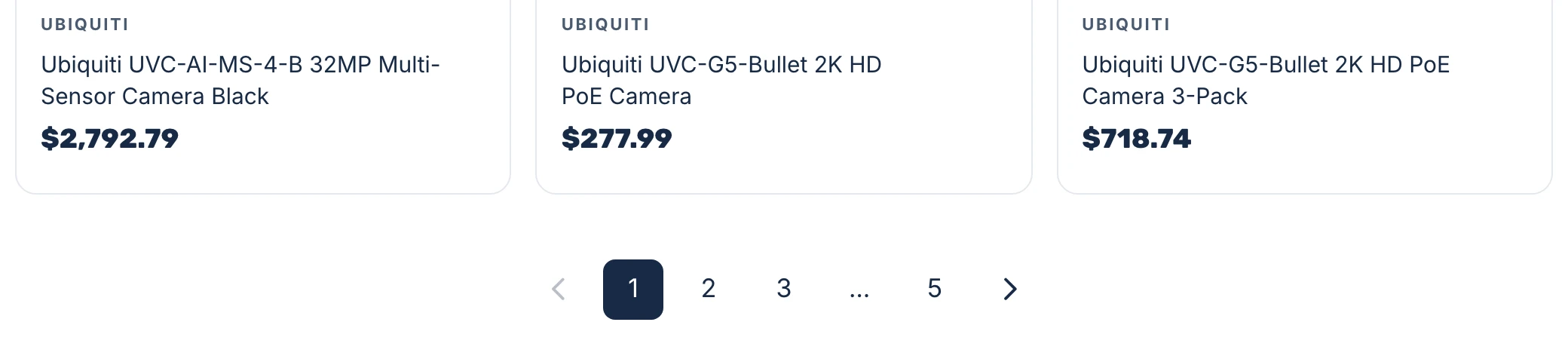
Numbered page links are how crawlers reach a collection’s products past the first page, which makes them High worth on any collection with more products than fit on one page. Horizon turns “Auto load products on scroll” on by default, so the collection template renders only the first 24 products in HTML and no link to page 2. Google’s pagination documentation makes clear that crawlers don’t click buttons or scroll to trigger script-loaded content, so products past page one stay invisible to search engines from that collection until you turn auto-load off in Step 1.
Category description
A short paragraph above the product grid lets shoppers confirm they’re in the right place and gives you room for two or three contextual links to a parent, child or sibling category. Google’s link best practices say good anchor text is descriptive, reasonably concise and relevant to the page it’s on.
Worth is Medium because these links sit high in the main content of category pages but cover far fewer targets than sub-collection pills. The companion ecommerce category page SEO guide covers automated intro copy and its contextual links, while this guide’s template reads existing collection descriptions in its weekly audit and flags broken links.

Category buyer’s guide
On categories where shoppers compare specs before buying, such as choosing between 4-channel and 16-channel NVRs or WiFi and PoE cameras, a short buyer guide below the product grid helps both readers and search engines. Linking from it to child categories and specific products (like the TP-LINK VIGI NVR1004H-4P for a small four-camera setup or the Ubiquiti UniFi UNVR for rackmount storage) passes targeted relevance down the tree.
Worth is Medium because buyer guides sit on your highest-value category pages and send shoppers directly to the right sub-category or hardware model. Always insert those links in code from verified collection and product handles rather than letting an AI model write URLs.
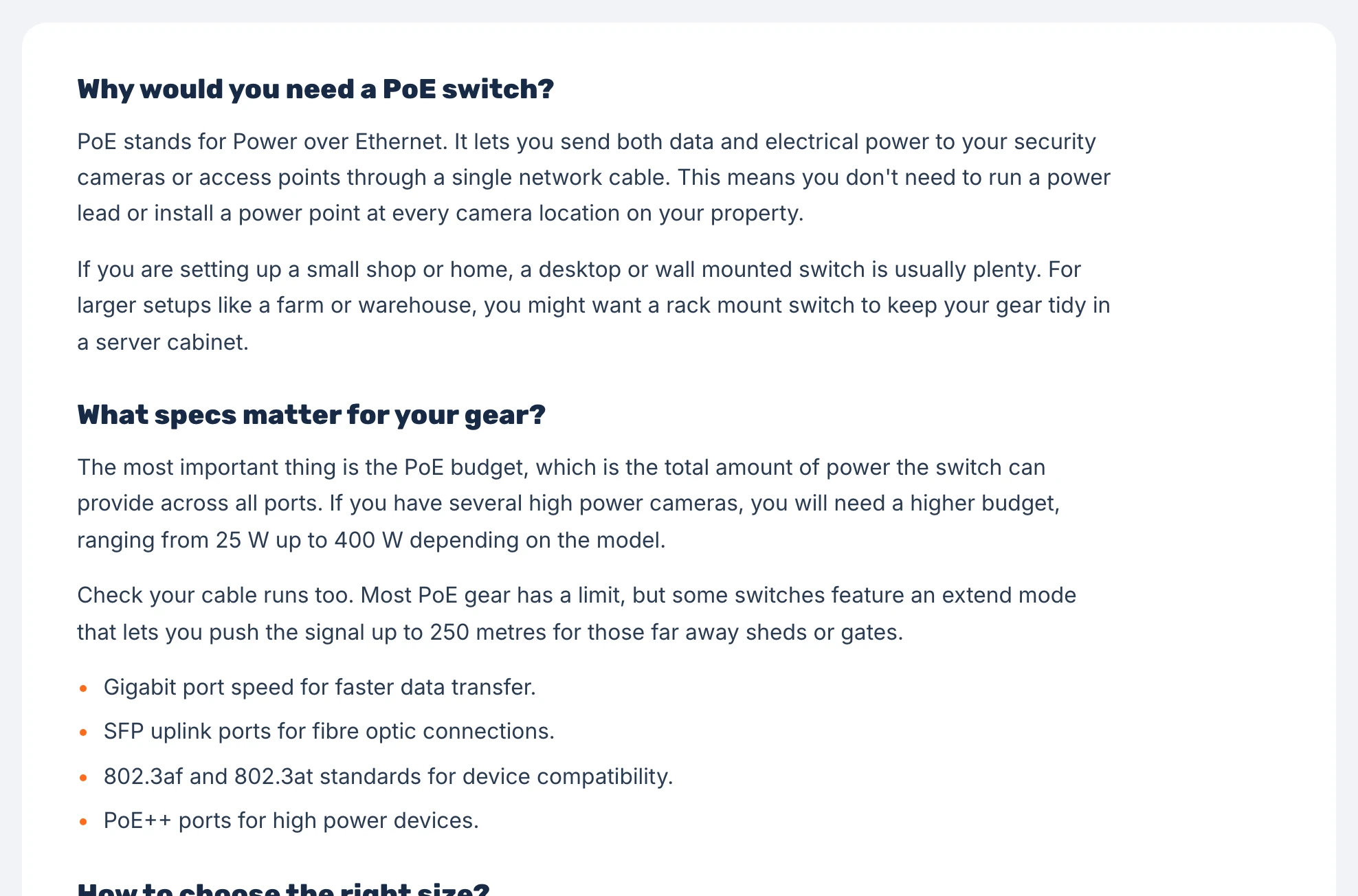
Categories page
A collections index or categories page linked from the footer gives shoppers and search engines one fallback page that reaches every major section of your store, with Low to Medium worth depending on your catalogue’s size and how many collections sit outside your top navigation. Shopify generates a collection index at /collections, but Horizon’s list-collections template outputs only the first 20 collections with no pagination, leaving the rest unlinked on that page. Step 8 adds a /pages/categories page that isn’t capped at 20.
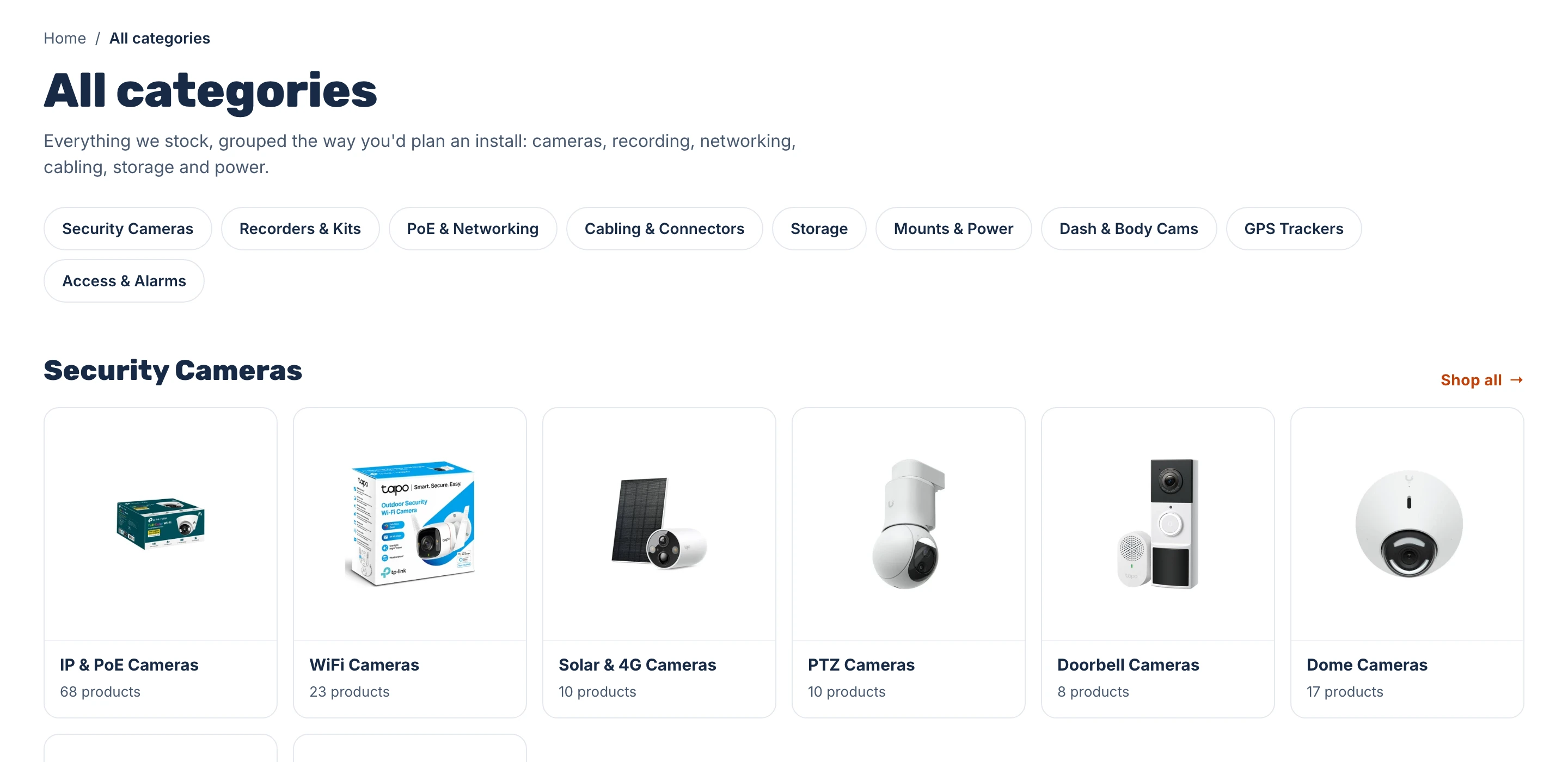
Product pages
A product page links back up to the categories and brand that describe it and across to the collections and products a shopper might want next, and because there are far more products than collections, these links add up quickly.
Product breadcrumbs
On product pages, the trail runs through the product’s primary collection (for example, Home / Security Cameras / TP-LINK VIGI C540), passing relevance up to the parent category pages from hundreds or thousands of products. Worth is High for the same reasons as category breadcrumbs. A product often sits in several collections (such as Security Cameras, TP-LINK Security Cameras and 4MP Security Cameras), so a theme has no native way to know which trail to show. Horizon shows no product breadcrumb. Step 7 adds one through the product’s primary collection, which the automation picks by a fixed rule so the trail stays the same every day.

Product brand
Shopify’s internal linking guide notes that pages without internal links are often harder for Google to discover, citing a seoClarity case study where adding internal links to underperforming product pages brought a 23% rise in organic traffic. Linking each product to its manufacturer’s collection has High worth for the same reason as brand collections: brand queries convert well, and a link on every product page compounds across the catalogue to keep brand collections strong. Horizon’s product template prints no vendor name, so brand collections get zero inbound links from the products they hold until Step 6 adds one.

Product specs
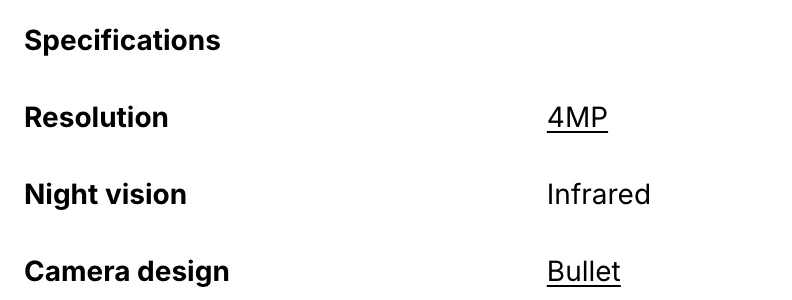
Technical specifications on a product page (a camera’s resolution, its night vision, an NVR’s channel count) are what buyers check before they buy, and each value is a natural anchor for the collection holding every product that shares it. When the Resolution row reads 4MP and 4MP links to 4MP Security Cameras, every 4MP camera passes a link to that collection from the part of the page shoppers compare most closely, with the spec name beside the value telling search engines what the link is about. Worth is Medium, because these links are as plentiful as the related collection links and their anchor text is more specific.
Two rules keep them clean. A value links only when a published collection exists for it, so Infrared, or a weight with no collection of its own, stays plain text. A value never links to a filter URL such as ?filter.p.m.custom.resolution=4MP, because a filtered view is a variation of the collection page rather than a page of its own, and Shopify’s default robots.txt blocks combinations of them. Horizon has no specs table; Step 7 adds one whose values link through the custom.spec_links field.
Related collections
A product’s breadcrumb links up to its single primary category, but a product like the TP-LINK VIGI C540 also belongs to narrower attribute and brand-by-type collections such as 4MP Security Cameras and TP-LINK Security Cameras. A “Shop more like this” row linking those narrower collections has Medium worth because it feeds links from every matching product into long-tail collections that otherwise receive links only from a parent category or menu. The specs table also links 4MP Security Cameras from the Resolution row, and that’s fine: the row is where the collection appears by its full name, and linking to the same collection from two or three places on a page is normal when each link makes sense where it sits. Horizon has no block for it; Step 7 adds one.

Related products
Cross-links between products help shoppers compare alternatives and add accessories. In Shopify Search & Discovery product recommendations, related products are generated automatically, whereas complementary products, the ones often bought alongside a selected product, are picked by hand (up to 10 per product, such as pairing the TP-LINK VIGI NVR1004H-4P with the TP-LINK VIGI C540).
Product recommendations are useful for shoppers, but their crawling worth is Low because Horizon loads both related and complementary blocks with client-side JavaScript from /recommendations/products, a path Shopify’s default robots.txt explicitly disallows. Googlebot can’t fetch the endpoint and never sees those links, which you can verify by checking the rendered HTML in Search Console’s URL Inspection tool. The same applies to other links built entirely in the browser, including on-site /search results, “recently viewed” rows stored in localStorage, and JavaScript personalisation popups, because Google can only crawl a link if it’s an <a> HTML element with an href attribute in the HTML Googlebot can fetch.
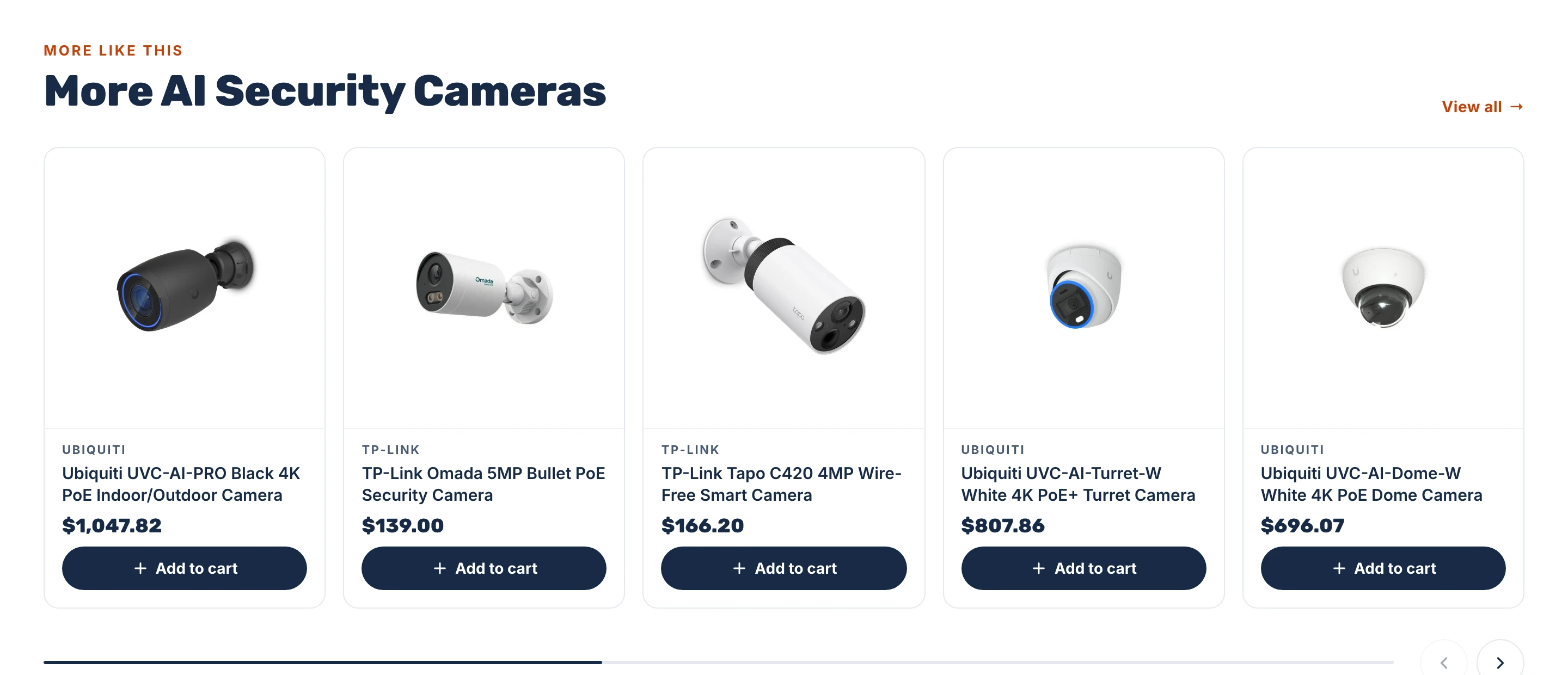
Accessories
Hardware products often need compatible add-ons to complete an installation, such as a PoE bullet camera paired with an 8-port PoE switch like the TP-LINK TL-SG1008MP, a power injector or a junction box. Linking to compatible accessories in server-rendered HTML has Medium worth because it builds lateral crawl paths between complementary product lines and helps buyers find the parts that fit. Horizon can’t show a hand-picked product list without code; Make it your own shows how.
Product groups
When a hardware line comes in several versions sold as separate listings rather than variants on one page (such as a security camera offered in 2.8mm, 4mm and 6mm lens models, or network switches with 8, 16 and 24 ports), linking the group’s members together has Medium worth because it clusters the product family and lets shoppers switch models without going back to the category grid. Horizon’s variant swatches are form inputs rather than <a href> links, so Make it your own links a product group with plain links.
Product description
Links inside a product’s description point to another product or a category page. Worth is Low because each link exists on a single product page, and this is the surface most likely to rot: when a linked accessory or camera model is discontinued and unpublished, the hard-coded link breaks. Because these links drift as stock changes and each needs a genuine reason to exist for the shopper, they aren’t part of the n8n template. To add links to a product’s own brand and category inside descriptions, Make it your own shows how to do it safely in code.
Blog posts
Educational content, installation guides and comparison posts work best when they pass readers and authority into the categories and products they discuss. Many stores automate this with keyword auto-linker apps that turn a saved phrase into a link everywhere it appears, but exact-match anchors repeated across dozens of articles look unnatural; Google’s link best practices warn that keyword stuffing violates its spam policies, and Verbolia’s internal linking automation guide warns against reusing one anchor for different URLs and recommends keeping total links per page below a few hundred.
Worth is Medium when links are placed deliberately, with varied, natural anchors pointing to core categories. Blog posts stay live long after products and seasonal collections are retired, so the template’s weekly audit reads the HTML body of your published pages and articles and flags any link to a collection or product handle that’s no longer live or passes through a URL redirect.
Links to avoid
Shopify generates more URLs than the pages you make, and some look like useful link targets while doing nothing for your structure. Each one below is a version of a page you already have, or a page Shopify builds on the fly, so linking to it spends a link on a URL you’d rather search engines didn’t weigh. Link to the page it copies instead.
Filter and sort URLs
Filters sit beside the product grid on most collection pages, and every filter value creates its own URL, such as /collections/security-cameras?filter.p.m.custom.resolution=4MP. Filter combinations can spawn thousands of parameter URLs that waste crawl budget and duplicate content, so Google’s faceted navigation guidance recommends blocking the combinations you don’t need crawled. Shopify’s default robots.txt already blocks sort URLs (/collections/*sort_by*), tag combinations (/collections/*+*) and multi-filter URLs (/collections/*filter*&*filter*), and Horizon renders filters as form inputs rather than <a href> links. When a filter value has real search demand, such as 4K cameras or 8-port PoE switches, create a smart collection for it and link to that, as covered in the companion ecommerce category page SEO guide; the specs table in Step 7 then links every matching product to it.
Vendor and type pages
Every Shopify store answers /collections/vendors?q=TP-LINK and /collections/types?q=Security%20Cameras with an automatic page listing that vendor’s or that type’s products. You can’t give these pages a description or a place in your category tree, and some themes link to them from the product page through the url_for_vendor and url_for_type filters. Link to your own brand collection (Step 6) and category collections instead, which you can describe, sort and place in the tree.
Tag pages
Adding a tag to a collection URL, as in /collections/security-cameras/outdoor, shows the same collection page narrowed to the products with that tag. Shopify’s robots.txt blocks combined tags (outdoor+wifi), but a single tag page is crawlable and competes with the collection it sits under. If a tag deserves a page, make it a smart collection with the tag as its rule.
Collection-scoped product URLs
When a theme uses the within: collection filter, product cards link to /collections/security-cameras/products/tp-link-vigi-c540 rather than /products/tp-link-vigi-c540. Both URLs show the same product and the canonical tag points to /products/..., so every collection-scoped link is a link to a duplicate. Horizon’s cards link to product.url directly; check older themes as described in Make it your own.
All products and the homepage collection
/collections/all lists every product in the store, and the frontpage collection exists on every store to feed the homepage. Neither is a category a shopper searches for, which is why the template’s skip_handles setting leaves both out of every link it writes.
Search, recommendation and variant URLs
On-site search results (/search?q=) are built for each query, Horizon’s related products load from /recommendations/products (blocked in robots.txt, as Related products explains), and ?variant= URLs are the same product page with a different option selected. Link to the product or collection page itself.
How to set up internal links on Shopify
Each of the six structural links needs a metafield definition in Shopify to hold the reference and a block in your theme to render the HTML. Everything in this section happens in the Shopify admin and theme editor on an unpublished copy of Horizon 4.4, with no theme code edited, so you can preview every change before publishing. To set up Shopify internal linking for a small catalogue without n8n, work through Steps 1 to 8 and fill the fields by hand in Step 3; the next section automates the daily updates and weekly audit.
If you’re setting up structural internal linking on an existing store, make the changes in this order:
- Turn off Auto load products on scroll on your collection template (Step 1) so crawlers can reach products past page one.
- Create the link fields and fill them (Steps 2 and 3, or the automation below) so the theme blocks have something to show.
- Add category breadcrumbs and sub-collection links (Steps 4 and 5) so parent and child categories link both ways.
- Link products to their brand page and add the “Shop by brand” row on collections (Step 6) so brand collections aren’t left as orphans.
- Add the product breadcrumb through a primary collection (Step 7) so every product reinforces its main category.
- Add the linked specs table and “Shop more like this” on products (Step 7) so spec and brand-by-type collections receive links from the products they hold.
- Run the weekly audit (Steps 5 and 6 of the automation below) to find remaining orphan pages, weak collections, broken links or redirected handles.
Step 1: Turn on pagination links
In your Shopify admin, go to Online Store > Themes, copy your live theme if you aren’t already working on one, click Customize on the copy, and open the Collection template from the top dropdown (Products > Default collection, or any collection). In the left sidebar, select the Collection section (it holds the product grid), turn off Auto load products on scroll in the right-hand settings panel, and set Products per page to your preferred count (8 to 36; 24 is the default).
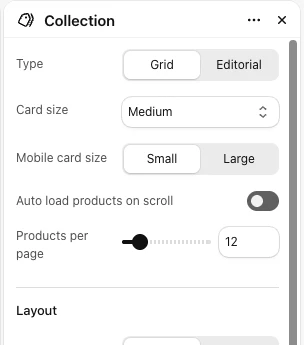
With auto-load on, Horizon renders the first 24 products and no page links, whereas turning it off makes the template output numbered pagination with standard <a href> links. To check, preview a collection with more than one page of products, view the page source, and look for an <a href> containing ?page=2 in the raw HTML (templates/collection.json saves this setting as enable_infinite_scroll, which the weekly audit’s theme check inspects).
Step 2: Create the six link fields
In your Shopify admin, open Settings > Metafields and metaobjects, select Collections, and click Add definition to create the parent and sub-collection fields, then select Products > Add definition to create the brand, primary collection, spec links and related collections fields with these exact keys and metafield types (or let the n8n Setup lane create all six in Step 1 of the automation below):
| Owner | Name | Namespace and key | Type |
|---|---|---|---|
| Collection | Parent collection | custom.parent_collection | Collection (one) |
| Collection | Sub-collections | custom.sub_collections | Collection (list) |
| Product | Brand | custom.brand | Collection (one) |
| Product | Primary collection | custom.primary_collection | Collection (one) |
| Product | Spec links | custom.spec_links | JSON |
| Product | Related collections | custom.related_collections | Collection (list) |

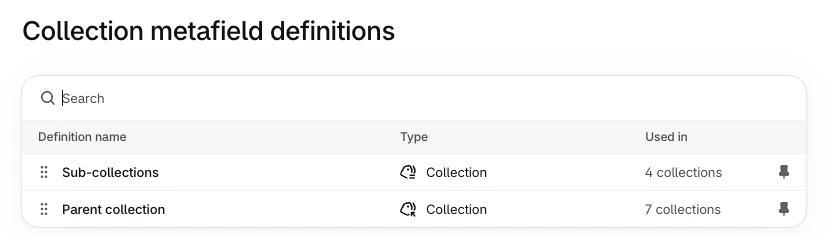
Pin each definition so it shows on collection and product pages in the admin. We use the Collection reference type rather than a handle in a single-line text field because a reference gives Liquid the full collection object (.url, .title, .products_count), and renaming a collection’s handle later won’t break the link. Shopify Search & Discovery filters only accept single-line text, number, boolean and metaobject fields rather than collection references, which is fine because these fields exist only for navigation links. Spec links is the one field that holds handles instead of references: it’s a JSON object naming a collection for each spec, such as {"custom.resolution": "4mp-security-cameras"}, because a product can link several specs to several collections and a list of references can’t say which spec each one belongs to. The specs snippet checks that each handle still points to a collection with products before printing a link.
Step 3: Fill them by hand
To fill the fields by hand, open a collection under Products > Collections, scroll to the Metafields card, click Parent collection to pick the category one level above it in your menu tree, and click Sub-collections to pick its direct child categories.

On a product page (Products > select a product), set Brand to the vendor’s brand collection, set Primary collection to the deepest category collection the product sits in (never a brand page or brand-by-type collection), enter Spec links as JSON that names the collection for each spec value that has one ({"custom.resolution": "4mp-security-cameras"} for the VIGI C540), and pick up to six narrower spec or brand-by-type collections in Related collections. To update dozens of products at once without automation, select them in the Products list, click Bulk edit, and add the four product metafield columns to fill them in a grid, or leave them for the n8n Link lane to calculate every morning.
Step 4: Add collection breadcrumbs with BreadcrumbList schema
Horizon has no breadcrumb block or setting, so open the Collection template in the theme editor, select the heading section at the top of the page (it holds the collection title and description blocks), click Add block > Custom Liquid, drag the block above the collection title, and paste this snippet:
{%- comment -%}
  Collection breadcrumb with BreadcrumbList markup.
  Paste into a Custom Liquid block at the top of the collection template's heading section.
  Reads custom.parent_collection up to three levels: Home / Networking / PoE Switches / 8 Port PoE Switches.
{%- endcomment -%}
{%- liquid
  assign p1 = collection.metafields.custom.parent_collection.value
  assign p2 = p1.metafields.custom.parent_collection.value
  assign p3 = p2.metafields.custom.parent_collection.value
  assign pos = 1
-%}
<nav class="breadcrumbs" aria-label="Breadcrumb" style="font-size: 0.875rem;">
  <a href="{{ routes.root_url }}">Home</a>
  {%- if p3 %} / <a href="{{ p3.url }}">{{ p3.title }}</a>{% endif -%}
  {%- if p2 %} / <a href="{{ p2.url }}">{{ p2.title }}</a>{% endif -%}
  {%- if p1 %} / <a href="{{ p1.url }}">{{ p1.title }}</a>{% endif %}
  / <span aria-current="page">{{ collection.title }}</span>
</nav>
<script type="application/ld+json">
{"@context": "https://schema.org", "@type": "BreadcrumbList", "itemListElement": [
  {"@type": "ListItem", "position": 1, "name": "Home", "item": {{ shop.url | append: routes.root_url | json }}}
  {%- for c in (1..3) -%}
    {%- liquid
      case forloop.index
        when 1
          assign crumb = p3
        when 2
          assign crumb = p2
        when 3
          assign crumb = p1
      endcase
    -%}
    {%- if crumb -%}
      {%- assign pos = pos | plus: 1 -%}
      ,{"@type": "ListItem", "position": {{ pos }}, "name": {{ crumb.title | json }}, "item": {{ shop.url | append: crumb.url | json }}}
    {%- endif -%}
  {%- endfor -%}
  ,{"@type": "ListItem", "position": {{ pos | plus: 1 }}, "name": {{ collection.title | json }}}
]}
</script>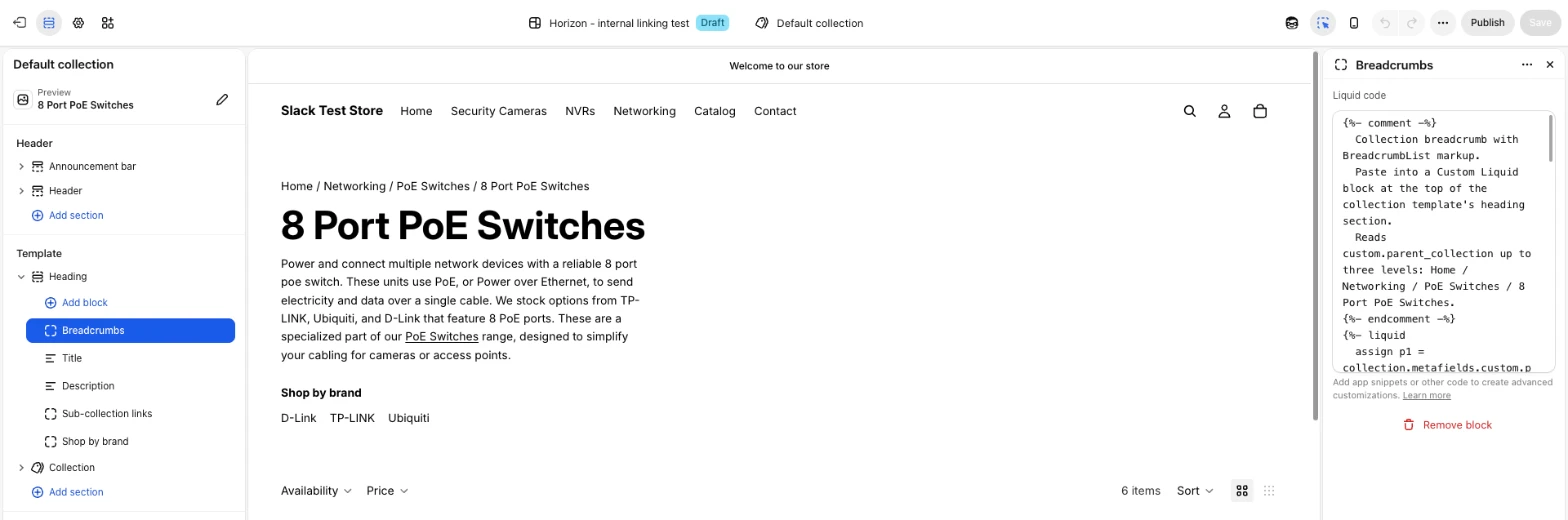
The snippet walks up to three parent collections from custom.parent_collection, marks the current page with aria-current="page", and builds the BreadcrumbList JSON-LD script from the same objects so the visible trail and the structured data can’t disagree (a top-level category renders Home / Security Cameras). To check it, view the page source on a preview collection and look for BreadcrumbList, or run the preview URL through Google’s Rich Results Test.
Step 5: Add sub-collection and sibling links
In the same collection heading section, click Add block > Custom Liquid again, place the block directly under the collection description, and paste this snippet:
{%- comment -%}
  "Shop by type" links to the sub-collections in custom.sub_collections.
  A collection with no children of its own shows its siblings instead (the parent's list, minus itself).
  Empty collections are skipped, and nothing prints when there's nothing to link.
  Paste into a Custom Liquid block under the description in the collection template's heading section.
{%- endcomment -%}
{%- liquid
  assign links = collection.metafields.custom.sub_collections.value
  assign label = 'Shop by type'
  if links == blank
    assign links = collection.metafields.custom.parent_collection.value.metafields.custom.sub_collections.value
    assign label = 'Related categories'
  endif
-%}
{%- capture items -%}
  {%- for c in links -%}
    {%- if c.id != collection.id and c.products_count > 0 -%}
      <li><a href="{{ c.url }}" style="display: inline-block; padding: 0.4rem 0.9rem; border: 1px solid rgb(var(--color-foreground-rgb, 0 0 0) / 0.2); border-radius: 2rem; text-decoration: none;">{{ c.title }}</a></li>
    {%- endif -%}
  {%- endfor -%}
{%- endcapture -%}
{%- if items != blank -%}
  <nav class="collection-links" aria-label="{{ label }}">
    <p style="margin: 0 0 0.5rem; font-weight: 600;">{{ label }}</p>
    <ul style="display: flex; flex-wrap: wrap; gap: 0.5rem; list-style: none; margin: 0; padding: 0;">{{ items }}</ul>
  </nav>
{%- endif -%}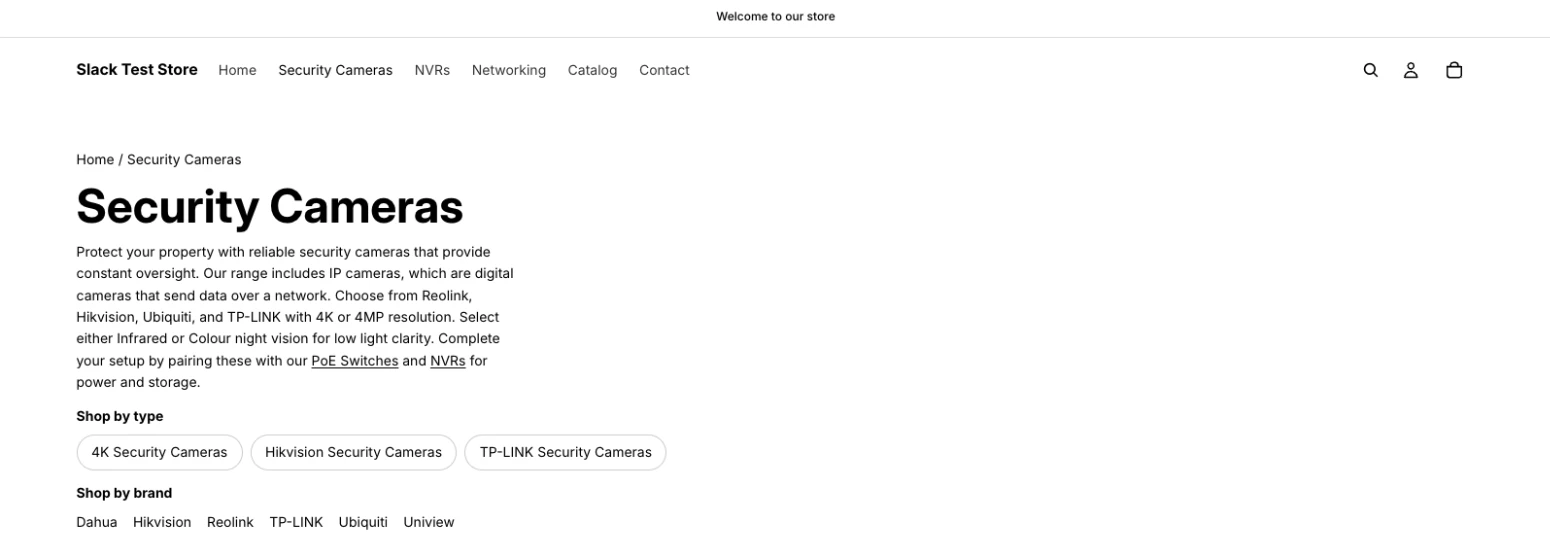
This block loops through custom.sub_collections, checks c.products_count > 0 so a child collection whose last product sells out drops off the page immediately rather than at the next morning’s Link run, falls back to the parent collection’s list as “Related categories” when a leaf collection has no children, and outputs nothing when both are empty. We use Custom Liquid rather than connecting Horizon’s built-in Collection list section to the metafield as a dynamic source because Horizon fills an empty collection list setting with placeholder cards, which would show dummy cards on every leaf collection.
Step 6: Link products to their brand page, and add Shop by brand
First, make sure each vendor has a smart collection (Products > Collections > Create collection > Smart, rule Vendor is equal to TP-LINK) whose handle matches the vendor name run through handleize (tp-link). Then in the theme editor, switch to the Product template (Products > Default product), open the group under Product information that holds the product title, click Add block > Custom Liquid, drag it directly below the title, and paste this snippet:
{%- comment -%}
  "By TP-LINK", linking the product to its brand page in custom.brand. Prints nothing when the field is empty.
  Paste into a Custom Liquid block under the product title.
{%- endcomment -%}
{%- assign brand = product.metafields.custom.brand.value -%}
{%- if brand -%}
  <p class="product-brand" style="margin: 0;">By <a href="{{ brand.url }}">{{ brand.title }}</a></p>
{%- endif -%}
Although you can connect a built-in Collection card block to the custom.brand dynamic source without code, Horizon shows a placeholder card on any product whose brand field is empty, whereas this Custom Liquid snippet prints a clean text link and disappears when no brand is set.
Next, switch back to the Collection template, click Add block > Custom Liquid in the heading section right below the sub-collection block from Step 5, and paste the Shop by brand snippet:
{%- comment -%}
  "Shop by brand" links from a category page to the brand page of every vendor in it.
  Looks each vendor's brand collection up by handle (TP-LINK -> /collections/tp-link), so brand
  collections need the handleized vendor name as their handle. Vendors without one are skipped.
  Paste into a Custom Liquid block under the sub-collection links.
{%- endcomment -%}
{%- capture items -%}
  {%- for vendor in collection.all_vendors -%}
    {%- assign brand_handle = vendor | handleize -%}
    {%- assign brand = collections[brand_handle] -%}
    {%- if brand.id != blank and brand.id != collection.id and brand.products_count > 0 -%}
      <li><a href="{{ brand.url }}">{{ brand.title }}</a></li>
    {%- endif -%}
  {%- endfor -%}
{%- endcapture -%}
{%- if items != blank -%}
  <nav class="shop-by-brand" aria-label="Shop by brand">
    <p style="margin: 0 0 0.5rem; font-weight: 600;">Shop by brand</p>
    <ul style="display: flex; flex-wrap: wrap; gap: 0.25rem 1rem; list-style: none; margin: 0; padding: 0;">{{ items }}</ul>
  </nav>
{%- endif -%}
Because it looks up each vendor’s brand page from collection.all_vendors by handle (collections[brand_handle]), this block needs no metafield of its own and skips any vendor without a live brand collection (Liquid won’t accept a filter inside square brackets, so brand_handle is assigned first).
Step 7: Add the product breadcrumb, linked specs and “Shop more like this”
In the theme editor on the Product template, select Product information, click Add block > Custom Liquid, drag it to the top of the section, and paste the product breadcrumb snippet:
{%- comment -%}
  Product breadcrumb with BreadcrumbList markup, through the product's custom.primary_collection
  and that collection's parents: Home / Security Cameras / TP-LINK VIGI C540.
  Paste into a Custom Liquid block at the top of the product information section.
{%- endcomment -%}
{%- liquid
  assign p1 = product.metafields.custom.primary_collection.value
  assign p2 = p1.metafields.custom.parent_collection.value
  assign p3 = p2.metafields.custom.parent_collection.value
  assign pos = 1
-%}
<nav class="breadcrumbs" aria-label="Breadcrumb" style="font-size: 0.875rem;">
  <a href="{{ routes.root_url }}">Home</a>
  {%- if p3 %} / <a href="{{ p3.url }}">{{ p3.title }}</a>{% endif -%}
  {%- if p2 %} / <a href="{{ p2.url }}">{{ p2.title }}</a>{% endif -%}
  {%- if p1 %} / <a href="{{ p1.url }}">{{ p1.title }}</a>{% endif %}
  / <span aria-current="page">{{ product.title }}</span>
</nav>
<script type="application/ld+json">
{"@context": "https://schema.org", "@type": "BreadcrumbList", "itemListElement": [
  {"@type": "ListItem", "position": 1, "name": "Home", "item": {{ shop.url | append: routes.root_url | json }}}
  {%- for c in (1..3) -%}
    {%- liquid
      case forloop.index
        when 1
          assign crumb = p3
        when 2
          assign crumb = p2
        when 3
          assign crumb = p1
      endcase
    -%}
    {%- if crumb -%}
      {%- assign pos = pos | plus: 1 -%}
      ,{"@type": "ListItem", "position": {{ pos }}, "name": {{ crumb.title | json }}, "item": {{ shop.url | append: crumb.url | json }}}
    {%- endif -%}
  {%- endfor -%}
  ,{"@type": "ListItem", "position": {{ pos | plus: 1 }}, "name": {{ product.title | json }}}
]}
</script>
Next, add a second Custom Liquid block under the product description in Product information and paste the specs table snippet. Its first line lists the specs to show, in order, as namespace.key|Label, so change it to the metafields and standard product attributes your products use (shopify. keys print their labels, such as Bullet):
{%- comment -%}
  Specifications table with linked values. A value links to the collection in custom.spec_links
  for that spec, so "Resolution: 4MP" goes to 4MP Security Cameras; a value with no collection
  stays plain text. List the specs to show below as namespace.key|Label, in order. Standard
  product attributes (shopify.*) show their labels. Nothing prints when the product has none.
  Paste into a Custom Liquid block in product information, under the description.
{%- endcomment -%}
{%- assign specs = 'custom.resolution|Resolution,custom.night_vision|Night vision,custom.channels|Channels,custom.poe_ports|PoE ports,custom.cable_length|Length,custom.ip_rating|IP rating,shopify.surveillance-camera-design|Camera design,shopify.power-source|Power source' | split: ',' -%}
{%- assign links = product.metafields.custom.spec_links.value -%}
{%- capture rows -%}
  {%- for spec in specs -%}
    {%- assign parts = spec | split: '|' -%}
    {%- assign ref = parts[0] | split: '.' -%}
    {%- assign field = product.metafields[ref[0]][ref[1]] -%}
    {%- if field != blank -%}
      {%- if field.type contains 'metaobject_reference' and field.type contains 'list.' -%}
        {%- assign shown = field.value | map: 'label' | join: ', ' -%}
      {%- elsif field.type contains 'metaobject_reference' -%}
        {%- assign shown = field.value.label -%}
      {%- elsif field.type contains 'list.' -%}
        {%- assign shown = field.value | join: ', ' -%}
      {%- else -%}
        {%- assign shown = field.value -%}
      {%- endif -%}
      {%- assign handle = nil -%}
      {%- assign target = nil -%}
      {%- if links -%}{%- assign handle = links[parts[0]] -%}{%- endif -%}
      {%- if handle != blank -%}{%- assign target = collections[handle] -%}{%- endif -%}
      <tr>
        <th scope="row" style="text-align: left; padding: 0.5rem 1rem 0.5rem 0; font-weight: 600;">{{ parts[1] }}</th>
        <td style="padding: 0.5rem 0;">
          {%- if target != blank and target.products_count > 0 -%}<a href="{{ target.url }}" style="text-decoration: underline;">{{ shown }}</a>{%- else -%}{{ shown }}{%- endif -%}
        </td>
      </tr>
    {%- endif -%}
  {%- endfor -%}
{%- endcapture -%}
{%- if rows != blank -%}
  <table class="spec-table" style="width: 100%; border-collapse: collapse;">
    <caption style="text-align: left; font-weight: 600; padding-bottom: 0.5rem;">Specifications</caption>
    <tbody>{{ rows }}</tbody>
  </table>
{%- endif -%}
A value prints as a link only when custom.spec_links names a collection for that spec and the collection still has products, so a spec with no collection of its own stays plain text and a deleted collection never leaves a dead link. The links point at collection pages, never at filter URLs.
Then add a third Custom Liquid block under the specs table and paste the “Shop more like this” snippet:
{%- comment -%}
  "Shop more like this": links to the narrower collections in custom.related_collections
  (spec and brand-by-type collections the product is in). Empty collections are skipped,
  and nothing prints when there's nothing to link.
  Paste into a Custom Liquid block under the product description.
{%- endcomment -%}
{%- capture items -%}
  {%- for c in product.metafields.custom.related_collections.value -%}
    {%- if c.products_count > 0 -%}
      <li><a href="{{ c.url }}">{{ c.title }}</a></li>
    {%- endif -%}
  {%- endfor -%}
{%- endcapture -%}
{%- if items != blank -%}
  <nav class="shop-more" aria-label="Shop more like this">
    <p style="margin: 0 0 0.5rem; font-weight: 600;">Shop more like this</p>
    <ul style="display: flex; flex-wrap: wrap; gap: 0.25rem 1rem; list-style: none; margin: 0; padding: 0;">{{ items }}</ul>
  </nav>
{%- endif -%}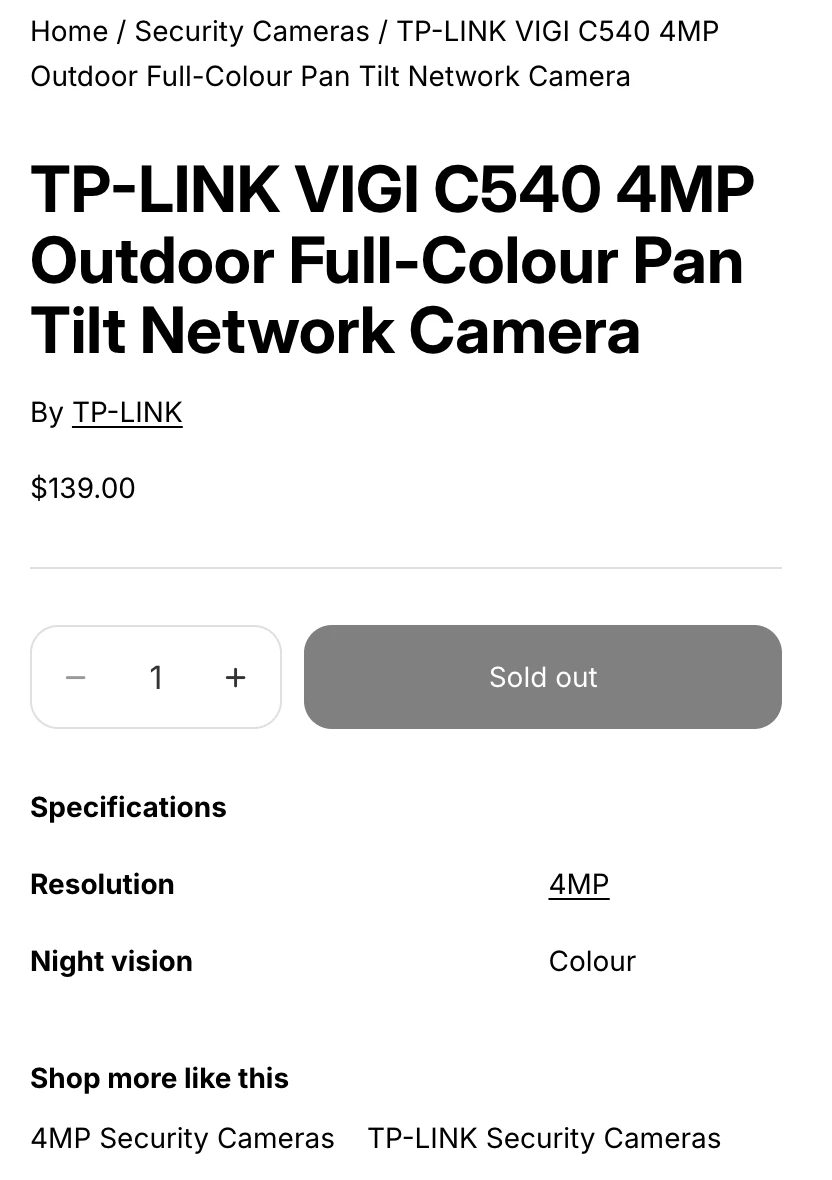
Step 8: Optional extras
To round out your store’s crawl paths with Horizon’s built-in sections, add two optional templates in the theme editor:
- For a Categories page that lists more than Horizon’s 20-collection limit on
/collections, create a page template with a Collection list section (populated with static collection picks, which the weekly audit can’t read, so list their handles intheme_linked) or a Menu block, assign it to a/pages/categoriespage, and link it from your footer menu. - For blog buying guides that pass authority to core categories, open the Default blog post template and add a Collection list section below the article body to attach static category picks to relevant articles.
Preview your theme copy (Actions > Preview) on a top-level collection, a child collection and a product page to confirm the breadcrumbs and link lists render cleanly, then publish the theme.
How to automate internal linking with n8n
Setting up the theme blocks is a one-time job, whereas the six link fields depend on store data that changes every time you add a product, vendor or smart collection. Automating those fields with n8n is optional, and if you fill them by hand on a small catalogue, the workflow’s weekly Audit lane is still worth running on its own to catch orphan pages, broken links and redirects in Slack.
What you’ll build
You’ll build one n8n workflow with three lanes that keeps your collection hierarchy and product links filled in code and sends a weekly Slack audit of anything that needs human attention. Before the automation runs on our test store, the audit flags 14 orphan collections (including tp-link-security-cameras and 4mp-security-cameras) because rule-based smart collections have no inbound links from menus or parent pages:

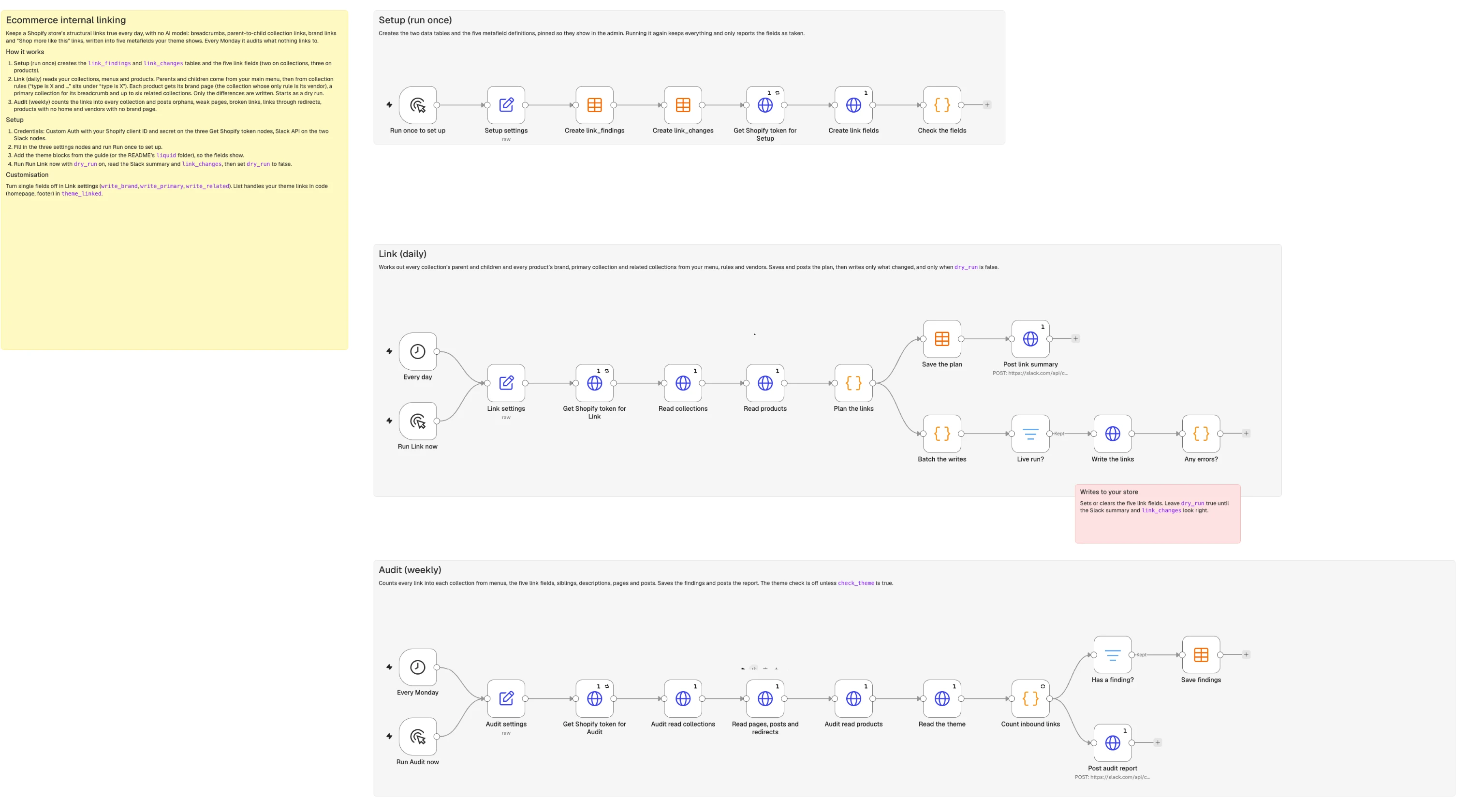
The Link lane reads your menu structure and collection rules, works out the full parent-child hierarchy in code, and writes the six metafields. Afterwards, the TP-LINK VIGI C540 page shows the breadcrumb trail Home / Security Cameras / TP-LINK VIGI C540, a “By TP-LINK” link, a specs table whose 4MP value links to 4mp-security-cameras, and “Shop more like this” links to 4mp-security-cameras and tp-link-security-cameras, while the orphan audit drops to zero. All three lanes sit on one canvas:
What you need
- n8n (version 2.46 or later, self-hosted Community Edition or n8n Cloud) with Data Tables enabled.
- A custom Shopify app with
read_products,write_products,read_online_store_navigation, andread_contentAdmin API scopes (read_themesonly if you turn on the optional theme setting check; the repo’sSETUP.mdcovers client credentials setup). - A Slack bot token with the
chat:writescope. - The setup section above done, or at least the Custom Liquid blocks added to your theme (the workflow’s Setup lane can create the six metafield definitions).
Because every relationship is calculated in deterministic code, the workflow needs no AI model and has no per-run API costs.
How it works

- The Setup lane (Manual Trigger) creates the
link_findingsandlink_changesn8n Data Tables and registers the six metafield definitions in Shopify via GraphQL. You run it once when installing the workflow. - The Link lane (Schedule Trigger, daily at 05:00, plus Manual Trigger) reads all published collections, menus, and products, builds the category tree from menu nesting, adopts smart collections outside the menu by their
TYPErules, matches vendors to brand pages, and picks each product’s primary collection, spec links and related collections. It diffs against current store metafields, logs planned changes inlink_changes, and posts a summary to Slack. It starts withdry_runset totrue; when you changedry_runtofalse, it writes updates in batches of 25 usingmetafieldsSet. - The Audit lane (Schedule Trigger, weekly on Monday at 06:00, plus Manual Trigger) scans published collections, menus, active products, pages, blog articles, and redirects. It tallies inbound links from every surface, checks for broken links, flags products without categories and vendors without brand pages, logs issues to
link_findings, and posts a summary to Slack.
Every lane uses a Set node for settings and fetches a fresh Admin API token with a Get Shopify token for <Lane> HTTP Request node, Retry On Fail enabled (3 attempts, 2 seconds apart). GraphQL queries run through HTTP Request nodes pointing to https://{{ store_domain }}/admin/api/2026-10/graphql.json with the X-Shopify-Access-Token header, and Slack messages use an HTTP Request node to https://slack.com/api/chat.postMessage with your Slack API credential and Execute Once turned on.
Step 1: Create the tables and the six link fields
In the Setup lane, connect a Manual Trigger named Run once to set up to a Set node named Setup settings (Mode: JSON) so your store domain and metafield namespace live in one place:
{
  "store_domain": "your-store.myshopify.com",
  "namespace": "custom"
}
Next, add two Data table nodes named Create link_findings and Create link_changes (Resource: Table, Operation: Create, with Reuse Existing Tables turned on so a second Setup run doesn’t overwrite existing rows):
| Table | Columns |
|---|---|
link_findings | run_date (date), kind (string: collection, link, product, vendor or theme), handle (string), issue (string), detail (string), inbound (number) |
link_changes | run_date (date), owner (string: collection or product), handle (string), field (string), old_value (string), new_value (string), status (string: planned or written) |
Connect Get Shopify token for Setup (HTTP Request), then an HTTP Request node named Create link fields (Method: POST, URL: https://{{ $('Setup settings').first().json.store_domain }}/admin/api/2026-10/graphql.json, Send Body: JSON, Specify Body: Using JSON, Execute Once: On) to register all six metafield definitions in one GraphQL call:
mutation Fields($ns: String!) {
  parent: metafieldDefinitionCreate(definition: {
    name: "Parent collection", namespace: $ns, key: "parent_collection", ownerType: COLLECTION,
    type: "collection_reference", pin: true,
    description: "The collection one level up. Shown as the breadcrumb."
  }) { createdDefinition { id } userErrors { field message code } }
  children: metafieldDefinitionCreate(definition: {
    name: "Sub-collections", namespace: $ns, key: "sub_collections", ownerType: COLLECTION,
    type: "list.collection_reference", pin: true,
    description: "The collections one level down. Shown as links under the description."
  }) { createdDefinition { id } userErrors { field message code } }
  brand: metafieldDefinitionCreate(definition: {
    name: "Brand", namespace: $ns, key: "brand", ownerType: PRODUCT,
    type: "collection_reference", pin: true,
    description: "The brand page for this product's vendor."
  }) { createdDefinition { id } userErrors { field message code } }
  primary: metafieldDefinitionCreate(definition: {
    name: "Primary collection", namespace: $ns, key: "primary_collection", ownerType: PRODUCT,
    type: "collection_reference", pin: true,
    description: "The collection the product breadcrumb runs through."
  }) { createdDefinition { id } userErrors { field message code } }
  related: metafieldDefinitionCreate(definition: {
    name: "Related collections", namespace: $ns, key: "related_collections", ownerType: PRODUCT,
    type: "list.collection_reference", pin: true,
    description: "Shop more like this: the narrower collections the product is in."
  }) { createdDefinition { id } userErrors { field message code } }
  specs: metafieldDefinitionCreate(definition: {
    name: "Spec links", namespace: $ns, key: "spec_links", ownerType: PRODUCT,
    type: "json", pin: true,
    description: "Which collection each spec value links to in the specs table, by metafield."
  }) { createdDefinition { id } userErrors { field message code } }
}
Set its JSON body expression to pass the mutation and namespace variable:
={{ JSON.stringify({ query: `<the mutation above>`, variables: { ns: $('Setup settings').first().json.namespace } }) }}Finally, connect a Code node named Check the fields (Mode: Run Once for All Items). Shopify returns a TAKEN error code when a definition already exists (for example, if you created them by hand in the setup section), so this node treats TAKEN as harmless and only throws an error for any other refusal:
// "TAKEN" means the field already exists, which is fine on a second run.
const d = $input.first().json.data || {};
const out = [], bad = [];
for (const [field, r] of Object.entries(d)) {
  const errs = (r && r.userErrors) || [];
  if (r && r.createdDefinition) out.push(field + ': created');
  else if (errs.length && errs.every(e => e.code === 'TAKEN')) out.push(field + ': already there');
  else bad.push(field + ': ' + JSON.stringify(errs));
}
if ($input.first().json.errors) bad.push(JSON.stringify($input.first().json.errors));
if (bad.length) throw new Error('Shopify refused some fields: ' + bad.join('; '));
return [{ json: { fields: out } }];
On a first run, the node outputs parent: created, children: created, brand: created, primary: created, related: created, and specs: created; on a second run, it reports each definition as already there.
Step 2: Work out each collection’s parent and children
In the Link lane, add a Schedule Trigger named Every day (set to 05:00) and a Manual Trigger named Run Link now, and connect both to a Set node named Link settings (Mode: JSON):
{
  "store_domain": "your-store.myshopify.com",
  "namespace": "custom",
  "tree_menu": "main-menu",
  "skip_handles": [
    "frontpage",
    "all"
  ],
  "min_products": 1,
  "max_children": 24,
  "max_related": 6,
  "write_collection_links": true,
  "write_brand": true,
  "write_primary": true,
  "write_spec_links": true,
  "write_related": true,
  "dry_run": true,
  "slack_channel": "#log-seo"
}| Setting | What it does |
|---|---|
namespace | Where the six fields live (custom, matching Setup) |
tree_menu | The menu handle whose nesting represents your category tree |
skip_handles | Collections that should never be linked (frontpage is the Home page collection every Shopify store has; all is the built-in all-products page) |
min_products | Minimum active products required for a child collection to be linked under its parent |
max_children | Maximum sub-collection links to show on a parent page |
max_related | Maximum “Shop more like this” links per product page |
write_collection_links, write_brand, write_primary, write_spec_links, write_related | Toggles to enable or disable writes for specific link types |
dry_run | When true, plans and logs changes without writing to Shopify |
slack_channel | Slack channel for execution notifications |
Connect Get Shopify token for Link, then add an HTTP Request node named Read collections that paginates through all published collections and fetches your store menus:
| Setting | Value |
|---|---|
| Method | POST |
| URL | https://{{ $('Link settings').first().json.store_domain }}/admin/api/2026-10/graphql.json |
| Send Headers | X-Shopify-Access-Token = {{ $('Get Shopify token for Link').first().json.access_token }} |
| Send Body | JSON, Using JSON |
| Pagination mode | Update a Parameter in Each Request |
| Parameter | Type Body, Name variables, Value {{ { after: $response.body.data.collections.pageInfo.endCursor, ns: $('Link settings').first().json.namespace } }} |
| Pagination Complete When | Other |
| Complete Expression | {{ !$response.body.data.collections.pageInfo.hasNextPage }} |
| Interval Between Requests (ms) | 250 |
| Execute Once | On |
Use this GraphQL query inside Read collections (its JSON body expression passes variables: { after: null, ns: $('Link settings').first().json.namespace }):
query Collections($after: String, $ns: String!) {
  collections(first: 100, after: $after, query: "published_status:published") {
    pageInfo { hasNextPage endCursor }
    nodes {
      id handle title descriptionHtml productsCount { count }
      ruleSet { appliedDisjunctively rules { column relation condition
        conditionObject { ... on CollectionRuleMetafieldCondition { metafieldDefinition { namespace key } } } } }
      parent: metafield(namespace: $ns, key: "parent_collection") { value }
      subs: metafield(namespace: $ns, key: "sub_collections") { value }
    }
  }
  menus(first: 50) {
    nodes { handle items { title resourceId url
      items { title resourceId url items { title resourceId url } } } }
  }
}
Next, add an HTTP Request node named Read products with the same pagination settings, updating the Parameter value to {{ { after: $response.body.data.products.pageInfo.endCursor, ns: $('Link settings').first().json.namespace } }} and Complete Expression to {{ !$response.body.data.products.pageInfo.hasNextPage }}. We filter by published_status:published rather than checking onlineStoreUrl because onlineStoreUrl returns null on a password-protected development store:
query Products($after: String, $ns: String!) {
  products(first: 100, after: $after, query: "status:active AND published_status:published") {
    pageInfo { hasNextPage endCursor }
    nodes {
      id handle vendor
      collections(first: 25) { nodes { id } }
      brand: metafield(namespace: $ns, key: "brand") { value }
      primary: metafield(namespace: $ns, key: "primary_collection") { value }
      related: metafield(namespace: $ns, key: "related_collections") { value }
      specs: metafield(namespace: $ns, key: "spec_links") { value }
    }
  }
}
Now connect a Code node named Plan the links (Mode: Run Once for All Items). This one node plans both collection and product links: part 1 builds the category tree from your menu and smart collection rules, and part 2 (explained in Step 3) resolves each product’s brand, primary collection, spec links and related collections and returns only the fields that differ from what Shopify holds:
const s = $('Link settings').first().json;
const pages = $('Read collections').all();
for (const p of [...pages, ...$('Read products').all()]) if (p.json.errors) throw new Error(JSON.stringify(p.json.errors).slice(0, 500));
const cols = pages.flatMap(i => i.json.data.collections.nodes).filter(c => !s.skip_handles.includes(c.handle));
const menus = pages[0].json.data.menus.nodes;
const products = $('Read products').all().flatMap(i => i.json.data.products.nodes);
const byHandle = Object.fromEntries(cols.map(c => [c.handle, c]));
const byId = Object.fromEntries(cols.map(c => [c.id, c]));
const rules = c => (c && c.ruleSet && c.ruleSet.rules) || [];
const size = h => (byHandle[h] && byHandle[h].productsCount.count) || 0;

// 1. The tree comes from how the tree menu is nested, in menu order...
const parent = {}, kids = {}, rank = {};
const seen = h => { if (!(h in rank)) rank[h] = Object.keys(rank).length; };
const isUnder = (up, h) => { for (let x = up, n = 0; x && n < 20; x = parent[x], n++) if (x === h) return true; return false; };
const adopt = (h, up) => {
  if (!h || !up || h === up || !byHandle[h] || !byHandle[up] || parent[h] || isUnder(up, h)) return;
  parent[h] = up;
  (kids[up] = kids[up] || []).push(h);
  seen(h);
};
const handleOf = it => (byId[it.resourceId] || {}).handle || ((it.url || '').match(/\/collections\/([^/?#]+)/) || [])[1];
const walk = (items, up) => {
  for (const it of items || []) {
    const h = byHandle[handleOf(it)] ? handleOf(it) : null;
    if (h) seen(h);
    adopt(h, up);
    walk(it.items, h || up);
  }
};
const tree = menus.find(m => m.handle === s.tree_menu);
if (!tree) throw new Error('No menu with the handle "' + s.tree_menu + '". Check tree_menu in Link settings.');
walk(tree.items, null);
if (!Object.keys(rank).length) throw new Error('The menu "' + s.tree_menu + '" links to no published collection, so nothing would have a parent.');

// ...then from rules, for collections outside the menu:
// "type is X and ..." sits under the collection whose only rule is "type is X".
const typePage = {};
for (const c of cols) {
  const r = rules(c);
  if (r.length === 1 && r[0].column === 'TYPE' && r[0].relation === 'EQUALS') typePage[r[0].condition.toLowerCase()] ??= c.handle;
}
for (const c of [...cols].sort((a, b) => a.title.localeCompare(b.title))) {
  if (!c.ruleSet || c.ruleSet.appliedDisjunctively || rules(c).length < 2) continue;
  const t = rules(c).find(r => r.column === 'TYPE' && r.relation === 'EQUALS');
  if (t) adopt(c.handle, typePage[t.condition.toLowerCase()]);
}

// Spec pages: a collection whose rules are one product metafield (or standard product attribute)
// condition, plus at most "type is X", is the page for that spec value: "Resolution is 4MP" links to it.
const specKey = c => {
  if (!c.ruleSet || c.ruleSet.appliedDisjunctively) return null;
  const r = rules(c), m = r.filter(x => x.column === 'PRODUCT_METAFIELD_DEFINITION' && x.relation === 'EQUALS');
  const def = m.length === 1 && m[0].conditionObject && m[0].conditionObject.metafieldDefinition;
  if (!def || r.some(x => x !== m[0] && !(x.column === 'TYPE' && x.relation === 'EQUALS')) || r.length > 2) return null;
  return def.namespace + '.' + def.key;
};
const specOf = Object.fromEntries(cols.map(c => [c.handle, specKey(c)]).filter(([, k]) => k));

// Brand pages: the collection whose only rule is "vendor is X" (Shopify matches vendors without case).
const brandOf = {};
for (const c of cols) {
  const r = rules(c);
  if (r.length === 1 && r[0].column === 'VENDOR' && r[0].relation === 'EQUALS') brandOf[r[0].condition.toLowerCase()] ??= c.handle;
}
const brandPages = new Set(Object.values(brandOf));
const inTree = h => h in rank;
const depth = h => { let d = 0; for (let x = h; parent[x] && d < 20; x = parent[x]) d++; return d; };
const path = h => { const out = []; for (let x = h; x && out.length < 20; x = parent[x]) out.push(x); return out; };

// 2. Compare with what the store has now and keep only the changes.
const today = new Date().toISOString().slice(0, 10);
const names = v => { if (!v) return ''; let ids = [v]; if (v.startsWith('[')) { try { ids = JSON.parse(v); } catch (e) {} } return ids.map(id => (byId[id] || {}).handle || id).join(', '); };
const changes = [];
const compare = (owner, ownerId, handle, field, type, have, want, show = names) => {
  have = have || '';
  if (want === have) return;
  changes.push({ json: { run_date: today, owner, owner_id: ownerId, handle, field, type, value: want,
    old_value: show(have), new_value: show(want) } });
};
// Spec links are JSON, so compare them with sorted keys and show them as "key: handle".
const sortedJson = o => JSON.stringify(Object.fromEntries(Object.entries(o).sort(([a], [b]) => a.localeCompare(b))));
const specJson = v => { if (!v) return ''; try { return sortedJson(JSON.parse(v)); } catch (e) { return v; } };
const specShow = v => { if (!v) return ''; try { return Object.entries(JSON.parse(v)).map(([k, h]) => k.split('.').pop() + ': ' + h).join(', '); } catch (e) { return v; } };
const one = h => (h ? byHandle[h].id : '');
const list = hs => (hs.length ? JSON.stringify(hs.map(h => byHandle[h].id)) : '');

if (s.write_collection_links) for (const c of cols) {
  compare('collection', c.id, c.handle, 'parent_collection', 'collection_reference', c.parent && c.parent.value, one(parent[c.handle]));
  const children = (kids[c.handle] || []).filter(h => size(h) >= s.min_products).slice(0, s.max_children);
  compare('collection', c.id, c.handle, 'sub_collections', 'list.collection_reference', c.subs && c.subs.value, list(children));
}
for (const p of products) {
  const mine = p.collections.nodes.map(n => (byId[n.id] || {}).handle).filter(Boolean);
  // Primary: the deepest tree collection the product is in. Collections with a vendor rule are skipped:
  // a breadcrumb says what the product is, the brand link says who makes it. Ties go to menu order.
  const primary = mine.filter(h => inTree(h) && !rules(byHandle[h]).some(r => r.column === 'VENDOR'))
    .sort((a, b) => depth(b) - depth(a) || rank[a] - rank[b])[0] || '';
  const onPath = new Set(primary ? path(primary) : []);
  // Spec links: for each spec, the spec page the product is in, even when the breadcrumb runs through it.
  // One with a type rule beats one without, then the smallest. A page holding only this product adds nothing.
  const specs = {};
  for (const h of mine.filter(h => specOf[h] && size(h) >= Math.max(2, s.min_products))
    .sort((a, b) => rules(byHandle[b]).length - rules(byHandle[a]).length || size(a) - size(b) || a.localeCompare(b))) specs[specOf[h]] ??= h;
  // Related: every other collection it's in, smallest (most specific) first. A collection holding only
  // this product adds nothing. Spec collections stay in, by name, alongside the spec value links.
  const related = mine.filter(h => !onPath.has(h) && !brandPages.has(h) && size(h) >= Math.max(2, s.min_products))
    .sort((a, b) => size(a) - size(b) || a.localeCompare(b)).slice(0, s.max_related);
  const brand = brandOf[String(p.vendor || '').toLowerCase()] || '';
  if (s.write_brand) compare('product', p.id, p.handle, 'brand', 'collection_reference', p.brand && p.brand.value, one(brand));
  if (s.write_primary) compare('product', p.id, p.handle, 'primary_collection', 'collection_reference', p.primary && p.primary.value, one(primary));
  if (s.write_spec_links) compare('product', p.id, p.handle, 'spec_links', 'json', specJson(p.specs && p.specs.value),
    Object.keys(specs).length ? sortedJson(specs) : '', specShow);
  if (s.write_related) compare('product', p.id, p.handle, 'related_collections', 'list.collection_reference', p.related && p.related.value, list(related));
}
return changes;
Part 1 of Plan the links walks main-menu in menu order and stops with an error if the menu is missing or links to no published collections, so a typo in tree_menu can’t wipe out your store’s breadcrumbs. It then checks multi-rule AND smart collections outside the menu and adopts any collection with a TYPE EQUALS X rule under the category whose sole rule is TYPE EQUALS X. On our security store, security-cameras adopts 4k-security-cameras, hikvision-security-cameras, and tp-link-security-cameras by their type rules, while poe-switches gets networking as its parent from the menu and adopts 8-port-poe-switches from its rules.
Step 3: Work out each product’s brand, primary collection, spec links and related collections
Part 2 of Plan the links calculates the four product metafields for every active product and compares them against Shopify’s current values:
- For
brand, it matchesp.vendorcase-insensitively to the collection whose sole rule isVENDOR EQUALS X, assigningtp-linkto the TP-LINK VIGI C540. - For
primary_collection, it filters the product’s collections to those inside the category tree, skips any collection with a vendor rule (because a breadcrumb says what the product is, whereas the brand link says who makes it), and picks the deepest, breaking ties by menu order. The VIGI C540 sits insecurity-cameras,tp-link-security-cameras(skipped for its vendor rule) and4mp-security-cameras(outside the tree because its only rule is Resolution is 4MP, with no type rule), so its primary collection resolves tosecurity-cameras. - For
spec_links, it first finds the spec collections: smart collections whose rules are one condition on a product metafield or standard product attribute, optionally with a product type rule, such as 4MP Security Cameras (Resolution is 4MP) or 8 Port PoE Switches (type is PoE Switches and PoE ports is 8). For each spec, it picks the spec collection the product is in, preferring one with a type rule and then the smallest, and writes the result as JSON keyed by the metafield, so the VIGI C540 gets{"custom.resolution": "4mp-security-cameras"}. A spec collection counts even when it is also the product’s breadcrumb, so a 4K camera’s Resolution row links to 4K Security Cameras too. - For
related_collections, it takes every other collection the product belongs to outside its breadcrumb trail and brand page (requiring at least 2 products so a single-item collection adds nothing), sorted smallest-first so the most specific spec and brand-by-type collections come first up tomax_related. For the VIGI C540, that gives4mp-security-camerasandtp-link-security-cameras. A spec collection stays in the list even though the specs table links it too, so it also appears by its full name.
Across the rest of the running example, the same rules assign brand tp-link and primary 8-port-poe-switches to the TP-LINK TL-SG1008MP switch, brand tp-link and primary nvr to the TP-LINK VIGI NVR1004H-4P, and brand ubiquiti and primary nvr to the Ubiquiti UniFi UNVR. The switch’s PoE ports value also links to 8-port-poe-switches, while the NVR1004H-4P’s 4 channels stay plain text because the store has no 4-channel collection.
Step 4: Write only the links that changed
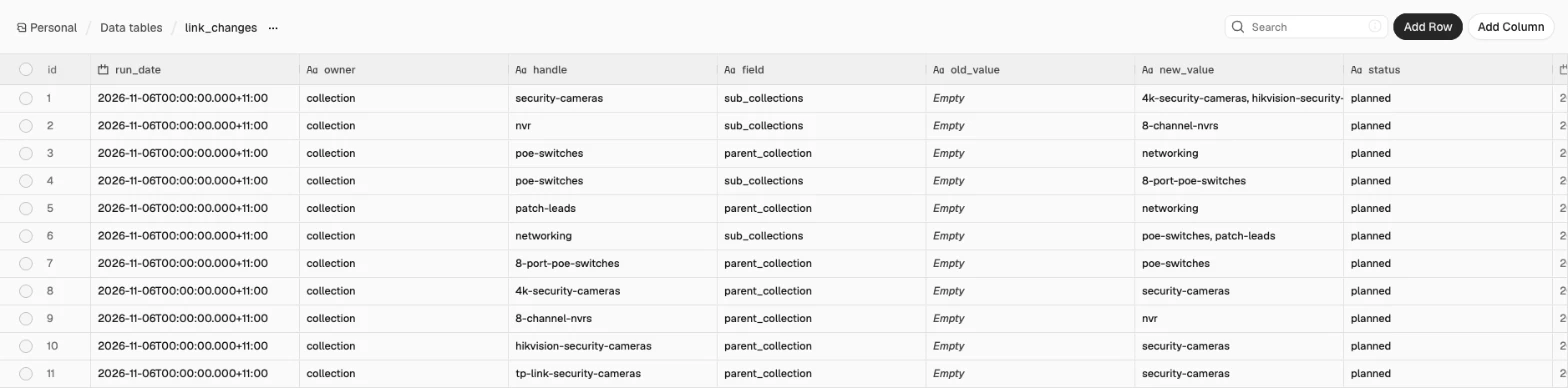
From Plan the links, create two branches so every run logs and announces its plan before touching Shopify. On the first branch, connect a Data table node named Save the plan (Resource: Row, Operation: Insert, Table: link_changes) and map its columns:
| Column | Value |
|---|---|
run_date | {{ $json.run_date }} |
owner | {{ $json.owner }} |
handle | {{ $json.handle }} |
field | {{ $json.field }} |
old_value | {{ $json.old_value }} |
new_value | {{ $json.new_value }} |
status | {{ $('Link settings').first().json.dry_run ? 'planned' : 'written' }} |
After Save the plan, add an HTTP Request node named Post link summary (Method: POST, URL: https://slack.com/api/chat.postMessage, Slack API credential, Execute Once: On) with this JSON body expression:
={{ JSON.stringify((() => {
  const s = $('Link settings').first().json;
  const ch = $('Plan the links').all().map(i => i.json);
  const labels = { parent_collection: 'Breadcrumb parents', sub_collections: 'Sub-collection lists',
    brand: 'Brand links', primary_collection: 'Product breadcrumbs', spec_links: 'Spec links', related_collections: 'Shop more like this' };
  const lines = Object.entries(labels).map(([f, label]) => {
    const xs = ch.filter(c => c.field === f);
    if (!xs.length) return '';
    const shown = xs.slice(0, 8).map(c => c.handle + (c.new_value ? ' > ' + c.new_value : ' > (cleared)')).join('\n  ');
    return '*' + label + '* (' + xs.length + ')\n  ' + shown + (xs.length > 8 ? '\n  ...' : '') + '\n';
  }).join('');
  return { channel: s.slack_channel, unfurl_links: false,
    text: (s.dry_run ? ':memo: Link plan (dry run, nothing written): ' : ':link: Links updated: ') + ch.length + (ch.length === 1 ? ' change' : ' changes') + '\n' + lines };
})()) }}
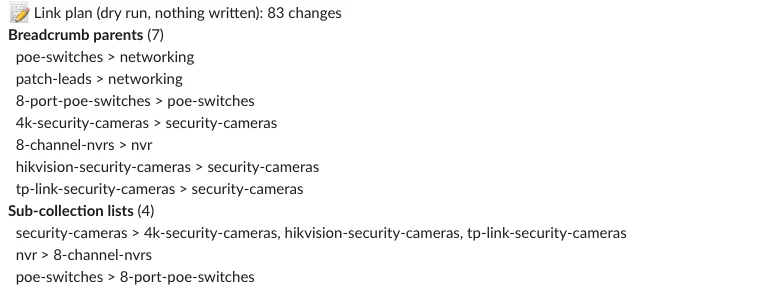
Click Run Link now with dry_run set to true first, check the Slack summary and the link_changes table, then set dry_run to false and run it again to write the metafields. On our test store, the first dry run planned this:
:memo: Link plan (dry run, nothing written): 83 changes
*Breadcrumb parents* (7)
  poe-switches > networking
  patch-leads > networking
  8-port-poe-switches > poe-switches
  4k-security-cameras > security-cameras
  8-channel-nvrs > nvr
  hikvision-security-cameras > security-cameras
  tp-link-security-cameras > security-cameras
*Sub-collection lists* (4)
  security-cameras > 4k-security-cameras, hikvision-security-cameras, tp-link-security-cameras
  nvr > 8-channel-nvrs
  poe-switches > 8-port-poe-switches
  networking > poe-switches, patch-leads
*Brand links* (29)
  reolink-rlc-810a-8mp-4k-poe-ip-bullet-camera > reolink
  tp-link-tl-sg1210mp-10-port-gigabit-desktop-switch-with-8-port-poe > tp-link
  tp-link-tl-sg1008mp-8-port-gigabit-desktop-rackmount-switch-with-8-port-poe > tp-link
  tp-link-tl-sl1311p-8-port-10-100mbps-3-port-gigabit-desktop-switch-with-8-port-poe > tp-link
  d-link-dgs-1008mp-8-port-gigabit-poe-unmanaged-switch > d-link
  ubiquiti-unifi-switch-16-poe-usw-16-poe > ubiquiti
  d-link-dgs-1008p-8-port-gigabit-poe-unmanaged-switch > d-link
  ubiquiti-unifi-switch-lite-8-poe-usw-lite-8-poe > ubiquiti
  ...
*Product breadcrumbs* (29)
  reolink-rlc-810a-8mp-4k-poe-ip-bullet-camera > 4k-security-cameras
  tp-link-tl-sg1210mp-10-port-gigabit-desktop-switch-with-8-port-poe > 8-port-poe-switches
  tp-link-tl-sg1008mp-8-port-gigabit-desktop-rackmount-switch-with-8-port-poe > 8-port-poe-switches
  tp-link-tl-sl1311p-8-port-10-100mbps-3-port-gigabit-desktop-switch-with-8-port-poe > 8-port-poe-switches
  d-link-dgs-1008mp-8-port-gigabit-poe-unmanaged-switch > 8-port-poe-switches
  ...
Spec links came to the template after that first run, so a later dry run on the same store planned just the 18 spec links:
:memo: Link plan (dry run, nothing written): 18 changes
*Spec links* (18)
  reolink-rlc-810a-8mp-4k-poe-ip-bullet-camera > resolution: 4k-security-cameras
  tp-link-tl-sg1210mp-10-port-gigabit-desktop-switch-with-8-port-poe > poe_ports: 8-port-poe-switches
  tp-link-tl-sg1008mp-8-port-gigabit-desktop-rackmount-switch-with-8-port-poe > poe_ports: 8-port-poe-switches
  tp-link-tl-sl1311p-8-port-10-100mbps-3-port-gigabit-desktop-switch-with-8-port-poe > poe_ports: 8-port-poe-switches
  d-link-dgs-1008mp-8-port-gigabit-poe-unmanaged-switch > poe_ports: 8-port-poe-switches
  ubiquiti-unifi-switch-16-poe-usw-16-poe > poe_ports: 8-port-poe-switches
  d-link-dgs-1008p-8-port-gigabit-poe-unmanaged-switch > poe_ports: 8-port-poe-switches
  reolink-rlc-820a-4k-8mp-turret-poe-ip-camera > resolution: 4k-security-cameras
  ...
When nothing in your store has drifted, Plan the links outputs zero items and the lane stops without posting to Slack.
On the second branch from Plan the links, add a Code node named Batch the writes (Mode: Run Once for All Items). Shopify’s metafieldsSet mutation sets at most 25 metafields at a time, so this node splits updates into chunks of 25 and uses metafieldsDelete for any field that should become empty:
// metafieldsSet takes up to 25 fields a call; an empty field is deleted rather than set.
const s = $('Link settings').first().json;
const all = $input.all().map(i => i.json);
const chunk = (xs, n) => Array.from({ length: Math.ceil(xs.length / n) }, (_, i) => xs.slice(i * n, i * n + n));
const sets = all.filter(c => c.value)
  .map(c => ({ ownerId: c.owner_id, namespace: s.namespace, key: c.field, type: c.type, value: c.value }));
const dels = all.filter(c => !c.value).map(c => ({ ownerId: c.owner_id, namespace: s.namespace, key: c.field }));
const SET = `mutation Set($m: [MetafieldsSetInput!]!) {
  metafieldsSet(metafields: $m) { metafields { id } userErrors { field message code } } }`;
const DEL = `mutation Del($m: [MetafieldIdentifierInput!]!) {
  metafieldsDelete(metafields: $m) { deletedMetafields { key } userErrors { field message } } }`;
return [
  ...chunk(sets, 25).map(m => ({ json: { query: SET, variables: { m } } })),
  ...chunk(dels, 25).map(m => ({ json: { query: DEL, variables: { m } } })),
];
Connect a Filter node named Live run? that keeps items when {{ !$('Link settings').first().json.dry_run }} (Boolean) is true, followed by an HTTP Request node named Write the links (Method: POST to the Shopify GraphQL URL with the Link token header, JSON body ={{ JSON.stringify({ query: $json.query, variables: $json.variables }) }}, and under Options > Batching set Items per Batch to 1 with Batch Interval 500 ms). Place a red sticky note over Write the links reading: Writes to your store. Sets or clears the six link fields. Leave dry_run true until the Slack summary and link_changes look right.
Finish the branch with a Code node named Any errors? (Mode: Run Once for All Items). Because Shopify returns refused writes inside userErrors with an HTTP 200 status, this node throws an error so failed writes show up in your n8n execution log:
// Shopify answers refused writes with HTTP 200 and userErrors, so check them here.
const errs = $input.all().flatMap(i => [
  ...((i.json.data && i.json.data.metafieldsSet && i.json.data.metafieldsSet.userErrors) || []),
  ...((i.json.data && i.json.data.metafieldsDelete && i.json.data.metafieldsDelete.userErrors) || []),
  ...(i.json.errors || []),
]);
if (errs.length) throw new Error('Shopify refused some links: ' + JSON.stringify(errs).slice(0, 500));
return [{ json: { batches: $input.all().length } }];
On our test store (38 live products, 24 collections), a dry run took about 2 seconds, and the live run wrote 83 fields across 4 batches in about 4 seconds; a second Link run found nothing to change and stopped immediately.
Step 5: Count every link into each collection
In the Audit lane, add a Schedule Trigger named Every Monday (weekly on Monday at 06:00) alongside a Manual Trigger named Run Audit now, connecting both to a Set node named Audit settings (Mode: JSON):
{
  "store_domain": "your-store.myshopify.com",
  "namespace": "custom",
  "tree_menu": "main-menu",
  "skip_menus": [],
  "ignore": [
    "frontpage",
    "all"
  ],
  "theme_linked": [],
  "max_pills": 24,
  "weak_below": 2,
  "check_product_fields": true,
  "check_theme": false,
  "slack_channel": "#log-seo"
}| Setting | What it does |
|---|---|
skip_menus | Menus that aren’t shown anywhere (such as a backup copy), so their links don’t count |
ignore | Collections the audit never reports (frontpage and all) |
theme_linked | Handles your theme links in code (a homepage row, the footer) that store data can’t show |
max_pills | Must match max_children in Link settings |
weak_below | A collection outside the menu with fewer links than this is reported as weak (2 means one link in) |
check_product_fields | Report active products that have no primary collection |
check_theme | Read the live theme’s collection and product templates (needs the read_themes scope) |
Connect Get Shopify token for Audit, then add Audit read collections using the same GraphQL query and pagination settings as Read collections in Step 2 (pointing its expressions at Audit settings and Get Shopify token for Audit). Then connect an HTTP Request node named Read pages, posts and redirects (Method: POST, Execute Once: On, no pagination) to pull the HTML bodies of your first 250 published pages, blog articles and URL redirects:
{
  pages(first: 250, query: "published_status:published") { nodes { handle body } }
  articles(first: 250, query: "published_status:published") { nodes { handle body blog { handle } } }
  urlRedirects(first: 250) { nodes { path target } }
}
Add Audit read products (using the same query and pagination settings as Read products in Step 2), followed by an HTTP Request node named Read the theme whose JSON body expression requests the live theme’s templates/collection.json and templates/product.json files only when check_theme is true, and falls back to { shop { name } } otherwise:
={{ JSON.stringify({ query: $('Audit settings').first().json.check_theme ? "{\n themes(first: 1, roles: [MAIN]) { nodes { name files(filenames: [\"templates/collection.json\", \"templates/product.json\"]) {\n nodes { filename body { ... on OnlineStoreThemeFileBodyText { content } } } } } }\n}" : '{ shop { name } }' }) }}Connect a Code node named Count inbound links (Mode: Run Once for All Items, with Always Output Data turned on in the node settings so the Slack report still runs when zero issues are found):
const s = $('Audit settings').first().json;
const pages = $('Audit read collections').all();
const content = $('Read pages, posts and redirects').first().json;
for (const p of [...pages, ...$('Audit read products').all(), $input.first()]) if (p.json.errors) throw new Error(JSON.stringify(p.json.errors).slice(0, 500));
if (content.errors) throw new Error(JSON.stringify(content.errors).slice(0, 500));
const cols = pages.flatMap(i => i.json.data.collections.nodes).filter(c => !s.ignore.includes(c.handle));
const menus = pages[0].json.data.menus.nodes.filter(m => !s.skip_menus.includes(m.handle));
const docs = [...content.data.pages.nodes.map(d => ({ handle: 'pages/' + d.handle, body: d.body })),
  ...content.data.articles.nodes.map(d => ({ handle: 'blogs/' + d.blog.handle + '/' + d.handle, body: d.body }))];
const redirects = Object.fromEntries(content.data.urlRedirects.nodes.map(r => [r.path.toLowerCase(), r.target]));
const products = $('Audit read products').all().flatMap(i => i.json.data.products.nodes);

const byHandle = Object.fromEntries(cols.map(c => [c.handle, c]));
const byId = Object.fromEntries(cols.map(c => [c.id, c]));
const h = id => (byId[id] || {}).handle;
const size = c => (c && c.productsCount.count) || 0;
const rules = c => (c && c.ruleSet && c.ruleSet.rules) || [];
const list = v => { try { return JSON.parse(v || '[]'); } catch (e) { return []; } };
const hrefs = (html, type) => [...String(html || '').matchAll(new RegExp('href="[^"]*/' + type + '/([a-z0-9-]+)', 'gi'))]
  .map(m => m[1].toLowerCase());
const ancestors = start => { const out = []; for (let x = start; x && out.length < 20; x = h((byHandle[x].parent || {}).value)) out.push(x); return out; };

// Every link the audit can see, as target -> set of "surface:source".
const inbound = {};
const add = (target, surface, source) => {
  if (target && byHandle[target] && target !== source) (inbound[target] = inbound[target] || new Set()).add(surface + ':' + source);
};
const inMenu = new Set();
const walk = items => { for (const it of items || []) {
  const t = h(it.resourceId) || ((it.url || '').match(/\/collections\/([^/?#]+)/) || [])[1];
  if (t) inMenu.add(t);
  walk(it.items);
} };
menus.forEach(m => walk(m.items));
const shown = c => list(c && c.subs && c.subs.value).slice(0, s.max_pills).map(h).filter(x => x && size(byHandle[x]) > 0); // the theme hides empty ones
for (const c of cols) {
  shown(c).forEach(x => add(x, 'sub-collection link', c.handle));
  const up = h((c.parent || {}).value);
  if (up) {
    ancestors(up).forEach(x => add(x, 'breadcrumb', c.handle));
    if (!shown(c).length) shown(byHandle[up]).forEach(x => add(x, 'sibling link', c.handle)); // no children: siblings instead
  }
  hrefs(c.descriptionHtml, 'collections').forEach(x => add(x, 'description', c.handle));
}
docs.forEach(d => hrefs(d.body, 'collections').forEach(x => add(x, 'page or post', d.handle)));
for (const p of products) {
  add(h((p.brand || {}).value), 'brand link', p.handle);
  const primary = h((p.primary || {}).value);
  if (primary) ancestors(primary).forEach(x => add(x, 'product breadcrumb', p.handle));
  list((p.related || {}).value).map(h).forEach(x => add(x, 'shop more like this', p.handle));
  let specs = {}; try { specs = JSON.parse((p.specs || {}).value || '{}'); } catch (e) {}
  Object.values(specs).forEach(x => add(x, 'spec link', p.handle));
}

const today = new Date().toISOString().slice(0, 10);
const out = [];
const find = (kind, handle, issue, detail = '', links = 0) =>
  out.push({ json: { run_date: today, kind, handle, issue, detail, inbound: links } });

for (const c of cols) {
  const links = inbound[c.handle] ? [...inbound[c.handle]] : [];
  const reached = inMenu.has(c.handle) || s.theme_linked.includes(c.handle);
  if (inMenu.has(c.handle) && size(c) === 0) find('collection', c.handle, 'menu links to an empty collection');
  else if (!reached && size(c) > 0 && links.length === 0) find('collection', c.handle, 'orphan');
  else if (!reached && size(c) > 0 && links.length < s.weak_below) find('collection', c.handle, 'weak', links.join(', '), links.length);
  const up = byHandle[h((c.parent || {}).value)];
  if (up && size(c) > 0 && !shown(up).includes(c.handle) && !hrefs(up.descriptionHtml, 'collections').includes(c.handle))
    find('collection', c.handle, 'not linked from its parent', up.handle, links.length);
}

// Links that go through a redirect or lead nowhere.
const live = new Set(products.map(p => p.handle));
for (const [source, html] of [...cols.map(c => [c.handle, c.descriptionHtml]), ...docs.map(d => [d.handle, d.body])]) {
  for (const type of ['collections', 'products']) for (const x of hrefs(html, type)) {
    const to = redirects['/' + type + '/' + x];
    if (to) find('link', source, 'link through a redirect', '/' + type + '/' + x + ' > ' + to);
    else if (type === 'collections' ? !byHandle[x] && !s.ignore.includes(x) : !live.has(x)) find('link', source, 'broken link', '/' + type + '/' + x);
  }
}

// Products and vendors.
const brandVendors = new Set(cols.filter(c => rules(c).length === 1 && rules(c)[0].column === 'VENDOR').map(c => rules(c)[0].condition.toLowerCase()));
const noBrand = {};
for (const p of products) {
  const mine = p.collections.nodes.map(n => h(n.id)).filter(Boolean);
  if (!mine.length) find('product', p.handle, 'in no published collection');
  else if (s.check_product_fields && !(p.primary || {}).value) find('product', p.handle, 'no primary collection');
  if (p.vendor && !brandVendors.has(p.vendor.toLowerCase())) noBrand[p.vendor] = (noBrand[p.vendor] || 0) + 1;
}
for (const [v, n] of Object.entries(noBrand)) find('vendor', v, 'no brand page', n + (n === 1 ? ' product' : ' products'));

// Optional: theme settings that hide links (check_theme, read_themes scope).
const theme = (($input.first().json.data || {}).themes || { nodes: [] }).nodes[0];
if (s.check_theme && theme) {
  const file = n => { const f = theme.files.nodes.find(x => x.filename === n); return f && f.body ? f.body.content : ''; };
  const col = file('templates/collection.json'), prod = file('templates/product.json');
  // Horizon's "Auto load products on scroll" is on unless the template saves it as false.
  if (!/"enable_infinite_scroll"\s*:\s*false/.test(col)) find('theme', 'templates/collection.json', 'products load on scroll, so page 2 has no link');
  if (!/parent_collection/.test(col)) find('theme', 'templates/collection.json', 'no breadcrumb block');
  if (!/sub_collections/.test(col)) find('theme', 'templates/collection.json', 'no sub-collection links block');
  if (!/primary_collection/.test(prod)) find('theme', 'templates/product.json', 'no product breadcrumb block');
  if (!/custom\.brand|\.brand\.value/.test(prod)) find('theme', 'templates/product.json', 'no brand link block');
  if (products.some(p => (p.specs || {}).value) && !/spec_links/.test(prod)) find('theme', 'templates/product.json', 'no linked specs table');
}
return out;
This node counts inbound links across menus, sub-collection pills, breadcrumbs, sibling links, collection descriptions, pages, blog posts, product brand links, product breadcrumbs, spec links and “Shop more like this” lists. A store-data audit can’t see links hard-coded inside theme files (which is what theme_linked accounts for), links injected by scripts after the page loads, or sections the template doesn’t read. A rendered-page crawler such as Screaming Frog or Sitebulb checks those surfaces, while this weekly audit keeps your structural links verified between crawls.
Step 6: Report orphan pages, weak pages, broken and redirected links
From Count inbound links, split into two branches. On the first branch, connect a Filter node named Has a finding? that keeps items when {{ Boolean($json.issue) }} is true, followed by a Data table node named Save findings (Resource: Row, Operation: Insert, Table: link_findings), mapping run_date, kind, handle, issue, detail, and inbound from the matching JSON fields.
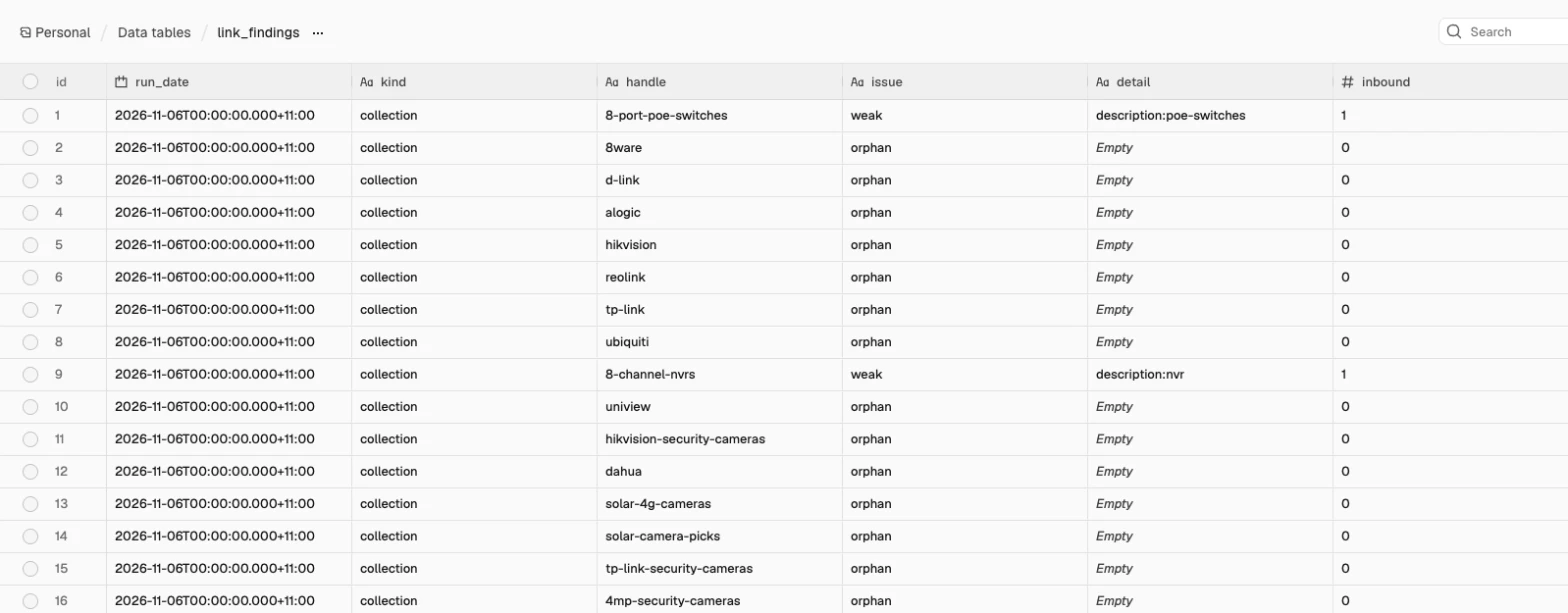
On the second branch, connect an HTTP Request node named Post audit report (Method: POST, URL: https://slack.com/api/chat.postMessage, Slack API credential, Execute Once: On) with this JSON body expression:
={{ JSON.stringify((() => {
  const f = $('Count inbound links').all().map(i => i.json).filter(x => x.issue);
  const by = k => f.filter(x => x.issue === k);
  const line = (label, xs, fmt) => xs.length ? '*' + label + '* (' + xs.length + '): '
    + xs.slice(0, 15).map(fmt).join(', ') + (xs.length > 15 ? ', ...' : '') + '\n' : '';
  return { channel: $('Audit settings').first().json.slack_channel, unfurl_links: false,
    text: ':mag: Weekly internal link audit\n' +
      (f.length ? '' : 'No orphans, weak pages or broken links this week.\n') +
      line('Orphans, nothing links to them', by('orphan'), x => x.handle) +
      line('Weak, only one link in', by('weak'), x => x.handle + ' (' + x.detail + ')') +
      line('Not linked from their parent', by('not linked from its parent'), x => x.handle + ' (parent ' + x.detail + ')') +
      line('Menu links to empty collections', by('menu links to an empty collection'), x => x.handle) +
      line('Broken links', by('broken link'), x => x.handle + ' > ' + x.detail) +
      line('Links through a redirect', by('link through a redirect'), x => x.handle + ': ' + x.detail) +
      line('Products in no published collection', by('in no published collection'), x => x.handle) +
      line('Products with no primary collection', by('no primary collection'), x => x.handle) +
      line('Vendors with no brand page', by('no brand page'), x => x.handle + ' (' + x.detail + ')') +
      line('Theme', f.filter(x => x.kind === 'theme'), x => x.handle.replace('templates/', '') + ': ' + x.issue) };
})()) }}
On our test store, the audit run took about 2.3 seconds. Before the Link lane wrote anything, it reported 14 orphan pages, 2 weak collections, 1 product in no published collection, 37 products with no primary collection, and 2 vendors with no brand page; after the live Link run, the next audit had zero orphans and flagged only real catalogue exceptions, including three single-product brand pages with one link in (alogic, uniview, dahua), eight solar cameras that sit only in a tag-based collection outside the menu tree, a broken link added to the Networking description (networking > /products/tp-link-vigi-c300hp-discontinued), and a link through a redirect (networking: /collections/old-poe-switches > /collections/poe-switches). With check_theme turned on against an unchanged Horizon before the setup steps, it also reported collection.json: products load on scroll, so page 2 has no link, collection.json: no breadcrumb block, collection.json: no sub-collection links block, product.json: no product breadcrumb block, product.json: no brand link block, and, once products had spec links, product.json: no linked specs table.
What it costs
Because the workflow uses no AI model and no paid third-party APIs, your only cost is n8n itself (prices checked November 2026). The Link lane runs about 30 times a month and the Audit lane about 4 times a month, which fits inside n8n Cloud Starter (about €20 a month billed annually for 2,500 executions) or runs for $0 on self-hosted n8n Community Edition. Shopify Admin API requests are free; the product pass makes 1 request per 100 active products, every day in the Link lane and once a week in the Audit lane.
| Tool or component | 500 products | 2,000 products | 10,000 products |
|---|---|---|---|
| This template on self-hosted n8n | $0 / month (5 product requests a run) | $0 / month (20 product requests a run) | $0 / month (100 product requests a run) |
| This template on n8n Cloud Starter | ~€20 / month (~34 runs/month) | ~€20 / month (~34 runs/month) | ~€20 / month (~34 runs/month) |
| Catalinks (Shopify app, rule-based) | Free plan; Pro US$11.99 / month (adds orphan scans); Scale US$24.99 / month | Same plans (plans scale by links per rule, not catalogue size) | Same plans |
| InterLinks (Shopify app, keyword auto-linking) | Free for 1 link; Professional US$19 / month (US$180 / year) | Professional US$19 / month | Professional US$19 / month |
| Screaming Frog SEO Spider | £199 / year (free version caps at 500 URLs, which a 500-product store exceeds once collections and pages are counted) | £199 / year | £199 / year |
Screaming Frog is the crawl you still run to see the rendered site; the template doesn’t replace it. If your store rarely adds collections, you can run the Link lane weekly instead of daily, or turn off the fields you don’t show in your theme (write_related and the others).
Common mistakes
Letting a model write links
Language models guess URLs and collection handles that look plausible but return 404 errors. Always pass verified handles from Shopify into deterministic code, as Plan the links and linkFirstMentions (in Make it your own) do, so every link points to a live page.
Connecting a list field to a section that shows placeholders when it’s empty
When Horizon’s native Collection list section is connected to a dynamic source that evaluates to empty, it fills the container with four placeholder cards, so leaf collections show misleading dummy content. Use Custom Liquid blocks that output clean markup and collapse when empty.
Assuming related products count as links
Horizon loads related and complementary product recommendations via client-side JavaScript from /recommendations/products. Because Shopify’s default robots.txt disallows this path, search crawlers never see or follow these links.
Leaving auto-load on
Leaving “Auto load products on scroll” on stops search engines from reaching products beyond the first 24 in a collection. Turn it off in your collection template so Horizon renders numbered <a href> pagination links.
A menu with every collection in it
Stuffing every sub-category and brand into your header navigation overwhelms shoppers and spreads your strongest links too thin. Keep main-menu to the primary categories people browse by and let custom.sub_collections carry the narrower children on each parent page.
Linking to empty collections
A collection with no products left (every product archived, unpublished or moved) becomes a dead end for shoppers and crawlers. Filter child collections by min_products in Plan the links and check c.products_count > 0 in your Liquid snippets so empty collections hide immediately.
A product breadcrumb that changes every run
If a product belongs to several collections, resolving its breadcrumb arbitrarily makes the trail change between runs. Always use a strict deterministic rule (deepest category tree collection, skipping vendor rules, ties broken by menu order) so the URL path stays stable.
Leaving broken and redirected links in old copy
When handles change or old products are retired, links typed into collection descriptions and blog posts get left behind, pointing at a redirect or a 404 page. The weekly audit reads every published description, page and post and checks each link against your live collections, products and Shopify’s URL redirects, so update the link to its new target when it’s flagged.
Trusting Search Console’s Links report as complete
Store owners often assume that if a page is missing from Google Search Console’s internal links table, nothing links to it. Google’s Search Console Links report documentation notes that the report isn’t a comprehensive list of every link on your site and caps tables at 1,000 rows, so use the weekly Audit lane to check your entire catalogue.
Liquid lists that stop at 50
If you build a directory page (all your categories, say) from metaobjects, Shopify’s metaobject Liquid limits return at most 50 entries in a standard loop and silently drop every entry past 50. Wrap the metaobject loop in a {% paginate ... by 250 %} tag so all of them render.
A filter inside square brackets in Liquid
Liquid syntax does not support applying filters inside square bracket lookups (writing collections[vendor | handleize] evaluates to empty). Assign the handle string to a variable first (assign brand_handle = vendor | handleize), then access collections[brand_handle].
Make it your own
Brand links on product cards
Horizon’s product card takes a Custom Liquid block. In the theme editor, open the Collection template, select the product card inside the Collection section, click Add block > Custom Liquid, drag it under the product title and paste:
{%- assign brand = closest.product.metafields.custom.brand.value -%}
{%- if brand and brand.products_count > 0 -%}
  <a href="{{ brand.url }}" style="position: relative; z-index: 2; font-size: 0.875rem; text-decoration: underline;">{{ brand.title }}</a>
{%- endif -%}
The card’s own link covers the card as an empty <a> beside the content, so this link sits in valid HTML and stays clickable. Swap custom.brand for a spec collection by reading custom.spec_links the same way the specs table does.
Accessories and “compatible with” lists
To link compatible products directly in HTML, create a product metafield named custom.accessories of type list.product_reference. In your product template, add a Custom Liquid block below the product details that iterates over product.metafields.custom.accessories.value and renders links to each accessory’s canonical URL (item.url), skipping out-of-stock items.
Product group links
If you separate hardware models into distinct product handles rather than variants (such as switches offering 8, 16, or 24 ports), link the group with a product metafield list pointing to the other models in it. Render them as an HTML unordered list of text links under the title so crawlers can navigate between models.
Links in product descriptions, in code
To add contextual links inside product descriptions without a model guessing URLs or a broken handle, pass verified collections into this helper function in an n8n Code node:
// Link the first mention of each related collection, longest title first, capped.
// The model never writes a URL: links come only from the handles you pass in.
const esc = t => String(t).replace(/&/g, '&').replace(/</g, '<').replace(/>/g, '>');
const rx = t => t.replace(/[.*+?^${}()|[\]\\]/g, '\\$&');
function linkFirstMentions(text, family, maxLinks) {
let html = esc(text), budget = maxLinks;
const linked = [];
for (const f of [...family].sort((a, b) => b.title.length - a.title.length)) {
const re = new RegExp(`(^|[^\\w>])(${rx(esc(f.title))})(?![\\w<])`, 'i');
if (budget > 0 && re.test(html)) {
html = html.replace(re, `$1<a href="/collections/${f.handle}">$2</a>`);
linked.push(f.handle);
budget--;
}
}
return { html, linked };
}
// linkFirstMentions('Pair these cameras with a PoE switch from our PoE Switches range.',
// [{ title: 'PoE Switches', handle: 'poe-switches' }], 2)To link a product description back to its primary category and brand page, run linkFirstMentions over the plain-text description and pass only that product’s primary collection and brand collection in family with maxLinks set to 2. Re-run it whenever the product moves to a different category so the links don’t go stale.
Other themes
On Dawn or an older vintage theme, check product card snippets for within: collection and remove it so cards link directly to /products/<handle>. Also look for url_for_vendor and url_for_type in product templates and replace them with a direct lookup to your brand and category collections (Links to avoid explains why). Themes with built-in breadcrumb settings can be pointed at custom.parent_collection.
Other platforms
WooCommerce product categories already have a built-in parent field and BigCommerce categories have parent_id. If you run either platform, swap the Shopify HTTP Request nodes for WooCommerce or BigCommerce API calls and read the parent ID directly instead of walking the navigation menu.
When Data Tables aren’t enough
n8n Data Tables share a 200 MiB storage limit per instance by default, and link_findings only grows by a few hundred rows a week on most stores, while link_changes gets one row per changed field (so the first run on a large catalogue adds a lot at once). If you manage a massive catalogue or keep years of history, swap the Data Table nodes for Postgres (for example, Supabase’s free plan includes 500 MB per project, checked November 2026); the repo has a Supabase version of the template.
FAQ
How many internal links should a page have?
Google states in its link best practices that there’s no magical ideal number of links a given page should contain. For body copy, Shopify’s internal linking guide suggests roughly two to five contextual links per 1,000 words, while for category navigation and sub-collection pills you should include as many links as help shoppers narrow their search.
What is an orphan page in an online store?
As Ahrefs defines it, orphan pages are pages with no internal links pointing to them from anywhere else on your site. In an online store, an orphan is almost always a smart collection created by rules that was never added to a menu or parent category, a brand collection no product links to, or an active product that sits in no published collection.
Do related products count as internal links?
Not on Horizon: it loads both related and complementary products via client-side JavaScript from /recommendations/products, which Shopify’s default robots.txt blocks from search crawlers. For crawlers to see product-to-product links, they must be rendered directly in server-side HTML.
Should I use an internal linking app?
Rule-based apps can save time for blog articles if you review what they link, cap the links per post and keep anchors varied. However, the highest-value links in an online store come from breadcrumbs, sub-collection lists and brand relationships stored in your catalogue structure, which a keyword-matching app can’t see, and links written into your own fields and theme stay put if you ever cancel an app, whereas links an app injects with JavaScript go with it.
Does Shopify have breadcrumbs built in?
Horizon has no breadcrumbs or BreadcrumbList structured data, and because Shopify stores all collections at a flat /collections/<handle> path, themes have no native parent structure to read. Some other themes include a breadcrumb, and a theme that lets you choose its source can read the same custom.parent_collection field to show a multi-level trail.
Turn off auto-load in your collection template today, create the six link fields, and paste the Custom Liquid blocks into an unpublished theme preview. From there, populate a few fields by hand or import the n8n template, run Setup and Link in dry-run mode, and review your store’s first automated audit.