How to Sort Shopify Collections by Relevance With Keyword Scoring and Embeddings (Free n8n Template)

Last tested on n8n 2.46.6, November 2026.
When you sort products in Shopify, the built-in options force a trade-off between relevance and stock. Shopify’s “Most relevant” sort orders products by sales rather than how closely they match the collection topic, so a general bestseller or a sold-out item can sit in the first slot while the products shoppers searched for sit lower down. Dragging items by hand on a Manual sort falls behind when stock changes, and sorting apps only push unavailable items down without fixing relevance at the top. By the end of this guide, you’ll have an n8n workflow that scores products against each collection’s keyword, pushes sold-out and unbuyable items last, and updates your store every two hours.
What you’ll build
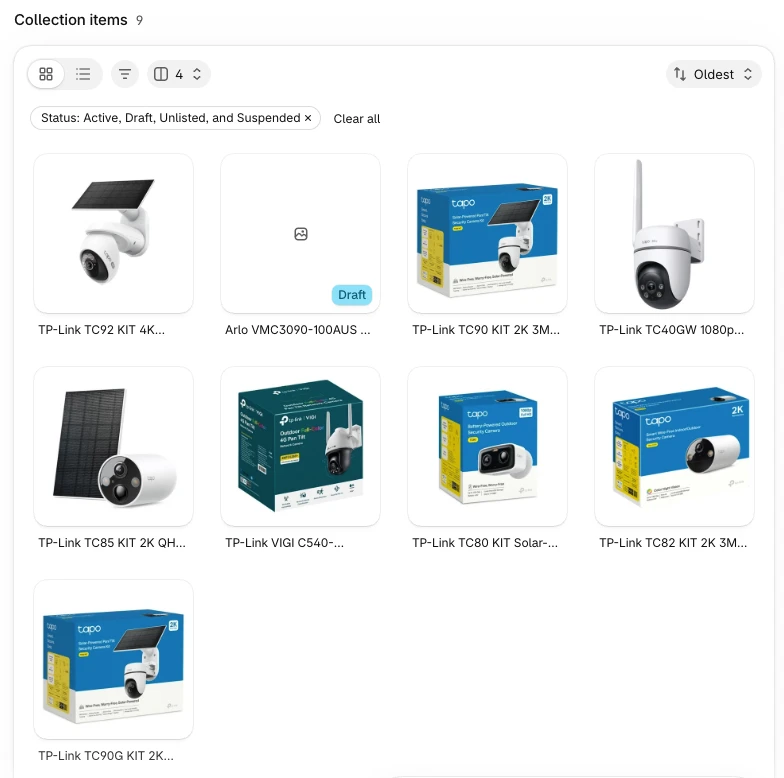
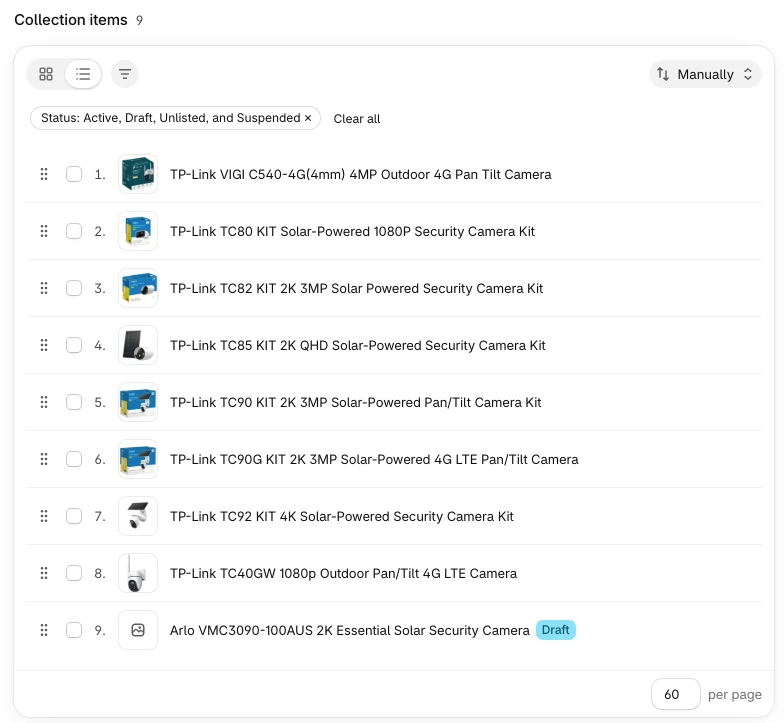
On the “Solar & 4G Cameras” collection (/collections/solar-4g-cameras), the unsorted page starts with the sold-out TP-Link TC92 KIT in the first slot, while the best 4G camera sits fifth (sixth in the admin list, behind an image-less Arlo draft that shoppers can’t see).
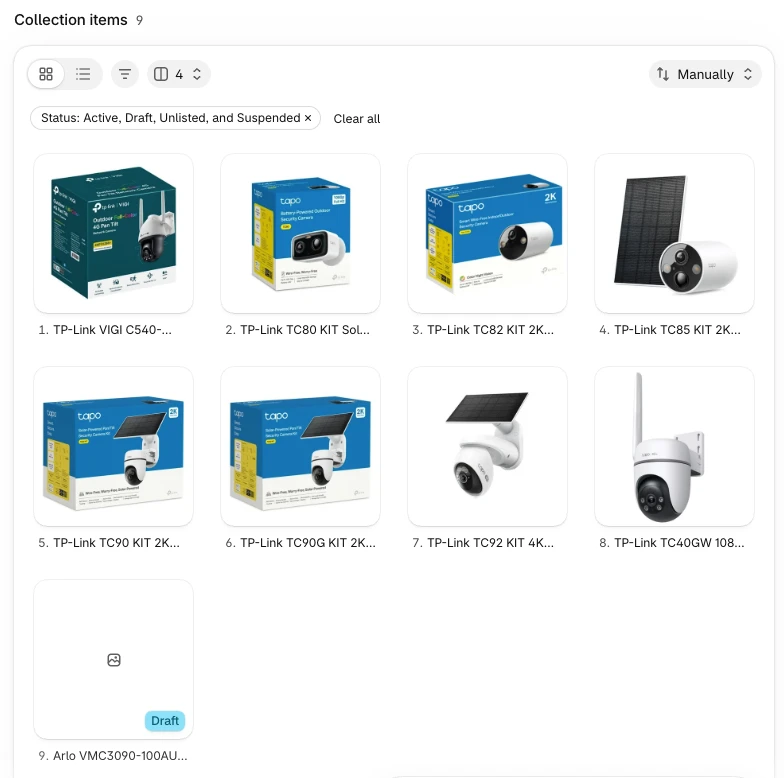
After the workflow runs, the best buyable matches for solar security camera and 4g security camera lead the grid, while the sold-out TC92 KIT and TC40GW sit at the end where they stay visible, linked and indexable.
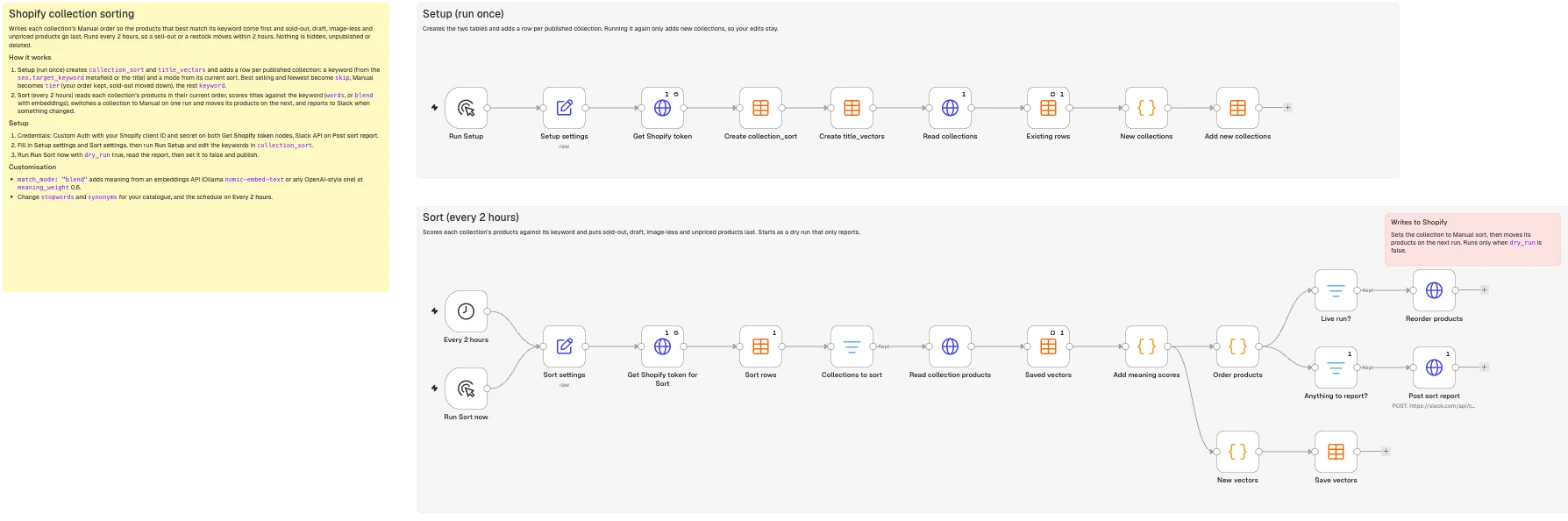
When a run changes a collection, n8n posts a Slack report showing the top three titles on page 1, how many sold-out items sit last, and how many collections were already in order. Setup and Sort sit on one canvas.
What you need
- n8n with Data Tables (self-hosted Community Edition or n8n Cloud).
- A Shopify app with
read_productsandwrite_productson Admin GraphQL API2026-10, plus its client ID and secret (covered inSETUP.md). - Optionally a Slack bot token with
chat:writefor the report. - Optionally, for
blendmode, an embeddings endpoint: Ollama withnomic-embed-text(free) or an OpenAI-compatible embeddings API. - Running cost: nothing self-hosted; about 360 executions a month on n8n Cloud at a 2-hour schedule.
How it works
- Setup (Manual Trigger): creates
collection_sortandtitle_vectors, and adds a row per published collection with a keyword and a mode. - Sort (Schedule Trigger every 2 hours, plus Manual): reads each collection’s products in their current order, scores each product against the collection’s keyword (words, or words blended with meaning), puts buyable products first in score order and sold-out, draft, image-less and unpriced products last, switches the collection to Manual on one run and moves products on the next, and reports to Slack only when something changed. Because Shopify’s robots.txt blocks
sort_byURLs (Disallow: /collections/*sort_by*) and Google’s pagination docs treat sort URLs as variations of the same list, crawlers and most shoppers see the default order, and re-running every 2 hours returns restocked products straight to their relevance position.
Step 1: Create the sort tables
In the Setup lane, add a Manual Trigger named Run Setup and connect a Set node named Setup settings (Mode: JSON):
{
  "store_domain": "your-store.myshopify.com",
  "keyword_namespace": "seo",
  "keyword_key": "target_keyword",
  "leave_alone": ["BEST_SELLING", "CREATED_DESC"]
}
Next, add an HTTP Request node named Get Shopify token (SETUP.md has the credential):
| Setting | Value |
|---|---|
| Method | POST |
| URL | https://{{ $('Setup settings').first().json.store_domain }}/admin/oauth/access_token |
| Authentication | Generic Credential Type, Custom Auth (body with your app’s client_id and client_secret) |
| Body | Form Urlencoded, grant_type = client_credentials |
| Execute Once | On |
Connect a Data table node named Create collection_sort:
| Setting | Value |
|---|---|
| Resource | Table |
| Operation | Create |
| Name | collection_sort |
| Columns (all String) | handle, gid, title, keyword, other_searches, mode |
| Reuse Existing Tables | On |
Connect a Data table node named Create title_vectors for saved embeddings so blend mode only embeds new or renamed titles (it stays empty in words mode):
| Setting | Value |
|---|---|
| Resource | Table |
| Operation | Create |
| Name | title_vectors |
| Columns (all String) | text, vector |
| Reuse Existing Tables | On |
Add an HTTP Request node named Read collections (POST to https://{{ $('Setup settings').first().json.store_domain }}/admin/api/2026-10/graphql.json, header X-Shopify-Access-Token = {{ $('Get Shopify token').first().json.access_token }}, Execute Once on) to fetch published collections and their CollectionSortOrder:
query Collections($after: String, $ns: String!, $key: String!) {
  collections(first: 100, after: $after, query: "published_status:published") {
    pageInfo { hasNextPage endCursor }
    nodes { id handle title sortOrder keyword: metafield(namespace: $ns, key: $key) { value } }
  }
}
Set Options → Pagination on Read collections:
| Setting | Value |
|---|---|
| Pagination Mode | Update a Parameter in Each Request |
| Parameter | Body, name variables, value {{ { after: $response.body.data.collections.pageInfo.endCursor, ns: $('Setup settings').first().json.keyword_namespace, key: $('Setup settings').first().json.keyword_key } }} |
| Pagination Complete When | Other, {{ !$response.body.data.collections.pageInfo.hasNextPage }} |
| Interval Between Requests | 250 ms |
Connect a Data table node named Existing rows:
| Setting | Value |
|---|---|
| Resource | Row |
| Operation | Get |
| Table | collection_sort |
| Return All | On |
| Execute Once | On |
| Always Output Data | On |
Add a Code node named New collections (Run Once for All Items) so running Setup again never overwrites keywords you’ve edited:
const s = $('Setup settings').first().json;
const have = new Set($('Existing rows').all().map(i => i.json.handle).filter(Boolean));
return $('Read collections').all().flatMap(i => i.json.data.collections.nodes)
  .filter(c => !have.has(c.handle))
  .map(c => ({ json: {
    handle: c.handle,
    gid: c.id,
    title: c.title,
    keyword: String((c.keyword && c.keyword.value) || c.title).toLowerCase().trim(),
    other_searches: '',
    // Best selling and Newest keep Shopify's sort; a hand-set Manual order keeps your order
    mode: s.leave_alone.includes(c.sortOrder) ? 'skip' : c.sortOrder === 'MANUAL' ? 'tier' : 'keyword'
  } }));
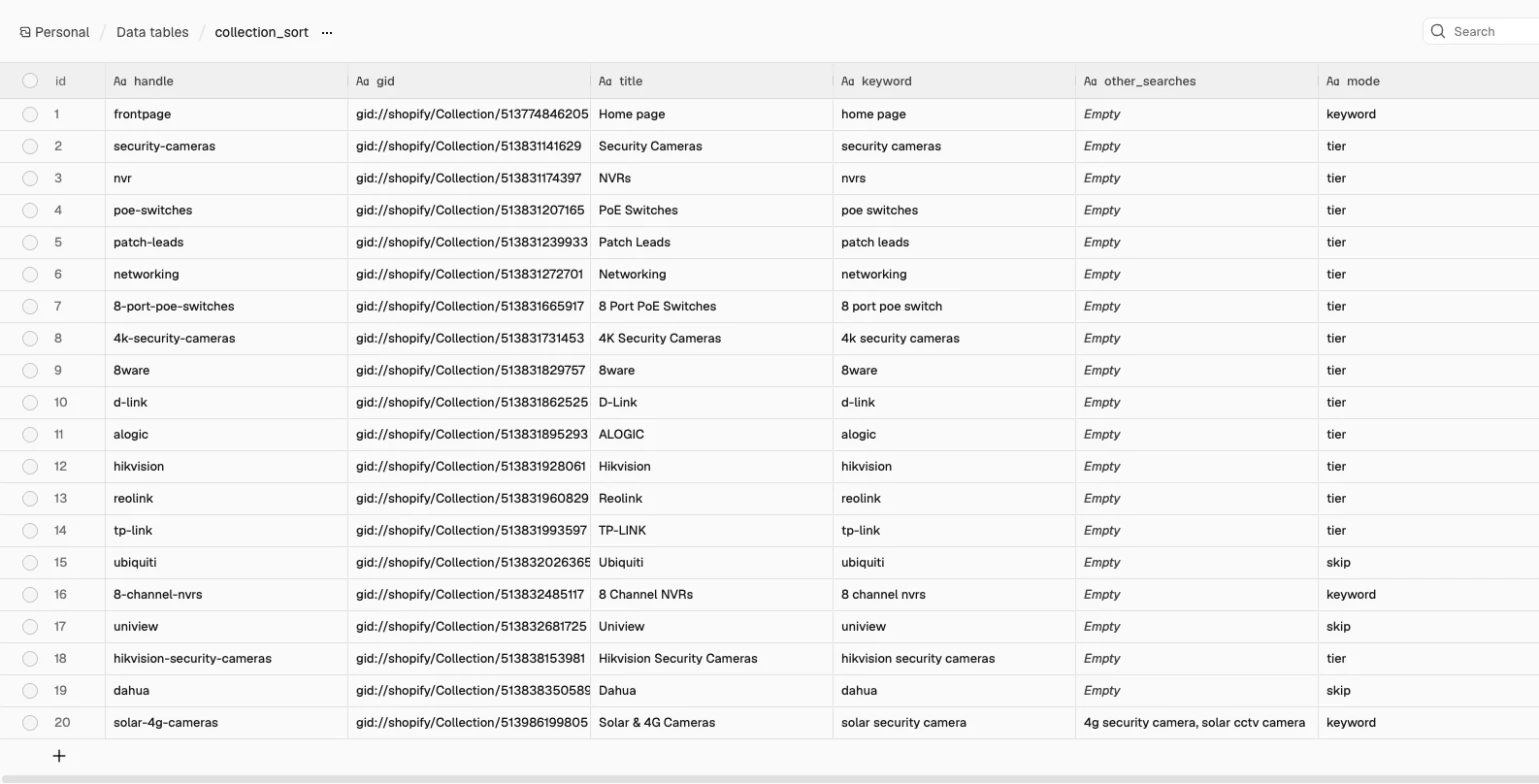
Finish with a Data table node named Add new collections (Row → Insert into collection_sort, each column set to the field of the same name, such as {{ $json.handle }}). Run Setup and open collection_sort: there’s one row per published collection, where solar-4g-cameras has keyword = solar & 4g cameras and mode = keyword. Run it again and nothing is added.
Step 2: Give each collection a keyword
In collection_sort, you control each collection with keyword, other_searches and mode. Because Shopify’s “Most relevant” sort is based on sales rather than what the collection is about, scoring by keyword puts the closest matches on page 1 of the default order, helping shoppers and adding a modest signal alongside your title, intro and links.
Setup seeds mode from the collection’s current sort: keyword scores products against keyword and other_searches, tier keeps your hand-set order on MANUAL collections while moving sold-out and unbuyable items down, and skip leaves BEST_SELLING and CREATED_DESC collections alone. Edit solar-4g-cameras to keyword = solar security camera and other_searches = 4g security camera, solar cctv camera.
Step 3: Read each collection’s products in their current order
In the Sort lane, add a Schedule Trigger named Every 2 hours (Trigger Interval: Hours, Hours Between Triggers: 2) and a Manual Trigger named Run Sort now, both feeding a Set node named Sort settings (Mode: JSON). Keep dry_run on until you’ve read the first report:
{
  "store_domain": "your-store.myshopify.com",
  "min_secondary": 0.5,
  "stopwords": ["for", "with", "and", "the", "a"],
  "synonyms": { "wireless": "wifi", "lte": "4g" },
  "match_mode": "words",
  "meaning_weight": 0.6,
  "embed_url": "http://localhost:11434/api/embed",
  "embed_model": "nomic-embed-text",
  "embed_api_key": "",
  "query_prefix": "search_query: ",
  "doc_prefix": "search_document: ",
  "max_moves": 250,
  "dry_run": true,
  "slack_channel": "#log-sort"
}
Connect an HTTP Request node named Get Shopify token for Sort (same settings as Get Shopify token, with Sort settings in the URL, Execute Once on, Retry On Fail on), a Data table node named Sort rows (Row → Get on collection_sort, Return All on, Execute Once on), and a Filter node named Collections to sort:
| Condition | Value |
|---|---|
{{ $json.mode }} | is not equal to skip |
{{ $json.gid }} | is not empty |
Connect an HTTP Request node named Read collection products. Because every request draws on the same Shopify GraphQL budget, batching one at a time keeps a big catalogue from tripping the throttle, and sortKey: COLLECTION_DEFAULT returns products in the order the storefront shows now:
| Setting | Value |
|---|---|
| Method | POST |
| URL | https://{{ $('Sort settings').first().json.store_domain }}/admin/api/2026-10/graphql.json |
| Header | X-Shopify-Access-Token = {{ $('Get Shopify token for Sort').first().json.access_token }} |
| Body | JSON (below) |
| Options → Batching | Items per Batch 1, Batch Interval 500 ms |
Use this JSON body expression:
={{ JSON.stringify({ query: `query($id: ID!) { collection(id: $id) { sortOrder products(first: 250, sortKey: COLLECTION_DEFAULT) { nodes {
    id title status totalInventory tracksInventory featuredMedia { id } priceRangeV2 { minVariantPrice { amount } } } } } }`, variables: { id: $json.gid } }) }}
Check the Solar & 4G Cameras item: it lists the nine products with the sold-out TP-Link TC92 KIT first, the Arlo VMC3090-100AUS draft second, TC90 KIT third, the sold-out TC40GW fourth, TC85 KIT fifth, VIGI C540-4G(4mm) sixth, TC80 KIT seventh, TC82 KIT eighth and TC90G KIT ninth.
Step 4: Score each product against the collection’s keyword
After Read collection products (and after Saved vectors → Add meaning scores from Step 5; Add meaning scores passes items straight through in words mode), add a Code node named Order products (Run Once for All Items):
const s = $('Sort settings').first().json;
const rows = $('Collections to sort').all().map(i => i.json);
const tokens = t => [...new Set(String(t).toLowerCase().replace(/wi-?fi/g, 'wifi').split(/[^a-z0-9]+/)
  .filter(w => w && !s.stopwords.includes(w))
  .map(w => w.length > 4 && w.endsWith('ies') ? w.slice(0, -3) + 'y' : (w.length > 3 && /[^siu]s$/.test(w) ? w.slice(0, -1) : w))
  .map(w => s.synonyms[w] || w))];
const words = (kw, title) => { const k = tokens(kw), t = tokens(title); return k.length ? k.filter(w => t.includes(w)).length / k.length : 0; };
// 0 = can be bought, 1 = sold out, 2 = draft, no image or no price
const tier = p => {
  if (p.status !== 'ACTIVE' || !p.featuredMedia || !(Number(p.priceRangeV2.minVariantPrice.amount) > 0)) return 2;
  if (p.tracksInventory && p.totalInventory <= 0) return 1;
  return 0;
};

return $input.all().map((it, i) => {
  const r = rows[i], col = it.json.data && it.json.data.collection;
  if (!col) return { json: { handle: r.handle, error: 'collection not found', switch: false, moves: [], page1: [], sold_out: [], hidden: 0 } };
  const now = col.products.nodes, ids = now.map(p => p.id);
  // words only, or a blend with the meaning score when match_mode is blend
  const meaning = it.json.meaning;
  const score = (kw, p) => meaning && meaning[kw]
    ? s.meaning_weight * (meaning[kw][p.id] || 0) + (1 - s.meaning_weight) * words(kw, p.title)
    : words(kw, p.title);
  // keyword mode: best match first; tier mode: keep the order you set by hand
  const rank = list => r.mode === 'keyword'
    ? list.map(p => ({ p, sc: score(r.keyword, p), at: ids.indexOf(p.id) })).sort((a, b) => b.sc - a.sc || a.at - b.at).map(x => x.p)
    : list;
  const ready = now.filter(p => tier(p) === 0), placed = [];
  if (r.mode === 'keyword') {
    const main = tokens(r.keyword);
    for (const kw of String(r.other_searches || '').split(',').map(x => x.trim()).filter(Boolean)) {   // one best product per other search, in your order
      const extra = tokens(kw).filter(w => !main.includes(w));   // the words this search adds to the main keyword
      // with words only, the product must contain one of those words; with meaning, the blend decides
      const best = ready.filter(p => !placed.includes(p) && (meaning || extra.some(w => tokens(p.title).includes(w))))
        .map(p => ({ p, sc: score(kw, p) })).sort((a, b) => b.sc - a.sc)[0];
      if (best && best.sc >= s.min_secondary) placed.push(best.p);
    }
  }
  const soldOut = now.filter(p => tier(p) === 1), hidden = now.filter(p => tier(p) === 2);
  const order = [...placed, ...rank(ready.filter(p => !placed.includes(p))), ...rank(soldOut), ...rank(hidden)];
  const report = { handle: r.handle, mode: r.mode, was: col.sortOrder, page1: order.slice(0, 8).map(p => p.title),
    sold_out: soldOut.map(p => p.title), hidden: hidden.length };

  // Shopify re-sorts a collection after it switches to Manual, so a switch gets this run and the moves wait for the next.
  if (col.sortOrder !== 'MANUAL') return { json: { gid: r.gid, ...report, switch: true, moves: [], more: false } };
  const arr = ids.slice(), moves = [];
  order.forEach((p, pos) => {                // only the moves that change the live order
    if (arr[pos] === p.id) return;
    const at = arr.indexOf(p.id);
    if (at >= 0) arr.splice(at, 1);
    arr.splice(pos, 0, p.id);
    moves.push({ id: p.id, newPosition: String(pos) });
  });
  // Shopify takes up to 250 moves a call; anything over max_moves waits for the next run
  return { json: { gid: r.gid, ...report, switch: false, moves: moves.slice(0, s.max_moves), more: moves.length > s.max_moves } };
});
In Order products, tokens lowercases text, turns wi-fi into wifi, drops stopwords, turns simple plurals singular (cameras to camera, batteries to battery), and applies synonyms so lte counts as 4g. Then words returns the share of keyword words in the title (1.0 for TC82 KIT against solar security camera, 0.67 for TC90 KIT). Each search in other_searches places one buyable product scoring at least min_secondary (0.5), and in words mode its title must contain an extra word the search adds to the main keyword (4g for 4g security camera). Remaining buyable products follow by score with ties kept in their current order, so an unchanged catalogue makes no moves.
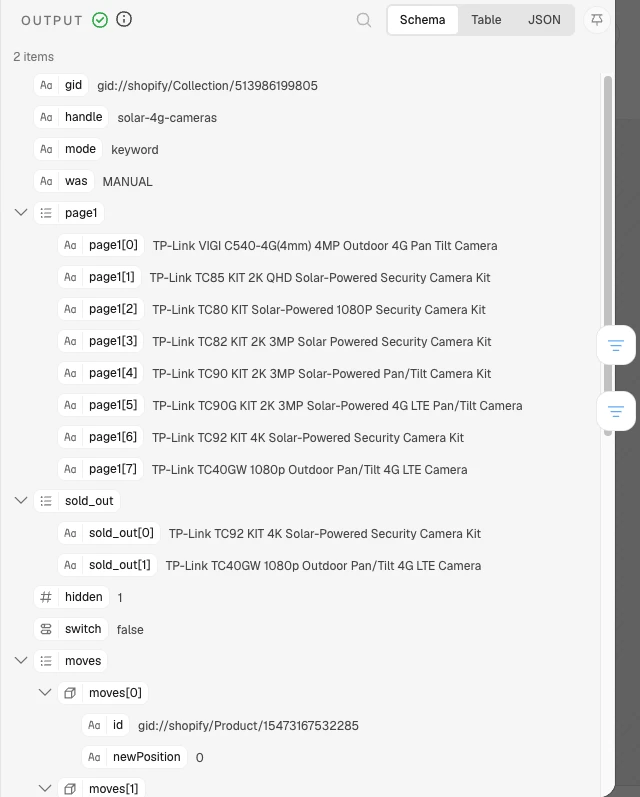
On solar-4g-cameras in words mode, 4g security camera places VIGI C540-4G first, while solar cctv camera places nothing because no title contains cctv. Next come TC85 KIT, TC80 KIT and TC82 KIT (tied at 1.0), TC90 KIT and TC90G KIT (0.67), the sold-out TC92 KIT and TC40GW, and the Arlo draft (hidden: 1), making 7 moves on a Manual collection.
Step 5: Add meaning with embeddings (optional)
Word matching misses synonyms like “CCTV” and “security camera” and leaves equal word scores tied. Between Read collection products and Order products, add a Data table node named Saved vectors:
| Setting | Value |
|---|---|
| Resource | Row |
| Operation | Get |
| Table | title_vectors |
| Return All | On |
| Execute Once | On |
| Always Output Data | On |
Connect Saved vectors to a Code node named Add meaning scores (Run Once for All Items), which embeds each search and title when match_mode is "blend", reuses saved vectors, and rescales cosine scores 0 to 1 within the collection:
const s = $('Sort settings').first().json;
const items = $('Read collection products').all();
if (s.match_mode !== 'blend') return items.map(i => ({ json: i.json }));
const rows = $('Collections to sort').all().map(i => i.json);
const searches = r => [r.keyword, ...String(r.other_searches || '').split(',')].map(x => x.trim()).filter(Boolean);
// Vectors saved on earlier runs, so only new or renamed titles are embedded again
const saved = new Map($('Saved vectors').all().filter(i => i.json.text).map(i => [i.json.text, JSON.parse(i.json.vector)]));
const texts = new Set();
items.forEach((it, i) => {
  const r = rows[i], col = it.json.data && it.json.data.collection;
  if (!col || r.mode !== 'keyword') return;
  searches(r).forEach(k => texts.add(s.query_prefix + k));
  col.products.nodes.forEach(p => texts.add(s.doc_prefix + p.title));
});
const missing = [...texts].filter(t => !saved.has(t)), fresh = [];
for (let i = 0; i < missing.length; i += 64) {
  const batch = missing.slice(i, i + 64);
  const res = await this.helpers.httpRequest({ method: 'POST', url: s.embed_url, json: true, timeout: 60000,
    headers: s.embed_api_key ? { Authorization: 'Bearer ' + s.embed_api_key } : {},
    body: { model: s.embed_model, input: batch } });
  // Ollama returns embeddings; OpenAI-style APIs return data[].embedding
  const vecs = res.embeddings || (res.data || []).map(d => d.embedding);
  batch.forEach((t, j) => { saved.set(t, vecs[j]); fresh.push({ text: t, vector: JSON.stringify(vecs[j].map(x => Math.round(x * 1e4) / 1e4)) }); });
}
const cos = (a, b) => { let d = 0, x = 0, y = 0; for (let i = 0; i < a.length; i++) { d += a[i] * b[i]; x += a[i] * a[i]; y += b[i] * b[i]; } return d / Math.sqrt(x * y); };
return items.map((it, i) => {
  const r = rows[i], col = it.json.data && it.json.data.collection;
  const out = { ...it.json, new_vectors: i === 0 ? fresh : [] };
  if (!col || r.mode !== 'keyword') return { json: out };
  out.meaning = {};
  for (const k of searches(r)) {
    const raw = col.products.nodes.map(p => [p.id, cos(saved.get(s.query_prefix + k), saved.get(s.doc_prefix + p.title))]);
    // Rescaled 0 to 1 within the collection, so meaning sits on the same scale as the word score
    const lo = Math.min(...raw.map(x => x[1])), hi = Math.max(...raw.map(x => x[1]));
    out.meaning[k] = Object.fromEntries(raw.map(([id, c]) => [id, hi > lo ? (c - lo) / (hi - lo) : 1]));
  }
  return { json: out };
});
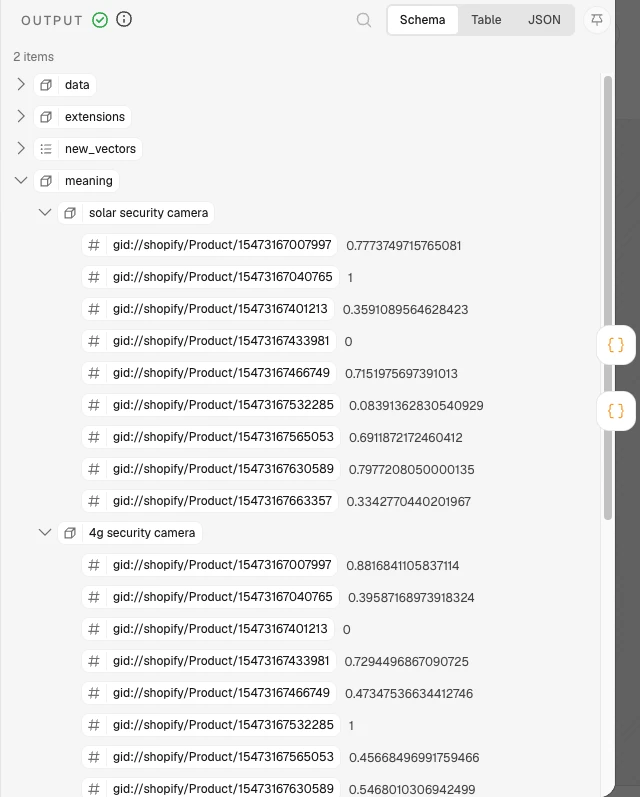
If n8n runs in Docker and Ollama on the same machine, set embed_url to http://host.docker.internal:11434/api/embed, because localhost inside the container is the container itself. The search_query: and search_document: prefixes follow Nomic’s model card (clear them for models that don’t use them), and the request body works for Ollama’s /api/embed endpoint and OpenAI-style /v1/embeddings APIs. Raw cosine scores bunch together (0.57 to 0.80 on the example), so rescaling 0 to 1 puts meaning on the same scale as words. Branch off Add meaning scores to a Code node named New vectors (Run Once for All Items):
return ($('Add meaning scores').first().json.new_vectors || []).map(v => ({ json: v }));Connect New vectors to a Data table node named Save vectors (Row → Insert into title_vectors, text = {{ $json.text }} and vector = {{ $json.vector }}). Vectors are rounded to four decimals; the first blend run embedded 12 texts (3 searches and 9 titles) and the second run embedded none.
Comparing words and blend on solar-4g-cameras (both making 7 moves on a Manual collection):
| Product | words position | blend position |
|---|---|---|
| TP-Link VIGI C540-4G(4mm) 4MP Outdoor 4G Pan Tilt Camera | 1 | 1 |
| TP-Link TC85 KIT 2K QHD Solar-Powered Security Camera Kit | 2 | 4 |
| TP-Link TC80 KIT Solar-Powered 1080P Security Camera Kit | 3 | 2 |
| TP-Link TC82 KIT 2K 3MP Solar Powered Security Camera Kit | 4 | 3 |
| TP-Link TC90 KIT 2K 3MP Solar-Powered Pan/Tilt Camera Kit | 5 | 5 |
| TP-Link TC90G KIT 2K 3MP Solar-Powered 4G LTE Pan/Tilt Camera | 6 | 6 |
| TP-Link TC92 KIT 4K Solar-Powered Security Camera Kit (sold out) | 7 | 7 |
| TP-Link TC40GW 1080p Outdoor Pan/Tilt 4G LTE Camera (sold out) | 8 | 8 |
| Arlo VMC3090-100AUS 2K Essential Solar Security Camera (draft) | 9 | 9 |
In blend mode, solar cctv camera places TC80 KIT second because the model reads CCTV as a security camera, and meaning breaks the tie between TC82 KIT and TC85 KIT. Why not meaning alone? For 4g security camera, the 4K TC92 KIT scored almost as close as the 4G cameras (cosine 0.696, against 0.710 for VIGI C540-4G and 0.679 for TC40GW) because "4K" and "4G" look alike to the model, which is why the blend keeps 40% of the word score.
The weight isn’t a fragile choice either. On four larger real collections (security cameras, IP cameras, Wi-Fi cameras and network racks, 56 to 229 products each), the first 24 products came out identical at meaning_weight 0.4 and 0.6, whereas 1.0 (meaning alone) reshuffled 6 to 14 of those 24 slots on two of them. Against words, blend changed the order of 3 to 18 of the first 24 products but kept 23 or 24 of the same products on page 1, so meaning mostly settles ties and picks better products for other_searches rather than pulling in different ones.
Step 6: Push sold-out products to the end
A sold-out product in the first row costs the click, whereas hiding or deleting it costs the page. You have four ways to handle out-of-stock products on Shopify:
| Option | How on Shopify | When it fits | What it costs you |
|---|---|---|---|
| Hide | Automated collection condition “Inventory stock is greater than 0” or Shopify Flow | One-off stock that won’t return | Unpublishing creates 404s that hurt shoppers and SEO, and hiding drops internal links |
| Sort last | Manual sort updated with collectionReorderProducts | Restockable catalogue items | Needs an app or API automation |
| Keep indexed | Leave active with OutOfStock structured data | Temporarily unavailable items | Thin pages may be treated like soft 404s |
| Redirect discontinued | Set to Draft or delete so it 404s, then add a Shopify URL redirect | Permanently discontinued items | Redirects only work once the URL returns a 404 |
Shopify’s collection sort options have no sort-last setting, Shopify’s help page covers hiding only, and ad feed guides ignore collection pages. As merchants note in Shopify Community threads on smart collections and manual sorting, Search & Discovery doesn’t re-sort collection pages and theme code only sorts one paginated page at a time, leaving apps or the API.
Yoast advises keeping temporarily unavailable pages live at the bottom of results pages. John Mueller noted in Google office hours that out-of-stock pages may be treated like soft 404s and dropped unless they offer useful details, and keeping them live lets Shopify’s structured_data filter output OutOfStock schema matching Merchant Center availability. When a product is permanently discontinued, 301-redirect it to its replacement or closest collection (never the home page, and only after unpublishing so it 404s), or serve a 404 or 410.
In Order products (Step 4), tier assigns 0 to buyable products (untracked inventory counts as in stock), 1 to sold-out products (tracksInventory and totalInventory <= 0, including products set to continue selling when out of stock), and 2 to drafts, image-less or unpriced items, then stacks the products placed by other searches first, the rest of tier 0 by score, then tier 1, then tier 2.
Step 7: Switch to Manual, then move the products
Shopify’s collectionReorderProducts mutation requires sortOrder: MANUAL and takes up to 250 moves per call. Because switching to Manual with collectionUpdate triggers a background Shopify re-sort (in testing, sending the switch and moves in one request undid the moves on 5 of 13 collections), Order products switches the collection on one run and waits for the next run to reorder products.
Connect Order products to an upper branch with a Filter named Live run? ({{ !$('Sort settings').first().json.dry_run && ($json.switch || $json.moves.length > 0) }} is true), then an HTTP Request named Reorder products (POST, same URL and header as Read collection products):
={{ JSON.stringify($json.switch
  ? { query: 'mutation($id: ID!) { collectionUpdate(collection: { id: $id, sortOrder: MANUAL }) { userErrors { message } } }', variables: { id: $json.gid } }
  : { query: 'mutation($id: ID!, $moves: [MoveInput!]!) { collectionReorderProducts(id: $id, moves: $moves) { job { id } userErrors { field message } } }',
      variables: { id: $json.gid, moves: $json.moves } }) }}
Add a red sticky note beside Reorder products: “Writes to Shopify. Sets the collection to Manual sort, then moves its products on the next run. Runs only when dry_run is false.” Order products sends at most max_moves moves per collection (250, Shopify’s limit per call) and flags the rest with more, so the next run reads the new order and carries on. With max_moves set to 3 on the example, the 7 moves went out as 3, 3 and 1 over three runs, and the run after that changed nothing. On a store I run, the first live run set 63 collections to Manual and made 4,486 moves in about four minutes, and the run straight after changed nothing.
Step 8: Report what moved
On a lower branch from Order products (placed below Live run? on the canvas so Reorder products runs before the report reads its output), add a Filter named Anything to report? (Execute Once on, {{ $('Sort settings').first().json.dry_run || $('Order products').all().some(i => i.json.switch || i.json.moves.length > 0 || i.json.error) }} is true), then an HTTP Request named Post sort report (POST to https://slack.com/api/chat.postMessage, Predefined Credential Type: Slack API, Execute Once on):
={{ JSON.stringify((() => {
  const s = $('Sort settings').first().json, all = $('Order products').all().map(i => i.json);
  const moved = all.filter(r => r.switch || r.moves.length || r.error);
  const errs = $('Reorder products').isExecuted ? $('Reorder products').all().flatMap(x => [...(x.json.errors || []),
    ...(x.json.data?.collectionUpdate?.userErrors || []), ...(x.json.data?.collectionReorderProducts?.userErrors || [])]).map(e => e.message) : [];
  // Short lines, so a long run still fits in one Slack message.
  const lines = moved.slice(0, 25).map(r => '*' + r.handle + '*: ' + (r.error || (r.switch ? 'switches to Manual, products move on the next run' : r.moves.length + (r.moves.length === 1 ? ' move' : ' moves') + (r.more ? ' (the rest on the next run)' : ''))) +
    (r.page1.length ? '. First: ' + r.page1.slice(0, 3).map(t => t.slice(0, 40)).join(' / ') : '') +
    (r.sold_out.length ? '. Sold out, last: ' + r.sold_out.length : '') + (r.hidden ? '. Draft, no image or no price: ' + r.hidden : ''));
  return { channel: s.slack_channel, unfurl_links: false, text: (s.dry_run ? ':test_tube: Sort dry run, nothing changed.' : ':arrows_counterclockwise: Sort run.') + '\n' +
    lines.join('\n') + (moved.length > 25 ? '\n...and ' + (moved.length - 25) + ' more' : '') +
    '\nAlready in order: ' + (all.length - moved.length) + '.' + (errs.length ? '\n:x: Shopify errors: ' + errs.join('; ') : '') };
})()) }}
To use email instead of Slack, replace Post sort report with a Send Email node using the same text. Run Sort with dry_run on, read the report, and then set dry_run to false to go live.

What it costs
Here is how this workflow compares with PushLast, Outranked: Auto OOS Sorter and n8n Cloud (US listings checked November 2026, billed in USD, assuming about one collection per 10 products):
| Item | 500 products (about 50 collections) | 2,000 products (about 200) | 10,000 products (about 1,000) |
|---|---|---|---|
| n8n self-hosted | Free | Free | Free |
| n8n Cloud Starter | €20 a month (about 360 of 2,500 executions) | €20 | €20 |
| Shopify Admin API and Slack | Free | Free | Free |
| Chat model | None | None | None |
Embeddings (blend mode only) | Free on your own Ollama | Free | Free |
| PushLast | US$3.99 a month | US$9.99 | US$9.99 |
| Outranked | US$9.99 (Premium) | US$19.99 (Ultimate) | US$19.99 |
Four levers control usage: the schedule (hourly doubles Cloud executions, whereas daily is enough if stock rarely changes), how many collections are in keyword or tier mode rather than skip, the 250-product read per collection, and match_mode (words needs no embeddings, and in blend only new or renamed titles are embedded).
Common mistakes
Sending the Manual switch and the moves in one request
Switching a collection to MANUAL triggers a Shopify re-sort that can undo moves sent in the same request. Let one run switch the collection and the next run move the products.
Switching Best selling or Newest collections to Manual
Setting BEST_SELLING or CREATED_DESC collections to Manual freezes their order. Keep both in leave_alone so Setup marks them skip.
Treating stock as the only test
Checking inventory alone leaves drafts, image-less products and zero-price items in the top row. Keep Tier 2 in Order products so incomplete items sit behind sold-out ones.
Replacing word matching with embeddings entirely
To an embedding model, "4K" and "4G" look alike: for 4g security camera, the 4K TC92 KIT scored 0.696 against 0.710 for VIGI C540-4G. Blend embeddings with word scores (meaning_weight: 0.6) so exact tokens still count.
Embedding every title on every run
Re-embedding unchanged titles every two hours wastes time and API calls. Load title_vectors before scoring and save new_vectors after so each title is embedded once.
Hiding, unpublishing or deleting sold-out products, or redirecting discontinued ones to the home page
Unpublishing temporarily sold-out items creates 404s, and redirecting discontinued items to the home page sends shoppers somewhere that has nothing to do with the product. Sort temporarily sold-out items last, and 301-redirect permanently discontinued URLs to a replacement product or collection after unpublishing them.
Make it your own
New Arrivals and Popular collections that only show what you can sell
Keep New Arrivals and Popular as Manual collections marked skip in collection_sort, and add a second lane that refills them every few hours with buyable products only (published in the last 30 days up to 48 items for New Arrivals, or ranked by category keyword search volume or sales for Popular) using collectionRemoveProducts, collectionAddProductsV2 and collectionReorderProducts, polling each job before the next.
Backorder and pre-order products as their own tier
Add variants(first: 1) { nodes { inventoryPolicy } } to Read collection products and give products with inventoryPolicy: "CONTINUE" their own tier between in-stock (Tier 0) and sold-out (Tier 1).
Collections with more than 250 products
Page through Read collection products with the cursor, split moves into batches of 250, and poll each job every 1 to 2 seconds until done before sending the next batch, as Shopify’s reorder guide recommends.
FAQ
How do I sort products in Shopify without an app?
Open the collection in your Shopify admin and set its sort dropdown to Manual to drag products into position, as shown in Shopify’s collection layout guide and discussed in Shopify Community threads. To automate that order without paying for an app, use this n8n workflow to score products and call collectionReorderProducts on a schedule.
Can Shopify sort sold-out products last on its own?
No, Shopify has no native setting to sort sold-out products last, only options to hide them with collection conditions or Shopify Flow. Keeping sold-out items visible at the end requires switching the collection to Manual sort and reordering it via an app or the Admin API.
Should I hide out-of-stock products on Shopify?
If an item will be restocked, keep it live rather than hiding or unpublishing it, because turning the URL into a 404 or dropping internal links hurts search visibility and shoppers looking for specs. Pushing out-of-stock products to the bottom of the collection, with OutOfStock markup on the product page, keeps the page and its links while buyable products take the first row.
Do I need embeddings, or is word matching enough?
For most stores, words mode is enough because product titles share the words in your target keyword and synonyms list. Switch match_mode to blend when your collections rely on synonyms that share no words (like “CCTV” and “security camera”) or when many products tie at a 1.0 word score.
Does the product order on a collection page affect SEO?
Because Shopify blocks sort_by URLs in robots.txt, search engines crawl a collection in its default order. Putting your closest keyword matches first on page 1 adds a modest signal alongside your heading and copy (it’s mostly a benefit for shoppers), while keeping sold-out items linked at the end preserves internal links.
Next steps
Run Run Setup to populate collection_sort, check your collection keywords and modes in the table, and trigger Run Sort now with dry_run on to read the Slack report before going live.