Shopify Product Images: Find, Scrape and Optimise Manufacturer Images With AI (+ Free n8n Template)

Last tested on n8n 2.46, November 2026.
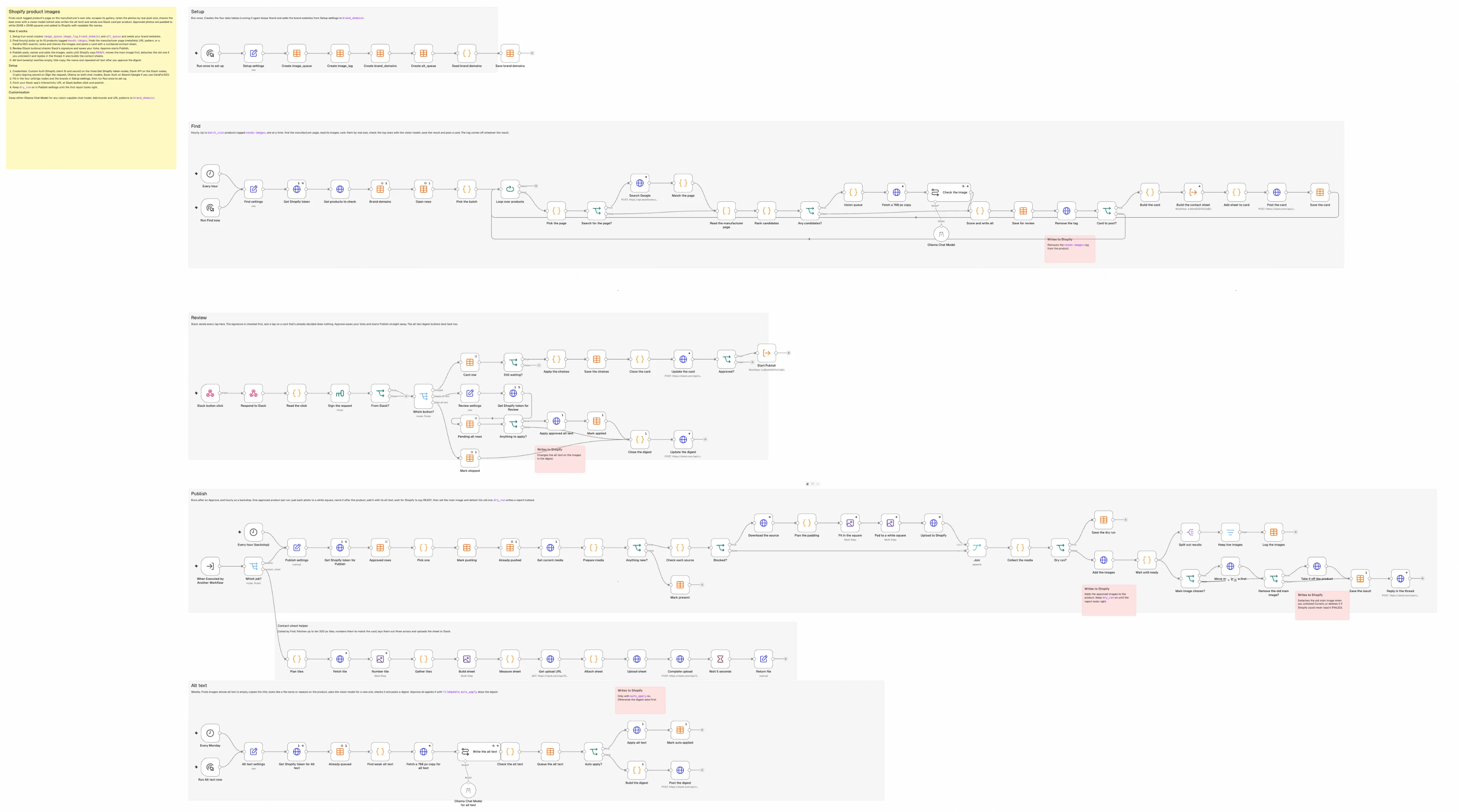
Resellers who import supplier feeds end up with Shopify product images that are small, mismatched in shape, stamped with distributor watermarks, or missing altogether, while their alt text sits empty or repeats the product title word for word. Installing a resize app, running an AI alt text generator, or editing photos by hand only tidies up the files already on your store, because none of those tools goes out to find better photos when the supplier feed only gave you a small thumbnail. By the end of this guide, you’ll have an n8n workflow that locates the manufacturer’s own high-resolution gallery, filters out banners and watermarks with a vision model, pads every approved shot onto a clean 2048 x 2048 square with descriptive alt text, and repairs weak alt text across the images you already have.
What you’ll build
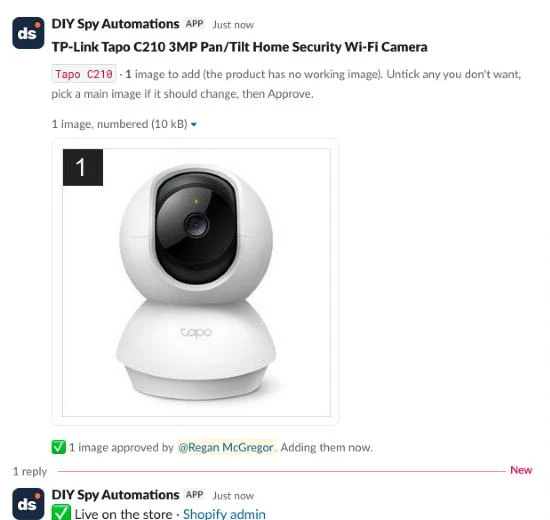
When you tag a product needs-images, the workflow finds its page on the manufacturer’s domain, measures the real pixel dimensions of every photo on the page, and asks a vision model to check the top candidates and write alt text for each shot. A single review card arrives in Slack showing a numbered contact sheet of the surviving photos, tick boxes for which ones to keep, and a radio button for the main image.
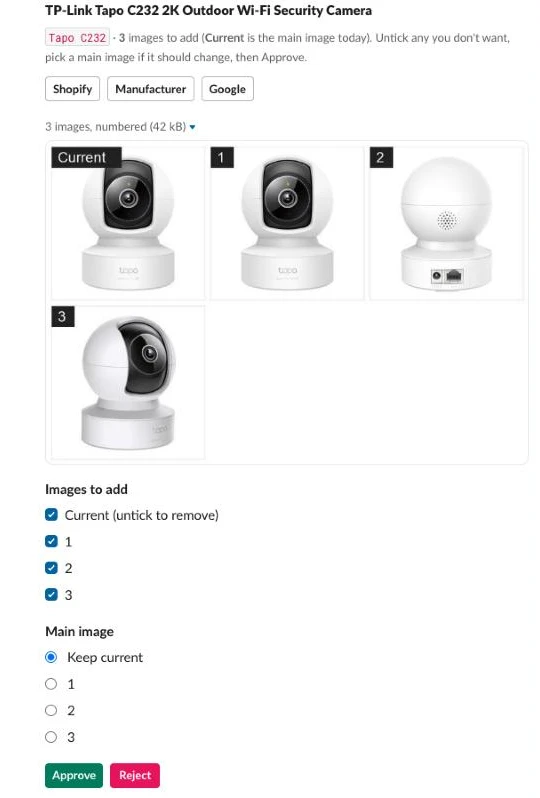
Clicking Approve squares every chosen photo onto a white 2048 x 2048 canvas, names the file after the product, uploads it to Shopify with its alt text, waits until Shopify finishes processing the file, and updates the main image. On a store I run, about half the products this method looked at got better manufacturer images (1,307 pushed against 1,271 where nothing better than the existing image turned up), while the rest already had the best image available. A separate weekly lane fixes alt text on the rest of your catalogue.
What you need
- n8n (self-hosted Community Edition or n8n Cloud) with Data tables enabled.
- A custom Shopify app with
read_products,write_products,read_files, andwrite_filesscopes (the last two handle alt text updates and detaching old images). The repository’sSETUP.mdcovers creating the app and configuring theGet Shopify tokennode. - An Ollama Cloud API key running
gemma4:31b, or any vision-capable chat model sub-node. - A Slack app with interactivity switched on and the
chat:writeandfiles:writescopes (the second one uploads the contact sheets). - Optional: DataForSEO credentials if you want the workflow to search Google for manufacturer pages by model number when no URL is stored on the product.
- wsrv.nl, which is free and requires no account.
- Running cost: about US$0.70 per 500 products for the vision model across both lanes at list price, plus DataForSEO if you turn it on (measured November 2026).
How it works
- Setup (Manual Trigger, run once): creates four Data Tables and seeds your initial list of brand domains.
- Find (Schedule Trigger every hour, plus a Manual Trigger): picks up to 10 products tagged
needs-images, locates each product’s page on the manufacturer’s site, scrapes and ranks the gallery images by real pixel dimensions, checks every ranked shot with the vision model while writing its alt text, and posts one Slack card per product for a person to review. - Review (Webhook from Slack interactivity): verifies the Slack signature and records your tick-box choices and main-image selection when you click Approve or Reject, or processes the weekly alt text digest when you click Approve all or Skip, then triggers the Publish lane immediately on approval.
- Publish (When Executed by Another Workflow, plus an hourly Schedule Trigger as a backstop): pads each approved image onto a white 2048 x 2048 square, names the file after the product, adds it to Shopify with its alt text, waits until Shopify marks each image
READY, sets the main image, detaches the old image if you unticked it (or deletes it if Shopify could never load it), and replies in the Slack thread. The same trigger also runs the contact sheet helper for the Find lane. - Alt text (Schedule Trigger weekly): scans the products in your
product_query(active products by default) for images whose alt text is empty, matches the product title, looks like a file name, or repeats across the same product, generates new alt text with the vision model, and applies the changes viafileUpdateafter you approve the weekly Slack digest (or straight away if you turn onauto_apply).
The workflow splits finding from publishing because scraping manufacturer pages and running vision checks is slow and cheap to repeat, whereas writing to your Shopify store should only happen after a person has seen the contact sheet and approved the images.
Step 1: Create the tables and settings
The Setup lane builds the four Data Tables that track queued products, uploaded files, brand websites, and alt text batches. Storing a hash of each uploaded source URL in image_log is what makes retries safe, because the Publish lane can check which manufacturer photos are already attached to a product without hiding tracking codes inside the alt text where screen readers would read them out.
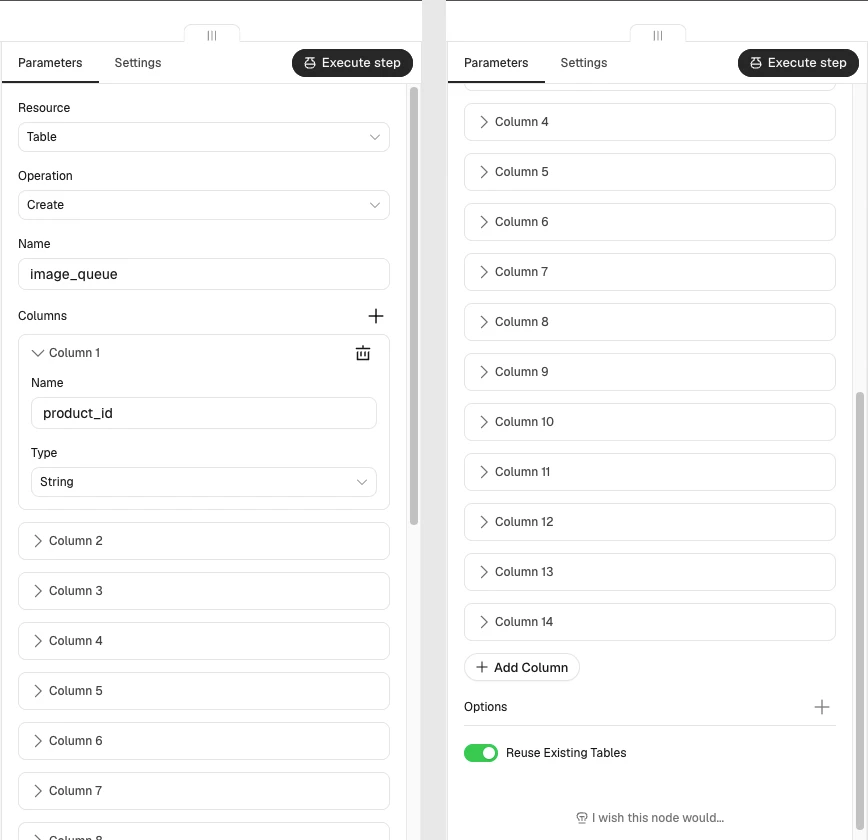
In the Setup lane, add a Manual Trigger, connect a Set node named Setup settings (JSON mode), and connect four Data table nodes set to Table > Create with Reuse Existing Tables toggled on so running Setup a second time does no harm:
| Table | Columns (String unless noted) |
|---|---|
image_queue | product_id, title, vendor, mpn, page_url, status (review, skipped, approved, rejected, pushing, pushed, failed, dry_run), candidates (JSON as text), current (JSON as text), remove_current (Boolean), card_channel, card_ts, error, report, updated_at (Date) |
image_log | product_id, source_hash, media_id, filename, alt, status, pushed_at (Date) |
brand_domains | brand (the vendor as Shopify has it), domain, url_pattern (optional, with {model} where the model slug goes) |
alt_queue | media_id, product_id, title, image_url, old_alt, new_alt, problems, batch_id, status (pending, applied, skipped, failed), updated_at (Date) |
A single brand can use more than one website, such as TP-Link hosting its commercial VIGI cameras on vigi.com while serving the image files from static.tp-link.com, so brand_domains allows multiple rows per vendor. Paste this JSON into Setup settings:
{
  "brand_domains": [
    {
      "brand": "TP-Link",
      "domain": "tp-link.com",
      "url_pattern": ""
    },
    {
      "brand": "TP-Link",
      "domain": "vigi.com",
      "url_pattern": ""
    },
    {
      "brand": "Samsung",
      "domain": "samsung.com",
      "url_pattern": ""
    }
  ]
}
Connect a Code node named Seed brand domains after the table creation nodes, followed by a Data table node set to Row > Upsert into brand_domains matching on brand and domain:
return $('Setup settings').first().json.brand_domains.map(b => ({ json: {
  brand: b.brand, domain: String(b.domain).toLowerCase().replace(/^www\./, ''), url_pattern: b.url_pattern || ''
} }));
Run the Setup lane once and check that all four tables appear under Data tables in your n8n sidebar, with three rows inside brand_domains.
Next, place a Set node named Find settings (JSON mode) at the start of the Find lane so every threshold, metafield key, and Slack channel lives in one place:
{
  "store_domain": "your-store.myshopify.com",
  "admin_store_handle": "your-store",
  "pick_tag": "needs-images",
  "batch_size": 10,
  "min_short_side": 500,
  "fallback_min_side": 250,
  "max_candidates": 8,
  "vision_top_n": 8,
  "vision_model": "gemma4:31b",
  "max_alt_length": 125,
  "mpn_namespace": "custom",
  "mpn_key": "mpn",
  "page_namespace": "custom",
  "page_key": "manufacturer_url",
  "use_dataforseo": false,
  "search_location": "United States",
  "language_code": "en",
  "user_agent": "YourStoreImageBot/1.0 (+https://your-store.com)",
  "strip_query_params": "content_token",
  "slack_channel": "#review-images"
}
At the head of the Publish lane, add a Set node named Publish settings in manual mode with dry_run enabled so you can inspect the generated URLs before writing anything to Shopify:
| Setting | Value |
|---|---|
store_domain | your-store.myshopify.com |
admin_store_handle | your-store (the part after admin.shopify.com/store/) |
image_size | 2048 |
pad_colour | white |
max_wait_seconds | 60 |
dry_run | true (until the first dry-run report looks right) |
product_id | {{ $json.product_id || '' }} |
Step 2: Pick the products that need images
Every lane that talks to Shopify starts with the Get Shopify token HTTP Request node described in the repo’s SETUP.md, and every Shopify GraphQL call in this workflow uses an HTTP Request node configured with POST https://{{ $('<Lane> settings').first().json.store_domain }}/admin/api/2026-10/graphql.json, a header of X-Shopify-Access-Token set to {{ $('Get Shopify token').first().json.access_token }}, and a JSON body containing query and variables.
In the Find lane, wire a Schedule Trigger (every hour) and a Manual Trigger into Find settings, connect Get Shopify token, and add an HTTP Request node named Get products to check that pulls up to 50 products carrying your needs-images tag along with their MPN and manufacturer URL metafields:
query ProductsNeedingImages($q: String!, $n: Int!, $ns: String!, $key: String!, $pns: String!, $pkey: String!) {
  products(first: $n, query: $q) {
    nodes {
      id
      title
      vendor
      mpn: metafield(namespace: $ns, key: $key) { value }
      page: metafield(namespace: $pns, key: $pkey) { value }
      variants(first: 1) { nodes { sku barcode mpn: metafield(namespace: $ns, key: $key) { value } } }
      media(first: 20) {
        nodes { id status alt mediaContentType preview { image { url width height } } }
      }
    }
  }
}
Set the variables expression on Get products to check to read from Find settings:
{{ (s => ({ q: 'tag:' + s.pick_tag, n: 50, ns: s.mpn_namespace, key: s.mpn_key, pns: s.page_namespace, pkey: s.page_key }))($('Find settings').first().json) }}Connect a Data table node named Brand domains (Row > Get on brand_domains with Return All, Always Output Data, and Execute Once on), which reads every brand website once per run, then a Data table node named Open rows (set to Row > Get on image_queue, Any Condition where status Equals review, status Equals approved, or status Equals pushing, with Return All, Always Output Data, and Execute Once switched on), followed by a Code node named Pick the batch. Capping the batch at 10 products an hour keeps vision model calls and Slack review cards arriving at a pace a person can comfortably check:
const s = $('Find settings').first().json;
const products = $('Get products to check').first().json.data.products.nodes;
// A product that already has a card waiting, or images on their way, is left alone.
const open = new Set($input.all().map(i => i.json.product_id).filter(Boolean));
const out = [];
for (const p of products) {
  if (open.has(p.id)) continue;
  const v = p.variants.nodes[0] || {};
  const images = p.media.nodes.filter(m => m.mediaContentType === 'IMAGE');
  out.push({ json: {
    product_id: p.id, title: p.title, vendor: p.vendor,
    mpn: (p.mpn || v.mpn || {}).value || '',
    gtin: v.barcode || '', sku: v.sku || '',
    page_url: (p.page || {}).value || '',
    current: images.map(m => ({ id: m.id, status: m.status, alt: m.alt || '', url: m.preview && m.preview.image ? m.preview.image.url : '' })),
    // A product whose only image FAILED (a dead supplier link) counts as having none.
    no_image: images.filter(m => m.status !== 'FAILED').length === 0
  } });
  if (out.length >= s.batch_size) break;
}
return out;
Connect a Loop Over Items node named Loop over products with Batch Size set to 1, because Steps 3 to 7 run per product so each vision check and Slack card handles one product’s gallery at a time. Tag three test products needs-images in Shopify, run the Find lane by hand, and verify that Pick the batch outputs three items.
Step 3: Find the manufacturer’s product page
The manufacturer’s own product page is the best place to get product photos because it carries every angle the brand shot at full resolution without the compression or watermarks added by other retailers. Inside the loop (on its loop output), add a Code node named Pick the page that picks this vendor’s rows out of Brand domains (ignoring case, because suppliers write TP-Link and TP-LINK alike), checks the product’s manufacturer_url metafield first, falls back to the brand’s url_pattern second, and prepares an optional DataForSEO search third:
const s = $('Find settings').first().json;
const p = $('Loop over products').first().json;
const vendor = String(p.vendor || '').trim().toLowerCase();
const brands = $('Brand domains').all().map(i => i.json).filter(b => b.domain && String(b.brand || '').trim().toLowerCase() === vendor);
const model = String(p.mpn || '').trim();
const slug = model.toLowerCase().replace(/\(.*?\)/g, '').replace(/[^a-z0-9]+/g, '-').replace(/^-|-$/g, '');
// 1. a manufacturer_url metafield, 2. the brand's URL pattern, 3. a search (optional)
let page_url = p.page_url;
if (!page_url && slug) {
  const b = brands.find(x => x.url_pattern);
  if (b) page_url = b.url_pattern.replace('{model}', slug);
}
return [{ json: { ...p, page_url,
  brand_domains: brands.map(b => b.domain.toLowerCase()),
  search: !page_url && s.use_dataforseo === true && !!model && brands.length > 0,
  // Brand and model, no site: operator: DataForSEO bills operator queries at five times the price, and Match the page keeps brand domains only.
  query: (code => code.toLowerCase().startsWith(vendor) ? code : p.vendor + ' ' + code)(model.replace(/\(.*?\)/g, '').trim()) } }];
Connect an If node named Search for the page? checking whether {{ $json.search }} is true, and on its true branch add a DataForSEO HTTP Request node:
| Setting | Value |
|---|---|
| Method | POST |
| URL | https://api.dataforseo.com/v3/serp/google/organic/live/advanced |
| Authentication | Generic Credential Type > Basic Auth (your DataForSEO API login and password) |
| Send Body | JSON |
| Options > Response > Never Error | On |
| Settings > On Error | Continue |
The query is just the brand and model, without a site: filter: in testing, Google ignored site: filters joined with OR, and DataForSEO billed a query with an operator at US$0.01 against US$0.002 for a plain one. Set the JSON body on the DataForSEO node (named Search Google):
{{ JSON.stringify([{
  keyword: $json.query,
  location_name: $('Find settings').first().json.search_location,
  language_code: $('Find settings').first().json.language_code,
  depth: 10
}]) }}
Connect a Code node named Match the page after the DataForSEO request so it checks that the whole model token appears in the URL path or title on one of the brand’s registered domains, which stops a base model like C440 from matching the wireless C440-W variant on vigi.com. DataForSEO occasionally answers with a task error (40101) inside an HTTP 200, so the node records it and the product keeps its tag for the next run:
const p = $('Pick the page').first().json;
const task = ($json.tasks || [])[0] || {};
const items = ((task.result || [])[0] || {}).items || [];
// DataForSEO sometimes answers a task with an error over HTTP 200 (40101 "Internal SE Server Error"): try again next run.
const search_error = task.status_code === 20000 ? '' : String(task.status_message || $json.status_message || ($json.error || {}).message || 'search failed');
const norm = t => String(t || '').toUpperCase().replace(/\+/g, 'PLUS');
const compact = t => norm(t).replace(/[^A-Z0-9]/g, '');
const code = norm(p.mpn).replace(/\(.*?\)/g, '').trim();
const esc = t => t.replace(/[.*+?^${}()|[\]\\]/g, '\\$&');
const inTitle = t => new RegExp('(^|[^A-Z0-9])' + esc(code) + '($|[^A-Z0-9])').test(norm(t));
const inPath = u => u.replace(/^https?:\/\/[^\/]+/i, '').split(/[\/?#.]/).map(compact).includes(compact(code));
const host = u => ((u.match(/^https?:\/\/([^\/?#]+)/i) || [])[1] || '').toLowerCase();
const onBrand = u => p.brand_domains.some(d => host(u) === d || host(u).endsWith('.' + d));
const hit = items.find(i => i.type === 'organic' && i.url && onBrand(i.url) && (inPath(i.url) || inTitle(i.title)));
return [{ json: { ...p, page_url: hit ? hit.url : '', search_error, search_cost: $json.cost || 0 } }];
Check the output to confirm page_url is populated for each test product; if one comes back blank, either add a url_pattern for that vendor or check that all of its regional or sub-brand domains are listed in brand_domains. Expect the search to miss more often than it used to, because Google now wraps many result links in encrypted google.com/goto redirects that can’t be matched to a brand domain; in testing, a search for the VIGI C440-W returned mostly redirects and retailers, so a manufacturer_url metafield or a brand url_pattern is the reliable route.
Step 4: Scrape the images from the manufacturer’s page
Wire both the false branch of Search for the page? and the output of Match the page into a Code node named Read the manufacturer page. This node respects RFC 9309 robots.txt rules before fetching the HTML, then extracts og:image, any JSON-LD Product.image entries, and the largest srcset URL from every <img> tag while keeping only images hosted on the brand’s own domains or subdomains:
const s = $('Find settings').first().json;
const p = $input.first().json;
const out = { ...p, page_images: [], page_note: '' };
if (!p.page_url) { out.page_note = p.search_error ? 'search failed: ' + p.search_error + ', trying again next run' : 'no manufacturer page'; return [{ json: out }]; }
const m = /^(https?:\/\/([^\/?#]+))([^?#]*)/i.exec(p.page_url);
if (!m) { out.page_note = 'bad page url'; return [{ json: out }]; }
const get = (url, timeout = 30000) => this.helpers.httpRequest({ url, timeout, json: false,
headers: { 'User-Agent': s.user_agent }, returnFullResponse: true, ignoreHttpStatusErrors: true });
// 1. robots.txt (RFC 9309): 4xx means no rules, 5xx or unreachable means stay away, longest match wins
let rules = [];
try {
const r = await get(m[1] + '/robots.txt', 10000);
if (r.statusCode >= 500) rules = [{ allow: false, path: '/' }];
else if (r.statusCode < 400) {
let mine = false, inRules = false;
for (const raw of String(r.body || '').split(/\r?\n/)) {
const line = raw.replace(/#.*/, '').trim();
const i = line.indexOf(':'); if (i < 0) continue;
const k = line.slice(0, i).trim().toLowerCase(), v = line.slice(i + 1).trim();
if (k === 'user-agent') { if (inRules) { mine = false; inRules = false; } mine = mine || v === '*'; }
else if (k === 'allow' || k === 'disallow') { inRules = true; if (mine && v) rules.push({ allow: k === 'allow', path: v }); }
}
}
} catch (e) { rules = [{ allow: false, path: '/' }]; }
const test = (rule, path) => { const end = rule.endsWith('$'); const body = end ? rule.slice(0, -1) : rule;
return new RegExp('^' + body.split('*').map(x => x.replace(/[.+?^${}()|[\]\\]/g, '\\$&')).join('.*') + (end ? '$' : '')).test(path); };
let best = null;
for (const r of rules) if (test(r.path, m[3] || '/') && (!best || r.path.length > best.path.length || (r.path.length === best.path.length && r.allow))) best = r;
if (best && !best.allow) { out.page_note = 'robots.txt disallows ' + best.path; return [{ json: out }]; }
// 2. the page
let html = '';
try { const r = await get(p.page_url); if (r.statusCode < 400) html = String(r.body || ''); else out.page_note = 'page returned ' + r.statusCode; }
catch (e) { out.page_note = 'page fetch failed'; }
// 3. og:image, JSON-LD Product.image, then <img> (largest srcset entry first)
const abs = u => { u = String(u || '').trim().replace(/&/g, '&'); if (u.startsWith('//')) return 'https:' + u; if (u.startsWith('/')) return m[1] + u; return u; };
const found = [];
const add = (u, alt, how) => { u = abs(u); if (/^https?:\/\//i.test(u)) found.push({ url: u, alt: String(alt || '').slice(0, 200), how }); };
for (const x of html.matchAll(/<meta[^>]+(?:property|name)=["']og:image(?::secure_url)?["'][^>]*>/gi)) add((x[0].match(/content=["']([^"']+)/i) || [])[1], 'og:image', 'og');
for (const x of html.matchAll(/<script[^>]+application\/ld\+json[^>]*>([\s\S]*?)<\/script>/gi)) {
let data; try { data = JSON.parse(x[1]); } catch (e) { continue; }
for (const n of [].concat(data['@graph'] || data)) {
if (!n || !String(n['@type'] || '').includes('Product')) continue;
for (const im of [].concat(n.image || [])) add(typeof im === 'string' ? im : (im.contentUrl || im.url), n.name, 'jsonld');
}
}
for (const x of html.matchAll(/<img\b[^>]*>/gi)) {
const tag = x[0];
const alt = (tag.match(/\balt=["']([^"']*)/i) || [])[1] || '';
const srcset = (tag.match(/\b(?:data-)?srcset=["']([^"']+)/i) || [])[1];
if (srcset) {
const big = srcset.split(',').map(e => e.trim().split(/\s+/)).map(([u, w]) => ({ u, w: parseInt(w, 10) || 0 })).sort((a, b) => b.w - a.w)[0];
if (big && big.u) { add(big.u, alt, 'img'); continue; }
}
add((tag.match(/\b(?:data-src|src)=["']([^"']+)/i) || [])[1], alt, 'img');
}
// 4. the brand's own domains and their CDNs only, never a retailer
const host = u => ((u.match(/^https?:\/\/([^\/?#]+)/i) || [])[1] || '').toLowerCase();
const pageDomain = m[2].toLowerCase().replace(/^www\./, '');
const own = u => p.brand_domains.concat(pageDomain).some(d => host(u) === d || host(u).endsWith('.' + d));
const seen = new Set();
out.page_images = found.filter(f => own(f.url) && !seen.has(f.url) && seen.add(f.url)).slice(0, 40);
if (!out.page_note && !out.page_images.length) out.page_note = 'no images on the brand page';
return [{ json: out }];Check the output on the TP-Link Tapo C232 (https://www.tp-link.com/au/home-networking/cloud-camera/tapo-c232/): page_images should contain its og:image along with its gallery shots hosted on static.tp-link.com in _large, _normal, and _thumb sizes. Even when the TP-Link VIGI C440-W (4mm) redirects from tp-link.com/au/business-networking/vigi-network-camera/vigi-c440-w/ to vigi.com, its images on static.tp-link.com and static-product.tp-link.com pass the domain filter because both tp-link.com and vigi.com are in brand_domains. If a brand’s site answers page returned 403, it is refusing your user_agent: some sites, such as navman.com.au, only answer a plain one like curl/8.7.1.
Step 5: Rank the candidates
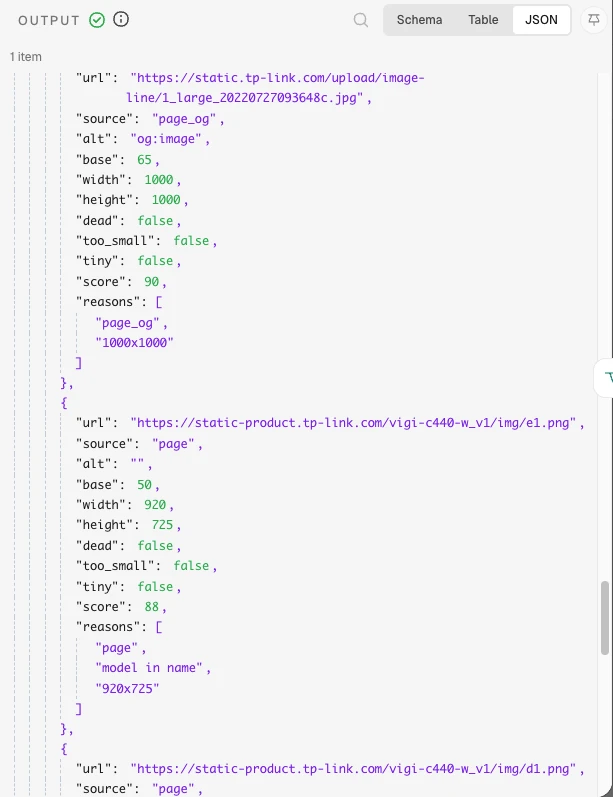
Manufacturer pages often include three sizes of every gallery angle alongside icons, social buttons, and wide feature banners. Connect a Code node named Rank candidates to strip access tokens from URLs, drop UI icons, collapse duplicate sizes of the same photo so _large beats _normal and _thumb (and Magento’s /cache/<hash>/ copies collapse into the original), and read the real pixel width and height from the first 64 KB of each file header via a ranged HTTP GET.
Scoring gives a base of 65 points to og:image and JSON-LD images and 50 to standard <img> tags, adds 20 points when the model code appears in the file name or alt attribute, adds up to 40 points for the short side (1 point per 40 px up to 1600 px), subtracts 30 points when one side is more than 2.5 times the other, and subtracts 10 points if the dimensions cannot be read. Any image whose short side is under min_short_side (500 px, which matches Google Merchant Center’s minimum image size for all products from 31 January 2027) is dropped unless the product currently has no working image at all, in which case anything from fallback_min_side (250 px) up stays, so a 60 px menu icon never makes the card:
const s = $('Find settings').first().json;
const p = $input.first().json;
const norm = t => String(t || '').toLowerCase().replace(/[^a-z0-9]/g, '');
// Access tokens (such as content_token) come off every URL before it's stored or shown.
// Plain string replace: the Code node sandbox has no URL class.
const keys = String(s.strip_query_params || '').split(',').map(k => k.trim()).filter(Boolean);
const strip = u => { let x = String(u); for (const k of keys) x = x.replace(new RegExp('([?&])' + k.replace(/[^\w-]/g, '') + '=[^&#]*&?', 'g'), '$1'); return x.replace(/[?&]$/, ''); };
const JUNK = /(logo|favicon|sprite|icon|banner|header|footer|nav[-_]|megamenu|social|facebook|twitter|instagram|youtube|linkedin|badge|award|flag|payment|cookie|placeholder|spacer|loading|spinner|arrow|chevron|avatar|swatch|watermark|newsletter|qr[-_]?code|app[-_]?store|google[-_]?play|\.svg(\?|$)|data:image)/i;
const ICON = /[-_](16|24|32|48|64|96|128)\.(png|jpe?g|webp|gif)($|[?])/i;

// Real dimensions from the file header (a ranged GET), never from a size in the URL.
// 404 or 410: gone, drop it. Anything else that fails (a 403 hotlink guard, a timeout) keeps the image with size unknown.
const dims = async (url) => {
  try {
    const raw = await this.helpers.httpRequest({ url, headers: { Range: 'bytes=0-65535', 'User-Agent': s.user_agent }, encoding: 'arraybuffer', timeout: 15000 });
    const b = Buffer.from(raw);
    if (b.length > 24 && b[0] === 0x89 && b[1] === 0x50) return { w: b.readUInt32BE(16), h: b.readUInt32BE(20) };
    if (b.length > 10 && b.toString('ascii', 0, 4) === 'GIF8') return { w: b.readUInt16LE(6), h: b.readUInt16LE(8) };
    if (b.length > 30 && b.toString('ascii', 0, 4) === 'RIFF' && b.toString('ascii', 8, 12) === 'WEBP') {
      const c = b.toString('ascii', 12, 16);
      if (c === 'VP8 ') return { w: b.readUInt16LE(26) & 0x3fff, h: b.readUInt16LE(28) & 0x3fff };
      if (c === 'VP8L') return { w: 1 + (((b[22] & 0x3f) << 8) | b[21]), h: 1 + (((b[24] & 0x0f) << 10) | (b[23] << 2) | ((b[22] & 0xc0) >> 6)) };
      if (c === 'VP8X') return { w: 1 + b.readUIntLE(24, 3), h: 1 + b.readUIntLE(27, 3) };
    }
    if (b[0] === 0xff && b[1] === 0xd8) {
      let i = 2;
      while (i + 9 < b.length) {
        if (b[i] !== 0xff) { i++; continue; }
        const mk = b[i + 1];
        if (mk >= 0xc0 && mk <= 0xcf && mk !== 0xc4 && mk !== 0xc8 && mk !== 0xcc) return { w: b.readUInt16BE(i + 7), h: b.readUInt16BE(i + 5) };
        const len = b.readUInt16BE(i + 2); if (len < 2) break;
        i += 2 + len;
      }
    }
    return {};
  } catch (e) {
    const code = Number(e && (e.httpCode || e.statusCode || (e.response && e.response.status))) || 0;
    return { dead: code === 404 || code === 410 };
  }
};

const cands = [];
for (const c of p.page_images || []) {
  if (JUNK.test(c.url) || ICON.test(c.url) || JUNK.test(c.alt)) continue;
  cands.push({ url: strip(c.url), source: c.how === 'img' ? 'page' : 'page_' + c.how, alt: c.alt, base: c.how === 'img' ? 50 : 65 });
}
// The same shot in several sizes or formats collapses to one (the large copy wins); numbered angles (-1, -2) stay.
const hint = u => /(large|zoom|big|original|full)/i.test(u) ? 0 : /(thumb|small|mini|tiny)/i.test(u) ? 2 : 1;
cands.sort((a, b) => hint(a.url) - hint(b.url));
const key = u => u.split('?')[0].toLowerCase()
  .replace(/\/cache\/[0-9a-f]{32}\//, '/')
  .replace(/[-_]?\d{2,4}[x×]\d{2,4}/g, '')
  .replace(/[-_](large|medium|normal|small|thumb|thumbnail|zoom|big)(?=[-_.])/g, '')
  .replace(/[-_]\d{8,}[a-z]?(?=\.[a-z0-9]+$)/, '')
  .replace(/\.[a-z0-9]+$/, '');
const seen = new Set();
const uniq = cands.filter(c => { const k = key(c.url); if (seen.has(k)) return false; seen.add(k); return true; }).slice(0, 25);

const tokens = [norm(String(p.mpn).replace(/\(.*?\)/g, ''))]
  .concat(String(p.title).split(/[\s,\/]+/).map(norm).filter(t => /\d/.test(t) && /[a-z]/.test(t)))
  .filter(t => t.length >= 4);
let dropped_small = 0, dropped_dead = 0;
for (const c of uniq) {
  const d = await dims(c.url);
  Object.assign(c, { width: d.w || null, height: d.h || null, dead: !!d.dead });
  const reasons = [c.source];
  let score = c.base;
  if (tokens.some(t => norm(c.url + ' ' + c.alt).includes(t))) { score += 20; reasons.push('model in name'); }
  if (c.width && c.height) {
    const short = Math.min(c.width, c.height), long = Math.max(c.width, c.height);
    score += Math.min(short, 1600) / 40;
    reasons.push(c.width + 'x' + c.height);
    if (long / short > 2.5) { score -= 30; reasons.push('very wide or tall'); }
    c.too_small = short < s.min_short_side;
    c.tiny = short < s.fallback_min_side;
  } else { score -= 10; reasons.push('size unknown'); c.too_small = false; c.tiny = false; }
  c.score = Math.round(score);
  c.reasons = reasons;
  if (c.dead) dropped_dead++;
  else if (c.tiny || (c.too_small && !p.no_image)) dropped_small++;
}
// Any manufacturer image beats none, so a product with no working image gets anything above fallback_min_side.
const ranked = uniq.filter(c => !c.dead && !c.tiny && (p.no_image || !c.too_small))
  .sort((a, b) => b.score - a.score).slice(0, s.max_candidates);
return [{ json: { ...p, ranked, considered: uniq.length, dropped_small, dropped_dead } }];
Check the output on the TP-Link VIGI C440-W (4mm) and TP-Link Tapo C232: the _normal and _thumb duplicates are gone, and each entry in ranked lists its source, pixel dimensions, and scoring reasons.
Step 6: Check each image and write its alt text
Dimensions alone won’t catch a lifestyle banner or an image showing the wrong product, so the top vision_top_n candidates (all eight by default, because a check costs about US$0.0001) go through a vision model that grades each photo and writes its alt text in the same call, which halves your model requests. Connect an If node named Any candidates? checking {{ $json.ranked.length > 0 }}. Wire its false branch straight to Score and write alt, and on its true branch connect a Code node named Vision queue, which removes curly braces from the title and vendor because n8n’s Basic LLM Chain treats { and } as prompt template variables:
const s = $('Find settings').first().json;
const p = $input.first().json;
// Basic LLM Chain reads { and } as template variables, so they come out of the title and vendor.
return p.ranked.slice(0, s.vision_top_n).map((c, idx) => ({ json: {
  idx, url: c.url,
  title: String(p.title).replace(/[{}]/g, ''), vendor: String(p.vendor).replace(/[{}]/g, ''),
  vision_url: 'https://wsrv.nl/?url=' + encodeURIComponent(c.url) + '&w=768&h=768&fit=contain&cbg=white&output=jpg'
} }));
Connect an HTTP Request node named Fetch a 768 px copy (GET {{ $json.vision_url }}, Response Format set to File, Put Output in Field set to data, Timeout 30000, and Settings > On Error set to Continue). Passing a 768 px JPEG from wsrv.nl converts WebP and PNG files into a single format and keeps image token usage low.
Next, add a Basic LLM Chain node named Check the image with an Ollama Chat Model sub-node (using Base URL https://ollama.com and your API key):
| Setting | Value |
|---|---|
| Source for Prompt (User Message) | Define below |
| Prompt (User Message) | see below |
| Chat Messages > System | see below |
| Chat Messages > User, Message Type | Image (Binary) |
| Image Data Field Name | data |
| Image Details | Auto |
| Settings > Retry On Fail | On, 2 tries |
| Settings > On Error | Continue (so every image still lines up with its answer) |
| Ollama Chat Model > Model | {{ $('Find settings').first().json.vision_model }} |
| Ollama Chat Model > Sampling Temperature | 0 |
| Ollama Chat Model > Output Format | JSON |
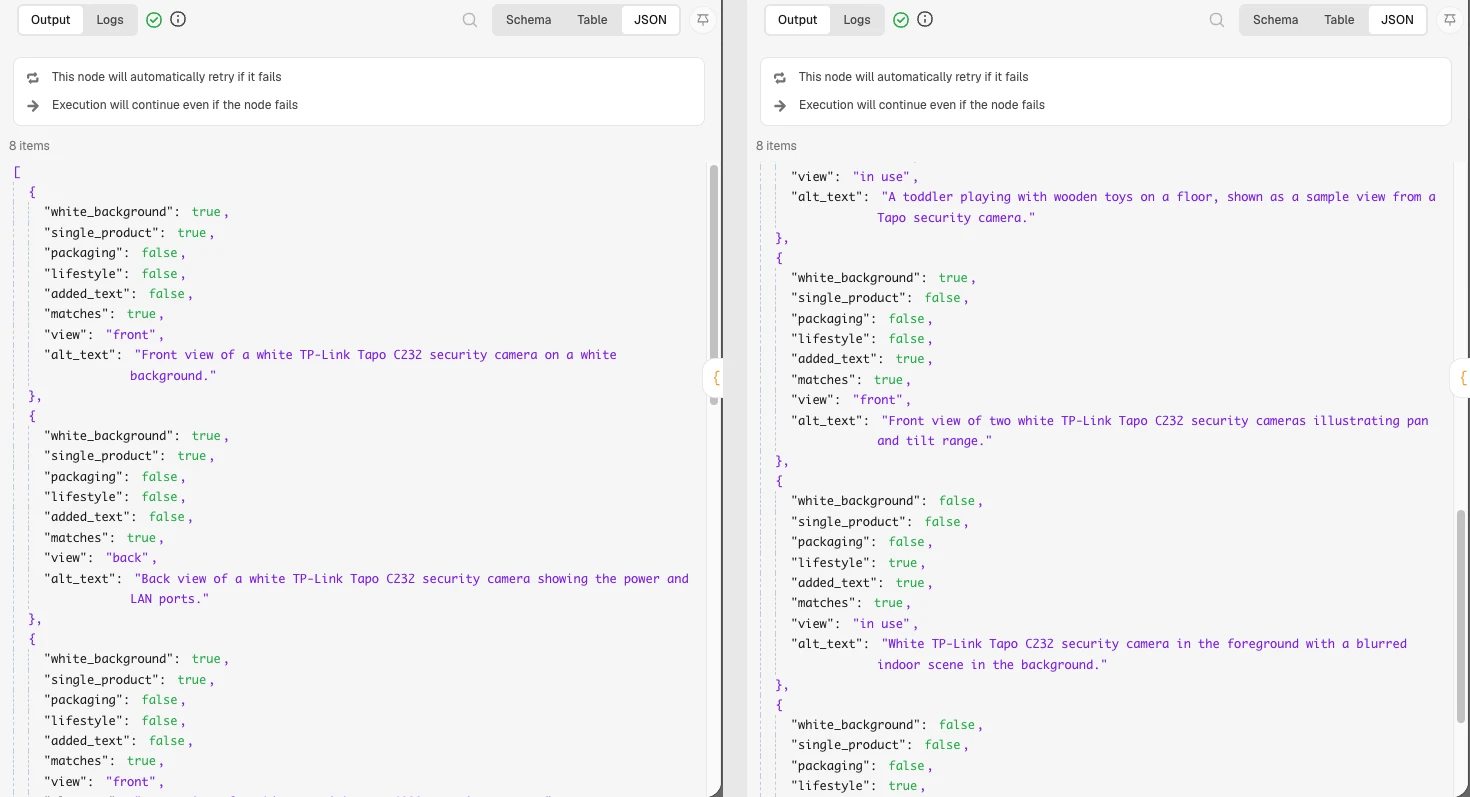
The image does reach the model as binary through the Basic LLM Chain: on Ollama Cloud, gemma4:31b described each photo correctly and answered in 0.5 to 1.2 seconds. Output Format JSON is only partly honoured, though. Sometimes the model answers with bare JSON, which the chain hands on as an object, and sometimes with JSON inside a code fence, which arrives as text, so Score and write alt reads both rather than relying on a Structured Output Parser.
Set the Prompt (User Message) to pull the product details from Vision queue, because the HTTP Request node that downloads the binary file only passes the image forward:
Product: {{ $('Vision queue').item.json.title }}
Brand: {{ $('Vision queue').item.json.vendor }}
If you ask a vision model “is there text or a watermark?”, it will flag clean studio shots whenever the brand’s logo is printed on the casing, so the system prompt asks specifically about added_text laid over the photo after it was taken (and you should test this checklist on 20 of your own product images before trusting it):
You check product photos for an online store and write their alt text. Look only at the photo you are given. Reply with a JSON object with exactly these keys: white_background, single_product, packaging, lifestyle, added_text and matches (each true or false), view (a string) and alt_text (a string).

white_background: a plain white or very light, empty background.
single_product: the product itself is the main subject.
packaging: a retail box or packaging is visible.
lifestyle: shown in a room, on a building, outdoors or in use.
added_text: text, logos or watermarks laid over the photo after it was taken. Ignore printing, logos and labels on the product itself.
matches: it plausibly shows the product named in the message.
view: one of front, side, back, top, detail, in the box, in use, accessories.
alt_text: one sentence under 125 characters that says what this shot shows: the angle, the colour, and what is attached or included. Name the product once. Don't start with "Image of" or "Picture of". No keyword lists, prices or marketing words.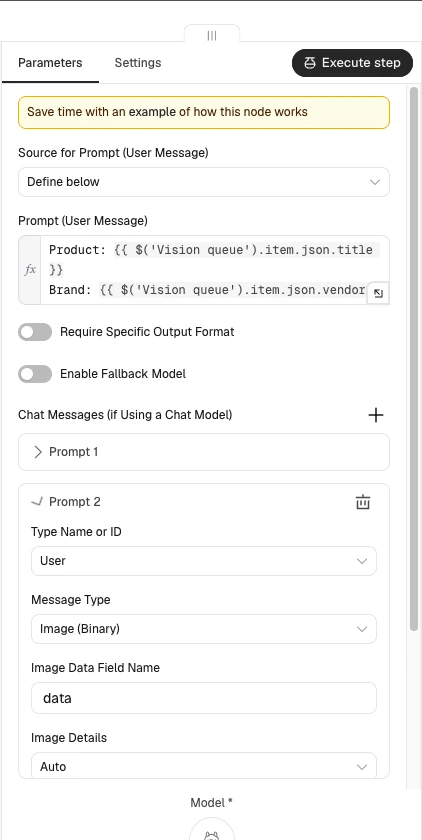
Connect Score and write alt (Code node, Run Once for All Items), which adjusts each candidate’s score based on the vision model’s JSON, unticks any shot that has overlaid text or fails matches, and checks that every image on the product gets a distinct alt text that meets Google’s image SEO guidelines and the W3C alt decision tree:
const s = $('Find settings').first().json;
const p = $('Rank candidates').first().json;
const queue = p.ranked.length ? $('Vision queue').all().map(i => i.json) : [];
const answers = p.ranked.length ? $input.all().map(i => i.json) : [];
// The chain hands back the parsed object when the model replies with bare JSON, and { text } when it
// wraps the JSON in a code fence (Ollama Cloud does both, Output Format JSON or not), so read either.
const parse = r => { if (!r || r.error) return null; if (r.text === undefined) return r.alt_text !== undefined ? r : null;
  const t = String(r.text); try { return JSON.parse(t.slice(t.indexOf('{'), t.lastIndexOf('}') + 1)); } catch (e) { return null; } };
const vis = {};
answers.forEach((r, i) => { if (queue[i]) vis[queue[i].idx] = parse(r); });

// The answers move the score. Added text or the wrong product unticks the image; packaging and lifestyle stay ticked but sort lower.
const ranked = p.ranked.map((c, idx) => {
  const v = vis[idx] || null;
  const c2 = { ...c, reasons: [...c.reasons], vision: v, selected: true, primary: false };
  if (v) {
    if (v.white_background === true) { c2.score += 25; c2.reasons.push('white background'); }
    if (v.single_product === true) c2.score += 10;
    if (v.packaging === true) { c2.score -= 15; c2.reasons.push('packaging'); }
    if (v.lifestyle === true) { c2.score -= 10; c2.reasons.push('lifestyle'); }
    if (v.added_text === true) { c2.score -= 40; c2.reasons.push('added text'); c2.selected = false; }
    if (v.matches === false) { c2.score -= 50; c2.reasons.push('may not match'); c2.selected = false; }
  } else if (idx < s.vision_top_n) c2.reasons.push('not checked');
  return c2;
}).sort((a, b) => b.score - a.score);

// Alt text checks. A failed alt falls back to "<title>, <view>" (or "photo N"); a repeat gets its view added so no two images share one.
const title = String(p.title || '').trim();
const name = String(p.mpn || p.vendor || '').replace(/\(.*?\)/g, '').trim();
const esc = t => t.replace(/[.*+?^${}()|[\]\\]/g, '\\$&');
const used = new Set();
ranked.forEach((c, k) => {
  const v = c.vision || {};
  const view = String(v.view || '').trim();
  let a = String(v.alt_text || '').replace(/\s+/g, ' ').trim().replace(/^["']|["']$/g, '');
  const problems = [];
  if (!a) problems.push('empty');
  if (a.length > s.max_alt_length) problems.push('too long');
  if (/^(an? )?(image|picture|photo) of\b/i.test(a)) problems.push('starts with image of');
  if (a.toLowerCase() === title.toLowerCase()) problems.push('same as the title');
  if (name && (a.match(new RegExp(esc(name), 'gi')) || []).length > 1) problems.push('names the product twice');
  if (problems.length) a = title + ', ' + (view || 'photo ' + (k + 1));
  if (used.has(a.toLowerCase())) a = a.replace(/[.\s]+$/, '') + ', ' + (view || 'view ' + (k + 1));
  used.add(a.toLowerCase());
  c.alt = a;
  c.alt_problems = problems.join('; ');
});

const selected = ranked.filter(c => c.selected);
return [{ json: {
  product_id: p.product_id, title: p.title, vendor: p.vendor, mpn: p.mpn, page_url: p.page_url,
  status: selected.length ? 'review' : 'skipped',
  // a failed search keeps the tag, so the next run tries again
  retry: !selected.length && !!p.search_error,
  error: selected.length ? '' : (p.considered ? 'no usable image' : 'no manufacturer image found') + (p.page_note ? ' (' + p.page_note + ')' : ''),
  candidates: JSON.stringify(ranked.map(c => ({ url: c.url, source: c.source, width: c.width, height: c.height, score: c.score,
    reasons: c.reasons, selected: c.selected, primary: false, alt: c.alt, alt_problems: c.alt_problems, view: (c.vision || {}).view || '' }))),
  current: JSON.stringify(p.current),
  updated_at: new Date().toISOString()
} }];
Connect a Data table Upsert node named Save for review into image_queue (matching on product_id and mapping every field output by Score and write alt), followed by an HTTP Request node named Remove the tag so the product leaves the queue:
mutation Done($id: ID!, $tags: [String!]!) {
  tagsRemove(id: $id, tags: $tags) { userErrors { field message } }
}
Set the variables on Remove the tag to {{ (r => ({ id: r.product_id, tags: r.retry ? [] : [$('Find settings').first().json.pick_tag] }))($('Score and write alt').first().json) }}, so a product whose search failed keeps its tag for the next run. Check the output for the TP-Link Tapo C232: of its eight gallery shots, the three white-background studio shots stay ticked with their own alt text, while the feature infographic and the pan-and-tilt diagram come back with added_text: true and the sample-view photos of children with lifestyle: true or matches: false, so all five are unticked.
Step 7: Post one card per product
A reviewer can’t approve photos they haven’t seen, and Slack only renders one image per block, so the workflow stitches the current main image and up to nine numbered candidates into a single contact sheet whose tile numbers match the card’s tick boxes. Connect an If node named Card to post? checking {{ $('Score and write alt').first().json.status === 'review' }}. Wire its false branch back to Loop over products, and on its true branch add a Code node named Build the card (Slack caps a checkbox group at ten options, so the card offers up to nine new images plus Current):
const s = $('Find settings').first().json;
const r = $('Score and write alt').first().json;
const cands = JSON.parse(r.candidates);
const cur = JSON.parse(r.current).filter(m => m.url && m.status !== 'FAILED')[0];
// Slack caps a checkbox group at ten options: up to nine new images plus Current.
const pick = cands.map((c, i) => ({ c, i })).filter(x => x.c.selected).slice(0, 9);
const n = pick.length;
const id = r.product_id.split('/').pop();
const opt = (x, k) => ({ text: { type: 'plain_text', text: String(k + 1) }, value: 'i' + x.i });
const curOpt = cur ? [{ text: { type: 'plain_text', text: 'Current (untick to remove)' }, value: 'current' }] : [];
const links = [
  { type: 'button', text: { type: 'plain_text', text: 'Shopify' }, url: 'https://admin.shopify.com/store/' + s.admin_store_handle + '/products/' + id },
  ...(r.page_url ? [{ type: 'button', text: { type: 'plain_text', text: 'Manufacturer' }, url: r.page_url }] : []),
  { type: 'button', text: { type: 'plain_text', text: 'Google' }, url: 'https://www.google.com/search?q=' + encodeURIComponent(r.title + ' ' + (r.mpn || '')) }
];
const blocks = [
  { type: 'header', text: { type: 'plain_text', text: r.title.slice(0, 150) } },
  { type: 'context', elements: [{ type: 'mrkdwn', text: (r.mpn ? '`' + r.mpn + '` · ' : '') + '*' + n + '* image' + (n === 1 ? '' : 's') + ' to add'
    + (cur ? ' (*Current* is the main image today)' : ' (the product has no working image)') + '. Untick any you don\'t want, pick a main image if it should change, then Approve.' }] },
  { type: 'actions', elements: links },
  // Placeholder: Add sheet to card swaps in the contact sheet, or keeps this top pick if the sheet fails.
  { type: 'image', image_url: cands[pick[0].i].url, alt_text: n + ' images for ' + r.title.slice(0, 100), title: { type: 'plain_text', text: n + ' image' + (n === 1 ? '' : 's') + ', numbered' } },
  { type: 'input', block_id: 'keep', optional: true, label: { type: 'plain_text', text: 'Images to add' },
    element: { type: 'checkboxes', action_id: 'keep', options: curOpt.concat(pick.map(opt)), initial_options: curOpt.concat(pick.map(opt)) } },
  { type: 'input', block_id: 'main', optional: true, label: { type: 'plain_text', text: 'Main image' },
    element: { type: 'radio_buttons', action_id: 'main', initial_option: { text: { type: 'plain_text', text: 'Keep current' }, value: 'keep' },
      options: [{ text: { type: 'plain_text', text: 'Keep current' }, value: 'keep' }].concat(pick.map(opt)) } },
  { type: 'actions', block_id: 'decide', elements: [
    { type: 'button', style: 'primary', text: { type: 'plain_text', text: 'Approve' }, action_id: 'img_approve', value: r.product_id },
    { type: 'button', style: 'danger', text: { type: 'plain_text', text: 'Reject' }, action_id: 'img_reject', value: r.product_id }
  ] }
];
return [{ json: { product_id: r.product_id, channel: s.slack_channel, text: 'Images to review: ' + r.title, blocks,
  images: (cur ? [{ url: cur.url, label: 'Current' }] : []).concat(pick.map((x, k) => ({ url: cands[x.i].url, label: String(k + 1) }))) } }];
Connect an Execute Workflow node named Build the contact sheet (set Source to Database, Workflow to By ID {{ $workflow.id }}, Mode to Run once for each item, Wait For Sub-Workflow Completion toggled on, inputs job = contact_sheet, title = {{ $json.text }}, and images = {{ $json.images }}, with Settings > On Error set to Continue). Next, connect a Code node named Add sheet to card that swaps the uploaded contact sheet into the image block. If the helper failed, which happens when the brand’s server refuses wsrv.nl (navman.com.au did in testing), it puts links to the numbered photos in place of the image, because Slack can’t show an image it can’t fetch either:
const card = $('Build the card').first().json;
const r = $input.first().json || {};
const fileId = r.ok === true && r.file_id;
// No sheet (every tile failed): links to the photos instead, because Slack can't show an image it can't fetch either.
const links = { type: 'section', text: { type: 'mrkdwn', text: 'Contact sheet unavailable. ' + card.images.map(x => '<' + x.url + '|' + x.label + '>').join(' · ') } };
const blocks = card.blocks.map(b => b.type !== 'image' ? b : fileId ? { type: 'image', slack_file: { id: fileId }, alt_text: b.alt_text, title: b.title } : links);
return [{ json: { channel: card.channel, text: card.text, blocks, product_id: card.product_id } }];
Connect an HTTP Request node named Post the card (POST https://slack.com/api/chat.postMessage, Authentication set to Predefined Credential Type > Slack API, and JSON body {{ JSON.stringify({ channel: $json.channel, text: $json.text, blocks: $json.blocks, unfurl_links: false, unfurl_media: false }) }}), then a Data table Update node named Save the card on image_queue (matching product_id = {{ $('Add sheet to card').first().json.product_id }}, setting card_channel = {{ $json.channel }} and card_ts = {{ $json.ts }}), and wire it back to Loop over products.
Step 8: Turn the click into an approval
Slack requires interactive webhooks to respond within 3 seconds, so the Review lane starts with a Webhook node (POST, path product-images, Raw Body toggled on, Respond set to Using 'Respond to Webhook' Node), wired immediately to a Respond to Webhook node (Respond With set to No Data). Connect a Code node named Read the click to unpack the URL-encoded payload and prepare the signature base string:
const raw = (await this.helpers.getBinaryDataBuffer(0, 'data')).toString('utf8');
const h = $input.first().json.headers;
if (Math.abs(Date.now() / 1000 - Number(h['x-slack-request-timestamp'])) > 300) throw new Error('Stale request');
const field = raw.split('&').find(kv => kv.startsWith('payload=')) || ''; // no URLSearchParams in the Code node
const b = JSON.parse(decodeURIComponent(field.slice(8).replace(/\+/g, ' ')));
const a = (b.actions || [])[0] || {};
const v = (b.state && b.state.values) || {};
const keep = ((v.keep || {}).keep || {}).selected_options || [];
const main = (((v.main || {}).main || {}).selected_option || {}).value || 'keep';
return [{ json: {
  base: `v0:${h['x-slack-request-timestamp']}:${raw}`, expected: h['x-slack-signature'],
  action: a.action_id || '', value: a.value || '', keep: keep.map(o => o.value), main,
  user: b.user.username || b.user.name || b.user.id, user_id: b.user.id,
  channel: (b.channel || {}).id || '', ts: (b.message || {}).ts || '', blocks: (b.message || {}).blocks || []
} }];
Connect a Crypto node (Action Hmac, Type SHA256, Encoding HEX, Secret set to your Slack signing secret, Value {{ $json.base }}, Property Name sig), followed by an If node named From Slack? that only continues when {{ 'v0=' + $json.sig }} equals {{ $json.expected }}. Connect a Switch node named Which button? reading {{ $json.action }} to route img_approve and img_reject along the product image branch and alt_apply and alt_skip to the digest branch described in Step 11.
On the product image branch, add a Data table Get node named Card row on image_queue (product_id Equals {{ $json.value }}, Always Output Data on) and an If node named Still waiting? ({{ $json.status === 'review' }}) so clicking an old card twice does nothing. Connect a Code node named Apply the choices:
const c = $('Read the click').first().json;
const row = $input.first().json;
const cands = JSON.parse(row.candidates || '[]');
const keep = new Set(c.keep);
cands.forEach((x, i) => { x.selected = keep.has('i' + i); x.primary = x.selected && c.main === 'i' + i; });
const chosen = cands.filter(x => x.selected).length;
// Approve with nothing ticked counts as Reject.
const approved = c.action === 'img_approve' && chosen > 0;
const hadCurrent = JSON.parse(row.current || '[]').some(m => m.url && m.status !== 'FAILED');
return [{ json: {
  product_id: row.product_id, status: approved ? 'approved' : 'rejected', candidates: JSON.stringify(cands),
  remove_current: approved && hadCurrent && !keep.has('current'), chosen,
  updated_at: new Date().toISOString()
} }];
Connect a Data table Update node on image_queue (matching product_id = {{ $json.product_id }} and updating status, candidates, remove_current, and updated_at), then a Code node named Close the card followed by an HTTP Request node named Update the card (POST https://slack.com/api/chat.update with your Slack API credential, JSON body {{ JSON.stringify({ channel: $json.channel, ts: $json.ts, text: $json.text, blocks: $json.blocks }) }}, On Error Continue) to replace the interactive controls with a read-only audit line. It uses chat.update with the card’s channel and timestamp rather than Slack’s response_url, which expires 30 minutes after the tap:
const c = $('Read the click').first().json;
const a = $('Apply the choices').first().json;
// The same card without the tick boxes and buttons, plus what was decided and by whom.
const blocks = c.blocks.filter(b => b.type !== 'actions' && b.type !== 'input');
blocks.push({ type: 'context', elements: [{ type: 'mrkdwn', text: a.status === 'approved'
  ? ':white_check_mark: ' + a.chosen + ' image' + (a.chosen === 1 ? '' : 's') + ' approved by <@' + c.user_id + '>' + (a.remove_current ? ', current image will be removed' : '') + '. Adding them now.'
  : ':x: Rejected by <@' + c.user_id + '>' }] });
return [{ json: { channel: c.channel, ts: c.ts, text: 'Images ' + a.status, blocks } }];
Finish the Review lane with an If node named Approved? (true when Apply the choices set the status to approved) wired to an Execute Workflow node named Start Publish (Source Database, By ID {{ $workflow.id }}, inputs job = publish and product_id = {{ $('Apply the choices').first().json.product_id }}, with Wait For Sub-Workflow Completion switched off). Check that clicking Approve makes the Slack card read-only and starts a Publish execution immediately.
Step 9: Clean, name and add the images
The Publish lane handles both uploading approved product photos and building contact sheets. Start the lane with a When Executed by Another Workflow trigger (configured with input fields job, product_id, title, and images as Array) wired into a Switch node named Which job? that routes publish to Publish settings and contact_sheet to the helper row below, plus an hourly Schedule Trigger wired straight into Publish settings as a backstop.
After Publish settings and Get Shopify token, add a Data table Get node named Approved rows on image_queue (Any Condition: status Equals approved or status Equals pushing, Order By updated_at ascending, Limit 20, Always Output Data on) and connect a Code node named Pick one:
const s = $('Publish settings').first().json;
const rows = $input.all().map(i => i.json).filter(r => r.product_id);
const hourAgo = Date.now() - 3600000;
const row = (s.product_id && rows.find(r => r.product_id === s.product_id && r.status === 'approved'))
  || rows.find(r => r.status === 'approved')
  // a push that died part way gets another go after an hour
  || rows.find(r => r.status === 'pushing' && new Date(r.updated_at).getTime() < hourAgo);
return row ? [{ json: row }] : [];
Connect a Data table Update node setting that row’s status to pushing and updated_at to {{ $now.toISO() }}, a Data table Get node named Already pushed on image_log (product_id Equals {{ $('Pick one').first().json.product_id }}, Always Output Data on), and an HTTP Request node named Get current media:
query CurrentMedia($id: ID!) {
  product(id: $id) {
    onlineStoreUrl
    media(first: 100) { nodes { id status alt mediaContentType } }
  }
}
Set variables on Get current media to {{ ({ id: $('Pick one').first().json.product_id }) }}.
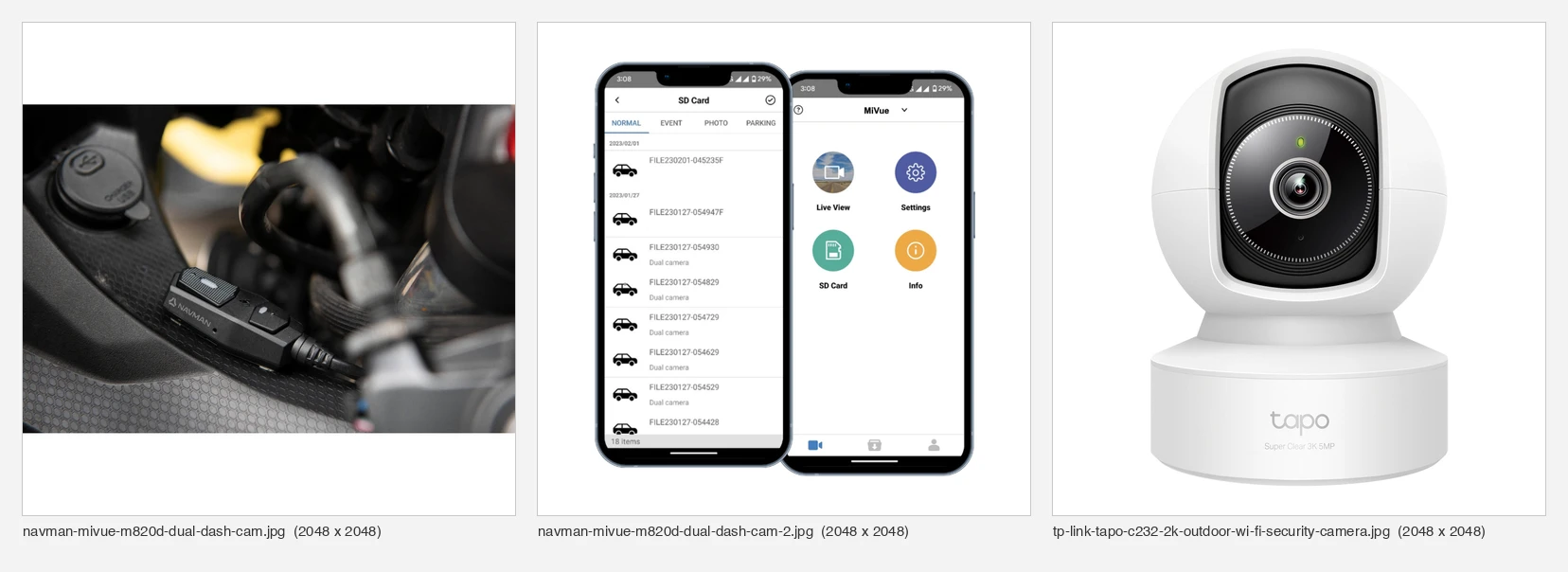
I pad images onto a square canvas rather than cropping them because a single gallery often mixes aspect ratios, such as the Navman MiVue M820D pairing a 1798 x 1200 landscape shot of the camera with a 781 x 820 app screenshot, next to TP-Link’s 1000 x 1000 squares; using wsrv.nl’s fit=contain letterboxes both shapes onto the 2048 x 2048 square Shopify recommends for product images (well above the 800 x 800 threshold needed for zoom) without cutting off the product, and converts WebP or PNG sources to JPEG. Connect a Code node named Prepare media, which places the product’s slug in the wsrv.nl path so Shopify saves a clean, descriptive file name:
const s = $('Publish settings').first().json;
const row = $('Pick one').first().json;
const product = ($json.data || {}).product || {};
const nodes = (product.media || {}).nodes || [];
const live = new Map(nodes.map(n => [n.id, n.status]));
// A source is already on the product when the log has it and its media still exists and hasn't FAILED.
const logs = $('Already pushed').all().map(i => i.json).filter(l => l.source_hash && live.has(l.media_id) && live.get(l.media_id) !== 'FAILED');
const present = new Map(logs.map(l => [l.source_hash, l.media_id]));
const hash = t => { let h = 0; for (const ch of String(t)) h = (Math.imul(31, h) + ch.charCodeAt(0)) | 0; return (h >>> 0).toString(16); };
const slug = String(row.title || 'product').toLowerCase().replace(/[^a-z0-9]+/g, '-').replace(/^-|-$/g, '').slice(0, 60) || 'product';
const chosen = JSON.parse(row.candidates || '[]').filter(c => c.selected)
  .sort((a, b) => (b.primary === true) - (a.primary === true))
  .map(c => ({ ...c, source_hash: hash(c.url) }));
// wsrv.nl ignores the path, so the file name goes there and Shopify names the file after it.
const media = chosen.filter(c => !present.has(c.source_hash)).map((c, k) => {
  const name = slug + (k ? '-' + (k + 1) : '');
  return { source_url: c.url, source_hash: c.source_hash, primary: !!c.primary, alt: c.alt, filename: name + '.jpg',
    originalSource: 'https://wsrv.nl/' + name + '.jpg?url=' + encodeURIComponent(c.url) + '&w=' + s.image_size + '&h=' + s.image_size + '&fit=contain&cbg=' + s.pad_colour + '&output=jpg' };
});
const images = nodes.filter(n => n.mediaContentType === 'IMAGE');
const main = images[0];
const presentReady = chosen.filter(c => present.has(c.source_hash)).every(c => live.get(present.get(c.source_hash)) === 'READY');
return [{ json: {
  product_id: row.product_id, title: row.title, card_channel: row.card_channel, card_ts: row.card_ts, store_url: product.onlineStoreUrl || '',
  before_ids: nodes.map(n => n.id), media, has_new: media.length > 0, present_ready: presentReady,
  // the reviewer unticked Current, or the current main image is a FAILED (dead) link
  remove_media_id: main && (row.remove_current === true || row.remove_current === 'true' || main.status === 'FAILED') ? main.id : '',
  // Shopify won't detach a FAILED file (NON_READY_STATE), so a dead one is deleted instead.
  remove_failed: !!main && main.status === 'FAILED'
} }];
Connect an If node named Anything new? ({{ $json.has_new }}). On its false branch, update image_queue with status set to {{ $json.present_ready ? 'pushed' : 'approved' }} and stop. On its true branch, connect a Code node named Check each source to warm the wsrv.nl cache and prepare a Shopify staged upload if a manufacturer’s CDN blocks wsrv.nl:
const s = $('Publish settings').first().json;
const tok = $('Get Shopify token for Publish').first().json;
const p = $input.first().json;
const gql = (query, variables) => this.helpers.httpRequest({ method: 'POST', url: 'https://' + s.store_domain + '/admin/api/2026-10/graphql.json',
  headers: { 'X-Shopify-Access-Token': tok.access_token }, body: { query, variables }, json: true, timeout: 60000 });
const out = [];
for (const m of p.media) {
  // Fetching the wsrv.nl copy proves wsrv.nl can read the source, and warms its cache before Shopify asks.
  let ok = false;
  try { await this.helpers.httpRequest({ url: m.originalSource, encoding: 'arraybuffer', timeout: 45000 }); ok = true; } catch (e) {}
  if (ok) { out.push({ json: { ...m, blocked: false } }); continue; }
  // Blocked: the brand's server refuses wsrv.nl. n8n downloads and pads the original, then stages it on Shopify.
  try {
    const r = await gql('mutation Stage($input: [StagedUploadInput!]!) { stagedUploadsCreate(input: $input) { stagedTargets { url resourceUrl } userErrors { field message } } }',
      { input: [{ resource: 'IMAGE', filename: m.filename, mimeType: 'image/jpeg', httpMethod: 'PUT' }] });
    const t = (((r.data || {}).stagedUploadsCreate || {}).stagedTargets || [])[0];
    if (!t || !t.url) throw new Error('no staged target');
    out.push({ json: { ...m, blocked: true, upload_url: t.url, resource_url: t.resourceUrl } });
  } catch (e) { out.push({ json: { ...m, blocked: false, stage_error: String(e.message || e).slice(0, 120) } }); }
}
return out;
Connect an If node named Blocked? ({{ $json.blocked }}). On true, add Download the source (HTTP Request GET {{ $json.source_url }}, headers User-Agent: curl/8.7.1 and Accept: image/*, Response Format File into data, Timeout 45000, On Error Continue). A blocked source still has to end up as a white square like the rest, so before it goes to Shopify, n8n pads it itself in three nodes. First a Code node named Plan the padding reads the downloaded file’s real size and works out where the photo will sit once it fits inside the square:
const s = $('Publish settings').first().json;
const S = Number(s.image_size);
const out = [];
const items = $input.all();
for (let i = 0; i < items.length; i++) {
  const it = items[i];
  if (!it.binary || !it.binary.data) { out.push({ json: { ...it.json, pad_error: 'download failed' } }); continue; }
  // Real size from the file header, then the size it will have once it fits inside the square.
  const b = await this.helpers.getBinaryDataBuffer(i, 'data');
  let w = 0, h = 0;
  if (b[0] === 0x89 && b[1] === 0x50) { w = b.readUInt32BE(16); h = b.readUInt32BE(20); }
  else if (b.toString('ascii', 0, 4) === 'GIF8') { w = b.readUInt16LE(6); h = b.readUInt16LE(8); }
  else if (b.toString('ascii', 0, 4) === 'RIFF' && b.toString('ascii', 8, 12) === 'WEBP') {
    const c = b.toString('ascii', 12, 16);
    if (c === 'VP8 ') { w = b.readUInt16LE(26) & 0x3fff; h = b.readUInt16LE(28) & 0x3fff; }
    if (c === 'VP8L') { w = 1 + (((b[22] & 0x3f) << 8) | b[21]); h = 1 + (((b[24] & 0x0f) << 10) | (b[23] << 2) | ((b[22] & 0xc0) >> 6)); }
    if (c === 'VP8X') { w = 1 + b.readUIntLE(24, 3); h = 1 + b.readUIntLE(27, 3); }
  } else if (b[0] === 0xff && b[1] === 0xd8) {
    let k = 2;
    while (k + 9 < b.length) {
      if (b[k] !== 0xff) { k++; continue; }
      const mk = b[k + 1];
      if (mk >= 0xc0 && mk <= 0xcf && mk !== 0xc4 && mk !== 0xc8 && mk !== 0xcc) { h = b.readUInt16BE(k + 5); w = b.readUInt16BE(k + 7); break; }
      k += 2 + b.readUInt16BE(k + 2);
    }
  }
  if (!w || !h) { w = S; h = S; }
  const scale = Math.min(S / w, S / h);
  const fw = Math.round(w * scale), fh = Math.round(h * scale);
  out.push({ json: { ...it.json, src_w: w, src_h: h, x: Math.floor((S - fw) / 2), y: Math.floor((S - fh) / 2) }, binary: it.binary });
}
return out;
Then two Edit Image nodes (both with On Error Continue):
| Node | Settings |
|---|---|
Fit in the square | Operation Multi Step: Resize to image_size x image_size with Only if Larger, then Resize to the same with Only if Smaller. Options: Format png (keeps a transparent background), Destination Key photo |
Pad to a white square | Operation Multi Step: Create, Background Color #ffffff, Width and Height image_size; then Composite, Composite Image Property photo, Operator Over, Position X {{ $json.x }}, Position Y {{ $json.y }}. Options: Format jpeg, Quality 90, File Name {{ $json.filename }} |
Don’t use the Resize option Maximum Area to fit the photo: it caps the number of pixels rather than the width and height, so a 1798 x 1200 shot grew to about 2507 x 1673 and overflowed the square in testing. Shrinking only if larger and then enlarging only if smaller always fits the photo inside the square, like wsrv.nl’s fit=contain.
Finish the branch with Upload to Shopify (HTTP Request PUT {{ $('Check each source').item.json.upload_url }}, header Content-Type: image/jpeg, Body Content Type Binary File from data, On Error Continue). Merge both the false branch of Blocked? and Upload to Shopify into a Merge node named Join (Append), then connect Collect the media (Code), where a failed download or upload keeps the wsrv.nl URL so the READY check records the failure:
const p = $('Prepare media').first().json;
const plan = $('Check each source').all().map(x => x.json);
const uploads = $('Upload to Shopify').isExecuted ? $('Upload to Shopify').all().map(x => x.json) : [];
const pads = $('Plan the padding').isExecuted ? $('Plan the padding').all().map(x => x.json) : [];
let k = 0;
const media = [], notes = [];
for (const m of plan) {
  if (m.blocked) {
    const u = uploads[k] || {}, pad = pads[k] || {};
    k++;
    // A failed download or upload keeps the wsrv.nl URL; the READY check then records the failure.
    if (u.error || pad.pad_error) { notes.push('staging failed for ' + m.source_url); media.push(m); }
    else media.push({ ...m, originalSource: m.resource_url, staged: true });
  } else { if (m.stage_error) notes.push(m.stage_error); media.push(m); }
}
return [{ json: { ...p, media, notes } }];
Connect an If node named Dry run? ({{ $('Publish settings').first().json.dry_run }}). On true, update image_queue with status = dry_run and report = {{ JSON.stringify($json.media) }}. Because productCreateMedia is deprecated, wire the false branch to an HTTP Request node named Add the images (mark it with a red sticky note on your canvas as the node that writes to your store) using productUpdate’s media argument to bulk upload images to Shopify:
mutation AddImages($product: ProductUpdateInput!, $media: [CreateMediaInput!]) {
  productUpdate(product: $product, media: $media) {
    product { id media(first: 100) { nodes { id status alt } } }
    userErrors { field message }
  }
}
Set the variables on Add the images to:
{{ ({ product: { id: $json.product_id }, media: $json.media.map(m => ({ originalSource: m.originalSource, mediaContentType: 'IMAGE', alt: m.alt })) }) }}Check your first approval with dry_run switched on: the report column in image_queue should list 2048 x 2048 wsrv.nl URLs with file names like tp-link-tapo-c232-....jpg and an alt text per photo, after which you can set dry_run to false and flip the row’s status back to approved.
The contact sheet helper. On the contact_sheet output of Which job?, build a helper row under the Publish lane starting with a Code node named Plan tiles:
const c = $input.first().json;
const imgs = (Array.isArray(c.images) ? c.images : []).filter(x => x && x.url).slice(0, 10);
const T = 300, G = 12, C = Math.min(3, Math.max(imgs.length, 1));
const rows = Math.ceil(imgs.length / C);
const W = C * T + (C + 1) * G, H = rows * T + (rows + 1) * G;
return imgs.map((x, k) => ({ json: {
  n: String(x.label || (k + 1)),
  tile_url: 'https://wsrv.nl/?url=' + encodeURIComponent(x.url) + '&w=' + T + '&h=' + T + '&fit=contain&cbg=white&output=jpg&q=85',
  x: G + (k % C) * (T + G), y: G + Math.floor(k / C) * (T + G),
  sheet_w: W, sheet_h: H, title: c.title || 'Images'
} }));
Connect Fetch tile (HTTP Request GET {{ $json.tile_url }}, Response Format File into data), then Number tile (Edit Image, Operation Multi Step, output JPEG quality 85), both with On Error set to Continue so a tile wsrv.nl can’t fetch leaves a gap instead of stopping the sheet:
| Step | Settings |
|---|---|
| Draw | Primitive Rectangle, Color #222222, Start 0,0, End X {{ $('Plan tiles').item.json.n.length > 2 ? 24 + $('Plan tiles').item.json.n.length * 16 : 44 }}, End Y 40 |
| Text | Text {{ $('Plan tiles').item.json.n }}, Font Size 28, Font Color #ffffff, Position X 12, Position Y 30 |
| Border | Width 1, Height 1, Color #dddddd |
Connect Gather tiles (Code) to combine all tiles onto a single item as binary properties t1 through t10:
const items = $input.all();
const plan = $('Plan tiles').all().map(i => i.json);
// A tile that couldn't be fetched leaves a gap; its number stays with its place on the card.
const ok = items.map((it, k) => ({ it, k })).filter(x => x.it.binary && x.it.binary.data);
if (!ok.length) throw new Error('no tiles could be fetched');
const binary = { data: ok[0].it.binary.data };
const pos = [];
for (let k = 0; k < 10; k++) {
  const x = ok[k];
  if (x) { binary['t' + (k + 1)] = x.it.binary.data; pos.push({ x: plan[x.k].x, y: plan[x.k].y, p: 't' + (k + 1) }); }
  else pos.push({ x: 20000, y: 20000, p: 't1' }); // unused slots land off the canvas
}
return [{ json: { sheet_w: plan[0].sheet_w, sheet_h: plan[0].sheet_h, title: plan[0].title, pos }, binary }];
Connect Build sheet (Edit Image, Multi Step, JPEG quality 85, file name contact-sheet.jpg):
| Step | Settings |
|---|---|
| Create | Background Color #ffffff, Width {{ $json.sheet_w }}, Height {{ $json.sheet_h }} |
| Composite (x10) | Composite Image Property {{ $json.pos[0].p }}, Position X {{ $json.pos[0].x }}, Position Y {{ $json.pos[0].y }}, then the same with pos[1] to pos[9] |
Finish the helper row with Slack’s three-step external file upload: connect Measure sheet (Code):
const buf = await this.helpers.getBinaryDataBuffer(0, 'data');
return [{ json: { title: $('Gather tiles').first().json.title, length: buf.length }, binary: { data: $input.first().binary.data } }];
Then connect Get upload URL (HTTP Request GET https://slack.com/api/files.getUploadURLExternal with your Slack API credential and query parameters filename = contact-sheet.jpg and length = {{ $json.length }}), Attach sheet (Code with return [{ json: $input.first().json, binary: { data: $('Measure sheet').first().binary.data } }]; because the GET request drops binary data), Upload sheet (HTTP Request POST {{ $json.upload_url }}, Body Binary File from data), Complete upload (HTTP Request POST https://slack.com/api/files.completeUploadExternal, Slack API credential, JSON body {{ JSON.stringify({ files: [{ id: $('Get upload URL').first().json.file_id, title: $('Measure sheet').first().json.title }] }) }}), a Wait node set to 5 seconds so Slack finishes processing the file, and a Set node named Return file setting ok = {{ $json.ok === true }} and file_id = {{ $('Get upload URL').first().json.file_id }}.
Step 10: Wait for Shopify, then set the main image
Because Shopify fetches and processes new media asynchronously after productUpdate returns, counting an image as live straight away hides FAILED downloads (see Common mistakes below). Connect a Code node named Wait until ready after Add the images to poll the new media IDs every 5 seconds until each one reaches READY or FAILED, up to max_wait_seconds:
const s = $('Publish settings').first().json;
const tok = $('Get Shopify token for Publish').first().json;
const p = $('Collect the media').first().json;
const before = new Set($('Prepare media').first().json.before_ids);
const r = $input.first().json;
const pu = ((r.data || {}).productUpdate) || {};
const errors = (pu.userErrors || []).concat(r.errors || []);
const created = (((pu.product || {}).media || {}).nodes || []).filter(n => !before.has(n.id));
const ids = created.map(n => n.id);
const Q = 'query M($ids: [ID!]!) { nodes(ids: $ids) { id ... on MediaImage { status alt mediaErrors { code message } } } }';
const sleep = ms => new Promise(res => setTimeout(res, ms));
const deadline = Date.now() + s.max_wait_seconds * 1000;
let byId = {};
while (ids.length) {
  const q = await this.helpers.httpRequest({ method: 'POST', url: 'https://' + s.store_domain + '/admin/api/2026-10/graphql.json',
    headers: { 'X-Shopify-Access-Token': tok.access_token }, body: { query: Q, variables: { ids } }, json: true, timeout: 60000 });
  byId = {};
  (((q.data || {}).nodes) || []).forEach(n => { if (n) byId[n.id] = n; });
  if (ids.every(id => ['READY', 'FAILED'].includes((byId[id] || {}).status)) || Date.now() > deadline) break;
  await sleep(5000);
}
// Shopify adds media in the order given; the alt text (unique per product) is the cross-check.
const results = created.map((n, i) => {
  const m = p.media.find(x => x.alt === n.alt) || p.media[i] || {};
  const st = byId[n.id] || {};
  return { media_id: n.id, status: st.status || 'MISSING', source_hash: m.source_hash, source_url: m.source_url, filename: m.filename, alt: m.alt,
    primary: !!m.primary, error: (st.mediaErrors || []).map(e => e.code + ': ' + e.message).join('; ') };
});
const ready = results.filter(x => x.status === 'READY');
const failed = results.filter(x => x.status === 'FAILED' || x.status === 'MISSING');
const waiting = results.length - ready.length - failed.length;
const problems = errors.map(e => e.message).concat(p.notes || [],
  failed.map(x => 'Shopify could not fetch ' + x.source_url + (x.error ? ' (' + x.error + ')' : '')));
if (!created.length && !errors.length) problems.push('no media created');
const allReady = results.length > 0 && ready.length === results.length;
return [{ json: {
  product_id: p.product_id, title: p.title, card_channel: p.card_channel, card_ts: p.card_ts, store_url: p.store_url,
  remove_media_id: p.remove_media_id, remove_failed: p.remove_failed, results, all_ready: allReady,
  primary_id: (ready.find(x => x.primary) || {}).media_id || '',
  status: allReady ? 'pushed' : (failed.length || errors.length || !results.length ? 'failed' : 'approved'),
  error: (waiting ? waiting + ' image(s) still processing; the next run checks again. ' : '') + problems.join('; ')
} }];
Wire two branches out of Wait until ready. On the first branch, connect a Split Out node on results, a Filter node keeping rows where status is not FAILED and not MISSING, and a Data table Insert node into image_log (product_id = {{ $('Wait until ready').first().json.product_id }}, plus source_hash, media_id, filename, alt, status, and pushed_at = {{ $now.toISO() }}), which prevents the hourly backstop from adding a still-processing image a second time.
On the second branch, connect an If node named Main image chosen? ({{ !!$json.primary_id }}). On true, add an HTTP Request node named Move main image first calling productReorderMedia:
mutation MoveFirst($id: ID!, $moves: [MoveInput!]!) {
  productReorderMedia(id: $id, moves: $moves) {
    job { id done }
    mediaUserErrors { field message }
  }
}
Set variables on Move main image first to {{ ({ id: $('Wait until ready').first().json.product_id, moves: [{ id: $('Wait until ready').first().json.primary_id, newPosition: '0' }] }) }}.
Wire both outputs of Main image chosen? into an If node named Remove the old main image? ({{ !!$('Wait until ready').first().json.remove_media_id && $('Wait until ready').first().json.all_ready }}). Because productDeleteMedia is deprecated and fileDelete would break any other product sharing that image, wire true to an HTTP Request node named Take it off the product that uses fileUpdate with referencesToRemove from FileUpdateInput to detach the image while leaving the file intact in Shopify Files. There’s one exception: Shopify refuses to update a file that never loaded (Non-ready files cannot be updated, code NON_READY_STATE), so an old main image that FAILED is removed with fileDelete instead, which is safe because no product can show a file Shopify never fetched. Send the request with this JSON body (Send Body JSON, the same URL and token header as the other GraphQL nodes):
{{ (w => JSON.stringify(w.remove_failed
  ? { query: 'mutation Remove($ids: [ID!]!) { fileDelete(fileIds: $ids) { deletedFileIds userErrors { field message } } }', variables: { ids: [w.remove_media_id] } }
  : { query: 'mutation Detach($files: [FileUpdateInput!]!) { fileUpdate(files: $files) { files { id } userErrors { field message } } }',
      variables: { files: [{ id: w.remove_media_id, referencesToRemove: [w.product_id] }] } }))($('Wait until ready').first().json) }}
Connect a Data table Update node on image_queue (setting status and error from Wait until ready and updated_at = {{ $now.toISO() }}), followed by an HTTP Request node named Reply in the thread (POST https://slack.com/api/chat.postMessage with your Slack API credential) using this JSON body:
{{ (w => JSON.stringify({ channel: w.card_channel, thread_ts: w.card_ts, unfurl_links: false,
  text: w.status === 'pushed'
    ? ':white_check_mark: Live on the store' + (w.store_url ? ': <' + w.store_url + '|view the product>' : '') + ' · <https://admin.shopify.com/store/' + $('Publish settings').first().json.admin_store_handle + '/products/' + w.product_id.split('/').pop() + '|Shopify admin>'
    : (w.status === 'approved' ? ':hourglass: Still processing, checking again within the hour. ' : ':warning: Not added: ') + w.error
}))($('Wait until ready').first().json) }}
Check that the Slack thread receives the “Live on the store” reply, the Shopify product page shows your new padded square main image with readable file names in Content > Files, and running Publish a second time on the same product adds nothing.
Step 11: Fix alt text on the images you already have
Most stores have hundreds of existing product photos whose alt text is blank or copied from the product title, and fixing that alt text for product images doesn’t require scraping manufacturer sites. In the Alt text lane, wire a weekly Schedule Trigger (Monday 9am) and a Manual Trigger into a Set node named Alt text settings:
| Setting | Value |
|---|---|
store_domain | your-store.myshopify.com |
product_query | status:active (the Shopify product search the lane scans) |
batch_size | 40 (a Slack message holds 50 blocks) |
max_pages | 20 |
auto_apply | false |
vision_model | gemma4:31b |
slack_channel | #review-images |
Connect Get Shopify token, a Data table Get node named Already queued on alt_queue (Any Condition: status Equals pending or status Equals skipped, with Return All, Always Output Data, and Execute Once on), and a Code node named Find weak alt text that pages through the products matching product_query using workflow static data to remember its cursor between scheduled runs:
const s = $('Alt text settings').first().json;
const tok = $('Get Shopify token for Alt text').first().json;
const queued = new Set($input.all().map(i => i.json.media_id).filter(Boolean));
const Q = 'query Media($after: String, $q: String) { products(first: 50, after: $after, query: $q) { pageInfo { hasNextPage endCursor } nodes { id title vendor media(first: 20) { nodes { id alt status mediaContentType preview { image { url } } } } } } }';
const weak = (alt, title, all) => {
  const a = String(alt || '').trim();
  if (!a) return 'empty';
  if (a.toLowerCase() === String(title).trim().toLowerCase()) return 'same as the title';
  if (/\.(jpe?g|png|webp|gif)\b|^(img|dsc|image)[-_ ]?\d+/i.test(a)) return 'a file name';
  if (/\b[a-z]{2,8}:[0-9a-f]{6,}\b/i.test(a)) return 'a code';
  if (all.filter(x => String(x || '').trim().toLowerCase() === a.toLowerCase()).length > 1) return 'repeated on the product';
  return '';
};
// Static data keeps the cursor between scheduled runs (it isn't saved on manual runs).
const sd = $getWorkflowStaticData('global');
let after = sd.alt_after || null;
const found = [];
for (let page = 0; page < s.max_pages && found.length < s.batch_size; page++) {
  const r = await this.helpers.httpRequest({ method: 'POST', url: 'https://' + s.store_domain + '/admin/api/2026-10/graphql.json',
    headers: { 'X-Shopify-Access-Token': tok.access_token }, body: { query: Q, variables: { after, q: s.product_query } }, json: true, timeout: 60000 });
  const d = (r.data || {}).products || { nodes: [], pageInfo: {} };
  for (const p of d.nodes) {
    const imgs = p.media.nodes.filter(m => m.mediaContentType === 'IMAGE' && m.status === 'READY' && m.preview && m.preview.image);
    const alts = imgs.map(m => m.alt);
    imgs.forEach((m, k) => {
      const why = weak(m.alt, p.title, alts);
      if (why && !queued.has(m.id) && found.length < s.batch_size) found.push({ json: {
        media_id: m.id, product_id: p.id, title: p.title.replace(/[{}]/g, ''), vendor: String(p.vendor || '').replace(/[{}]/g, ''),
        position: k + 1, old_alt: m.alt || '', why, image_url: m.preview.image.url,
        vision_url: 'https://wsrv.nl/?url=' + encodeURIComponent(m.preview.image.url) + '&w=768&h=768&fit=contain&cbg=white&output=jpg' } });
    });
  }
  if (!d.pageInfo.hasNextPage) { after = null; break; }
  after = d.pageInfo.endCursor;
}
sd.alt_after = after;
return found;
Connect Fetch a 768 px copy (using the same settings as Step 6) and a Basic LLM Chain node named Write the alt text with its own Ollama Chat Model sub-node (using the same settings table as Step 6 and model {{ $('Alt text settings').first().json.vision_model }}). Set the Prompt (User Message) to:
Product: {{ $('Find weak alt text').item.json.title }}
Brand: {{ $('Find weak alt text').item.json.vendor }}
This is photo {{ $('Find weak alt text').item.json.position }} on the product page.
Set the System message to:
You write alt text for product photos in an online store. Reply with a JSON object with two keys: view (one of front, side, back, top, detail, in the box, in use, accessories) and alt_text (a string).

alt_text: one sentence under 125 characters that says what this shot shows: the angle, the colour, and what is attached or included. Name the product once. Don't start with "Image of" or "Picture of". No keyword lists, prices or marketing words. If the photo doesn't show the product named in the message, set alt_text to an empty string.
Connect a Code node named Check the alt text (Run Once for All Items) to validate length, phrasing, and per-product uniqueness:
const imgs = $('Find weak alt text').all().map(i => i.json);
const batch = 'alt-' + new Date().toISOString().slice(0, 16);
const used = new Set();
return $input.all().map((it, i) => {
  const m = imgs[i];
  // the parsed object (bare JSON reply) or { text } (JSON in a code fence)
  let v = it.json.text === undefined && it.json.alt_text !== undefined ? it.json : null;
  if (!v && it.json.text !== undefined) { const t = String(it.json.text); try { v = JSON.parse(t.slice(t.indexOf('{'), t.lastIndexOf('}') + 1)); } catch (e) {} }
  let a = String((v && v.alt_text) || '').replace(/\s+/g, ' ').trim().replace(/^["']|["']$/g, '');
  const view = String((v && v.view) || '').trim();
  const problems = [];
  if (!a) problems.push('no alt text (the model may not recognise the product)');
  if (a.length > 125) problems.push('too long');
  if (/^(an? )?(image|picture|photo) of\b/i.test(a)) problems.push('starts with image of');
  if (a.toLowerCase() === m.title.toLowerCase()) problems.push('same as the title');
  if (a && used.has(m.product_id + '|' + a.toLowerCase())) a = a.replace(/[.\s]+$/, '') + ', ' + (view || 'photo ' + m.position);
  used.add(m.product_id + '|' + a.toLowerCase());
  return { json: { ...m, new_alt: problems.length ? '' : a, problems: problems.join('; '), batch_id: batch,
    status: problems.length ? 'failed' : 'pending', updated_at: new Date().toISOString() } };
});
Connect a Data table Insert node into alt_queue mapping every field above, followed by an If node named Auto apply? ({{ $('Alt text settings').first().json.auto_apply }}). On true, connect an HTTP Request node named Apply alt text (Settings > Execute Once switched on):
mutation SetAlt($files: [FileUpdateInput!]!) {
  fileUpdate(files: $files) {
    files { id alt }
    userErrors { field message }
  }
}
Set variables on Apply alt text to {{ ({ files: $('Check the alt text').all().map(i => i.json).filter(r => r.status === 'pending').map(r => ({ id: r.media_id, alt: r.new_alt })) }) }}, then connect a Data table Update node on alt_queue (where batch_id Equals the batch and status Equals pending) setting status to applied.
On the false branch of Auto apply?, connect a Code node named Build the digest and an HTTP Request node named Post the digest (chat.postMessage, same settings as Post the card):
const s = $('Alt text settings').first().json;
const rows = $('Check the alt text').all().map(i => i.json);
const ok = rows.filter(r => r.status === 'pending');
const bad = rows.filter(r => r.status === 'failed');
const line = r => '*' + r.title.slice(0, 60) + '* (photo ' + r.position + ', ' + r.why + ')\n~' + (r.old_alt || 'empty').slice(0, 80) + '~ → ' + r.new_alt;
const blocks = [
  { type: 'header', text: { type: 'plain_text', text: 'Alt text to review: ' + ok.length + ' images' } },
  ...ok.slice(0, 45).map(r => ({ type: 'section', text: { type: 'mrkdwn', text: line(r) }, accessory: { type: 'image', image_url: r.image_url, alt_text: r.new_alt } })),
  ...(bad.length ? [{ type: 'context', elements: [{ type: 'mrkdwn', text: bad.length + ' image(s) need a person: ' + bad.slice(0, 5).map(r => r.title + ' (' + r.problems + ')').join('; ') }] }] : []),
  ...(ok.length ? [{ type: 'actions', elements: [
    { type: 'button', style: 'primary', text: { type: 'plain_text', text: 'Approve all' }, action_id: 'alt_apply', value: rows[0].batch_id },
    { type: 'button', text: { type: 'plain_text', text: 'Skip' }, action_id: 'alt_skip', value: rows[0].batch_id }
  ] }] : [])
];
return [{ json: { channel: s.slack_channel, text: 'Alt text to review', blocks } }];
In the Review lane from Step 8, wire the Apply alt text output of Which button? to a Set node named Review settings (just store_domain), its own Get Shopify token for Review, a Data table Get node named Pending alt rows on alt_queue (batch_id Equals {{ $('Read the click').first().json.value }}, status Equals pending, Always Output Data on), an If node named Anything to apply? ({{ $('Pending alt rows').all().some(i => i.json.media_id) }}) so a second tap does nothing, an Apply approved alt text HTTP Request with the same fileUpdate mutation (variables built from $('Pending alt rows').all(), Execute Once on), and a Data table Update named Mark applied setting those rows to applied. Wire the Skip alt text output to a Data table Update named Mark skipped that sets the batch’s pending rows to skipped so they aren’t proposed again. Both paths end in a Code node named Close the digest and a chat.update HTTP Request named Update the digest that strip the buttons and record who decided, or say nothing was waiting when the batch was already handled:
const c = $('Read the click').first().json;
const applied = c.action === 'alt_apply' && $('Anything to apply?').isExecuted && $('Pending alt rows').all().some(i => i.json.media_id);
const skipped = c.action === 'alt_skip' && $('Mark skipped').all().some(i => i.json.media_id);
const blocks = c.blocks.filter(b => b.type !== 'actions');
blocks.push({ type: 'context', elements: [{ type: 'mrkdwn', text: applied ? ':white_check_mark: Applied by <@' + c.user_id + '>'
  : skipped ? ':heavy_minus_sign: Skipped by <@' + c.user_id + '>. These images won\'t be proposed again.'
  : 'Already decided: nothing was waiting in this batch.' }] });
return [{ json: { channel: c.channel, ts: c.ts, text: 'Alt text ' + (c.action === 'alt_apply' ? 'applied' : 'skipped'), blocks } }];
Check that your first few weekly digests read well in Slack, then switch auto_apply to true.
What it costs
All prices below were checked November 2026, with n8n self-hosted free or n8n Cloud from €20 a month, DataForSEO at about US$0.002 a search (US$50 minimum payment), and AltText.ai shown for comparison (alt text only, as it does not find or clean images). The Ollama Cloud model cost is measured: Ollama’s API reported 557 input tokens and about 90 output tokens for every 768 px image in testing (the image counts the same whatever its content), which at list price (US$0.14 per million input tokens and US$0.40 per million output tokens) is about US$0.0001 an image. DataForSEO billed US$0.002 for each plain search, and five times that for a query with a site: operator. For a one-off backfill with vision_top_n at its default of 8 in Find and about four existing images per product in the Alt text lane:
| Piece | Price | 500 products | 2,000 products | 10,000 products |
|---|---|---|---|---|
| n8n | self-hosted free, or Cloud from €20 a month | US$0 | US$0 | US$0 |
| wsrv.nl | free | US$0 | US$0 | US$0 |
gemma4:31b, Find (8 images a product) | about US$0.0001 an image (measured) | US$0.46 | US$1.82 | US$9.12 |
gemma4:31b, Alt text (4 images a product) | about US$0.0001 an image (measured) | US$0.23 | US$0.91 | US$4.56 |
| DataForSEO (optional, one search a product) | US$0.002 a search (measured) | US$1.00 | US$4.00 | US$20.00 |
| AltText.ai, alt text only, for comparison (4 images a product) | US$19 to US$229 a month | US$59 (Gold, 2,000 images) | US$229 (Platinum, up to 10,000 images) | about US$916 (four months of Platinum for 40,000 images) |
On n8n Cloud, the two hourly schedules use about 1,440 executions a month even when nothing is tagged, which fits inside Starter’s 2,500; self-hosting has no execution limit. The main cost levers are vision_top_n, sending the 768 px copy to the model, filling manufacturer_url or a brand url_pattern so fewer products need a DataForSEO search, and adjusting the Alt text lane’s batch_size.
Common mistakes with Shopify product images
Taking images from retailer pages
Scraping photos from other stores brings along their watermarks, heavy re-compression, and copyright problems. Restrict Read the manufacturer page to the domains listed for that vendor in brand_domains so you only ever pull from the manufacturer’s own site and CDN.
Cropping to square, or upscaling a thumbnail
Centre-cropping tall or wide shots cuts off the product, while stretching a small thumbnail leaves it blurry. Pad every image onto a white canvas with fit=contain instead, and keep a min_short_side size floor that only lifts when a product has no working image at all.
Asking the vision model “is there text or a watermark?”
When asked a broad question about text or watermarks, vision models flag the logo printed on the product itself, which caught the Tapo C232’s main shot and several SmartTag2 shots during testing. Ask specifically about text laid over the photo after it was taken, and test the checklist on 20 images before trusting it.
Alt text that repeats the product title on every image, starts with “Image of”, lists keywords or carries a tracking code
Screen readers already announce an image as an image and will read out any tracking code placed in the alt attribute, while repeating the title or stuffing keywords hurts both accessibility and Shopify image optimisation. Describe what is in each shot instead, and keep your deduplication hashes in the image_log table, never in the alt text.
Counting an image as added before Shopify has fetched it
productUpdate returns straight away while Shopify fetches the image afterwards in the background, so a source that blocks Shopify’s or wsrv.nl’s fetcher ends up FAILED while the run reports success. Poll each new media’s status until READY or FAILED, record only READY images as live, and when the wsrv.nl copy can’t be fetched, download the original from n8n and hand it to Shopify as a staged upload instead.
Leaving access tokens in image URLs
Some image hosts put an access token in the URL, such as a paid Icecat account’s content_token, and it ends up in Slack and Shopify. List those parameters in strip_query_params so they come off before anything is stored or shown.
Make it your own
Your own photos instead of the manufacturer’s
If you shoot your own products or receive studio folders from suppliers, replace the Find lane’s page lookup and scraper with a Google Drive or Dropbox node that lists files in a folder named after each SKU, while leaving the dimension check, vision model, Slack card, and Publish lane untouched.
Add Open Icecat for electronics and IT brands
Many electronics and IT manufacturers syndicate their product photos through Open Icecat with the main shot already flagged, and the open catalogue is free for brands that sponsor it. You can add an HTTP Request node after Read the manufacturer page that queries the Icecat JSON API by GTIN and then by brand plus model code, feeding its gallery into Rank candidates alongside the scraped page images. The Icecat guide (coming soon) covers building that lookup along with product specs and manuals.
Remove backgrounds
When a manufacturer only supplies photos on grey or textured backdrops, insert an HTTP Request node calling remove.bg or Photoroom right before the wsrv.nl padding step, triggered only on candidates where the vision model returned white_background: false.
No third-party image service
If you prefer not to route image URLs through wsrv.nl, run its open-source engine (weserv/images) in a Docker container on your own server and swap https://wsrv.nl/ in the Code nodes for your own hostname.
When Data Tables aren’t enough
Because n8n Data tables share a 200 MiB default limit and storing candidate JSON for thousands of products adds up quickly, large catalogues can move image_queue and image_log into Postgres (such as Supabase’s free 500 MB plan) while keeping all five workflow lanes identical.
If you’re also automating product creation, pair this workflow with the guide How to Add Products to Shopify Automatically, so newly created drafts get their first clean manufacturer image through the same pipeline.
FAQ
Can I use the manufacturer’s product images on my store?
Usually, yes. Brands publish product images so the stores selling their products can use them, which is why they hand them to catalogues like Icecat in the first place. If you sell a brand’s products, using the photos from its own site is standard practice. Just don’t take images from another retailer’s store, and check the brand’s terms if you’re unsure.
What size should Shopify product images be?
Shopify notes that square product images display best at 2048 x 2048 pixels (supporting up to 5000 x 5000 pixels or 25 megapixels under 20 MB), and its Shopify product image size guide points out that photos must be over 800 x 800 pixels for zoom to work. Google Merchant Center requires at least 500 x 500 pixels for every product from 31 January 2027 and recommends 1500 x 1500 pixels or higher.
Is AI alt text good enough?
For product photos, a vision model writes strong alt text when you prompt it to describe the specific angle, colour, and included accessories in the shot and review a few batches before turning on auto_apply. That matches Google’s image guidelines, which ask for useful, information-rich descriptions rather than keyword lists.
Will it work on WooCommerce or another platform?
Finding, ranking, checking and cleaning the images don’t depend on the platform, because they work on standard URLs and JSON in Data Tables. To use this on WooCommerce, BigCommerce, or Magento, swap the Shopify GraphQL calls (the product query and tag removal in Find, plus the Publish and Alt text lanes) for your platform’s equivalents.
Next steps
Tag ten products needs-images in your Shopify admin, run the Find lane once by hand, and approve your first review card in Slack with dry_run switched on to see the padded URLs and alt text before pushing them live.