How to Add YouTube Videos to Shopify Product Pages Automatically With n8n (Free Template)

Last tested on n8n 2.46, November 2026.
A product page with a video answers what photos and spec tables can’t: how big the hardware looks in someone’s hand, what the phone app looks like in practice, and how involved the physical installation is. Most of those videos already exist on YouTube, filmed either by the manufacturer’s support team or by customers and reviewers who bought the unit. Learning how to add video to a Shopify product page by hand is easy with Shopify’s Add from URL button, whereas doing it across 2,000 products fails because the real work is finding videos by model number and proving each one covers that exact model. On a catalogue I run, about 1 in 10 products searched had a video whose title named the exact model (60 of 634). By the end of this guide, you’ll have a five-lane n8n workflow that searches YouTube for your products, filters every match in code, asks you to approve the best ones in Slack, shows them in a Videos section on the product page, and removes any video that later disappears.
What you’ll build
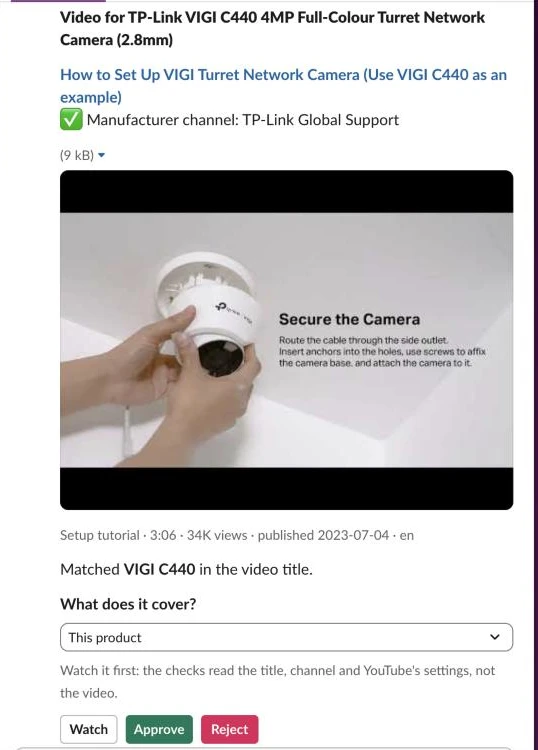
When the workflow finds a strong candidate for a product such as the TP-Link VIGI C440 4MP Full-Colour Turret Network Camera, it posts an interactive review card to Slack. Each card shows whether the upload came from a listed manufacturer channel, displays the video thumbnail, duration, view count and language, quotes the exact model string matched in the title, and gives you Watch, Approve and Reject buttons so a person checks every Shopify product video before it goes live.
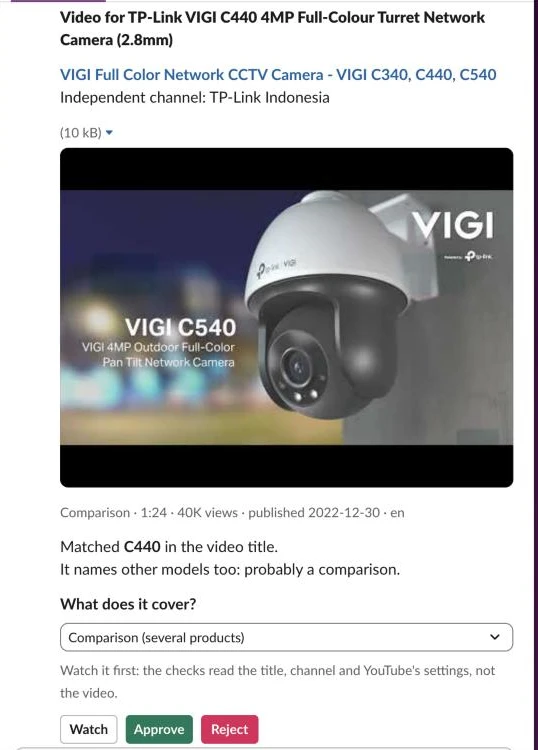
If a video title names multiple models, such as the VIGI C340, C440 and C540 together, the code flags it as a comparison and presets the coverage dropdown to Comparison (several products) so you can decide whether a multi-model video belongs on that product page.
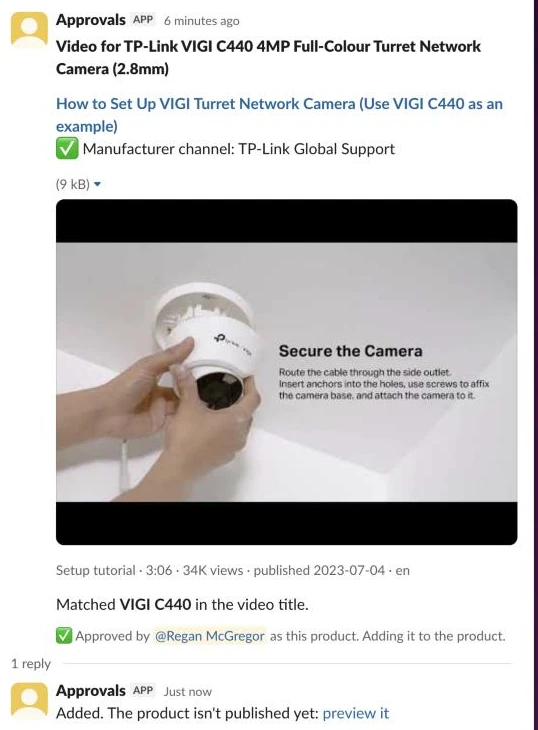
Once you click Approve, the workflow updates the Slack card to record who approved it and replies in the card’s thread with a link to the product page once the video is saved to it.
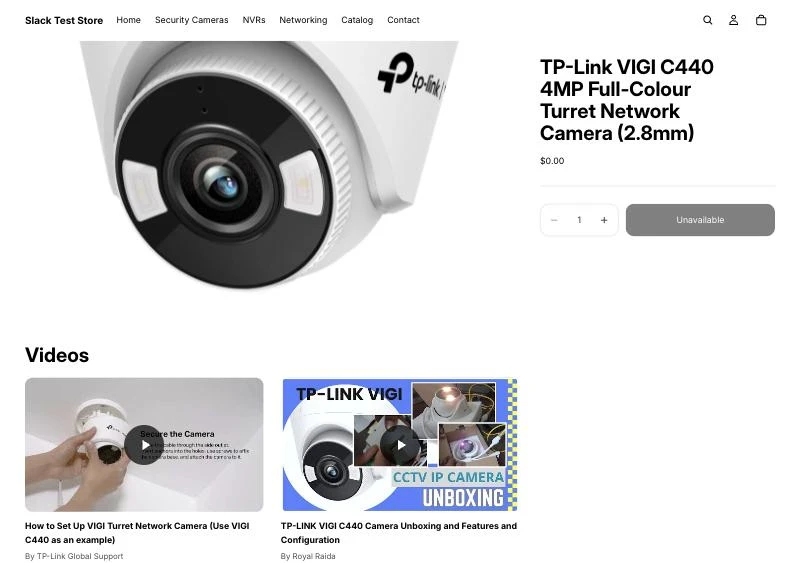
Approved videos stay out of the photo gallery. The workflow saves each one as an entry in a Videos list on the product, and one Custom Liquid section shows that list below the product details on a stock Horizon theme, manufacturer videos first, each with its title and the channel that made it. Your gallery stays your own product shots, and nothing loads from YouTube until a shopper presses play.
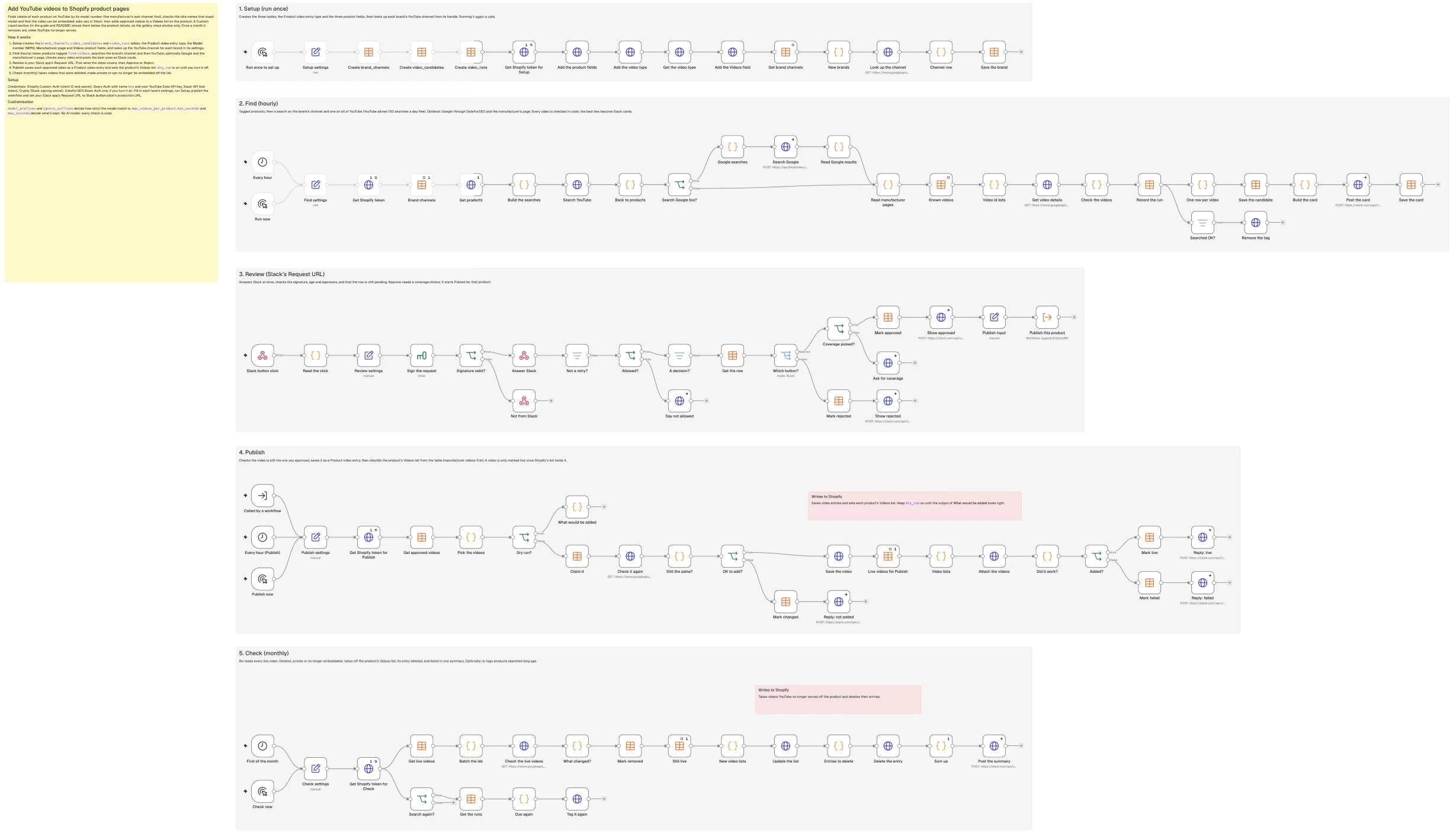
All five lanes (Setup, Find, Review, Publish and Check) live on a single n8n canvas alongside three n8n Data Tables that track your brand channels, every candidate video offered, and every search run.
Why ecommerce product videos matter, and which ones to look for
Static studio photos on a white background rarely show a shopper how a security camera mounts to a soffit, how loud a motor sounds, or what its companion mobile app looks like during pairing. According to Shopify’s compilation of video marketing statistics, 61% of shoppers say product images and videos are the most important product page element when completing a purchase (Salsify, 2026), and 63% of consumers say they would most like to watch a short video to learn about a product or service (Wyzowl).
For stores carrying hundreds or thousands of SKUs across multiple brands, shooting original footage in-house isn’t practical because you rarely have every item unboxed on a bench. Using existing YouTube videos solves that supply problem while giving shoppers better answers: the manufacturer’s own support video is the definitive authority on installation and wiring, whereas an independent reviewer’s video is far more persuasive than anything the store itself could film.
Which videos to look for
Different video styles answer different pre-purchase questions, so the workflow classifies every candidate by its title and aims for a varied mix (one setup tutorial and one review beat three identical unboxings):
| Video type | What it shows | Shopper question it answers | Who usually makes it | Title words the workflow spots |
|---|---|---|---|---|
| Setup and install tutorials | Mounting hardware, wiring, app pairing and initial configuration | ”How hard is this to install and set up?” | Manufacturer support channels and trade installers | set up, setup, install*, how to, configur*, tutorial, step-by-step, mount*, guide |
| Unboxings and first looks | Box contents, power adapters, brackets and physical build | ”What comes in the box and how big is it?” | Distributors, resellers and tech creators | unbox*, first look, first impression*, hands-on, out of the box, out the box |
| Expert reviews | Real-world testing, pros and cons, and long-term reliability | ”Is this model worth buying?” | Independent reviewers and niche testers | review*, worth it, test, tested, testing, honest, long-term |
| Comparisons | Side-by-side tests against sibling or competing models | ”Should I get this model or the next one up?” | Reviewers, distributors and regional brand channels | vs, versus, comparison, compare*, or a second model code in the title |
| Feature demos and app walkthroughs | Day and night camera footage, software menus and specific modes | ”How well does night vision or the app work?” | Niche testers and manufacturers | demo, feature*, overview, night vision, footage, sample, app |
Videos made by people who aren’t trying to sell the item carry built-in social proof because the shopper sees a real person, in a real house or workshop, showing the unit working alongside a visible channel name and view count. YouTube data cited by Shopify shows that YouTube viewers are five times more likely to buy when creators talk about products on YouTube. A manufacturer tutorial gives technical authority while an independent test gives third-party proof, though neither replaces written customer reviews on the page.
Putting a Shopify video on a product page is a conversion play for human shoppers rather than a shortcut to Google video traffic. In Google’s video SEO documentation, Google explains that main video search features and Key Moments require a dedicated watch page whose main purpose is showing a single video, explicitly naming “a product page with a 360 video of a product” as a non-watch page (though a non-watch page can still earn a video badge in text and Google Image results). Adding videos won’t hurt your page speed either, because the section in Step 9 shows a thumbnail and only loads YouTube’s player when the shopper clicks play.
From a rights standpoint, embedding through YouTube’s standard player is how YouTube is designed to share videos across the web, and creators can untick “Allow embedding” in YouTube Studio whenever they don’t want their uploads played on external sites. Nothing in this workflow is downloaded or re-hosted, and the code checks status.embeddable before offering a video, before publishing it, and every month thereafter.
What you need
- n8n (2.46 or newer) with Data Tables enabled, hosted on a public HTTPS URL so Slack can reach the webhook. A Supabase version of this template is also included in the GitHub repo if you prefer Postgres tables over n8n Data Tables.
- A Shopify custom app on your store with the
read_products,write_products,read_metaobjects,write_metaobjects,read_metaobject_definitionsandwrite_metaobject_definitionsAdmin API scopes. - A theme with a Custom Liquid section, which every free Shopify theme, Horizon included, has.
- A YouTube Data API v3 key from Google Cloud Console (free default quota).
- A Slack app with the
chat:writebot token scope (invite the bot to your review channel, or addchat:write.public), Interactivity enabled, and its Signing Secret. - DataForSEO API credentials (optional) if you want to supplement YouTube’s search with live Google SERP results (about US$0.002 per query, checked November 2026).
- Products with model numbers (the Setup lane creates the
custom.mpnproduct field for you). - Cost: US$0 in API fees at the default quotas.
How it works
- Setup (run once): Creates the
brand_channels,video_candidatesandvideo_runsn8n Data Tables, adds the Product video entry type and the Model number (MPN), Manufacturer page and Videos product fields to Shopify, and looks up the YouTube channel ID for each brand@handlein your settings. - Find (hourly): Fetches a batch of products tagged
find-videos, searches the manufacturer’s YouTube channel and all of YouTube by model number (plus Google and the manufacturer’s product page if enabled), checks in code that each video names the exact model and can be embedded, logs the run, removes the tag, and posts the top candidates to Slack. - Review (Slack webhook, where a person approves): Receives button clicks from Slack, verifies the cryptographic signature, requires a human reviewer to confirm what the video covers (This product, Comparison, or Brief mention), updates the Slack card on Approve or Reject, and triggers Publish for approved products.
- Publish (on approval and hourly backstop): Claims the approved row, re-checks the YouTube API to make sure the video wasn’t deleted or retitled after review, saves it as a Product video entry, rebuilds the product’s Videos list from the table (manufacturer videos first), and replies in the Slack thread with the product link.
- Check (monthly): Queries the YouTube API in batches of 50 for every live video across your store, takes a video off the product’s Videos list and deletes its entry if the creator deleted it, made it private, or turned off embedding, posts a cleanup summary to Slack, and optionally re-tags older zero-result products for a fresh search.
Step 1: Set up the tables, the product fields and your brand channels
The Setup lane prepares your three state tables, creates the Product video entry type and three pinned product fields in Shopify, and translates human-readable YouTube handles like @tpsupport into permanent channel IDs like UCLp_URaAod44UHCZWH56Bpw. Storing the manufacturer’s model number in its own metafield (custom.mpn) is essential because Shopify product titles are packed with marketing words (“4MP Full-Colour Turret Network Camera”) that YouTube creators rarely copy word for word, whereas both manufacturers and reviewers put the model code (VIGI C440) in their video titles. You can find any brand channel’s handle directly in its YouTube URL (for example, youtube.com/@tpsupport), and because large manufacturers split uploads across support and regional teams, you can list multiple rows for the same brand (@tpsupport and @TPLinkANZ).
Start the Setup lane with a Manual Trigger node named Run once to set up, and connect it to an Edit Fields (Set) node named Setup settings in JSON mode with your store domain, metafield namespaces, and initial brand handles:
{
  "store_domain": "your-store.myshopify.com",
  "mpn_namespace": "custom",
  "mpn_key": "mpn",
  "page_namespace": "custom",
  "page_key": "manufacturer_url",
  "video_type": "product_video",
  "videos_namespace": "custom",
  "videos_key": "videos",
  "brand_channels": [
    {
      "vendor": "Your Brand",
      "handle": "@yourbrand",
      "domains": "yourbrand.com",
      "url_pattern": ""
    }
  ]
}
Chain three Data table nodes (Resource: table, Operation: create, Options > Reuse existing table: on) after Setup settings so re-running Setup never wipes existing rows. Name the first node Create brand_channels (Table name: brand_channels) with these columns:
| Setting | Value |
|---|---|
| vendor | string |
| handle | string |
| channel_id | string |
| channel_name | string |
| domains | string |
| url_pattern | string |
| note | string |
Connect Create brand_channels to a second Data table node named Create video_candidates (Table name: video_candidates, Options > Reuse existing table: on) to store every video offered to Slack and its lifecycle status:
| Setting | Value |
|---|---|
| product_id | string |
| product_title | string |
| model | string |
| video_id | string |
| url | string |
| title | string |
| channel_id | string |
| channel_name | string |
| is_manufacturer | boolean |
| duration_s | number |
| views | number |
| published_at | date |
| language | string |
| match_quote | string |
| match_source | string |
| video_type | string |
| coverage | string |
| status | string |
| card_channel | string |
| card_ts | string |
| card | string |
| metaobject_id | string |
| decided_by | string |
| decided_at | date |
| error | string |
| found_at | date |
| checked_at | date |
Connect Create video_candidates to the third Data table node named Create video_runs (Table name: video_runs, Options > Reuse existing table: on) to log quota usage and drop reasons for every product search:
| Setting | Value |
|---|---|
| product_id | string |
| product_title | string |
| model | string |
| ran_at | date |
| searches | number |
| quota_units | number |
| found | number |
| kept | number |
| dropped | string |
| error | string |
Next, connect an HTTP Request node named Get Shopify token for Setup (Method: POST, URL: https://{{ $('Setup settings').first().json.store_domain }}/admin/oauth/access_token, Authentication: httpCustomAuth with your Shopify client ID and secret, form URL-encoded body grant_type = client_credentials, executeOnce: True, retryOnFail: on with 3 tries, 2000 ms apart) to fetch a fresh Admin API token. Connect it to an HTTP Request node named Add the product fields that calls metafieldDefinitionCreate to create and pin the model number and manufacturer page fields in Shopify admin (if a field already exists, Shopify returns a TAKEN user error, which is harmless):
| Setting | Value |
|---|---|
| Method | POST |
| URL | https://{{ $('Setup settings').first().json.store_domain }}/admin/api/2026-10/graphql.json |
| Header X-Shopify-Access-Token | {{ $('Get Shopify token for Setup').first().json.access_token }} |
Set the JSON body expression on Add the product fields to:
{{ JSON.stringify({ query: "mutation Fields($mpn: MetafieldDefinitionInput!, $page: MetafieldDefinitionInput!) {\n mpn: metafieldDefinitionCreate(definition: $mpn) { createdDefinition { id } userErrors { code message } }\n page: metafieldDefinitionCreate(definition: $page) { createdDefinition { id } userErrors { code message } }\n}", variables: ({ mpn: { name: 'Model number (MPN)', namespace: $('Setup settings').first().json.mpn_namespace, key: $('Setup settings').first().json.mpn_key, type: 'single_line_text_field', ownerType: 'PRODUCT', pin: true }, page: { name: 'Manufacturer page', namespace: $('Setup settings').first().json.page_namespace, key: $('Setup settings').first().json.page_key, type: 'url', ownerType: 'PRODUCT', pin: true } }) }) }}The Videos list needs an entry type to point at, so create that next. Connect Add the product fields to an HTTP Request node named Add the video type (same URL and header) that calls metaobjectDefinitionCreate for a Product video type the storefront can read, with fields for the title, YouTube video ID, URL, channel, coverage and video type:
{{ JSON.stringify({ query: "mutation VideoType($d: MetaobjectDefinitionCreateInput!) {\n metaobjectDefinitionCreate(definition: $d) { metaobjectDefinition { id } userErrors { code message } }\n}", variables: ({ d: { name: 'Product video', type: $('Setup settings').first().json.video_type, displayNameKey: 'title', access: { storefront: 'PUBLIC_READ' }, fieldDefinitions: [{ key: 'title', name: 'Title', type: 'single_line_text_field', required: true }, { key: 'video_id', name: 'YouTube video ID', type: 'single_line_text_field', required: true }, { key: 'url', name: 'Video URL', type: 'url', required: true }, { key: 'channel_name', name: 'Channel', type: 'single_line_text_field' }, { key: 'coverage', name: 'Coverage', type: 'single_line_text_field' }, { key: 'video_type', name: 'Video type', type: 'single_line_text_field' }] } }) }) }}A type that already exists answers TAKEN, so connect an HTTP Request node named Get the video type to look its ID up either way:
{{ JSON.stringify({ query: "query VideoType($type: String!) {\n metaobjectDefinitionByType(type: $type) { id }\n}", variables: ({ type: $('Setup settings').first().json.video_type }) }) }}Then add an HTTP Request node named Add the Videos field, which creates the pinned custom.videos product field as a list of Product video entries, readable by the storefront:
{{ JSON.stringify({ query: "mutation VideosField($d: MetafieldDefinitionInput!) {\n metafieldDefinitionCreate(definition: $d) { createdDefinition { id } userErrors { code message } }\n}", variables: ({ d: { name: 'Videos', namespace: $('Setup settings').first().json.videos_namespace, key: $('Setup settings').first().json.videos_key, type: 'list.metaobject_reference', ownerType: 'PRODUCT', pin: true, access: { storefront: 'PUBLIC_READ' }, validations: [{ name: 'metaobject_definition_id', value: $json.data.metaobjectDefinitionByType.id }] } }) }) }}To avoid spending YouTube quota on handles you’ve already resolved, connect Add the Videos field to a Data table node named Get brand channels (Resource: row, Operation: get, Data table: brand_channels, Return all: on, alwaysOutputData: True), and then to a Code node named New brands that filters down to vendor and handle pairs not yet stored in the table:
// Channels in Setup settings that aren't in the table yet. A brand can have several (support, regional).
// Each new one costs one channel lookup (1 quota unit).
const key = b => String(b.vendor || '').trim().toLowerCase() + '|' + String(b.handle || '').trim().toLowerCase();
const have = new Set($input.all().map(i => i.json).filter(r => r.vendor).map(key));
return ($('Setup settings').first().json.brand_channels || [])
  .filter(b => b.vendor && b.handle && !have.has(key(b)))
  .map(b => ({ json: { vendor: String(b.vendor).trim(), handle: String(b.handle || '').trim(), domains: String(b.domains || ''), url_pattern: String(b.url_pattern || '') } }));
Connect New brands to an HTTP Request node named Look up the channel to call YouTube’s channels.list endpoint with the forHandle parameter, which costs 1 quota unit per call:
| Setting | Value |
|---|---|
| Method | GET |
| URL | https://www.googleapis.com/youtube/v3/channels |
| Authentication | Generic credential type: httpQueryAuth |
| Send Query Parameters | on, Using JSON: {{ JSON.stringify({ part: 'snippet', forHandle: $json.handle }) }} |
| Options > Response > Include Response Headers and Status | on |
| Options > Response > Never Error | on |
Follow Look up the channel with a Code node named Channel row that extracts the channel ID and title (or records a diagnostic note if the handle didn’t resolve):
return $input.all().map((it, i) => {
  const b = $('New brands').itemMatching(i).json;
  const c = (it.json.body?.items || [])[0];
  return { json: { ...b, channel_id: c?.id || '', channel_name: c?.snippet?.title || '',
    note: c ? '' : 'No channel found for ' + b.handle + (it.json.body?.error ? ' (' + it.json.body.error.message + ')' : '') } };
});
Finish the lane with a Data table node named Save the brand (Resource: row, Operation: insert, Data table: brand_channels) mapping each field (vendor, handle, channel_id, channel_name, domains, url_pattern, note) with {{ $json.<field> }}.
Check: Run Run once to set up with TP-LINK and @tpsupport in Setup settings. Inspect brand_channels and confirm you have a row with channel_id UCLp_URaAod44UHCZWH56Bpw and channel_name TP-Link Global Support (whereas testing a guessed handle like @TPLinkGlobalSupport writes a row with an empty channel_id and No channel found for @TPLinkGlobalSupport in note).
Step 2: Pick the products and build the searches
The Find lane runs hourly to pull a small batch of tagged products from Shopify, read their model numbers and the videos they already have, and assemble the search requests for YouTube. Reading the product’s Videos list (and any videos in its media) at the start of the run is what guarantees the workflow never wastes review time offering a video that’s already on the product page.
Add a Schedule Trigger node named Every hour (Trigger interval: Hours) alongside a Manual Trigger node named Run now, and connect both to an Edit Fields (Set) node named Find settings in JSON mode:
{
  "store_domain": "your-store.myshopify.com",
  "find_tag": "find-videos",
  "product_ids": [],
  "batch_size": 2,
  "channel_results": 10,
  "open_results": 15,
  "max_videos_per_product": 3,
  "min_seconds": 30,
  "max_seconds": 1800,
  "language": "en",
  "region_code": "US",
  "model_prefixes": [],
  "ignore_suffixes": [
    "BK",
    "BLK",
    "WH",
    "WHT"
  ],
  "use_manufacturer_page": false,
  "use_dataforseo": false,
  "search_location": "United States",
  "search_language": "en",
  "mpn_namespace": "custom",
  "mpn_key": "mpn",
  "page_namespace": "custom",
  "page_key": "manufacturer_url",
  "videos_namespace": "custom",
  "videos_key": "videos",
  "user_agent": "YourStoreVideoBot/1.0 (+https://your-store.com)",
  "slack_channel": "#review-videos"
}
The settings in Find settings control your daily search volume and how strictly the code matches model numbers:
| Setting | What it controls |
|---|---|
find_tag / product_ids | Pulls products tagged find-videos, or tests specific Shopify product IDs/GIDs when product_ids isn’t empty. |
batch_size | Products searched per hourly run. At 2 per hour (48 products/day), a store with one channel per brand uses 96 searches a day, staying inside YouTube’s 100 free daily searches. |
max_videos_per_product | Maximum candidate cards sent to Slack for a single product (3 by default). |
min_seconds / max_seconds | Drops clips shorter than 30 seconds (teasers and Shorts) or longer than 1800 seconds (30-minute livestreams). |
model_prefixes | Optional family prefixes (like ["VIGI", "Tapo"]) that a video title can omit while still matching the model number. |
ignore_suffixes | Colour suffixes (BK, BLK, WH, WHT) stripped when matching, without stripping single letters like W (wireless). |
use_manufacturer_page / use_dataforseo | Turns on optional scraping of the manufacturer’s product page and DataForSEO Google SERPs. |
Connect Find settings to an HTTP Request node named Get Shopify token (configured the same way as Setup’s token node, reading store_domain from Find settings), then to a Data table node named Brand channels (Resource: row, Operation: get, Data table: brand_channels, Return all: on, executeOnce: True, alwaysOutputData: True), and then to an HTTP Request node named Get products (executeOnce: True):
| Setting | Value |
|---|---|
| Method | POST |
| URL | https://{{ $('Find settings').first().json.store_domain }}/admin/api/2026-10/graphql.json |
| Header X-Shopify-Access-Token | {{ $('Get Shopify token').first().json.access_token }} |
Use this GraphQL query in the JSON body expression of Get products so it supports both tag-based batches and explicit product_ids:
{{ JSON.stringify({ query: "query Products($q: String!, $n: Int!, $ids: [ID!]!, $byIds: Boolean!, $mns: String!, $mkey: String!, $pns: String!, $pkey: String!, $vns: String!, $vkey: String!) {\n products(first: $n, query: $q) @skip(if: $byIds) { nodes { id title handle vendor onlineStoreUrl\n mpn: metafield(namespace: $mns, key: $mkey) { value }\n page: metafield(namespace: $pns, key: $pkey) { value }\n videos: metafield(namespace: $vns, key: $vkey) { references(first: 50) { nodes { ... on Metaobject { video_id: field(key: \"video_id\") { value } } } } }\n media(first: 100) { nodes { mediaContentType ... on ExternalVideo { originUrl } } } } }\n nodes(ids: $ids) @include(if: $byIds) { ... on Product { id title handle vendor onlineStoreUrl\n mpn: metafield(namespace: $mns, key: $mkey) { value }\n page: metafield(namespace: $pns, key: $pkey) { value }\n videos: metafield(namespace: $vns, key: $vkey) { references(first: 50) { nodes { ... on Metaobject { video_id: field(key: \"video_id\") { value } } } } }\n media(first: 100) { nodes { mediaContentType ... on ExternalVideo { originUrl } } } } }\n}", variables: ((s => ({ q: 'tag:' + s.find_tag, n: s.batch_size, byIds: s.product_ids.length > 0, ids: s.product_ids.map(x => String(x).startsWith('gid://') ? String(x) : 'gid://shopify/Product/' + x), mns: s.mpn_namespace, mkey: s.mpn_key, pns: s.page_namespace, pkey: s.page_key, vns: s.videos_namespace, vkey: s.videos_key }))($('Find settings').first().json)) }) }}Connect Get products to a Code node named Build the searches. For a product like the TP-Link VIGI C440 whose custom.mpn field is VIGI C440(2.8mm), the code strips parenthetical lens specs to get VIGI C440, falls back to extracting the first alphanumeric model token from the title if custom.mpn is blank, and outputs one search item per listed brand channel plus one open YouTube search with the model number in quotes:
// One item per YouTube search: the brand's channel (if Setup found one), then all of YouTube.
const s = $('Find settings').first().json;
const d = $('Get products').first().json.data || {};
const list = (d.products?.nodes || d.nodes || []).filter(p => p && p.id);
const brands = $('Brand channels').all().map(i => i.json).filter(b => b.vendor);
const out = [];
for (const p of list) {
  const vendor = String(p.vendor || '').trim();
  const rows = brands.filter(b => String(b.vendor).trim().toLowerCase() === vendor.toLowerCase());
  let model = String(p.mpn?.value || '').replace(/\(.*?\)/g, '').trim(), model_from = 'model number';
  if (!model) {
    // No model number: the first title word with a digit in it (RLC-820A, C440), always reviewed.
    model = (String(p.title).split(/[\s,\/]+/).find(w => w.length >= 4 && /\d/.test(w) && /[a-z]/i.test(w) && !/^\d+(k|p|mp|mm|gb|tb)$/i.test(w)) || '');
    model_from = 'title';
  }
  const product = { product_id: p.id, product_title: p.title, handle: p.handle, vendor, model, model_from, store_url: p.onlineStoreUrl || '',
    page_url: p.page?.value || '', existing: [...(p.videos?.references?.nodes || []).map(n => n.video_id?.value || ''), ...(p.media?.nodes || []).map(m => m.originUrl || '')].join(' '),
    channels: rows.filter(b => b.channel_id).map(b => b.channel_id),
    domains: rows.flatMap(b => String(b.domains || '').split(',')).map(x => x.trim().toLowerCase()).filter(Boolean),
    url_pattern: (rows.find(b => b.url_pattern) || {}).url_pattern || '' };
  if (!model) {
    // Nothing to search for. A 1-unit call keeps the product in step with the rest, and the run row says why.
    out.push({ json: { ...product, kind: 'skip', skip_reason: 'no model number', url: 'https://www.googleapis.com/youtube/v3/videos', params: { part: 'id', id: 'none' } } });
    continue;
  }
  const withBrand = model.toLowerCase().startsWith(vendor.toLowerCase()) ? model : vendor + ' ' + model;
  for (const ch of product.channels)
    out.push({ json: { ...product, kind: 'channel', url: 'https://www.googleapis.com/youtube/v3/search',
      params: { part: 'snippet', type: 'video', channelId: ch, q: model, maxResults: s.channel_results, order: 'relevance' } } });
  out.push({ json: { ...product, kind: 'youtube', url: 'https://www.googleapis.com/youtube/v3/search',
    params: { part: 'snippet', type: 'video', q: withBrand.replace(model, '"' + model + '"'), maxResults: s.open_results,
      relevanceLanguage: s.language, regionCode: s.region_code, videoEmbeddable: 'true' } } });
}
return out;
Step 3: Search the manufacturer’s channel, then all of YouTube
Running two separate query types in our n8n YouTube search solves two opposite discovery problems. Manufacturers frequently title their setup tutorials by product family and tuck the example model into parentheses (“How to Set Up VIGI Turret Network Camera (Use VIGI C440 as an example)”), which ranks poorly behind noisy reseller uploads in an open search, so searching the manufacturer’s channel directly with channelId brings official tutorials to the top. At the same time, on a catalogue I run, only 3 of the 45 videos approved came from a manufacturer’s own channel (overall the 45 approved videos broke down by title into 15 unboxings or first looks, 11 setup or install tutorials, 5 reviews, 1 comparison and 13 others), so the open YouTube Data API search does the heavy lifting for almost every product.
In Google’s search.list documentation, search.list has its own dedicated Search Queries quota bucket allowing 100 calls per day at 1 unit per call, separate from the 10,000 units per day allocated to all other endpoints (which reset at midnight Pacific Time). Because Build the searches attaches the target url and params to each item, a single HTTP Request node named Search YouTube handles both the channel search and the open search:
| Setting | Value |
|---|---|
| Method | GET |
| URL | {{ $json.url }} |
| Authentication | Generic credential type: httpQueryAuth |
| Send Query Parameters | on, Using JSON: {{ JSON.stringify($json.params) }} |
| Options > Response > Include Response Headers and Status | on |
| Options > Response > Never Error | on |
Connect Search YouTube to a Code node named Back to products that regroups the search responses back into one item per product, recording every discovered videoId alongside any quota or HTTP error:
// One item per product again, with every video id the searches found and any error.
const builds = $('Build the searches').all().map(i => i.json);
const res = $input.all().map(i => i.json);
const by = {};
builds.forEach((b, i) => {
  const { kind, params, url, skip_reason, ...product } = b;
  const p = by[b.product_id] ||= { ...product, ids: [], errors: [], searches: 0, units: 0, skip: false };
  const r = res[i] || {}, body = r.body || {};
  if (kind === 'skip') { p.skip = true; p.errors.push(skip_reason); p.units += 1; return; }
  p.searches++; // search.list has its own bucket: 100 calls a day
  if (Number(r.statusCode) >= 400 || body.error)
    return p.errors.push('YouTube search: ' + (body.error?.errors?.[0]?.reason || body.error?.message || r.statusCode));
  (body.items || []).forEach((it, rank) => {
    if (it.id?.videoId) p.ids.push({ video_id: it.id.videoId, from: kind, rank, description: it.snippet?.description || '' });
  });
});
return Object.values(by).map(json => ({ json }));
Check: Run Back to products on the TP-Link VIGI C440 with @tpsupport and @TPLinkANZ in brand_channels. You’ll see searches: 3 (two brand channels plus all of YouTube), with TP-Link Global Support’s “How to Set Up VIGI Turret Network Camera (Use VIGI C440 as an example)” returned first from the channel search.
Step 4: Add Google results and the manufacturer’s page (optional)
Even when a manufacturer embeds a video on its own product page, that video sometimes uses a generic technology title that never mentions the model code, such as “VIGI LightPro Night Vision Technology | VIGI by tp-link” on the VIGI C440 page. When use_manufacturer_page is enabled, the workflow checks the manufacturer’s page (from the product’s custom.manufacturer_url field, the brand’s url_pattern, or a Google search result on the brand’s domain), verifies that robots.txt (RFC 9309) permits fetching the path, and extracts any embedded YouTube IDs. Because both use_dataforseo and use_manufacturer_page are global workflow settings, the If node routes the whole batch down one path so Read manufacturer pages executes once.
Connect Back to products to an If node named Search Google too? (Convert types where required: on) with this boolean expression:
{{ $('Find settings').first().json.use_dataforseo === true && $input.all().some(i => !i.json.skip) }}Connect the True output ([0]) of Search Google too? to a Code node named Google searches. Because DataForSEO’s SERP API charges about US$0.002 for a plain query but five times as much (US$0.01) when a query includes operators like site:, Google searches sends plain brand-and-model queries and filters for the brand’s domain in code afterward:
// Plain queries (no site: operator, which DataForSEO bills at five times the price).
const s = $('Find settings').first().json;
const out = [];
for (const it of $input.all()) {
  const p = it.json;
  if (p.skip) continue;
  const q = p.model.toLowerCase().startsWith(p.vendor.toLowerCase()) ? p.model : p.vendor + ' ' + p.model;
  const task = k => [{ keyword: k, location_name: s.search_location, language_code: s.search_language, depth: 10 }];
  out.push({ json: { product_id: p.product_id, purpose: 'videos', task: task(q + ' video') } });
  if (s.use_manufacturer_page && !p.page_url && !p.url_pattern && p.domains.length)
    out.push({ json: { product_id: p.product_id, purpose: 'page', task: task(q) } });
}
return out;
Connect Google searches to an HTTP Request node named Search Google (onError: continueRegularOutput):
| Setting | Value |
|---|---|
| Method | POST |
| URL | https://api.dataforseo.com/v3/serp/google/organic/live/advanced |
| Authentication | Generic credential type: httpBasicAuth |
Set its JSON body expression to:
{{ JSON.stringify($json.task) }}Connect Search Google to a Code node named Read Google results that walks the SERP items (including Google’s video carousel) for YouTube links and checks organic hits on the brand’s domains for a whole-token model match in the URL path or title:
// Video ids from any YouTube link in the results, and the manufacturer page: a result on one of the brand's
// websites whose path or title has the whole model code (so C440 doesn't take the C440-W page).
const tasks = $('Google searches').all().map(i => i.json);
const res = $input.all().map(i => i.json);
const by = Object.fromEntries($('Back to products').all().map(i => [i.json.product_id, { ...i.json, ids: [...i.json.ids], errors: [...i.json.errors] }]));
const ytid = u => (String(u || '').match(/(?:youtube\.com\/(?:watch\?(?:[^#]*&)?v=|shorts\/|embed\/)|youtu\.be\/)([A-Za-z0-9_-]{11})/) || [])[1];
const norm = t => String(t || '').toUpperCase().replace(/\+/g, 'PLUS');
const compact = t => norm(t).replace(/[^A-Z0-9]/g, '');
const esc = t => t.replace(/[.*+?^${}()|[\]\\]/g, '\\$&');
const host = u => ((String(u).match(/^https?:\/\/([^\/?#]+)/i) || [])[1] || '').toLowerCase();
tasks.forEach((t, i) => {
  const p = by[t.product_id];
  const task = (res[i]?.tasks || [])[0] || {};
  p.google_cost = (p.google_cost || 0) + Number(task.cost || 0);
  if (task.status_code !== 20000) return p.errors.push('Google search: ' + (task.status_message || res[i]?.error?.message || res[i]?.status_message || 'failed'));
  const items = task.result?.[0]?.items || [];
  if (t.purpose === 'videos') {
    const walk = (xs, depth = 0) => { for (const x of xs || []) {
      const id = ytid(x.url);
      if (id) p.ids.push({ video_id: id, from: 'google', rank: p.ids.length, description: x.description || '' });
      if (depth < 3) walk(x.items, depth + 1);
    } };
    return walk(items);
  }
  const code = norm(p.model).replace(/\(.*?\)/g, '').trim();
  const inTitle = s => new RegExp('(^|[^A-Z0-9])' + esc(code) + '($|[^A-Z0-9])').test(norm(s));
  const inPath = u => String(u).replace(/^https?:\/\/[^\/]+/i, '').split(/[\/?#.]/).map(compact).includes(compact(code));
  const onBrand = u => p.domains.some(d => host(u) === d || host(u).endsWith('.' + d));
  const hit = items.find(x => x.type === 'organic' && x.url && onBrand(x.url) && (inPath(x.url) || inTitle(x.title)));
  if (hit) p.google_page_url = hit.url;
});
return Object.values(by).map(json => ({ json }));
Connect both Read Google results and the False output ([1]) of Search Google too? into a Code node named Read manufacturer pages:
// Optional (use_manufacturer_page): YouTube videos embedded or linked on the manufacturer's own product page.
// The page comes from the Manufacturer page field, the brand's url_pattern, or the Google search.
const s = $('Find settings').first().json;
const items = $input.all().map(i => ({ ...i.json, ids: [...i.json.ids] }));
if (!s.use_manufacturer_page) return items.map(json => ({ json }));
function allowed(robots, path) { // RFC 9309, the * group: the longest matching rule wins; * is a wildcard, $ ends the path
  let on = false, best = { len: -1, allow: true };
  const hits = rule => new RegExp('^' + rule.split('*').map(x => x.replace(/[.+?^${}()|[\]\\]/g, '\\$&')).join('.*').replace(/\\\$$/, '$')).test(path);
  for (const line of String(robots).split(/\r?\n/)) {
    const [k, ...v] = line.replace(/#.*/, '').split(':'); const key = k.trim().toLowerCase(), val = v.join(':').trim();
    if (key === 'user-agent') on = val === '*';
    else if (on && (key === 'allow' || key === 'disallow') && val && val.length > best.len && hits(val)) best = { len: val.length, allow: key === 'allow' };
  }
  return best.allow;
}
const re = /(?:youtube(?:-nocookie)?\.com\/(?:embed\/|watch\?(?:[^"'#<>\s]*?&(?:amp;)?)?v=|shorts\/)|youtu\.be\/)([A-Za-z0-9_-]{11})/g;
for (const p of items) {
  if (p.skip) continue;
  const slug = p.model.toLowerCase().replace(/[^a-z0-9]+/g, '-').replace(/^-|-$/g, '');
  const url = p.page_url || (p.url_pattern ? p.url_pattern.replace('{model}', slug) : '') || p.google_page_url || '';
  if (!url) { p.page_note = 'no manufacturer page'; continue; }
  const m = /^(https?:\/\/[^\/?#]+)([^#]*)/i.exec(url);
  if (!m) { p.page_note = 'bad page url'; continue; }
  try {
    let robots = '';
    try { robots = await this.helpers.httpRequest({ url: m[1] + '/robots.txt', headers: { 'User-Agent': s.user_agent }, json: false, timeout: 15000 }); } catch (e) {}
    if (!allowed(robots, m[2] || '/')) { p.page_note = 'robots.txt disallows the page'; continue; }
    const html = String(await this.helpers.httpRequest({ url, headers: { 'User-Agent': s.user_agent, Accept: 'text/html' }, json: false, timeout: 30000 }));
    const seen = new Set(); let x;
    while ((x = re.exec(html))) if (!seen.has(x[1])) { seen.add(x[1]); p.ids.push({ video_id: x[1], from: 'page', rank: seen.size, description: '' }); }
    p.page_note = seen.size + ' videos on ' + url;
  } catch (e) { p.page_note = 'page fetch failed: ' + String(e.message || e).slice(0, 120); }
}
return items.map(json => ({ json }));
Check: In testing on the VIGI C440, one plain DataForSEO query cost US$0.002 and pulled four YouTube IDs out of Google’s video carousel (while Google’s organic video links were google.com/goto redirects), and Read manufacturer pages found 1 embedded TP-Link video on the VIGI C440 product page.
Step 5: Check each video names the model and can be shown
YouTube’s search endpoint returns snippets, not embeddability flags, durations or view counts, and it gladly returns sibling models like the wireless VIGI C440-W when you search for VIGI C440. To filter those out, the workflow removes any video ID already offered in video_candidates or already on the product, fetches full metadata for up to 50 videos at once from videos.list (which costs just 1 quota unit per call), and checks every requirement in code.
We use deterministic JavaScript regex here instead of an AI model because the question is binary: does the title contain C440 as a standalone token without a trailing -W, 0, or .2? A whole-token regex ((?![a-z0-9]|-[a-z0-9]|\.\d)) answers that exactly and for free, whereas what code can’t verify (whether the presenter actually demonstrates the unit all the way through) is the human reviewer’s job in Slack.
Connect Read manufacturer pages to a Data table node named Known videos (alwaysOutputData: True) so the workflow never offers the same video twice for a product:
| Setting | Value |
|---|---|
| Resource | row |
| Operation | get |
| Data table | video_candidates |
| Must match | All conditions |
| Condition: product_id | eq {{ $json.product_id }} |
| Return all | on |
Connect Known videos to a Code node named Video id lists to deduplicate IDs and cap each product’s lookup batch at 50:
// Unique ids per product, without ones already offered or already on the product. Up to 50 per videos.list call.
const known = new Set($('Known videos').all().map(i => i.json).filter(r => r.video_id).map(r => r.product_id + '|' + r.video_id));
return $('Read manufacturer pages').all().map(it => {
  const p = it.json, seen = new Set(), lookup = [], pre = { 'already offered': 0, 'already on the product': 0 };
  for (const v of p.ids) {
    if (seen.has(v.video_id)) continue;
    seen.add(v.video_id);
    if (known.has(p.product_id + '|' + v.video_id)) pre['already offered']++;
    else if (p.existing.includes(v.video_id)) pre['already on the product']++;
    else lookup.push(v.video_id);
  }
  return { json: { ...p, lookup: lookup.slice(0, 50), pre_dropped: pre } };
});
Connect Video id lists to an HTTP Request node named Get video details:
| Setting | Value |
|---|---|
| Method | GET |
| URL | https://www.googleapis.com/youtube/v3/videos |
| Authentication | Generic credential type: httpQueryAuth |
| Send Query Parameters | on, Using JSON: {{ JSON.stringify({ part: 'snippet,contentDetails,status,statistics', id: $json.lookup.join(',') || 'none', maxResults: 50 }) }} |
| Options > Response > Include Response Headers and Status | on |
| Options > Response > Never Error | on |
Connect Get video details to a Code node named Check the videos to run the embeddability, privacy, duration, language, Shorts, and whole-token model checks, score the survivors, and pick one of each video type before taking a second of any type:
// Keeps a video only if its title (or the manufacturer's page) names this exact model and YouTube says it can be shown.
const s = $('Find settings').first().json;
const esc = t => t.replace(/[.*+?^${}()|[\]\\]/g, '\\$&');
function keys(p) {
  const raw = String(p.model || '').replace(/\(.*?\)/g, '').trim(), ks = new Set([raw]);
  for (const suf of s.ignore_suffixes || []) { const r = new RegExp('[-\\s]' + esc(suf) + '$', 'i'); if (r.test(raw)) ks.add(raw.replace(r, '')); }
  for (const k of [...ks]) for (const pre of [p.vendor, ...(s.model_prefixes || [])])
    if (pre && new RegExp('^' + esc(pre) + '[\\s-]+', 'i').test(k)) ks.add(k.replace(new RegExp('^' + esc(pre) + '[\\s-]+', 'i'), ''));
  return [...ks].filter(k => k.length >= 3 && /\d/.test(k));
}
// Whole-token match: C440 matches "VIGI C440 Setup" and "C-440", not "C440-W", "C4400" or "C440.2".
function match(p, text) {
  for (const k of keys(p)) {
    const pattern = (k.match(/[a-z]+|\d+/gi) || []).join('[\\s_-]*');
    const m = new RegExp('(^|[^a-z0-9])(' + pattern + ')(?![a-z0-9]|-[a-z0-9]|\\.\\d)', 'i').exec(String(text || ''));
    if (m) return m[2];
  }
  return null;
}
const codes = t => [...new Set((String(t).match(/\b(?=[a-z-]*\d)(?=[\d-]*[a-z])[a-z0-9]+(?:-[a-z0-9]+)*\b/gi) || [])
  .filter(c => /\d{2,}/.test(c) && !/^\d+(p|k|mp|mm|gb|tb|hz|fps|w|th|st|nd|rd|s)$/i.test(c)).map(c => c.toUpperCase().replace(/-/g, '')))];
const TYPES = [['review', /\b(review\w*|worth it|test(ed|ing)|honest|long[- ]term)\b/i], ['unboxing', /\b(unbox\w*|first (look|impressions?)|hands[- ]on|out (of )?the box)\b/i],
  ['setup', /\b(set ?up|install\w*|how to|configur\w*|tutorial|step[- ]by[- ]step|mount\w*|guide)\b/i],
  ['demo', /\b(demo|features?|overview|night vision|footage|sample|app)\b/i]];
const seconds = d => { const m = /P(?:(\d+)D)?T?(?:(\d+)H)?(?:(\d+)M)?(?:(\d+)S)?/.exec(d || '') || []; return (+m[1] || 0) * 86400 + (+m[2] || 0) * 3600 + (+m[3] || 0) * 60 + (+m[4] || 0); };
const now = new Date().toISOString();
return $input.all().map((it, i) => {
  const p = $('Video id lists').itemMatching(i).json, r = it.json;
  const dropped = { ...p.pre_dropped }, drop = why => { dropped[why] = (dropped[why] || 0) + 1; };
  const errors = [...p.errors];
  if (Number(r.statusCode) >= 400 || r.body?.error) errors.push('YouTube details: ' + (r.body?.error?.errors?.[0]?.reason || r.statusCode));
  const found = Object.fromEntries(p.ids.map(v => [v.video_id, v]));
  const cands = [];
  for (const v of r.body?.items || []) {
    const src = found[v.id] || {}, sn = v.snippet || {}, st = v.status || {};
    const dur = seconds(v.contentDetails?.duration), lang = String(sn.defaultAudioLanguage || sn.defaultLanguage || '');
    if (!st.embeddable) { drop('not embeddable'); continue; }
    if (!['public', 'unlisted'].includes(st.privacyStatus)) { drop('private'); continue; }
    if (sn.liveBroadcastContent && sn.liveBroadcastContent !== 'none') { drop('live or upcoming'); continue; }
    if (dur < s.min_seconds) { drop('too short'); continue; }
    if (dur > s.max_seconds) { drop('too long'); continue; }
    if (lang && !lang.toLowerCase().startsWith(String(s.language).toLowerCase())) { drop('other language'); continue; }
    if (/#shorts?\b/i.test((sn.title || '') + ' ' + (sn.description || ''))) { drop('a Short (vertical)'); continue; }
    const inTitle = match(p, sn.title), inDesc = inTitle ? null : match(p, (sn.description || '') + ' ' + (src.description || ''));
    const fromPage = src.from === 'page';
    if (!inTitle && !inDesc && !fromPage) { drop('model not named'); continue; }
    const others = codes(sn.title).filter(c => c !== String(inTitle || p.model).toUpperCase().replace(/[\s-]/g, '') && !String(p.model).toUpperCase().replace(/[\s-]/g, '').includes(c));
    const comparison = /\b(vs\.?|versus|comparison|compared?)\b/i.test(sn.title) || others.length > 0;
    const video_type = comparison ? 'comparison' : (TYPES.find(([, re]) => re.test(sn.title)) || ['other'])[0];
    const is_manufacturer = p.channels.includes(sn.channelId);
    const match_source = inTitle ? 'title' : fromPage ? 'manufacturer page' : 'description';
    const coverage = comparison ? 'comparison' : (match_source === 'description' || p.model_from === 'title') ? 'uncertain' : 'exact';
    cands.push({ product_id: p.product_id, product_title: p.product_title, model: p.model, video_id: v.id, url: 'https://www.youtube.com/watch?v=' + v.id,
      title: String(sn.title || '').slice(0, 300), channel_id: sn.channelId || '', channel_name: sn.channelTitle || '', is_manufacturer,
      duration_s: dur, views: Number(v.statistics?.viewCount || 0), published_at: sn.publishedAt || null, language: lang || 'unknown',
      match_quote: inTitle || inDesc || p.model, match_source, video_type, coverage, status: 'pending', found_at: now,
      score: (is_manufacturer ? 4 : 0) + (fromPage ? 4 : 0) + (inTitle ? 2 : 0) + (coverage === 'exact' ? 1 : 0) });
  }
  // Best first, then one of each type before a second of any type (a setup video and a review beat three unboxings).
  cands.sort((a, b) => b.score - a.score || b.views - a.views);
  const keep = [], types = new Set();
  for (const c of cands) if (keep.length < s.max_videos_per_product && !types.has(c.video_type)) { keep.push(c); types.add(c.video_type); }
  for (const c of cands) if (keep.length < s.max_videos_per_product && !keep.includes(c)) keep.push(c);
  if (cands.length > keep.length) dropped['not in the top ' + s.max_videos_per_product] = cands.length - keep.length;
  for (const c of keep) delete c.score;
  return { json: { product_id: p.product_id, product_title: p.product_title, model: p.model, searches: p.searches, quota_units: p.units + 1,
    found: p.lookup.length, kept: keep.length, dropped, keep, error: errors.join('; '), page_note: p.page_note || '' } };
});
Check: Here is the actual output of Check the videos for the TP-Link VIGI C440 across two TP-Link channels and the open search (3 searches and 1 details call):
| Count | |
|---|---|
| Videos found (unique) | 24 |
| Kept | 3 |
| Title doesn’t name the model | 9 |
| Under 30 seconds | 5 |
| Not in the top 3 | 7 |
The 3 kept videos were “How to Set Up VIGI Turret Network Camera (Use VIGI C440 as an example)” (TP-Link Global Support, setup tutorial, 3:06, 34K views), “Out the Box Series - TP-Link VIGI C440” (The Tech Geeks, unboxing, 6:00, 12K views), and “TP-Link VIGI C440 Live Footage | Day & Night Test (4MP Security Camera)” (CCTV Insider, feature demo, 4:29, 1.9K views), giving one of each type. On a second product, the TP-Link Tapo C211 2K Pan/Tilt Wi-Fi Camera, the node found 26 unique videos and kept 3 (a setup guide, an unboxing and a review), while dropping 9 where the model wasn’t named, 3 too short, 1 too long, 1 in another language, and 9 outside the top 3.
Step 6: Record the run and post one card per video
Once Check the videos finishes, the Find lane writes an audit row to video_runs, untags the product in Shopify only if the YouTube calls succeeded, saves each surviving video to video_candidates, and posts one Slack Block Kit card per video. Posting one card per video (rather than bundling three videos into a single message) lets a reviewer approve the setup tutorial and reject a weak unboxing independently, while passing only the database row ID (String(v.id)) in each button’s value keeps the Slack payload tiny and ensures the Review lane reads the canonical record from video_candidates.
Connect Check the videos to a Data table node named Record the run (Resource: row, Operation: insert, Data table: video_runs) with these column mappings:
| Setting | Value |
|---|---|
| Column: product_id | {{ $json.product_id }} |
| Column: product_title | {{ $json.product_title }} |
| Column: model | {{ $json.model }} |
| Column: ran_at | {{ $now.toISO() }} |
| Column: searches | {{ $json.searches }} |
| Column: quota_units | {{ $json.quota_units }} |
| Column: found | {{ $json.found }} |
| Column: kept | {{ $json.kept }} |
| Column: dropped | {{ JSON.stringify($json.dropped) }} |
| Column: error | {{ $json.error }} |
From Record the run, branch to two nodes in parallel: a Filter node named Searched OK? and a Code node named One row per video. Configure Searched OK? (Convert types where required: on) with the condition {{ !$json.error }} so any product whose search hit a quota limit or network error keeps its find-videos tag for the next hourly run. Connect Searched OK? to an HTTP Request node named Remove the tag:
| Setting | Value |
|---|---|
| Method | POST |
| URL | https://{{ $('Find settings').first().json.store_domain }}/admin/api/2026-10/graphql.json |
| Header X-Shopify-Access-Token | {{ $('Get Shopify token').first().json.access_token }} |
Set the JSON body expression on Remove the tag to:
{{ JSON.stringify({ query: "mutation Untag($id: ID!, $tags: [String!]!) {\n tagsRemove(id: $id, tags: $tags) { userErrors { message } }\n}", variables: ({ id: $json.product_id, tags: [$('Find settings').first().json.find_tag] }) }) }}On the second branch from Record the run, add the Code node named One row per video to flatten the kept candidates into individual items:
return $('Check the videos').all().flatMap(i => i.json.keep).map(json => ({ json }));Connect One row per video to a Data table node named Save the candidate (Resource: row, Operation: insert, Data table: video_candidates) mapping each candidate property (product_id, product_title, model, video_id, url, title, channel_id, channel_name, is_manufacturer, duration_s, views, published_at, language, match_quote, match_source, video_type, coverage, status, found_at) with {{ $json.<column> }}.
Connect Save the candidate to a Code node named Build the card. Notice that the card labels a channel ✅ Manufacturer channel: when its channel ID is in brand_channels and plain Channel: otherwise, because regional brand channels you haven’t listed yet (such as TP-Link Indonesia or Omada by TP-Link Benelux) may still be official:
const s = $('Find settings').first().json;
const esc = t => String(t || '').replace(/&/g, '&').replace(/</g, '<').replace(/>/g, '>');
const LABELS = { exact: 'This product', comparison: 'Comparison (several products)', mention: 'Brief mention', uncertain: 'Not sure yet' };
const TYPES = { setup: 'Setup tutorial', review: 'Review', unboxing: 'Unboxing', comparison: 'Comparison', demo: 'Feature demo', other: 'Video' };
const dur = n => `${Math.floor(n / 60)}:${String(n % 60).padStart(2, '0')}`;
const num = n => n >= 1e6 ? (n / 1e6).toFixed(1) + 'M' : n >= 1e3 ? Math.round(n / 1e3) + 'K' : String(n);
return $input.all().map(it => {
const v = it.json, opt = k => ({ text: { type: 'plain_text', text: LABELS[k] }, value: k });
const match = v.match_source === 'title' ? `Matched *${esc(v.match_quote)}* in the video title.`
: v.match_source === 'manufacturer page' ? 'On the manufacturer\'s product page.'
: `*${esc(v.match_quote)}* is only in the description. Check it's this model.`;
const blocks = [
{ type: 'header', text: { type: 'plain_text', text: ('Video for ' + v.product_title).slice(0, 150) } },
{ type: 'section', text: { type: 'mrkdwn', text: `*<${v.url}|${esc(v.title).replace(/\|/g, ' ')}>*\n` + (v.is_manufacturer ? ':white_check_mark: Manufacturer channel: ' : 'Channel: ') + esc(v.channel_name) } },
{ type: 'image', image_url: `https://i.ytimg.com/vi/${v.video_id}/hqdefault.jpg`, alt_text: String(v.title).slice(0, 2000) },
{ type: 'context', elements: [{ type: 'mrkdwn', text: [TYPES[v.video_type], dur(v.duration_s), num(v.views) + ' views',
'published ' + String(v.published_at || '').slice(0, 10), v.language === 'unknown' ? 'language not set' : v.language].join(' · ') }] },
{ type: 'section', text: { type: 'mrkdwn', text: match + (v.video_type === 'comparison' ? '\nIt names other models too: probably a comparison.' : '') } },
{ type: 'input', block_id: 'field_coverage', optional: true, label: { type: 'plain_text', text: 'What does it cover?' },
element: { type: 'static_select', action_id: 'coverage', options: Object.keys(LABELS).map(opt), initial_option: opt(v.coverage) } },
{ type: 'context', block_id: 'video_hint', elements: [{ type: 'mrkdwn', text: 'Watch it first: the checks read the title, channel and YouTube\'s settings, not the video.' }] },
{ type: 'actions', block_id: 'video_actions', elements: [
{ type: 'button', text: { type: 'plain_text', text: 'Watch' }, url: v.url, action_id: 'video_watch' },
{ type: 'button', style: 'primary', text: { type: 'plain_text', text: 'Approve' }, action_id: 'video_approve', value: String(v.id) },
{ type: 'button', style: 'danger', text: { type: 'plain_text', text: 'Reject' }, action_id: 'video_reject', value: String(v.id) }] },
];
return { json: { row_id: v.id, card: JSON.stringify(blocks),
body: { channel: s.slack_channel, text: `Video for ${v.product_title}: ${v.title}`, blocks, unfurl_links: false, unfurl_media: false } } };
});Connect Build the card to an HTTP Request node named Post the card (onError: continueRegularOutput, Options > Batching: 1 item every 1100 ms to respect Slack’s rate limits, Method: POST, URL: https://slack.com/api/chat.postMessage, Authentication: slackApi) with body expression {{ JSON.stringify($json.body) }}. Finally, connect Post the card to a Data table node named Save the card so the row stores the Slack message timestamp (ts) and serialized blocks for updating later:
| Setting | Value |
|---|---|
| Resource | row |
| Operation | update |
| Data table | video_candidates |
| Must match | All conditions |
| Condition: id | eq {{ $('Build the card').item.json.row_id }} |
| Column: card_channel | {{ $json.channel || "" }} |
| Column: card_ts | {{ $json.ts || "" }} |
| Column: card | {{ $('Build the card').item.json.card }} |
| Column: error | {{ $json.ok ? '' : 'Slack: ' + ($json.error || 'post failed') }} |
Step 7: Review each video in Slack
When you click a button on a card, Slack sends an interaction payload to the Review lane’s webhook. Because Slack requires an HTTP 200 response within 3 seconds, the lane verifies Slack’s HMAC-SHA256 signature against the raw request body first, immediately acknowledges the webhook, and then checks permissions, row state, and the coverage dropdown before approving or rejecting the Shopify product video. If you want a deeper walkthrough of Slack signature verification and interactive Block Kit patterns, see how to build a Slack approval workflow in n8n.
Start the Review lane with a Webhook node named Slack button click:
| Setting | Value |
|---|---|
| HTTP Method | POST |
| Path | product-videos |
| Respond | Using Respond to Webhook node |
| Options > Raw Body | on |
Connect Slack button click directly to a Code node named Read the click. Reading the binary buffer before any Edit Fields (Set) node is critical because Slack signs the exact URL-encoded bytes it sent:
// Reads the raw body first: Slack signs the exact bytes it sent. (A Set node before this would drop them.)
const raw = (await this.helpers.getBinaryDataBuffer(0, 'data')).toString('utf8');
const h = $input.first().json.headers;
const field = raw.split('&').find(kv => kv.startsWith('payload=')) || '';
let p = {};
try { p = JSON.parse(decodeURIComponent(field.slice(8).replace(/\+/g, ' '))); } catch (e) {}
const a = p.actions?.[0] || {};
return [{ json: {
  base: `v0:${h['x-slack-request-timestamp']}:${raw}`, expected: h['x-slack-signature'] || '',
  fresh: Math.abs(Date.now() / 1000 - Number(h['x-slack-request-timestamp'])) <= 300, retry: !!h['x-slack-retry-num'],
  app_id: p.api_app_id || '', user_id: p.user?.id || '', response_url: p.response_url || '',
  action: String(a.action_id || '').replace(/^video_/, ''), row_id: Number(a.value) || 0,
  coverage: p.state?.values?.field_coverage?.coverage?.selected_option?.value || '' } }];
Connect Read the click to an Edit Fields (Set) node named Review settings (Include other input fields: on) with slack_app_id (string, blank to accept any app) and approver_ids (array {{ [] }}, empty so anyone in the review channel can decide). Connect Review settings to a Crypto node named Sign the request:
| Setting | Value |
|---|---|
| Action | Hmac |
| Type | SHA256 |
| Value | {{ $json.base }} |
| Property Name | sig |
| Encoding | hex |
| Credential | Crypto: Slack signing secret |
Connect Sign the request to an If node named Signature valid? (Convert types where required: on) with the condition:
{{ 'v0=' + $json.sig === $json.expected && $json.fresh }}Connect the False output ([1]) to a Respond to Webhook node named Not from Slack (Respond With: Text, Response Body: {{ 'Bad signature' }}, Response Code: 401), and the True output ([0]) to a Respond to Webhook node named Answer Slack (Respond With: No Data).
After Answer Slack, chain a Filter node named Not a retry? ({{ !$json.retry }}) so Slack retries are ignored, then an If node named Allowed? (Convert types where required: on):
{{ (!$json.slack_app_id || $json.app_id === $json.slack_app_id) && (!$json.approver_ids.length || $json.approver_ids.includes($json.user_id)) }}Connect the False output ([1]) of Allowed? to an HTTP Request node named Say not allowed (Method: POST, URL: {{ $('Read the click').first().json.response_url }}, onError: continueRegularOutput) with this JSON body expression:
{{ JSON.stringify({ response_type: 'ephemeral', replace_original: false, text: 'Only approvers can decide these cards.' }) }}Connect the True output ([0]) of Allowed? to a Filter node named A decision? ({{ ['approve', 'reject'].includes($json.action) && $json.row_id > 0 }}), which ignores clicks on the Watch link button. Next, connect A decision? to a Data table node named Get the row:
| Setting | Value |
|---|---|
| Resource | row |
| Operation | get |
| Data table | video_candidates |
| Must match | All conditions |
| Condition: id | eq {{ $json.row_id }} |
| Condition: status | eq pending |
| Return all | on |
Requiring status to equal pending in Get the row is what prevents double-clicks or two team members clicking Approve at the same time from triggering two runs: once the first click changes the status, a second click finds no matching row and stops cleanly.
Connect Get the row to a Switch node named Which button?:
| Setting | Value |
|---|---|
| Output 0: approve | {{ $('Read the click').first().json.action === 'approve' }} |
| Output 1: reject | {{ $('Read the click').first().json.action === 'reject' }} |
When a video only matched in the description or when the model was guessed from the product title, its coverage dropdown starts on Not sure yet (uncertain). To force the reviewer to confirm what the video covers before approving, connect Output 0: approve to an If node named Coverage picked? (Convert types where required: on):
{{ ['exact', 'comparison', 'mention'].includes($('Read the click').first().json.coverage) }}Connect the False output ([1]) of Coverage picked? to an HTTP Request node named Ask for coverage (Method: POST, URL: {{ $('Read the click').first().json.response_url }}, onError: continueRegularOutput) with this JSON body expression:
{{ JSON.stringify({ response_type: 'ephemeral', replace_original: false, text: 'Pick what the video covers first, then Approve.' }) }}Connect the True output ([0]) of Coverage picked? to a Data table node named Mark approved:
| Setting | Value |
|---|---|
| Resource | row |
| Operation | update |
| Data table | video_candidates |
| Must match | All conditions |
| Condition: id | eq {{ $json.id }} |
| Column: status | approved |
| Column: coverage | {{ $('Read the click').first().json.coverage }} |
| Column: decided_by | {{ $('Read the click').first().json.user_id }} |
| Column: decided_at | {{ $now.toISO() }} |
Connect Mark approved to an HTTP Request node named Show approved (Method: POST, URL: https://slack.com/api/chat.update, Authentication: slackApi, onError: continueRegularOutput) to call chat.update, stripping the buttons and dropdown from the Slack card and appending the approval line:
{{ JSON.stringify({ channel: $json.card_channel, ts: $json.card_ts, text: 'Approved: ' + $json.title, blocks: ((card, note) => { const b = JSON.parse(card || '[]').filter(x => !['actions', 'input'].includes(x.type) && x.block_id !== 'video_hint'); b.push({ type: 'context', elements: [{ type: 'mrkdwn', text: note }] }); return b; })($json.card, ':white_check_mark: Approved by <@' + $json.decided_by + '> as ' + ({ exact: 'this product', comparison: 'a comparison', mention: 'a brief mention' })[$json.coverage] + '. Adding it to the product.') }) }}Connect Show approved to an Edit Fields (Set) node named Publish input (product_id: {{ $('Mark approved').first().json.product_id }}) and then to an Execute Workflow node named Publish this product (Source: Database, Workflow: {{ $workflow.id }}, Mode: Run once with all items, Options > Wait for sub-workflow completion: off) so the Publish lane starts immediately for that product.
On the reject branch (Output 1: reject from Which button?), connect a Data table node named Mark rejected (Resource: row, Operation: update, Data table: video_candidates, matching id eq {{ $json.id }}, setting status: rejected, decided_by: {{ $('Read the click').first().json.user_id }}, decided_at: {{ $now.toISO() }}) and an HTTP Request node named Show rejected (Method: POST, URL: https://slack.com/api/chat.update, Authentication: slackApi, onError: continueRegularOutput):
{{ JSON.stringify({ channel: $json.card_channel, ts: $json.card_ts, text: 'Rejected: ' + $json.title, blocks: ((card, note) => { const b = JSON.parse(card || '[]').filter(x => !['actions', 'input'].includes(x.type) && x.block_id !== 'video_hint'); b.push({ type: 'context', elements: [{ type: 'mrkdwn', text: note }] }); return b; })($json.card, ':no_entry_sign: Rejected by <@' + $json.decided_by + '>. It won\'t be offered again.') }) }}Check: In testing with signed payloads, a bad signature or a 10-minute-old timestamp returned HTTP 401 (Bad signature), clicking Approve with coverage still on Not sure yet returned the private message "Pick what the video covers first, then Approve.", and a valid approval updated the card in under a second (30 to 900 ms on the server).
Step 8: Save the video and add it to the product’s Videos list
The approved video doesn’t go into the product’s photo gallery. A gallery is where shoppers expect your own product shots, and a row of other people’s YouTube thumbnails beside them reads like a review site rather than a shop. Instead, the Publish lane saves each approved video as a Product video entry (the metaobject type Setup created) and keeps a Videos list on the product (custom.videos, a list of those entries), which the theme section in Step 9 shows below the product details.
Before writing anything, the lane does two safety checks. Claim it flips the row from approved to publishing and only matches rows still approved, so the immediate run that Review starts and the hourly backstop can never publish the same video twice if they start together. Check it again then asks YouTube about the video once more and refuses it if the creator deleted it, turned off embedding, or changed its title or channel since you approved it.
The list itself is rebuilt from the table every time rather than appended to. For each product in the batch, the lane takes every live row plus the videos it has just saved, puts manufacturer channel videos first and the rest in the order you approved them, and writes the whole list with metafieldsSet. Because the table is the record, a write that fails is put right on the next run, and two approvals for the same product can’t leave each other out. A video is only marked live once Shopify’s saved list actually holds its entry.
Start the Publish lane with three triggers connected to an Edit Fields (Set) node named Publish settings: an Execute Workflow Trigger node named Called by a workflow (Input data mode: Accept all data), a Schedule Trigger node named Every hour (Publish) (Trigger interval: Hours, Trigger at minute: 30), and a Manual Trigger node named Publish now. Configure Publish settings (only these fields) with:
| Setting | Value |
|---|---|
| store_domain (string) | your-store.myshopify.com |
| dry_run (boolean) | true |
| videos_namespace (string) | custom |
| videos_key (string) | videos |
| video_type (string) | product_video |
| batch_size (number) | 10 |
| product_id (string) | {{ $json.product_id || '' }} |
Connect Publish settings to an HTTP Request node named Get Shopify token for Publish (the same token request as the other lanes), then a Data table node named Get approved videos (Resource: row, Operation: get, Data table: video_candidates, Condition: status eq approved, Return all: on), and a Code node named Pick the videos that keeps only the product Review asked for (when there is one) and caps the batch:
const s = $('Publish settings').first().json;
let rows = $input.all().map(i => i.json).filter(r => r.id);
if (s.product_id) rows = rows.filter(r => r.product_id === s.product_id);
return rows.slice(0, s.batch_size).map(json => ({ json }));
Connect Pick the videos to an If node named Dry run? ({{ $('Publish settings').first().json.dry_run === true }}). Its True output ([0]) goes to a Code node named What would be added, which shows the entry Publish would save and writes nothing:
// dry_run is on: the video entry Publish would save, and nothing else.
return $input.all().map(i => ({ json: { product: i.json.product_title, handle: 'video-' + i.json.id, fields: {
  title: i.json.title, video_id: i.json.video_id, url: i.json.url, channel_name: i.json.channel_name, coverage: i.json.coverage, video_type: i.json.video_type } } }));
Connect the False output ([1]) of Dry run? to a Data table node named Claim it (Resource: row, Operation: update, Data table: video_candidates, conditions id eq {{ $json.id }} and status eq approved, setting status: publishing). Connect Claim it to an HTTP Request node named Check it again (Method: GET, URL: https://www.googleapis.com/youtube/v3/videos, Authentication: httpQueryAuth, Send Query Parameters: {{ JSON.stringify({ part: 'snippet,status', id: $json.video_id }) }}, Include Response Headers and Status: on, Never Error: on), and then to a Code node named Still the same?:
// Refuses a video that changed since someone approved it.
return $('Claim it').all().map((it, i) => {
  const r = it.json, v = ($input.all()[i].json.body?.items || [])[0];
  let problem = '';
  if (!v) problem = 'The video is gone or private now.';
  else if (!v.status?.embeddable) problem = 'The video can no longer be embedded.';
  else if (v.snippet?.title !== r.title || v.snippet?.channelId !== r.channel_id) problem = 'Its title or channel changed since review.';
  return { json: { ...r, problem } };
});
Connect Still the same? to an If node named OK to add? ({{ !$json.problem }}). Its False output ([1]) goes to a Data table node named Mark changed (Resource: row, Operation: update, Data table: video_candidates, matching id eq {{ $json.id }}, setting status: failed, error: {{ $json.problem }}, checked_at: {{ $now.toISO() }}) and then an HTTP Request node named Reply: not added (Method: POST, URL: https://slack.com/api/chat.postMessage, Authentication: slackApi, onError: continueRegularOutput) with this body:
{{ JSON.stringify({ channel: $json.card_channel, thread_ts: $json.card_ts, text: 'Not added: ' + $json.error + ' Find will offer it again only if you delete its row.' }) }}Connect the True output ([0]) of OK to add? to an HTTP Request node named Save the video that calls metaobjectUpsert with the handle video-<row id>, so a retry updates the same entry instead of making a second one (Method: POST, URL: https://{{ $('Publish settings').first().json.store_domain }}/admin/api/2026-10/graphql.json, Header X-Shopify-Access-Token: {{ $('Get Shopify token for Publish').first().json.access_token }}). Set its JSON body expression to:
{{ JSON.stringify({ query: "mutation SaveVideo($handle: MetaobjectHandleInput!, $video: MetaobjectUpsertInput!) {\n metaobjectUpsert(handle: $handle, metaobject: $video) {\n metaobject { id }\n userErrors { field message }\n }\n}", variables: ({ handle: { type: $('Publish settings').first().json.video_type, handle: 'video-' + $json.id }, video: { fields: [{ key: 'title', value: $json.title }, { key: 'video_id', value: $json.video_id }, { key: 'url', value: $json.url }, { key: 'channel_name', value: $json.channel_name }, { key: 'coverage', value: $json.coverage }, { key: 'video_type', value: $json.video_type }] } }) }) }}Next, add a Data table node named Live videos for Publish (Resource: row, Operation: get, Data table: video_candidates, Condition: status eq live, Return all: on, executeOnce: True, alwaysOutputData: True) so the list keeps the videos each product already shows, and a Code node named Video lists that builds one item per product:
// One item per product: its live videos (manufacturer channel first, then oldest first) plus the ones saved in this run.
const saved = $('OK to add?').all(0).map((it, i) => {
  const res = $('Save the video').all()[i]?.json || {};
  const errors = [...(res.errors || []), ...(res.data?.metaobjectUpsert?.userErrors || [])].map(e => e.message);
  return { ...it.json, metaobject_id: res.data?.metaobjectUpsert?.metaobject?.id || '', error: errors.join('; ') };
});
const live = $input.all().map(i => i.json).filter(r => r.id && r.metaobject_id);
const order = (a, b) => (b.is_manufacturer === true) - (a.is_manufacturer === true) || String(a.decided_at).localeCompare(String(b.decided_at));
const by = {};
for (const r of saved) (by[r.product_id] ||= { product_id: r.product_id, rows: [] }).rows.push(r);
return Object.values(by).map(p => {
  const ids = [...live.filter(r => r.product_id === p.product_id), ...p.rows.filter(r => r.metaobject_id)].sort(order).map(r => r.metaobject_id);
  return { json: { ...p, ids: [...new Set(ids)] } };
});
Connect Video lists to an HTTP Request node named Attach the videos (same URL and header as Save the video) with this JSON body expression:
{{ JSON.stringify({ query: "mutation Attach($fields: [MetafieldsSetInput!]!) {\n metafieldsSet(metafields: $fields) {\n metafields { id value owner { ... on Product { onlineStoreUrl onlineStorePreviewUrl } } }\n userErrors { field message }\n }\n}", variables: ({ fields: [{ ownerId: $json.product_id, namespace: $('Publish settings').first().json.videos_namespace, key: $('Publish settings').first().json.videos_key, type: 'list.metaobject_reference', value: JSON.stringify($json.ids) }] }) }) }}Connect it to a Code node named Did it work?, which turns the product items back into one item per video and only marks a video added when Shopify’s saved list contains its entry:
// Back to one item per video, marked added only when Shopify's list now holds its entry.
const out = [];
$input.all().forEach((it, i) => {
  const p = $('Video lists').all()[i].json, res = it.json;
  const errors = [...(res.errors || []), ...(res.data?.metafieldsSet?.userErrors || [])].map(e => e.message);
  const mf = (res.data?.metafieldsSet?.metafields || [])[0] || {};
  const listed = String(mf.value || '');
  const owner = mf.owner || {};
  for (const r of p.rows) {
    const added = !!r.metaobject_id && listed.includes(r.metaobject_id);
    out.push({ json: { ...r, added, store_url: owner.onlineStoreUrl || owner.onlineStorePreviewUrl || '', store_is_preview: !owner.onlineStoreUrl,
      error: added ? '' : (r.error || errors.join('; ') || 'Shopify didn\'t save the video list.') } });
  }
});
return out;
Finish with an If node named Added? ({{ $json.added }}). Its True output goes to a Data table node named Mark live (matching id eq {{ $('Did it work?').item.json.id }}, setting status: live, metaobject_id: {{ $('Did it work?').item.json.metaobject_id }}, checked_at: {{ $now.toISO() }}, error: "") and an HTTP Request node named Reply: live (chat.postMessage, onError: continueRegularOutput):
{{ JSON.stringify({ channel: $json.card_channel, thread_ts: $json.card_ts, unfurl_links: false, text: $('Did it work?').item.json.store_is_preview ? "Added. The product isn't published yet: <" + $('Did it work?').item.json.store_url + "|preview it>" : 'Live on the store: <' + $('Did it work?').item.json.store_url + '|' + $json.product_title + '>' }) }}Its False output goes to a Data table node named Mark failed (setting status: failed, error: {{ $('Did it work?').item.json.error }}, checked_at: {{ $now.toISO() }}) and an HTTP Request node named Reply: failed:
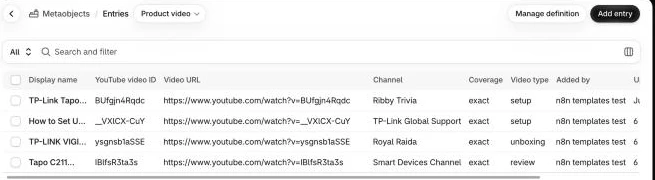
{{ JSON.stringify({ channel: $json.card_channel, thread_ts: $json.card_ts, text: 'Couldn\'t add it: ' + $json.error }) }}Check: With dry_run on, approve a card and open What would be added. Then turn dry_run off and run Publish now. In testing, the VIGI C440 got two entries (TP-Link’s setup video first, the unboxing second), its Videos field in Shopify admin listed both, the entries appeared under Content > Metaobjects > Product video, and the card’s thread got its reply.
Step 9: Show the videos below the product details
Shopify stores the videos; your theme decides where they show. Stock Horizon doesn’t have a block that lists metaobjects from a product field, but every free Shopify theme has a Custom Liquid section, which takes Liquid, HTML, CSS and a little JavaScript without editing any theme files.
In Shopify admin, open Online Store > Themes > Customize, switch the page selector at the top to Products > Default product, click Add section below the product information, choose Custom Liquid, and paste this into its Liquid box:
{%- assign videos = product.metafields.custom.videos.value -%}
{%- if videos != blank -%}
  <div class="product-videos">
    <h2 class="product-videos__heading h3">Videos</h2>
    <div class="product-videos__grid">
      {%- for video in videos -%}
        {%- assign id = video.video_id.value -%}
        <figure class="product-videos__item">
          <button type="button" class="product-videos__play" data-video-id="{{ id | escape }}" aria-label="Play {{ video.title.value | escape }}">
            <img src="https://i.ytimg.com/vi/{{ id | escape }}/hqdefault.jpg" alt="" width="480" height="360" loading="lazy">
            <span class="product-videos__icon" aria-hidden="true"><svg viewBox="0 0 24 24"><path d="M8 5v14l11-7z" fill="currentColor"/></svg></span>
          </button>
          <figcaption>
            <a href="{{ video.url.value | escape }}" target="_blank" rel="noopener">{{ video.title.value | escape }}</a>
            <span>By {{ video.channel_name.value | escape }}{% case video.coverage.value %}{% when 'comparison' %} · Comparison{% when 'mention' %} · Brief mention{% endcase %}</span>
          </figcaption>
        </figure>
      {%- endfor -%}
    </div>
  </div>
  <style>
    .product-videos__heading { margin: 0 0 1.25rem; }
    .product-videos__grid { display: grid; grid-template-columns: repeat(auto-fill, minmax(18rem, 1fr)); gap: 1.75rem; }
    .product-videos__item { margin: 0; }
    .product-videos__play, .product-videos__item iframe { position: relative; display: block; width: 100%; aspect-ratio: 16 / 9; padding: 0; border: 0; border-radius: 0.75rem; overflow: hidden; background: #111; cursor: pointer; }
    .product-videos__play img { width: 100%; height: 100%; object-fit: cover; }
    .product-videos__icon { position: absolute; inset: 0; margin: auto; display: grid; place-items: center; width: 4rem; height: 4rem; border-radius: 50%; background: rgb(0 0 0 / 70%); color: #fff; }
    .product-videos__icon svg { width: 1.75rem; height: 1.75rem; margin-left: 0.2rem; }
    .product-videos__play:hover .product-videos__icon, .product-videos__play:focus-visible .product-videos__icon { background: #000; }
    .product-videos__item figcaption { display: grid; gap: 0.25rem; margin-top: 0.75rem; }
    .product-videos__item figcaption a { font-weight: 600; color: inherit; }
    .product-videos__item figcaption span { opacity: 0.7; font-size: 0.9em; }
  </style>
  <script>
    document.querySelectorAll('.product-videos__play').forEach(function (button) {
      button.addEventListener('click', function () {
        var id = button.dataset.videoId;
        if (!/^[A-Za-z0-9_-]{11}$/.test(id)) return;
        var player = document.createElement('iframe');
        player.src = 'https://www.youtube-nocookie.com/embed/' + id + '?autoplay=1&playsinline=1';
        player.title = button.getAttribute('aria-label');
        player.allow = 'autoplay; encrypted-media; picture-in-picture; fullscreen';
        player.allowFullscreen = true;
        button.replaceWith(player);
        player.focus();
      }, { once: true });
    });
  </script>
{%- endif -%}
The section prints nothing on products without videos, so it’s safe on every product page. Each video shows its YouTube thumbnail with a play button, its title linked to YouTube, and the channel’s name, plus “Comparison” or “Brief mention” when that’s what the reviewer chose. Because the button only swaps in a youtube-nocookie.com player when a shopper presses it, the page doesn’t load YouTube’s player, scripts or cookies up front, which is what keeps a product page with three videos as fast as one with none. If you changed videos_namespace or videos_key, change the first line to match.
Check: Open a product with approved videos. The gallery still shows only your photos, and a Videos section sits below the product details.
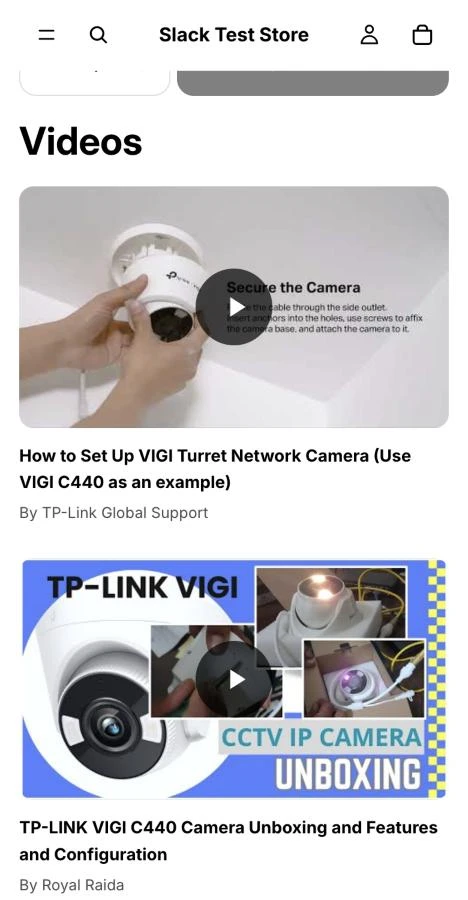
Step 10: Remove videos that disappear
Creators delete old uploads, make channels private, or turn off embedding months after you’ve approved a video, and a “Video unavailable” box on a product page makes the store look abandoned. The Check lane runs on the first of every month, asks YouTube about every live video in batches of 50 (1 quota unit per batch), takes any that are gone off the product’s Videos list, deletes their entries and posts one summary. If the YouTube call itself fails, What changed? skips that batch rather than mistaking an outage for deleted videos.
Start the Check lane with a Schedule Trigger node named First of the month (Trigger interval: Months, Trigger at day of month: 1, Trigger at hour: 6) and a Manual Trigger node named Check now, both connected to an Edit Fields (Set) node named Check settings (only these fields):
| Setting | Value |
|---|---|
| store_domain (string) | your-store.myshopify.com |
| log_channel (string) | #log-videos |
| research_after_days (number) | 0 |
| find_tag (string) | find-videos |
| videos_namespace (string) | custom |
| videos_key (string) | videos |
Connect Check settings to an HTTP Request node named Get Shopify token for Check, and from it branch to a Data table node named Get live videos (Condition: status eq live, Return all: on) and an If node named Search again?. Connect Get live videos to a Code node named Batch the ids:
const rows = $input.all().map(i => i.json).filter(r => r.video_id);
const out = [];
for (let i = 0; i < rows.length; i += 50) out.push({ json: { rows: rows.slice(i, i + 50), ids: rows.slice(i, i + 50).map(r => r.video_id).join(',') } });
return out;
Connect it to an HTTP Request node named Check the live videos (Method: GET, URL: https://www.googleapis.com/youtube/v3/videos, Authentication: httpQueryAuth, Send Query Parameters: {{ JSON.stringify({ part: 'snippet,status', id: $json.ids, maxResults: 50 }) }}, Include Response Headers and Status: on, Never Error: on), then a Code node named What changed?:
// A video YouTube no longer returns was deleted or made private. A failed call is skipped, never read as "gone".
const gone = [];
$input.all().forEach((it, i) => {
  const b = $('Batch the ids').itemMatching(i).json, r = it.json;
  if (Number(r.statusCode) >= 400 || r.body?.error) return;
  const now = Object.fromEntries((r.body?.items || []).map(v => [v.id, v]));
  for (const row of b.rows) {
    const v = now[row.video_id];
    const reason = !v ? 'deleted or made private' : !v.status?.embeddable ? 'embedding turned off' : v.snippet?.channelId !== row.channel_id ? 'moved to another channel' : '';
    if (reason) gone.push({ json: { ...row, reason } });
  }
});
return gone;
Connect What changed? to a Data table node named Mark removed (matching id eq {{ $json.id }}, setting status: removed, checked_at: {{ $now.toISO() }}, error: {{ $json.reason }}), then a Data table node named Still live (Condition: status eq live, Return all: on, executeOnce: True, alwaysOutputData: True) and a Code node named New video lists that rebuilds each affected product’s list in the same order Publish uses:
// One item per product that lost a video: the live videos it still has, in the same order Publish uses.
const gone = $('What changed?').all().map(i => i.json);
const live = $input.all().map(i => i.json).filter(r => r.id && r.metaobject_id);
const order = (a, b) => (b.is_manufacturer === true) - (a.is_manufacturer === true) || String(a.decided_at).localeCompare(String(b.decided_at));
return [...new Set(gone.map(r => r.product_id))].map(product_id => ({ json: { product_id,
  ids: live.filter(r => r.product_id === product_id).sort(order).map(r => r.metaobject_id) } }));
Connect it to an HTTP Request node named Update the list. It sets the shorter list, or deletes the field when no videos are left, in one request:
{{ JSON.stringify({ query: "mutation List($set: [MetafieldsSetInput!]!, $clear: [MetafieldIdentifierInput!]!, $hasVideos: Boolean!) {\n metafieldsSet(metafields: $set) @include(if: $hasVideos) { userErrors { message } }\n metafieldsDelete(metafields: $clear) @skip(if: $hasVideos) { userErrors { message } }\n}", variables: ((s => ({ hasVideos: $json.ids.length > 0, set: [{ ownerId: $json.product_id, namespace: s.videos_namespace, key: s.videos_key, type: 'list.metaobject_reference', value: JSON.stringify($json.ids) }], clear: [{ ownerId: $json.product_id, namespace: s.videos_namespace, key: s.videos_key }] }))($('Check settings').first().json)) }) }}Then delete the removed entries with a Code node named Entries to delete and an HTTP Request node named Delete the entry (metaobjectDelete):
return $('What changed?').all().filter(i => i.json.metaobject_id).map(i => ({ json: { id: i.json.metaobject_id } }));{{ JSON.stringify({ query: "mutation Delete($id: ID!) {\n metaobjectDelete(id: $id) { deletedId userErrors { message } }\n}", variables: ({ id: $json.id }) }) }}Finish with a Code node named Sum up (executeOnce: True) and an HTTP Request node named Post the summary (chat.postMessage to log_channel, onError: continueRegularOutput):
const rows = $('What changed?').all().map(i => i.json);
const lines = rows.slice(0, 20).map(r => `• ${r.product_title}: "${r.title}" (${r.reason})`);
return [{ json: { text: `Removed ${rows.length} video${rows.length === 1 ? '' : 's'} YouTube no longer shows:\n` + lines.join('\n') + (rows.length > 20 ? `\n…and ${rows.length - 20} more.` : '') } }];
On the second branch, Search again? checks {{ $('Check settings').first().json.research_after_days > 0 }}. When you set research_after_days (say 90), its True output goes to a Data table node named Get the runs (Data table: video_runs, Return all: on), a Code node named Due again that finds products whose latest search kept nothing and is older than that, and an HTTP Request node named Tag it again that adds the find-videos tag back:
// Products whose last search is older than research_after_days and kept nothing get the tag back.
const days = $('Check settings').first().json.research_after_days, cutoff = Date.now() - days * 864e5;
const last = {};
for (const r of $input.all().map(i => i.json)) if (r.product_id && (!last[r.product_id] || r.ran_at > last[r.product_id].ran_at)) last[r.product_id] = r;
return Object.values(last).filter(r => Number(r.kept) === 0 && new Date(r.ran_at).getTime() < cutoff).map(r => ({ json: { product_id: r.product_id } }));
{{ JSON.stringify({ query: "mutation Tag($id: ID!, $tags: [String!]!) {\n tagsAdd(id: $id, tags: $tags) { userErrors { message } }\n}", variables: ({ id: $json.product_id, tags: [$('Check settings').first().json.find_tag] }) }) }}Check: In testing, two live rows pointing at deleted YouTube IDs were marked removed. One product kept its other video and its list was rewritten without the dead one; the other had none left, so its Videos field was deleted. The summary read Removed 2 videos YouTube no longer shows: followed by one line per video.
What it costs
YouTube’s free daily quota is the constraint here rather than money: Google gives you 100 search.list calls a day for free, and each product uses one search per listed brand channel plus one open search. With one channel per brand, you can search 50 products a day at US$0 (all prices checked November 2026).
| Item | 500 products | 2,000 | 10,000 |
|---|---|---|---|
| YouTube Data API | Free (about 10 days for a first pass) | Free (about 40 days) | Free (about 200 days, or ask for more quota) |
| n8n self-hosted | Free | Free | Free |
| n8n Cloud | Starter, €20 a month | Starter | Starter |
| Shopify Admin API | Free | Free | Free |
| Slack | Free plan works | Free | Free |
| DataForSEO (optional) | about US$1 | about US$4 | about US$20 |
| AI model | None | None | None |
On n8n Cloud, running Find hourly uses about 720 executions a month and the hourly Publish backstop uses another 720, Check runs once a month, each Slack click is one execution, and sub-workflow executions don’t count towards your plan’s monthly execution limits. That totals roughly 1,450 executions a month plus clicks, comfortably inside Starter’s 2,500 monthly runs (€20/month billed annually; Pro is €50/month for 10,000 runs, and self-hosted Community Edition is free). To stretch your quota or lower runs, list fewer channels per brand, reduce Find and the Publish backstop to daily once your initial backlog is cleared, apply for a free YouTube quota extension, and only enable DataForSEO for brands YouTube’s search misses.
Common mistakes
Matching the family instead of the model
A substring check for C440 will match C440-W (the wireless model), C4400, and C440.2, putting the wrong hardware specification on the product page. Always enforce whole-token boundaries ((?![a-z0-9]|-[a-z0-9]|\.\d)) and only strip colour suffixes like BK or WH, never single letters like W.
Trusting the video description on its own
Distributors and affiliate channels routinely paste a laundry list of 30 related model numbers into the bottom of every video description. Keep description-only matches marked uncertain (Not sure yet) so a human reviewer has to watch the video and pick a coverage option before approving.
Filling the product gallery with other people’s videos
The gallery is where shoppers look at your product, and Shopify uses its first item as the thumbnail on collection pages and in feeds. A run of YouTube thumbnails from unboxing channels there looks like a review site, which is why this build keeps videos in their own section below the details.
Loading every YouTube player with the page
An embedded YouTube player pulls in its own scripts and cookies before anyone presses play, and three of them slow a product page down. Show a thumbnail and swap in the player on click, as the section in Step 9 does.
Adding videos and never checking them again
Channels get closed and old product videos get set to private. Run the monthly Check lane so dead videos come off your product pages before customers spot them.
Offering rejected videos again
If you delete rejected rows from video_candidates, the next search pass will offer the exact same bad video to Slack. Leave rejected rows in the table with status = rejected so Known videos suppresses them permanently.
Listing only one channel for a global brand
Manufacturers frequently split tutorials across support and regional channels (@tpsupport and @TPLinkANZ for TP-Link). Add a row in Setup settings for each official channel your brands use.
Reading robots.txt wildcards as plain prefixes
If you turn on the manufacturer page source, match robots.txt rules the way RFC 9309 describes, with * as a wildcard and $ as the end of the path. Read as a plain prefix, a rule like Disallow: /*addFeedback.html on tp-link.com becomes Disallow: / and blocks every product page.
Make it your own
Putting the manufacturer’s own videos in the gallery
Some stores want the manufacturer’s setup video next to the photos and independent videos further down. Shopify’s own route for that is Add from URL in the product’s media, which takes a YouTube or Vimeo link; Shopify’s product media help says the video must be public or unlisted and that Shorts URLs aren’t supported. In n8n that’s productUpdate with a media entry of mediaContentType: EXTERNAL_VIDEO and the watch?v= URL, then productReorderMedia to keep your main photo first. Branch on is_manufacturer in Publish to send only those videos there.
Supporting Vimeo-only brands
Some boutique brands host their product films only on Vimeo. Add an HTTP Request node that searches Vimeo’s API by model number, run the results through the same checks and Slack cards, and add a Vimeo branch to the section’s player (Vimeo’s embed URL is https://player.vimeo.com/video/<id>).
Using another ecommerce platform
The YouTube searches, the checks in Check the videos and the Slack review don’t depend on Shopify. Swap the nodes that talk to Shopify (Get products, Remove the tag, Save the video, Attach the videos, Update the list and Delete the entry) and the theme section for your platform’s API, and keep the rest of the workflow as it is.
FAQ
Is it allowed to put someone else’s YouTube video on my product page?
Yes, when you embed the video using YouTube’s standard player rather than downloading and re-uploading the file. YouTube gives every creator an “Allow embedding” toggle in YouTube Studio, and this workflow checks status.embeddable before offering a video, before publishing it, and every month afterwards so any video whose creator turns off embedding is automatically removed.
Does a video on my product page help SEO?
Adding a video to a product page primarily helps convert shoppers already on the page rather than driving traffic from Google Video search. As Google’s video SEO documentation states, main video search features require a dedicated watch page where a single video is the main purpose of the page (and Google explicitly lists a product page with a product video as a non-watch page), though your product page can still earn a video badge in standard text and Google Image results.
Why search by model number and not the product title?
Ecommerce product titles include brand styling, specs, and SEO keywords like “TP-Link VIGI C440 4MP Full-Colour Turret Network Camera” that independent reviewers never type into their video titles. Searching by the exact model number (VIGI C440) and verifying a whole-token match in the video title is what finds real tutorials and reviews while keeping out sibling models like the C440-W.
How many videos should a product have?
Aim for up to two or three distinct videos per product, such as one official setup tutorial and one independent review or unboxing. max_videos_per_product: 3 keeps the Videos section quick to scan on a phone and stops three near-identical unboxings crowding out the one setup video a shopper needs.
Can I generate videos with AI instead?
AI video generators solve a different problem: animating static studio photos into short motion clips, which n8n’s template library already covers. An AI-generated pan across a product photo can’t show a shopper how the mobile app pairs or what night-vision footage actually looks like, which is why this workflow only searches for real videos of the physical product.
Next steps
Tag ten products find-videos in Shopify admin, click Run now in the Find lane, and approve your first cards in Slack while dry_run is still on in Publish settings. Once the output of What would be added looks right, set dry_run to false, add the Videos section from Step 9 to your product template, and let the hourly schedule work through your catalogue.