How to Create Shopify Combined Listings Without Plus (+ Free n8n Template)

Last tested on n8n 2.46, November 2026.
Products that come in several lengths, colours or capacities often perform better as separate products, because each version gets its own URL, title, images and stock status. Shopify combined listings solve the navigation problem between those pages, but Shopify’s Combined Listings app is restricted to Plus and enterprise plans, while third-party apps charge a monthly fee based on how many groups you run and still rely on someone assembling those groups.
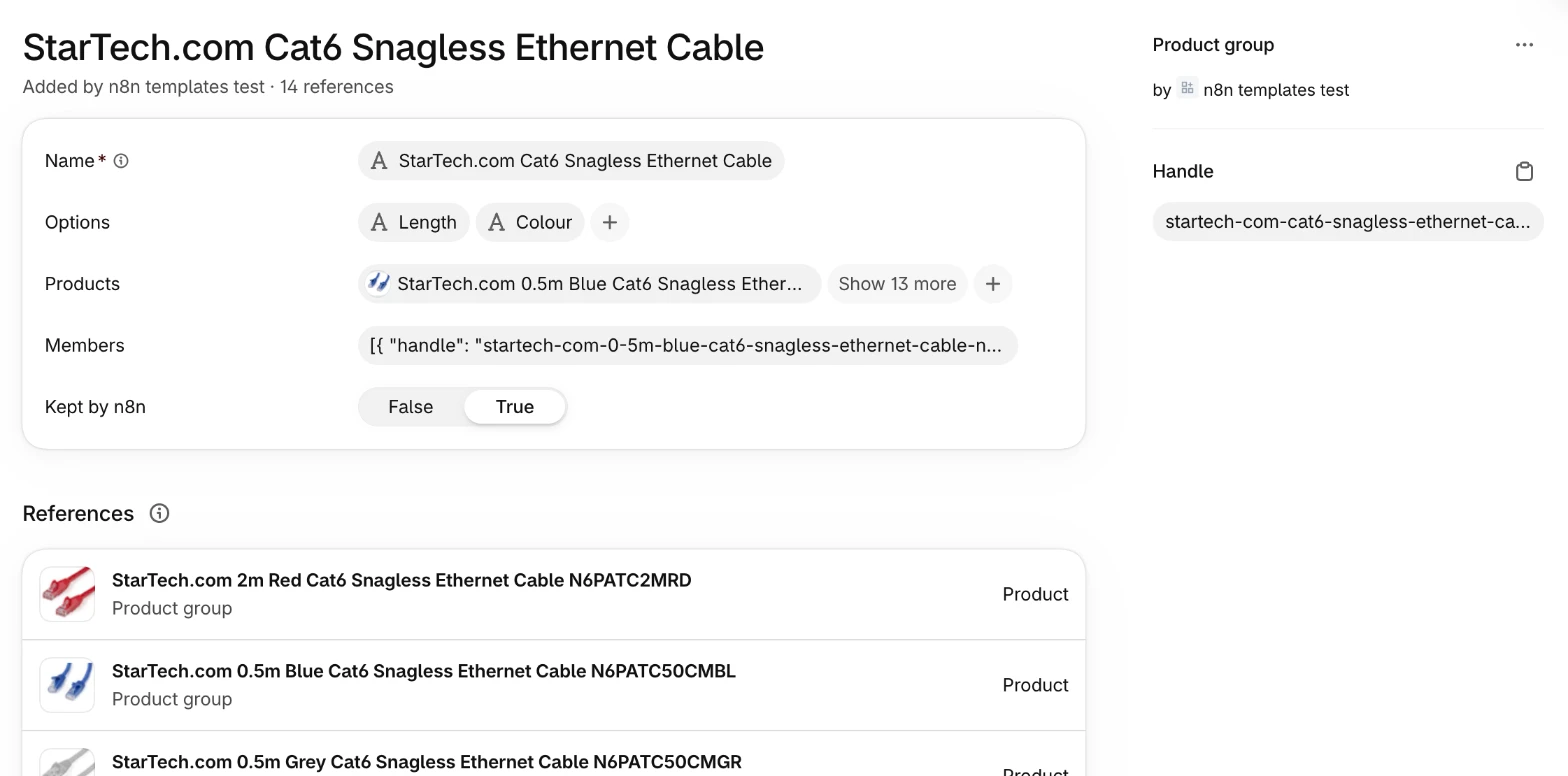
You can get the same storefront result on any Shopify plan using a single metaobject definition and two Custom Liquid blocks in your theme. Below, you will set that up by hand on a stock Horizon theme, and then optionally add a free n8n workflow that finds product families across your catalogue and keeps their links, swatches and stock status updated every hour.
Variants, Shopify combined listings or product groups
Choosing how to structure a product family comes down to whether each version needs its own search landing page and gallery, and what plan your store runs on.
Standard Shopify variants are the right fit when every version shares the same page, title and description, such as a t-shirt sold in five sizes. Because every variant lives on one product record, they share a single URL (with ?variant= appended), you are capped at three options, each variant can only link to one image in the gallery, and you cannot write a separate SEO title or meta description for a specific colour or length.
Shopify’s Combined Listings app lets you group separate products under a parent product on Plus and enterprise plans (starting from $2,300 USD/mo, checked November 2026). The parent product has its own title, description, URL and gallery, and holds up to 60 child products and 3 options (with up to 2,048 variants across the children). Child products are excluded from Search & Discovery filter results, and your store needs a free Shopify theme on version 15.0.0 or later, or custom theme development, to render the combined picker.
Product groups give you the same storefront behaviour on any Shopify plan without creating a parent product. Each item remains a normal standalone product with its own URL, title, gallery and inventory, and a product_group metaobject connects the siblings so a Custom Liquid block can render a picker between them. Third-party combined listings apps like LinkedOption and FD Combined Listings work on this same principle and save you pasting the theme blocks, though someone still has to create and maintain the groups as your catalogue changes, which is the part the n8n template automates.
| Feature | Variants | Combined Listings (Shopify app) | Product groups (this guide) |
|---|---|---|---|
| Shopify plan | Any plan | Plus and enterprise only (from $2,300 USD/mo, checked November 2026) | Any plan |
| Own URL and SEO title | No (shared URL with ?variant=) | Parent has its own URL; children have URLs but are hidden from filters | Yes, every product keeps its own URL, title and meta description |
| Own images | One image per variant | Full gallery per child product | Full gallery per product |
| Option limit | 3 options | 3 added options on the combined listing | No fixed limit (as many as the group’s group_options list holds) |
| Members per group | Up to 2,048 variants | Up to 60 child products | Up to 50 by hand in Liquid, or no 50 cap when written by n8n into members_json |
| Who keeps it current | Manual in admin or product import | Manual in the Combined Listings app | Manual in admin, or automated hourly by the n8n template |
How a product group works
Instead of linking products directly to each other with a product-to-product list field, every member points at a single product_group metaobject entry and stores its own option values (such as 2m and Blue) in a JSON metafield. That makes the group entry the single source of truth for the family’s name, option order and member list, whereas a product-to-product list forces you to edit every existing sibling whenever one new colour or length arrives. Because the picker and collection card dots render plain <a href> links between members, they also create crawlable ecommerce internal linking across every version in the family without relying on JavaScript.
Set up product groups on Shopify by hand
You can build the complete storefront setup in the Shopify admin and theme editor on a stock Horizon 4.4 theme without editing any theme code files. If your store only has a handful of product families, you can stop at the end of Step 5 and manage your groups directly in the admin. Work on a duplicate of your live theme so you can test the picker in preview before publishing.
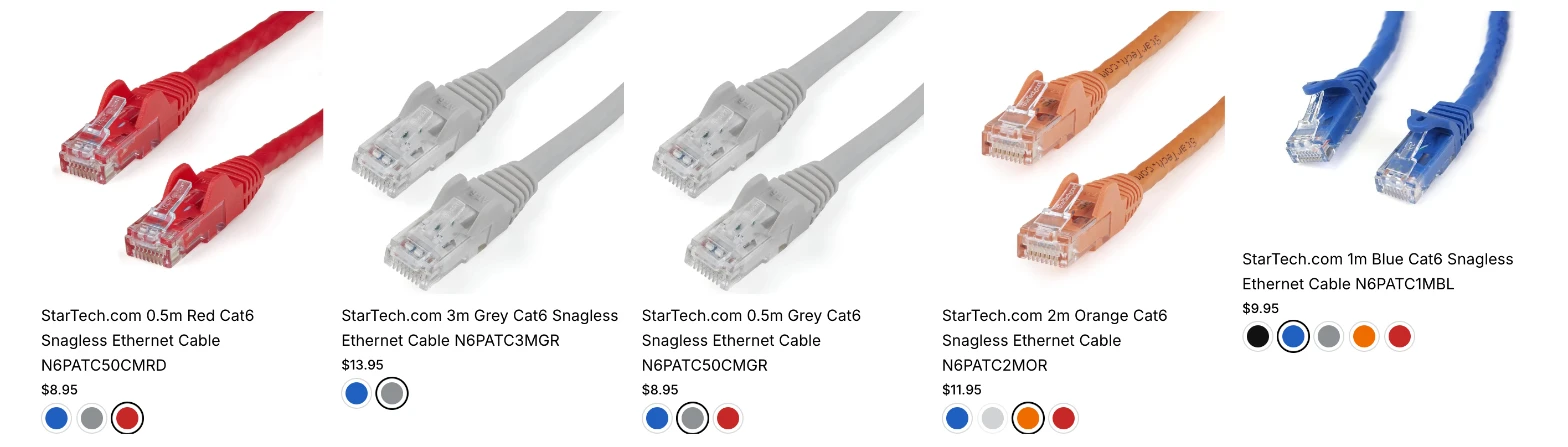
Throughout the steps below, we will use a store on stock Horizon 4.4 selling StarTech.com Cat6 snagless patch leads as separate products, with manufacturer model codes in the titles such as “StarTech.com 2m Blue Cat6 Snagless Ethernet Cable N6PATC2MBL” (SKU N6PATC2MBL) and “StarTech.com 0.5m Grey Cat6 Snagless Ethernet Cable N6PATC50CMGR”. The range covers four lengths (0.5m, 1m, 2m, 3m) and four colours (Blue, Grey, Red, Orange), with a few gaps: there is no 0.5m Orange and no 3m Red, and the 2m Grey is currently sold out. Each cable is in the Electronics > Electronics Accessories > Cables > Network Cables category with its standard product attributes set for Color (Blue, Grey, Red, Orange).
Step 1: Create the product group metaobject
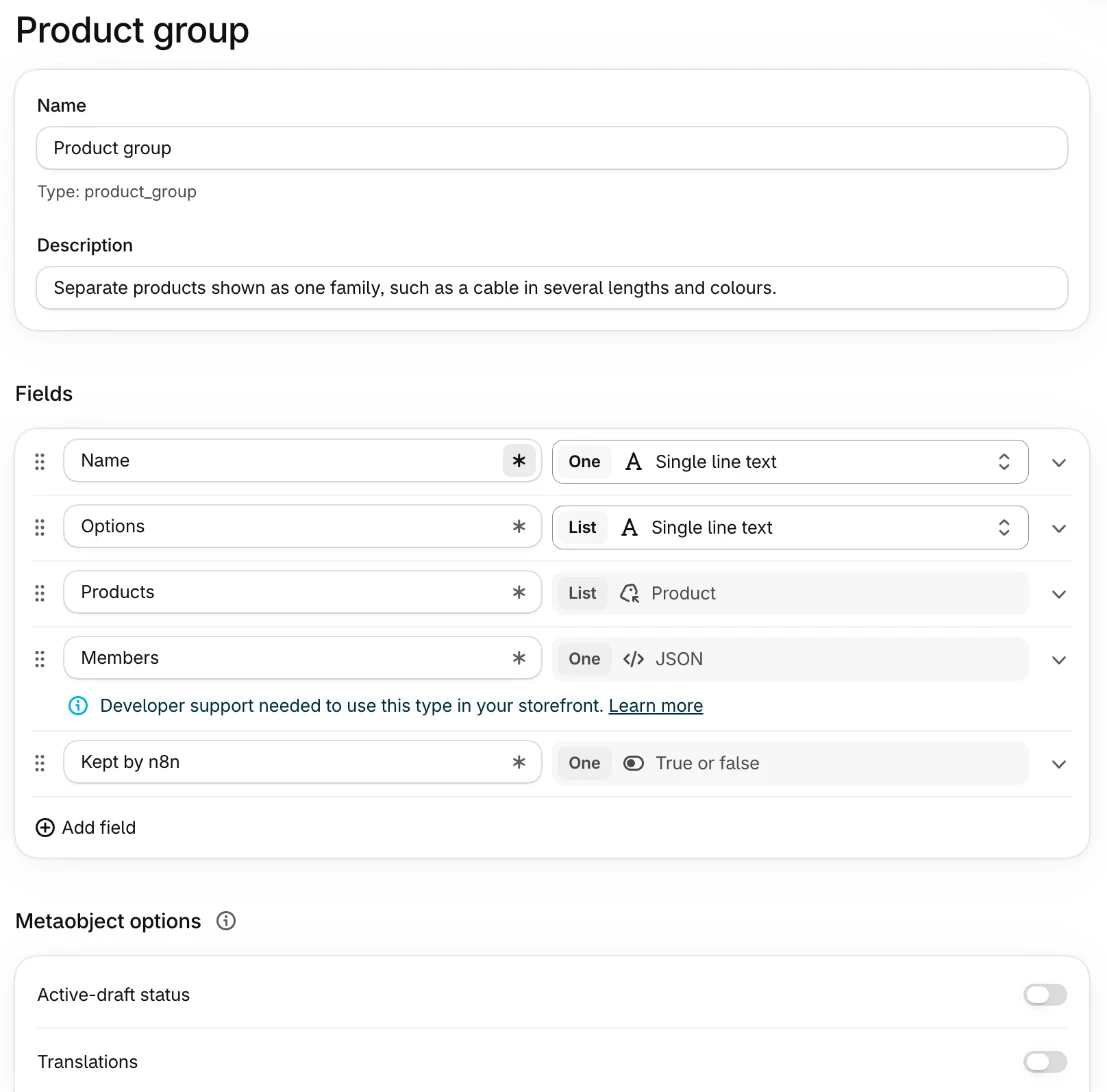
In your Shopify admin, go to Settings > Metafields and metaobjects > Metaobjects > Add definition. Name the definition Product group so Shopify sets the type key to product_group, and add five fields using these exact keys so the Liquid snippets and the n8n workflow can read them:
| Field name | Key | Type | What it holds |
|---|---|---|---|
| Name | name | Single line text (one value), required | The family’s name, such as “StarTech.com Cat6 Snagless Ethernet Cable” |
| Options | group_options | Single line text (list) | The options in row order: Length, then Colour |
| Products | products | Product (list) | The members in value order. Liquid loads at most 50 from a list field |
| Members | members_json | JSON | Every member with its values, stock and swatch colour. Written by the template; leave it empty by hand |
| Kept by n8n | managed | True or false | On for groups the template made. The template never changes or deletes a group with this off |
Make sure Storefronts access is turned on so Liquid can read the entries, and leave Active-draft status turned off. When Active-draft status is on, new metaobjects in the admin default to Draft and Liquid reads a draft entry as empty, which makes the picker print nothing on the page. You will see a note saying “Developer support needed to use this type in your storefront” under the JSON field, which is expected because the Custom Liquid block in Step 4 is what reads members_json.
The Kept by n8n (managed) boolean protects any groups you put together yourself: the n8n template later in this guide only updates or deletes groups where managed is true. If you plan to use the n8n template, its Setup lane creates this exact definition automatically, and if you create it by hand first with these keys, Setup will detect and use yours.
Step 2: Add two product fields
Next, go to Settings > Metafields and metaobjects > Products > Add definition and create two product metafields. Pin both definitions so they sit at the top of the product page in the admin:
| Name | Namespace and key | Type |
|---|---|---|
| Product group | custom.product_group | Metaobject, Product group (one) |
| Option values | custom.option_values | JSON |
The Option values field stores a JSON object mapping each option name from the group’s group_options list to this specific product’s value, such as {"Length": "2m", "Colour": "Blue"}. Because Liquid matches these keys character for character, the spelling and spacing must match your group’s Options list (Colour and Color are treated as different keys, and 2m will not match 2 m).
Step 3: Make a group by hand
To assemble a group in the admin, go to Content > Metaobjects > Product group > Add entry. Set Name to StarTech.com Cat6 Snagless Ethernet Cable, add Length and then Colour to Options, and select the patch lead products in Products in the order you want their values to appear (shortest length first). Leave Members (members_json) empty and leave Kept by n8n (managed) switched off, then save the entry.
Open each product in the family, scroll to the pinned metafields, set Product group to StarTech.com Cat6 Snagless Ethernet Cable, and paste its JSON into Option values (for the 2m Blue cable, { "Length": "2m", "Colour": "Blue" }).

Doing this by hand works well when your store only has a few product families, such as a Ubiquiti UniFi Protect AI Pro camera sold in white and black. Once you have dozens of series or regular supplier drops, setting two fields on every new product gets tedious, and because a hand-made group relies on the products list field, Shopify’s metaobject limits cap what Liquid loads without pagination at 50 products. The n8n template below removes both limits by writing members_json and keeping stock flags fresh automatically.
Step 4: Add the series picker to the product page
In the Shopify theme editor (working on a duplicate of your theme), open the Default product template, go to Product information > Details > Add block > Custom Liquid, and drag the new block above Buy buttons so it sits between Variant picker and Buy buttons (Horizon’s built-in Variant picker renders nothing when a product has only one default variant).
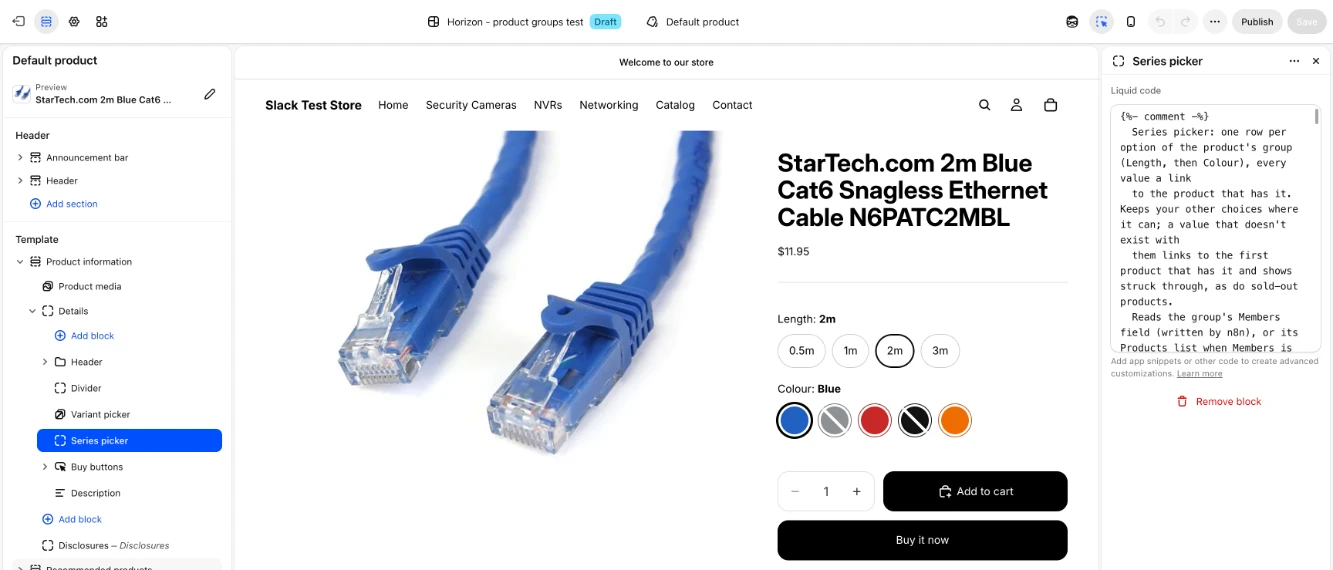
Paste this Liquid snippet into the Custom Liquid block:
{%- comment -%}
  Series picker: one row per option of the product's group (Length, then Colour), every value a link
  to the product that has it. Keeps your other choices where it can; a value that doesn't exist with
  them links to the first product that has it and shows struck through, as do sold-out products.
  Reads the group's Members field (written by n8n), or its Products list when Members is empty.
  Paste into a Custom Liquid block in the product template's Product information, above the buy buttons.
{%- endcomment -%}
{%- liquid
  assign colour_option = 'Colour'
  assign colour_map = 'black:#111111,white:#ffffff,grey:#8c9196,silver:#c0c0c0,blue:#1f5fbf,navy:#1b2a4a,red:#c62828,green:#2e7d32,yellow:#f9d71c,orange:#ef6c00,purple:#6a1b9a,pink:#e91e63,beige:#d8c3a5,brown:#6d4c41,gold:#c9a227' | split: ','
  assign p = closest.product | default: product
  assign group = p.metafields.custom.product_group.value
  assign current = p.metafields.custom.option_values.value
  if group
    assign options = group.group_options.value
    assign rows = group.members_json.value
    assign list = group.products.value
    if rows != blank
      assign count = rows.size
    else
      assign count = list.size
    endif
  endif
  assign root = routes.root_url | remove_last: '/'
-%}
{%- if group and count > 1 and current != blank -%}
<div class="series-picker">
  {%- for opt in options -%}
    {%- assign is_colour = false -%}
    {%- if opt == colour_option -%}{%- assign is_colour = true -%}{%- endif -%}
    <div class="series-picker__row" role="group" aria-label="{{ opt | escape }}">
      <p class="series-picker__label">{{ opt }}: <strong>{{ current[opt] }}</strong></p>
      <div class="series-picker__values">
      {%- assign done = '|' -%}
      {%- for i in (1..count) -%}
        {%- assign k = forloop.index0 -%}
        {%- if rows != blank -%}{%- assign value = rows[k].values[opt] -%}{%- else -%}{%- assign value = list[k].metafields.custom.option_values.value[opt] -%}{%- endif -%}
        {%- assign tag = '|' | append: value | append: '|' -%}
        {%- if value == blank or done contains tag -%}{%- continue -%}{%- endif -%}
        {%- assign done = done | append: value | append: '|' -%}
        {%- comment -%} The best product for this value: one that keeps the other choices, else the first with it. {%- endcomment -%}
        {%- assign target = '' -%}{%- assign exact = false -%}{%- assign available = false -%}{%- assign swatch = '' -%}
        {%- for j in (1..count) -%}
          {%- assign n = forloop.index0 -%}
          {%- if rows != blank -%}
            {%- assign vals = rows[n].values -%}{%- assign h = rows[n].handle -%}{%- assign a = rows[n].available -%}{%- assign s = rows[n].swatch -%}
          {%- else -%}
            {%- assign vals = list[n].metafields.custom.option_values.value -%}{%- assign h = list[n].handle -%}{%- assign a = list[n].available -%}
            {%- assign s = list[n].metafields.shopify['color-pattern'].value.first.color -%}
          {%- endif -%}
          {%- if vals[opt] != value -%}{%- continue -%}{%- endif -%}
          {%- if target == '' -%}{%- assign target = h -%}{%- assign available = a -%}{%- assign swatch = s -%}{%- endif -%}
          {%- assign keeps = true -%}
          {%- for other in options -%}
            {%- if other != opt and vals[other] != current[other] -%}{%- assign keeps = false -%}{%- endif -%}
          {%- endfor -%}
          {%- if keeps -%}{%- assign target = h -%}{%- assign available = a -%}{%- assign swatch = s -%}{%- assign exact = true -%}{%- break -%}{%- endif -%}
        {%- endfor -%}
        {%- if is_colour and swatch == blank -%}
          {%- assign key = value | downcase | append: ':' -%}
          {%- for pair in colour_map -%}{%- if pair contains key -%}{%- assign swatch = pair | remove: key -%}{%- endif -%}{%- endfor -%}
        {%- endif -%}
        {%- liquid
          assign classes = 'series-picker__value'
          if is_colour and swatch != blank
            assign classes = classes | append: ' series-picker__value--swatch'
          endif
          unless exact and available
            assign classes = classes | append: ' series-picker__value--struck'
          endunless
          assign note = ''
          unless exact
            assign note = 'not with your other choices'
          endunless
          if exact and available == false
            assign note = 'sold out'
          endif
        -%}
        <a href="{{ root }}/products/{{ target }}" class="{{ classes }}"
          {%- if value == current[opt] %} aria-current="true"{% endif %}
          {%- if is_colour and swatch != blank %} style="--swatch: {{ swatch }};" title="{{ value | escape }}{% if note != '' %} ({{ note }}){% endif %}"{% endif %}>
          {%- if is_colour and swatch != blank -%}<span class="visually-hidden">{{ value }}</span>{%- else -%}{{ value }}{%- endif -%}
          {%- if note != '' -%}<span class="visually-hidden"> ({{ note }})</span>{%- endif -%}
        </a>
      {%- endfor -%}
      </div>
    </div>
  {%- endfor -%}
</div>
<style>
  .series-picker { display: grid; gap: 1rem; margin: 0.5rem 0 1rem; }
  .series-picker__label { margin: 0 0 0.5rem; font-size: 0.875rem; }
  .series-picker__values { display: flex; flex-wrap: wrap; gap: 0.5rem; }
  .series-picker__value { display: inline-flex; align-items: center; justify-content: center; min-width: 44px; min-height: 44px;
    padding: 0 0.875rem; border: 1px solid rgb(var(--color-foreground-rgb, 0 0 0) / 0.2); border-radius: 999px;
    color: inherit; text-decoration: none; font-size: 0.875rem; }
  .series-picker__value:hover { border-color: currentColor; }
  .series-picker__value[aria-current] { border-color: currentColor; box-shadow: inset 0 0 0 1px currentColor; }
  .series-picker__value--swatch { width: 44px; padding: 0; background: var(--swatch);
    box-shadow: inset 0 0 0 3px rgb(var(--color-background-rgb, 255 255 255) / 1); }
  .series-picker__value--swatch[aria-current] { box-shadow: inset 0 0 0 3px rgb(var(--color-background-rgb, 255 255 255) / 1), 0 0 0 2px currentColor; }
  .series-picker__value--struck { opacity: 0.55; text-decoration: line-through; }
  .series-picker__value--swatch.series-picker__value--struck { opacity: 1;
    background: linear-gradient(to top right, transparent calc(50% - 2px), rgb(var(--color-background-rgb, 255 255 255) / 1) calc(50% - 2px),
      rgb(var(--color-background-rgb, 255 255 255) / 1) calc(50% + 2px), transparent calc(50% + 2px)), var(--swatch); }
</style>
{%- endif -%}
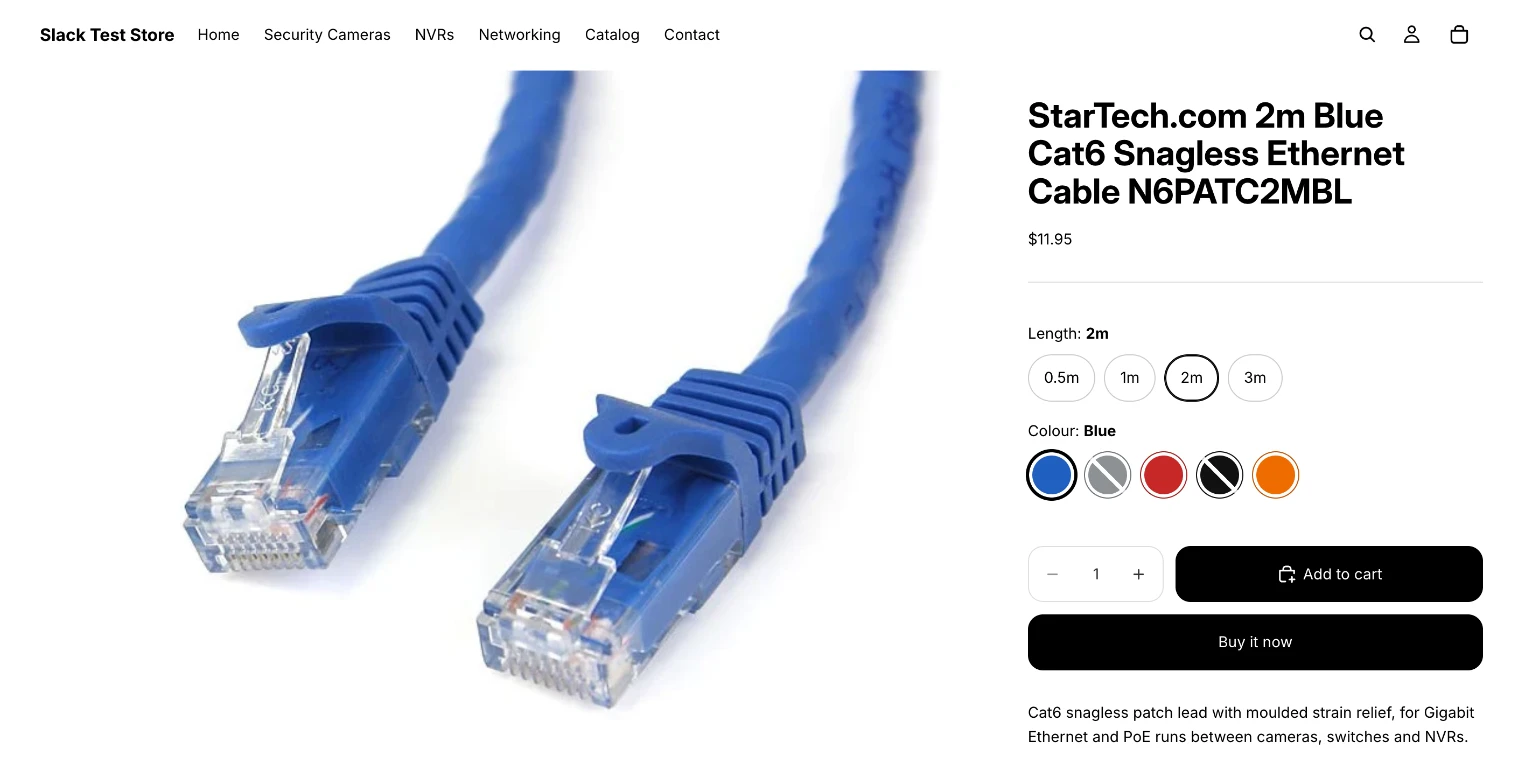
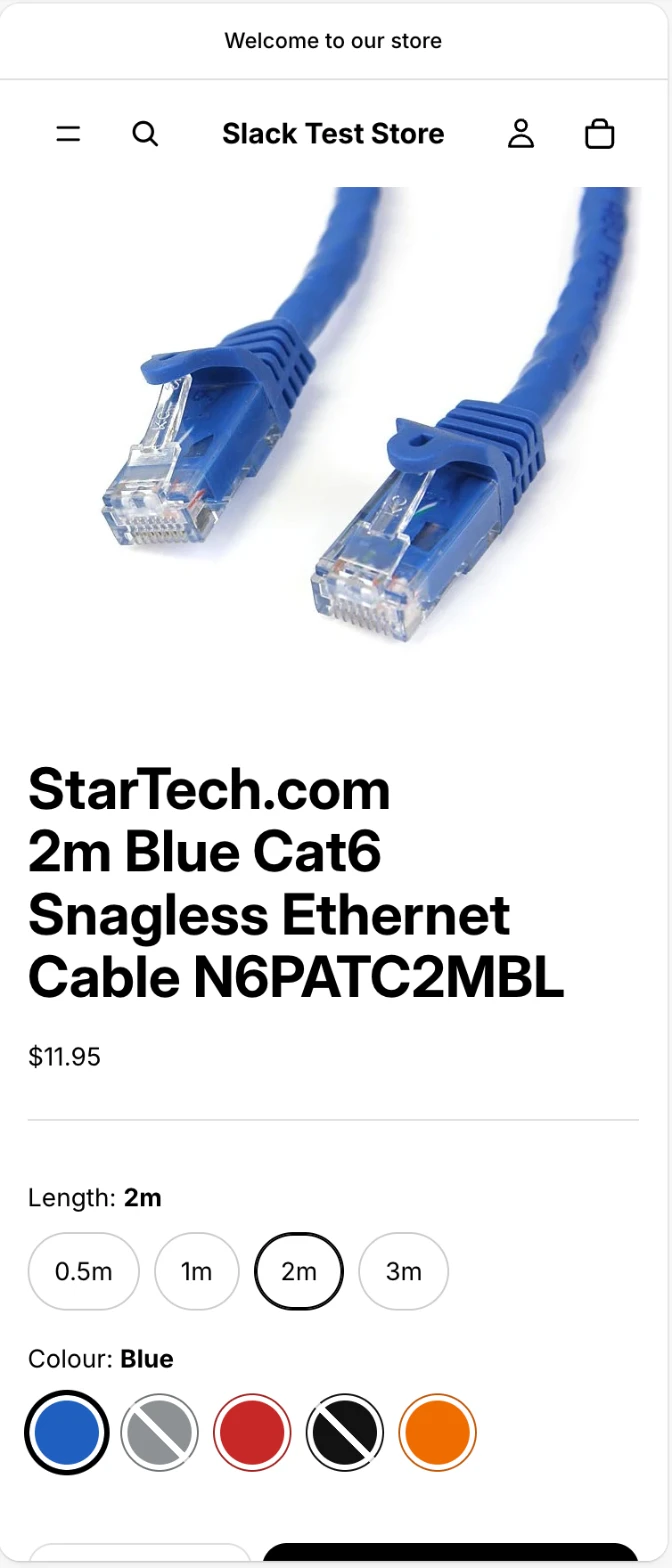
The snippet reads the product’s custom.product_group and custom.option_values fields and checks whether members_json is populated, falling back to the products list so groups created by hand in Step 3 work without n8n. For each option in group_options, it collects the distinct values in member order and looks for the member that matches that value while keeping the shopper’s other current choices (so on the 2m Blue page, clicking the Red swatch takes you to the 2m Red cable). When a combination does not exist, it links to the first product that has that value and crosses it out with a diagonal line or strikethrough (not with your other choices), and it applies the same struck-through styling when the target product is sold out.
For Shopify color swatches, the snippet pulls the hex colour from Shopify’s standard product attributes (shopify.color-pattern, the same source Horizon’s own variant swatches use), which n8n also copies into members_json. If a product has no Color attribute set, the snippet checks its built-in colour_map list and otherwise renders a text pill. Every option renders as a plain <a href> tag prefixed with routes.root_url (preserving international market subfolders like /en-us), because Google can only crawl links that are <a> elements with an href and plain links work immediately without JavaScript. If your store spells the option Color, change assign colour_option = 'Colour' on line 9 to 'Color'. The CSS inherits Horizon’s colour scheme variables and sizes every pill and swatch to at least 44px by 44px for mobile tap targets.
To check that it works, preview the StarTech.com 2m Blue Cat6 Snagless Ethernet Cable N6PATC2MBL product page on desktop and in the 375px mobile preview. You should see the Length row (0.5m, 1m, 2m, 3m) and the Colour row (Blue, Grey, Red, Black, Orange), with 2m and Blue ringed, Grey crossed out because the 2m Grey is sold out, and Black crossed out and linking to the 1m Black cable because Black only comes in 1m.
Step 5: Add colour dots to product cards
Shoppers scanning a collection or search grid should be able to see when a cable comes in other colours at that same length and jump straight to the colour they want. In the theme editor, open the Default collection template, expand the product grid’s Product card, click Add block > Custom Liquid, and place it at the bottom of the card. Repeat the same step on the Search template’s product card. Paste this snippet:
{%- comment -%}
  Colour dots on a product card: the other colours of the card's product that share its other
  options (a 2m card shows 2m colours), each a link. Up to 6, then "+n". Nothing with fewer than two.
  Paste into a Custom Liquid block at the end of the product card in the collection and search templates.
{%- endcomment -%}
{%- liquid
  assign colour_option = 'Colour'
  assign colour_map = 'black:#111111,white:#ffffff,grey:#8c9196,silver:#c0c0c0,blue:#1f5fbf,navy:#1b2a4a,red:#c62828,green:#2e7d32,yellow:#f9d71c,orange:#ef6c00,purple:#6a1b9a,pink:#e91e63,beige:#d8c3a5,brown:#6d4c41,gold:#c9a227' | split: ','
  assign p = closest.product
  assign group = p.metafields.custom.product_group.value
  assign current = p.metafields.custom.option_values.value
  assign rows = group.members_json.value
  assign root = routes.root_url | remove_last: '/'
-%}
{%- if rows != blank and current[colour_option] != blank -%}
  {%- capture dots -%}
    {%- assign shown = 0 -%}{%- assign more = 0 -%}
    {%- for m in rows -%}
      {%- assign keeps = true -%}
      {%- for other in group.group_options.value -%}
        {%- if other != colour_option and m.values[other] != current[other] -%}{%- assign keeps = false -%}{%- endif -%}
      {%- endfor -%}
      {%- unless keeps -%}{%- continue -%}{%- endunless -%}
      {%- if shown == 6 -%}{%- assign more = more | plus: 1 -%}{%- continue -%}{%- endif -%}
      {%- assign value = m.values[colour_option] -%}
      {%- assign swatch = m.swatch -%}
      {%- if swatch == blank -%}
        {%- assign key = value | downcase | append: ':' -%}
        {%- for pair in colour_map -%}{%- if pair contains key -%}{%- assign swatch = pair | remove: key -%}{%- endif -%}{%- endfor -%}
      {%- endif -%}
      <a href="{{ root }}/products/{{ m.handle }}" class="card-colours__dot{% unless m.available %} card-colours__dot--sold-out{% endunless %}"
        style="--swatch: {{ swatch | default: '#ffffff' }};" title="{{ value | escape }}"{% if m.handle == p.handle %} aria-current="true"{% endif %}>
        <span class="visually-hidden">{{ value }}{% unless m.available %} (sold out){% endunless %}</span></a>
      {%- assign shown = shown | plus: 1 -%}
    {%- endfor -%}
    {%- if more > 0 -%}<a href="{{ p.url }}" class="card-colours__more">+{{ more }}</a>{%- endif -%}
  {%- endcapture -%}
  {%- if shown > 1 -%}
    <div class="card-colours" aria-label="Colours">{{ dots }}</div>
    <style>
      .card-colours { position: relative; z-index: 2; display: flex; flex-wrap: wrap; align-items: center; gap: 4px; }
      .card-colours__dot { display: inline-block; width: 28px; height: 28px; border-radius: 50%; background: var(--swatch);
        background-clip: content-box; padding: 4px; box-shadow: inset 0 0 0 1px rgb(0 0 0 / 0.15); }
      .card-colours__dot[aria-current] { box-shadow: inset 0 0 0 1px rgb(0 0 0 / 0.15), 0 0 0 1px currentColor; }
      .card-colours__dot--sold-out { opacity: 0.4; }
      .card-colours__more { font-size: 0.8125rem; color: inherit; }
    </style>
  {%- endif -%}
{%- endif -%}
This block filters members_json to show only the Colour option and only siblings that share the card’s other option values, so a 2m cable card links only to the 2m colours and a 3m card shows only Blue and Grey (because there is no 3m Red, and the 3m Orange was retitled). It prints up to 6 color swatches and then a +n link to the product page, and prints nothing at all when a product has fewer than two colours (such as the 8ware patch leads that only come in Blue). Because Horizon’s product card link is an empty overlay stretched over the card container, setting position: relative; z-index: 2 lifts the .card-colours row above that overlay so each dot is clickable on its own. Unlike the product page picker, this snippet reads members_json only so that collection pages do not trigger extra product lookups on every card, which means it relies on the n8n template below (or a members_json value you paste yourself).
To check it, open a collection or search results page containing the StarTech.com series on desktop and mobile. Check that the cards stay aligned across every row, each dot opens its matching colour product page, and the 3m Grey card shows only the Blue and Grey dots.
How to automate product grouping with n8n
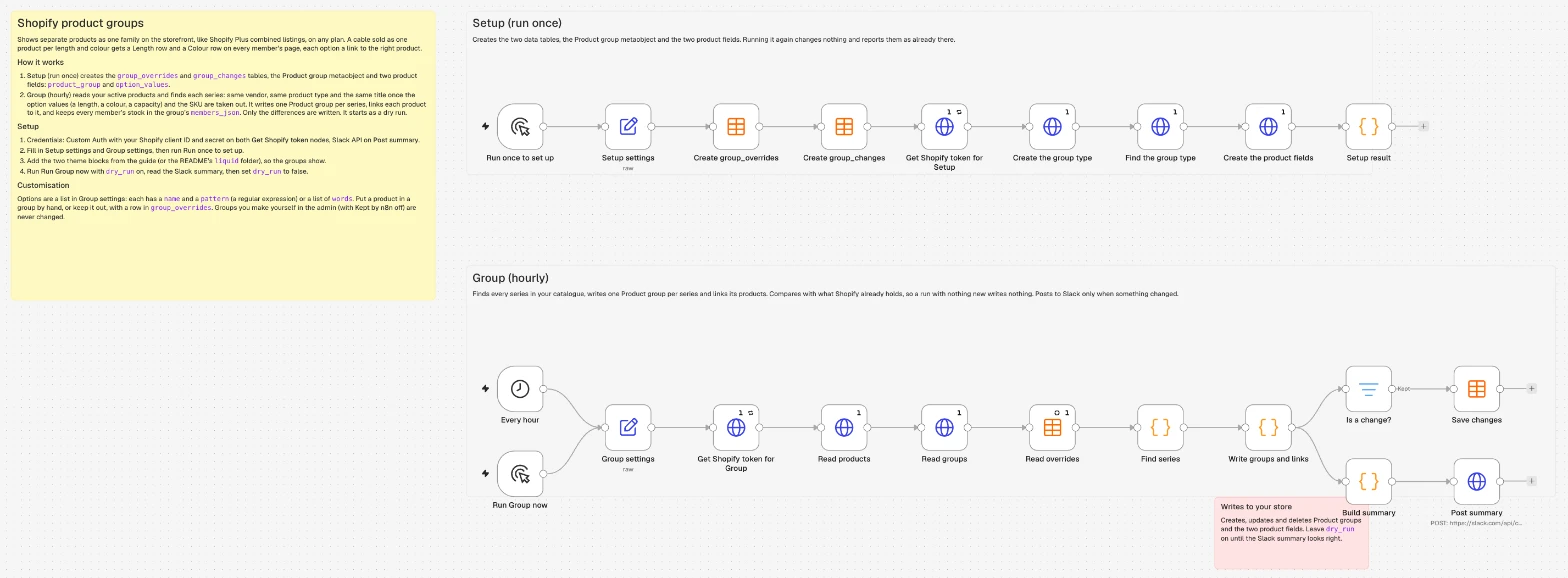
This part is optional: if you only have a few groups and rarely add products, the manual setup in Steps 1 to 5 is all you need. Once your catalogue grows or new supplier lines arrive every week, keeping groups, option values and the available stock flags inside members_json current by hand becomes a chore, so the n8n workflow below finds every series across your active catalogue and updates Shopify every hour.
What you’ll build
When the workflow runs against our test store (67 active products across cables and cameras), the first dry run finishes in about 1.5 seconds and posts a Slack preview of the groups it found, any near misses missing an option value, and any duplicate products sharing the same combination. Switching dry_run to false writes the 3 groups and links all 19 member products in about 4 seconds, while subsequent hourly runs with nothing to change take about 1.3 seconds and post nothing at all.
What you need
- n8n (tested on 2.46) with the built-in Data table node enabled (n8n Data Tables share a 200 MiB default limit per instance, which is plenty for override rules and change logs).
- A Shopify custom app created in your store’s Dev Dashboard using the client credentials grant, with six Admin API scopes:
read_products,write_products,read_metaobject_definitions,write_metaobject_definitions,read_metaobjectsandwrite_metaobjects. - An optional Slack bot token with
chat:writepermission if you want change summaries and daily near-miss reports posted to a channel (or you can swap the last node for an email node). - No AI model and no paid third-party APIs, because grouping runs on deterministic rules inside a Code node.
How it works

- The Setup lane (Manual Trigger Run once to set up) creates the
group_overridesandgroup_changesData Tables, creates theproduct_groupmetaobject definition from Step 1, and creates thecustom.product_groupandcustom.option_valuesproduct metafield definitions from Step 2. Running it a second time changes nothing and reports each definition asalready there. - The Group lane (Schedule Trigger Every hour plus Manual Trigger Run Group now) fetches all active, published products and existing
product_groupentries from Shopify, reads any manual rules fromgroup_overrides, groups products by vendor, product type and stripped title, compares the desired state against what Shopify already holds, writes only the differences (whendry_runisfalse), logs every change togroup_changes, and posts a Slack summary whenever something changed or during the dailyreport_hour.
Both lanes begin with an HTTP Request node (Get Shopify token for Setup and Get Shopify token for Group) that exchanges your app’s client ID and secret for a short-lived token (POST https://{{ store_domain }}/admin/oauth/access_token, Authentication Generic Credential Type > Custom Auth, Body Form Urlencoded with grant_type = client_credentials, Execute Once on, Retry On Fail on). Every Shopify GraphQL node after that sends a POST request to https://{{ store_domain }}/admin/api/2026-10/graphql.json with the header X-Shopify-Access-Token set to {{ $('Get Shopify token for …').first().json.access_token }} and a JSON body.
Step 6: Create the tables and definitions
In the Setup lane, connect the Run once to set up Manual Trigger to an Edit Fields node named Setup settings in JSON mode, which stores your shop domain, metafield namespace and metaobject type in one place:
{
  "store_domain": "your-store.myshopify.com",
  "namespace": "custom",
  "group_type": "product_group"
}
From Setup settings, connect two Data table nodes in series (Create group_overrides and Create group_changes, both set to Resource: Table, Operation: Create, with Options > Create If Not Exists turned on) so the workflow has a table for your manual grouping rules and an audit log of every write:
| Table | Columns |
|---|---|
group_overrides | handle (string), group_name (string), option_values (string), note (string) |
group_changes | run_date (date), action (string), group_name (string), product (string), detail (string), status (string) |
Notice that there is no table storing the last-written state of every group; instead, the Group lane compares its calculated groups directly against the metaobjects and metafields returned by Shopify, so your n8n tables cannot drift out of sync with the store.
After Get Shopify token for Setup, add an HTTP Request node named Create the group type (POST to /admin/api/2026-10/graphql.json, Body JSON {{ JSON.stringify({ query: …, variables: { type: $('Setup settings').first().json.group_type } }) }}) that creates the product_group definition from Step 1:
mutation GroupType($type: String!) {
  metaobjectDefinitionCreate(definition: {
    type: $type, name: "Product group", displayNameKey: "name",
    description: "Separate products shown as one family, such as a cable in several lengths and colours.",
    access: { storefront: PUBLIC_READ },
    fieldDefinitions: [
      { key: "name", name: "Name", type: "single_line_text_field", required: true }
      { key: "group_options", name: "Options", type: "list.single_line_text_field",
        description: "The options in row order, such as Length then Colour." }
      { key: "products", name: "Products", type: "list.product_reference",
        description: "The members in value order. Liquid reads at most 50." }
      { key: "members_json", name: "Members", type: "json",
        description: "Every member with its option values and stock. Written by n8n; the theme reads this first." }
      { key: "managed", name: "Kept by n8n", type: "boolean",
        description: "On for groups the template made. It never changes or deletes a group with this off." }
    ]
  }) { metaobjectDefinition { id } userErrors { field message code } }
}
Next, add an HTTP Request node named Find the group type with the same variables object, which looks up the definition’s GraphQL ID whether Create the group type just created it or you made it earlier in Step 1:
query GroupType($type: String!) { metaobjectDefinitionByType(type: $type) { id } }Connect Find the group type to an HTTP Request node named Create the product fields (with variables set to { ns: $('Setup settings').first().json.namespace, def: $json.data.metaobjectDefinitionByType.id }), which creates and pins both product metafields from Step 2 and restricts custom.product_group to the product_group definition ID:
mutation Fields($ns: String!, $def: String!) {
  group: metafieldDefinitionCreate(definition: {
    name: "Product group", namespace: $ns, key: "product_group", ownerType: PRODUCT,
    type: "metaobject_reference", pin: true,
    validations: [{ name: "metaobject_definition_id", value: $def }],
    description: "The family this product belongs to."
  }) { createdDefinition { id } userErrors { field message code } }
  values: metafieldDefinitionCreate(definition: {
    name: "Option values", namespace: $ns, key: "option_values", ownerType: PRODUCT,
    type: "json", pin: true,
    description: "This product's value for each of its group's options, such as {\"Length\": \"2m\", \"Colour\": \"Blue\"}."
  }) { createdDefinition { id } userErrors { field message code } }
}
Finish the Setup lane with a Code node named Setup result (Mode: Run Once for All Items) that checks userErrors so you get a clean status line for each definition:
// One line per thing Setup makes: created, or already there.
const said = (errs, made) => made ? 'created' : (errs || []).some(e => e.code === 'TAKEN' || /taken|already/i.test(e.message))
  ? 'already there' : 'failed: ' + (errs || []).map(e => e.message).join('; ');
const t = $('Create the group type').first().json.data.metaobjectDefinitionCreate;
const f = $json.data;
return [{ json: {
  product_group_type: said(t.userErrors, t.metaobjectDefinition),
  product_group_field: said(f.group.userErrors, f.group.createdDefinition),
  option_values_field: said(f.values.userErrors, f.values.createdDefinition),
} }];
When you click Test workflow on Run once to set up, the first run outputs {"product_group_type": "created", "product_group_field": "created", "option_values_field": "created"}, and running it a second time returns "already there" for all three.
Step 7: Read your active products
In the Group lane, connect both Every hour (Schedule Trigger, interval 1 hour) and Run Group now (Manual Trigger) to an Edit Fields node named Group settings (JSON mode). Paste these settings:
{
  "store_domain": "your-store.myshopify.com",
  "namespace": "custom",
  "group_type": "product_group",
  "slack_channel": "#log-catalogue",
  "dry_run": true,
  "match_on": [
    "vendor",
    "product_type"
  ],
  "strip_sku": true,
  "min_members": 2,
  "report_hour": 9,
  "options": [
    {
      "name": "Length",
      "pattern": "\\b\\d+(?:\\.\\d+)?\\s?(?:mm|cm|m|ft|in)\\b"
    },
    {
      "name": "Colour",
      "colour_attribute": true,
      "words": [
        "black",
        "white",
        "grey",
        "gray",
        "silver",
        "blue",
        "navy",
        "red",
        "green",
        "yellow",
        "orange",
        "purple",
        "pink",
        "beige",
        "brown",
        "gold",
        "graphite",
        "charcoal",
        "ivory",
        "cream"
      ],
      "aliases": {
        "Gray": "Grey"
      }
    },
    {
      "name": "Capacity",
      "pattern": "\\b\\d+(?:\\.\\d+)?\\s?(?:GB|TB)\\b"
    }
  ]
}
Here is what each setting controls:
dry_run: starts astrueso the workflow calculates every change and posts the Slack summary without writing to Shopify.match_on: the product properties a series must share in addition to its stripped title (vendorandproduct_type).strip_sku: removes each variant’s SKU from the product title before matching, so model codes likeN6PATC2MBLandN6PATC50CMGRdo not split a family apart.min_members: the minimum number of products required to form a group (2).report_hour: the hour of the day (0to23) when the workflow includes near misses and duplicates in the Slack message even if no groups changed.options: the options in the row order they will appear on the product page, each extracted by a regular expressionpattern(with doubled backslashes for JSON) or a list ofwords. Settingcolour_attribute: truetells the code to read the label and hex swatch from Shopify’s standardshopify.color-patternattribute first, andaliasesnormalises US and UK/Australian spellings like"Gray": "Grey".
After Get Shopify token for Group, add an HTTP Request node named Read products (Execute Once on) to fetch your active, published products 100 at a time. We filter by status:active AND published_status:published because draft and archived products have no live storefront page and linking to them would create 404s in the picker. Configure the node’s pagination settings as follows:
| Setting | Value |
|---|---|
| Method | POST |
| URL | https://{{ $('Group settings').first().json.store_domain }}/admin/api/2026-10/graphql.json |
| Body (JSON) | {{ JSON.stringify({ query: …, variables: { ns: $('Group settings').first().json.namespace } }) }} |
| Pagination Mode | Update a Parameter in Each Request |
| Parameter Type | Body |
| Parameter Name | variables |
| Parameter Value | {{ { after: $response.body.data.products.pageInfo.endCursor, ns: $('Group settings').first().json.namespace } }} |
| Pagination Complete When | Other |
| Complete Expression | {{ !$response.body.data.products.pageInfo.hasNextPage }} |
| Interval Between Requests | 250 |
Use this GraphQL query in Read products, which costs 146 query points per 100 products against Shopify’s 1,000-point per-query limit:
query Products($after: String, $ns: String!) {
  products(first: 100, after: $after, query: "status:active AND published_status:published") {
    pageInfo { hasNextPage endCursor }
    nodes {
      id handle title vendor productType
      variants(first: 20) { nodes { sku availableForSale } }
      colour: metafield(namespace: "shopify", key: "color-pattern") {
        references(first: 1) { nodes { ... on Metaobject {
          label: field(key: "label") { value } color: field(key: "color") { value } } } }
      }
      group: metafield(namespace: $ns, key: "product_group") { value }
      values: metafield(namespace: $ns, key: "option_values") { value }
    }
  }
}
Next, add a second paginated HTTP Request node named Read groups with the same pagination settings, replacing products with metaobjects in the pagination expressions ($response.body.data.metaobjects.pageInfo.endCursor and !$response.body.data.metaobjects.pageInfo.hasNextPage) and passing type: $('Group settings').first().json.group_type instead of ns:
query Groups($after: String, $type: String!) {
  metaobjects(type: $type, first: 100, after: $after) {
    pageInfo { hasNextPage endCursor }
    nodes {
      id handle
      name: field(key: "name") { value }
      options: field(key: "group_options") { value }
      products: field(key: "products") { value }
      members: field(key: "members_json") { value }
      managed: field(key: "managed") { value }
    }
  }
}
Connect Read groups to a Data table node named Read overrides (Resource: Row, Operation: Get, Table group_overrides, Return All on, Execute Once on, and Settings > Always Output Data turned on so the workflow continues cleanly when group_overrides is empty).
When a product title is missing an option word, or you want to force a product out of every group, you add a row to group_overrides. For example, our store has "StarTech.com 1m Cat6 Snagless Ethernet Cable" (SKU N6PATC1MBK), whose title omits the word “Black” and has no Color attribute set; adding this row joins it to the StarTech.com series as 1m / Black (and setting group_name to exclude on any row keeps that handle out of all groups):
| handle | group_name | option_values | note |
|---|---|---|---|
startech-com-1m-cat6-snagless-ethernet-cable | StarTech.com Cat6 Snagless Ethernet Cable | {"Colour": "Black"} | Title has no colour; the cable is black. |
Step 8: Find each series
Connect Read overrides to a Code node named Find series (Mode: Run Once for All Items). This node finds every series using deterministic rules rather than an AI model, because rules produce the exact same grouping on every hourly run, whereas a model can hallucinate a match and place the wrong product behind a swatch. Paste the full code for Find series (the first half builds the series, and the second half starting at // Compare with Shopify. is covered in Step 9):
// Find each series: same vendor and type, same title once the option values and the SKU are taken out.
// Then compare with what Shopify holds and output one item per change.
const s = $('Group settings').first().json;
const products = $('Read products').all().flatMap(i => i.json.data.products.nodes);
const groups = $('Read groups').all().flatMap(i => i.json.data.metaobjects.nodes);
const overrides = Object.fromEntries($('Read overrides').all().map(i => i.json).filter(o => o.handle).map(o => [o.handle.trim(), o]));

const esc = t => t.replace(/[.*+?^${}()|[\]\\]/g, '\\$&');
const cap = w => w.charAt(0).toUpperCase() + w.slice(1).toLowerCase();
const tidy = t => t.replace(/\s+/g, ' ').replace(/\s+([,)\]])/g, '$1').replace(/^[\s,\-|/]+|[\s,\-|/]+$/g, '').trim();
const num = v => v.replace(/\s+/g, '').replace(/^\d+(?:\.\d+)?/, n => String(parseFloat(n)));
const slug = t => t.toLowerCase().replace(/[^a-z0-9]+/g, '-').replace(/^-|-$/g, '').slice(0, 120);
const canon = v => JSON.stringify(v, (k, x) => x && typeof x === 'object' && !Array.isArray(x)
  ? Object.fromEntries(Object.keys(x).sort().map(key => [key, x[key]])) : x);
const parse = v => { try { return v == null ? null : JSON.parse(v); } catch (e) { return v; } };

// Read one product: its option values, its swatch colour and the title with both taken out.
function read(p) {
  let title = ' ' + p.title + ' ';
  if (s.strip_sku) {
    const skus = p.variants.nodes.map(v => (v.sku || '').trim()).filter(Boolean).sort((a, b) => b.length - a.length);
    for (const sku of skus) title = title.replace(new RegExp('(^|[\\s(\\[,])' + esc(sku) + '(?=$|[\\s)\\],])', 'gi'), '$1 ');
  }
  const values = {};
  let swatch = null;
  for (const o of s.options) {
    let v = null;
    const ref = o.colour_attribute && p.colour && p.colour.references.nodes[0];
    if (ref && ref.label) { v = ref.label.value; swatch = ref.color ? ref.color.value : null; }
    if (o.words) {
      const re = new RegExp('\\b(' + o.words.map(esc).join('|') + ')\\b', 'gi');
      const found = title.match(re);
      if (found && !v) v = cap(found[0]);
      title = title.replace(re, ' ');
    }
    if (o.pattern) {
      const found = title.match(new RegExp(o.pattern, 'gi')) || [];
      if (found.length === 1) { if (!v) v = num(found[0]); title = title.replace(new RegExp(o.pattern, 'gi'), ' '); }
    }
    if (v) values[o.name] = (o.aliases || {})[v] || v;
  }
  return { core: tidy(title), values, swatch };
}

// Groups you made by hand (Kept by n8n off) are left alone, and so are their products.
const byId = Object.fromEntries(groups.map(g => [g.id, g]));
const isManaged = g => g && g.managed && g.managed.value === 'true';
const field = (p, k) => p[k] && p[k].value;

const series = {}, forced = [];
for (const p of products) {
  const current = byId[field(p, 'group')];
  if (current && !isManaged(current)) continue;
  const o = overrides[p.handle];
  if (o && String(o.group_name).trim().toLowerCase() === 'exclude') continue;
  const r = read(p);
  if (o && o.group_name) {
    if (o.option_values) Object.assign(r.values, parse(o.option_values) || {});
    forced.push({ name: o.group_name.trim(), m: { p, ...r } });
    continue;
  }
  const parts = { vendor: p.vendor, product_type: p.productType };
  const key = s.match_on.map(m => (parts[m] || '').toLowerCase()).concat(r.core.toLowerCase()).join('|');
  (series[key] = series[key] || { key, name: r.core, members: [] }).members.push({ p, ...r });
}
// An override joins the series with that name, or starts one.
for (const f of forced) {
  const g = Object.values(series).find(x => x.name.toLowerCase() === f.name.toLowerCase());
  const key = g ? g.key : 'override|' + f.name.toLowerCase();
  (series[key] = series[key] || { key, name: f.name, members: [] }).members.push(f.m);
}

const order = (a, b) => {
  const x = parseFloat(a), y = parseFloat(b);
  return !isNaN(x) && !isNaN(y) && x !== y ? x - y : String(a).localeCompare(String(b));
};
const want = {}, wantMember = {}, report = [];
// Handle: the series name, plus the product type when two series share a name.
const nameCount = {};
for (const g of Object.values(series)) nameCount[slug(g.name)] = (nameCount[slug(g.name)] || 0) + 1;
for (const g of Object.values(series)) {
  if (g.members.length < s.min_members) continue;
  // An option counts when the group has two or more values for it.
  const options = s.options.map(o => o.name).filter(n => new Set(g.members.map(m => m.values[n]).filter(Boolean)).size > 1);
  if (!options.length) continue;
  const complete = [], seen = {};
  for (const m of g.members.sort((a, b) => a.p.handle.localeCompare(b.p.handle))) {
    const missing = options.filter(n => !m.values[n]);
    if (missing.length) { report.push({ action: 'near_miss', group_name: g.name, product: m.p.handle, detail: 'no ' + missing.join(' or ') }); continue; }
    const combo = options.map(n => m.values[n]).join(' / ');
    if (seen[combo]) { report.push({ action: 'duplicate', group_name: g.name, product: m.p.handle, detail: combo + ' is already ' + seen[combo] }); continue; }
    seen[combo] = m.p.handle; complete.push(m);
  }
  if (complete.length < s.min_members) continue;
  complete.sort((a, b) => { for (const n of options) { const c = order(a.values[n], b.values[n]); if (c) return c; } return 0; });
  const handle = nameCount[slug(g.name)] > 1 ? slug(g.key) : slug(g.name);
  const members_json = complete.map(m => {
    const values = Object.fromEntries(options.map(n => [n, m.values[n]]));
    const row = { handle: m.p.handle, values, available: m.p.variants.nodes.some(v => v.availableForSale) };
    if (m.swatch && options.some(n => s.options.find(o => o.name === n).colour_attribute)) row.swatch = m.swatch;
    return row;
  });
  want[handle] = { handle, name: g.name, options, products: complete.slice(0, 50).map(m => m.p.id), members_json };
  for (const m of complete) wantMember[m.p.id] = { handle, values: Object.fromEntries(options.map(n => [n, m.values[n]])), product: m.p.handle };
}

// Compare with Shopify.
const managed = groups.filter(isManaged);
const byHandle = Object.fromEntries(managed.map(g => [g.handle, g]));
const out = [];
for (const w of Object.values(want)) {
  const g = byHandle[w.handle];
  const same = g && field(g, 'name') === w.name && canon(parse(field(g, 'options'))) === canon(w.options)
    && canon(parse(field(g, 'products'))) === canon(w.products) && canon(parse(field(g, 'members'))) === canon(w.members_json);
  if (!same) out.push({ action: 'group_set', group_name: w.name, handle: w.handle, metaobject_id: g ? g.id : null,
    options: w.options, products: w.products, members_json: w.members_json,
    detail: (g ? 'update: ' : 'new: ') + w.options.join(' × ') + ', ' + w.members_json.length + ' products' });
}
for (const g of managed) if (!want[g.handle]) out.push({ action: 'group_delete', group_name: field(g, 'name'), handle: g.handle, metaobject_id: g.id, detail: 'no series left' });
for (const p of products) {
  const w = wantMember[p.id], cur = byId[field(p, 'group')];
  if (cur && !isManaged(cur)) continue;
  if (w) {
    const same = cur && cur.handle === w.handle && canon(parse(field(p, 'values'))) === canon(w.values);
    if (!same) out.push({ action: 'member_set', group_name: want[w.handle].name, handle: w.handle, product_id: p.id, product: p.handle,
      option_values: w.values, detail: Object.values(w.values).join(' / ') });
  } else if (field(p, 'group') || field(p, 'values')) {
    out.push({ action: 'member_clear', group_name: cur ? field(cur, 'name') : '', product_id: p.id, product: p.handle, detail: 'left its series' });
  }
}
return out.concat(report).map(json => ({ json }));
Here is how read() processes "StarTech.com 2m Blue Cat6 Snagless Ethernet Cable N6PATC2MBL" (SKU N6PATC2MBL, Color attribute Blue):
strip_skuremovesN6PATC2MBLfrom the title.- The
Lengthregex matches2monce, recordsLength: "2m"and removes2mfrom the title. Colourreads"Blue"and swatch#1F5FBFfrom theshopify.color-patternattribute, and removes the wordBluefrom the title.Capacityfinds noGBorTBmatch.tidy()collapses spaces and punctuation, leaving the core title"StarTech.com Cat6 Snagless Ethernet Cable"and building the group keystartech.com|patch leads|startech.com cat6 snagless ethernet cable.
Because the 3m Grey and 0.5m Red cables reduce to the exact same key, they join the same series, and the group’s handle becomes startech-com-cat6-snagless-ethernet-cable (adding the product type to the slug only when two different series share a core name).
The rest of the grouping logic handles edge cases across the catalogue:
- For single-option families, the 8ware Cat6 UTP Ethernet Patch Lead in 1m, 2m and 3m Blue only has one colour across its members, so the
optionsfilter dropsColourand creates aLength-only group (3 products), while"8ware Cat6 UTP Ethernet Patch Lead 0.5m Blue 10 Pack"stays out because"10 Pack"remains in its core title. - For near misses, before you add the override row,
"StarTech.com 1m Cat6 Snagless Ethernet Cable"reduces to the StarTech.com core title and hasLength: "1m", but has noColour, so the loop leaves it out ofcompleteand logsnear_miss(no Colour). - For duplicates, if two products in a series have the exact same option values (in our test store, an accidental copy
ubiquiti-unifi-protect-ai-pro-4k-poe-camera-white-uvc-ai-pro-1), the code links the first handle alphabetically and reports the second asduplicate. - When sorting and building
members_json, members are ordered numerically (0.5m,1m,2m,3m) and then alphabetically, the first 50 product IDs go intoproducts, and every member goes intomembers_json, where each item looks like this:
{ "handle": "startech-com-2m-blue-cat6-snagless-ethernet-cable-n6patc2mbl", "values": { "Length": "2m", "Colour": "Blue" }, "available": true, "swatch": "#1F5FBF" }Step 9: Compare with what Shopify holds
The second half of Find series (under // Compare with Shopify.) compares the desired groups (want) and member assignments (wantMember) against the metaobjects and product metafields returned by Read groups and Read products, using canon() to sort JSON keys so key order never triggers a false write.
First, it filters groups down to entries where managed is 'true', ensuring that any group you created by hand in the admin (with Kept by n8n off) and any products pointing to that hand-made group are skipped completely. Then it checks four conditions and outputs only the items that need an API call:
group_set: a group does not exist yet in Shopify, or itsname,group_options,productsormembers_json(including any member’savailablestock boolean orswatch) has changed.group_delete: a group that n8n previously created (managedis'true') no longer has at least two valid members inwant.member_set: a product belongs to a group inwantMember, and its currentcustom.product_grouptarget orcustom.option_valuesJSON in Shopify does not match.member_clear: a product is no longer in any n8n group (for example, it was renamed or excluded), but still hascustom.product_grouporcustom.option_valuespopulated from an earlier run.
Because unchanged groups and unchanged products produce no output items, a run where no products or stock statuses changed emits zero write actions.
Step 10: Write the groups and product links
Connect Find series to a Code node named Write groups and links (Mode: Run Once for All Items). Place a red sticky note beside this node on the canvas to warn anyone editing the workflow that it writes to Shopify when dry_run is false.
Why use a single Code node instead of separate HTTP Request nodes? Products reference their group by its Shopify metaobject ID (gid://shopify/Metaobject/...), so new groups must be upserted first to get their IDs before their member products can be linked; metafieldsSet accepts at most 25 metafields per call (two metafields per product, so we batch 12 products per request); and large catalogues can hit GraphQL rate limits, so the gql() helper retries up to five times with backoff whenever Shopify returns THROTTLED. Paste this code:
// Write the changes in order: groups first (products point at them), then product links, then deletes.
// Why Code: products need the new group IDs, metafieldsSet takes 25 fields a call, and Shopify throttles.
const s = $('Group settings').first().json;
const token = $('Get Shopify token for Group').first().json.access_token;
const url = 'https://' + s.store_domain + '/admin/api/2026-10/graphql.json';
const items = $input.all().map(i => i.json);
const sleep = ms => new Promise(r => setTimeout(r, ms));
const gql = async (query, variables) => {
  for (let a = 0; a < 5; a++) {
    const r = await this.helpers.httpRequest({ method: 'POST', url, json: true, body: { query, variables },
      headers: { 'X-Shopify-Access-Token': token } });
    if ((r.errors || []).some(e => (e.extensions || {}).code === 'THROTTLED')) { await sleep(2000 * (a + 1)); continue; }
    return r;
  }
  throw new Error('Shopify throttled five times in a row');
};
const problem = (r, k) => (r.errors || []).map(e => e.message)
  .concat(((r.data || {})[k] || {}).userErrors ? r.data[k].userErrors.map(e => e.message) : []).join('; ');
const mark = (x, err) => { x.status = err ? 'failed: ' + err.slice(0, 200) : (s.dry_run ? 'dry run' : 'written'); };
const by = a => items.filter(x => x.action === a);
if (s.dry_run) { items.forEach(x => { if (!['near_miss', 'duplicate'].includes(x.action)) mark(x); }); return items.map(json => ({ json })); }

const ids = {};
for (const g of by('group_set')) {
  const r = await gql(`mutation($h: MetaobjectHandleInput!, $m: MetaobjectUpsertInput!) {
    metaobjectUpsert(handle: $h, metaobject: $m) { metaobject { id } userErrors { field message } } }`, {
    h: { type: s.group_type, handle: g.handle },
    m: { fields: [
      { key: 'name', value: g.group_name },
      { key: 'group_options', value: JSON.stringify(g.options) },
      { key: 'products', value: JSON.stringify(g.products) },
      { key: 'members_json', value: JSON.stringify(g.members_json) },
      { key: 'managed', value: 'true' },
    ] } });
  const id = r.data && r.data.metaobjectUpsert && r.data.metaobjectUpsert.metaobject && r.data.metaobjectUpsert.metaobject.id;
  if (id) ids[g.handle] = id;
  mark(g, id ? '' : problem(r, 'metaobjectUpsert') || 'no id returned');
}
const known = Object.fromEntries($('Read groups').all().flatMap(i => i.json.data.metaobjects.nodes).map(g => [g.handle, g.id]));
const links = by('member_set');
links.forEach(m => { m.group_id = ids[m.handle] || known[m.handle]; if (!m.group_id) mark(m, 'its group was not written'); });
const ready = links.filter(m => m.group_id);
for (let i = 0; i < ready.length; i += 12) {
  const batch = ready.slice(i, i + 12);
  const metafields = batch.flatMap(m => [
    { ownerId: m.product_id, namespace: s.namespace, key: 'product_group', type: 'metaobject_reference', value: m.group_id },
    { ownerId: m.product_id, namespace: s.namespace, key: 'option_values', type: 'json', value: JSON.stringify(m.option_values) },
  ]);
  const r = await gql(`mutation($m: [MetafieldsSetInput!]!) { metafieldsSet(metafields: $m) { userErrors { field message } } }`, { m: metafields });
  batch.forEach(m => mark(m, problem(r, 'metafieldsSet')));
}
const leavers = by('member_clear');
for (let i = 0; i < leavers.length; i += 12) {
  const batch = leavers.slice(i, i + 12);
  const metafields = batch.flatMap(m => ['product_group', 'option_values'].map(key => ({ ownerId: m.product_id, namespace: s.namespace, key })));
  const r = await gql(`mutation($m: [MetafieldIdentifierInput!]!) { metafieldsDelete(metafields: $m) { userErrors { field message } } }`, { m: metafields });
  batch.forEach(m => mark(m, problem(r, 'metafieldsDelete')));
}
for (const g of by('group_delete')) {
  const r = await gql(`mutation($id: ID!) { metaobjectDelete(id: $id) { deletedId userErrors { field message } } }`, { id: g.metaobject_id });
  mark(g, problem(r, 'metaobjectDelete'));
}
return items.map(json => ({ json }));
Each group is written using metaobjectUpsert by handle with managed set to 'true', so re-running the workflow updates the existing entry in place and never creates duplicate metaobjects. Remember that groups created by hand have managed switched off, so group_delete and member_clear never touch them.
To log every change into group_changes, connect Write groups and links to a Filter node named Is a change? (with the condition {{ ['group_set', 'group_delete', 'member_set', 'member_clear'].includes($json.action) }} is true), and connect that to a Data table node named Save changes (Resource: Row, Operation: Insert, Table group_changes):
| Column | Value |
|---|---|
run_date | {{ $now.toISO() }} |
action | {{ $json.action }} |
group_name | {{ $json.group_name }} |
product | {{ $json.product || '' }} |
detail | {{ $json.detail }} |
status | {{ $json.status }} |
Step 11: Post the summary
Also connect Write groups and links to a Code node named Build summary (Mode: Run Once for All Items). It builds a Slack message whenever at least one group or product link changed, and once a day during report_hour if there are any near_miss or duplicate items to review; on a quiet hour where nothing changed, it returns [] so the Slack node does not run:
// A Slack message when something changed, plus once a day (report_hour) for near misses and duplicates.
const s = $('Group settings').first().json;
const all = $input.all().map(i => i.json);
const changes = all.filter(x => ['group_set', 'group_delete', 'member_set', 'member_clear'].includes(x.action));
const failed = changes.filter(x => String(x.status).startsWith('failed'));
const daily = $now.hour === s.report_hour && all.some(x => ['near_miss', 'duplicate'].includes(x.action));
if (!changes.length && !daily) return [];
const n = a => changes.filter(x => x.action === a).length;
const w = s.dry_run ? ['Would write', 'delete', 'link', 'unlink'] : ['Wrote', 'deleted', 'linked', 'unlinked'];
const groupsSet = changes.filter(x => x.action === 'group_set');
const list = (label, xs, fmt) => xs.length ? '\n*' + label + '* (' + xs.length + '): ' + xs.slice(0, 10).map(fmt).join(', ') + (xs.length > 10 ? ', ...' : '') : '';
const text = ':link: Product groups' + (s.dry_run ? ' (dry run, nothing written)' : '') + '\n'
  + (!changes.length ? 'No changes this run.' : w[0] + ' ' + n('group_set') + (n('group_set') === 1 ? ' group, ' : ' groups, ') + w[1] + ' ' + n('group_delete') + ', ' + w[2] + ' ' + n('member_set') + ' products and ' + w[3] + ' ' + n('member_clear') + '.')
  + groupsSet.slice(0, 8).map(g => '\n• ' + g.group_name + ' (' + g.detail + ')').join('')
  + (groupsSet.length > 8 ? '\nand ' + (groupsSet.length - 8) + ' more.' : '')
  + list('Near misses, not grouped', all.filter(x => x.action === 'near_miss'), x => x.product + ' (' + x.detail + ')')
  + list('Duplicates, left out', all.filter(x => x.action === 'duplicate'), x => x.product + ' (' + x.detail + ')')
  + list('Failed', failed, x => (x.product || x.group_name) + ': ' + x.status.replace('failed: ', ''));
return [{ json: { channel: s.slack_channel, text, unfurl_links: false } }];
Connect Build summary to an HTTP Request node named Post summary (POST https://slack.com/api/chat.postMessage, Authentication Predefined Credential Type > Slack API, Body JSON {{ JSON.stringify($json) }}). If you prefer email over Slack, replace Post summary with a Send Email node and put {{ $json.text }} in the body.
When you run Run Group now with dry_run set to true on our test store, Slack receives this exact dry-run summary in about 1.5 seconds:
:link: Product groups (dry run, nothing written)
Would write 3 groups, delete 0, link 19 products and unlink 0.
• 8ware Cat6 UTP Ethernet Patch Lead (new: Length, 3 products)
• StarTech.com Cat6 Snagless Ethernet Cable (new: Length × Colour, 14 products)
• Ubiquiti UniFi Protect AI Pro 4K PoE Camera (new: Colour, 2 products)
*Near misses, not grouped* (1): startech-com-1m-cat6-snagless-ethernet-cable (no Colour)
*Duplicates, left out* (1): ubiquiti-unifi-protect-ai-pro-4k-poe-camera-white-uvc-ai-pro-1 (White is already ubiquiti-unifi-protect-ai-pro-4k-poe-camera-white-uvc-ai-pro)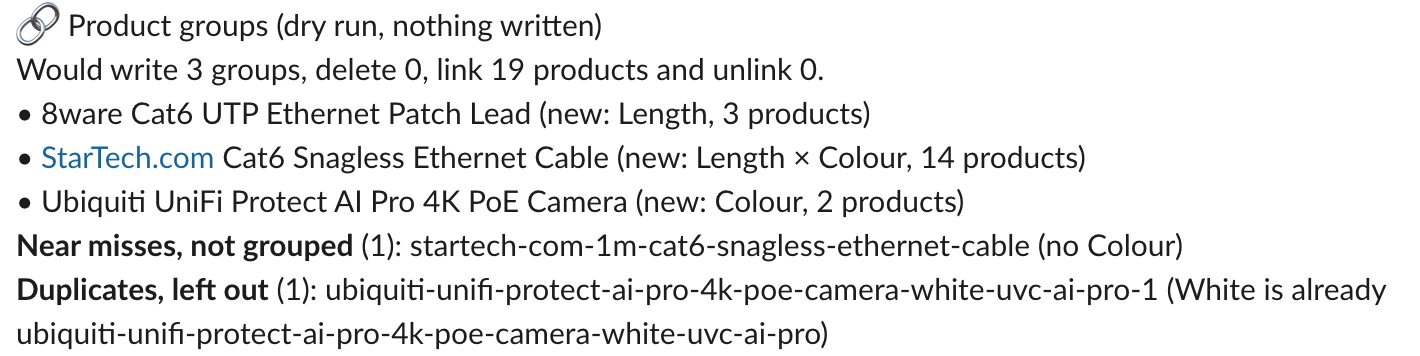
After setting dry_run to false in Group settings, the first live run writes all 3 groups and links all 19 products in about 4 seconds (Wrote 3 groups, deleted 0, linked 19 products and unlinked 0.), and an immediate re-run finishes in about 1.3 seconds and posts nothing.
When we then made four changes in the store (restocked the 1m Grey cable, retitled the 3m Orange cable to include "Shielded" so it left the series, added the group_overrides row for the 1m Black cable, and regrouped the Ubiquiti camera pair by hand with Kept by n8n off), the next run posted "Wrote 1 group, deleted 1, linked 1 products and unlinked 1." It updated the StarTech.com group with the restock and the new 1m Black member, deleted the template’s old camera group because the hand-made group claimed its products, linked the 1m Black cable, and unlinked the 3m Orange cable.
What it costs
Because the workflow uses no AI model and no paid external API, your only running cost is n8n itself, while Shopify Admin API calls are free. Running the schedule every hour uses about 720 executions a month, which fits comfortably inside n8n Cloud Starter (around €20/mo billed annually for 2,500 executions, checked November 2026), and self-hosting n8n Community Edition is free (if you pair self-hosted n8n with external Postgres storage later, the Supabase free plan includes 500 MB per project, checked November 2026).
On a run where nothing changed, n8n makes one GraphQL request per 100 active products plus one per 100 existing groups (about 6 requests at 500 products, 21 requests at 2,000 products and 101 requests at 10,000 products). Here is how the monthly cost compares against a third-party combined listings app or Shopify Plus (all prices checked November 2026):
| Option | 500 products (~50 groups) | 2,000 products (~200 groups) | 10,000 products (~1,000 groups) |
|---|---|---|---|
| This template on n8n self-hosted | $0/mo | $0/mo | $0/mo |
| This template on n8n Cloud Starter | ~€20/mo (720 of 2,500 runs) | ~€20/mo (720 of 2,500 runs) | ~€20/mo (720 of 2,500 runs) |
| FD Combined Listings | $4.95 USD/mo (Starter, up to 1,000 groups) | $4.95 USD/mo (Starter, up to 1,000 groups) | $4.95 USD/mo (Starter, up to 1,000 groups) or $19.95 USD/mo (Pro, unlimited) |
| LinkedOption Combined Listings | $9.99 USD/mo (Basic, 100 groups, single-option) or $19.99 USD/mo (Advanced, 500 groups, multi-option) | $19.99 USD/mo (Advanced, up to 500 groups) | $39.99 USD/mo (Premium, up to 3,000 groups) |
| Shopify Plus (for Shopify’s Combined Listings app) | From $2,300 USD/mo | From $2,300 USD/mo | From $2,300 USD/mo |
If your store’s stock levels rarely change during the day, you can cut executions further by changing Every hour to run every 3 or 6 hours, or trigger the workflow only when a product changes via a Shopify webhook (see Make it your own below).
Common mistakes
Metaobject entries left as Draft
If you turn on Active-draft status when creating the product_group definition in Step 1, every new entry defaults to Draft and Liquid reads p.metafields.custom.product_group.value as blank, so the picker prints nothing. Leave Active-draft status off on the definition, or make sure every entry is set to Active.
Reading the Products list for big series
Liquid loads at most 50 references from a list metafield without pagination, and on a store I run the largest series has 100 products, which is twice what the products list will return. Always run the n8n template for large families so the theme reads members_json, which has no 50-product cap.
Option keys that don’t match exactly
Liquid matches the option names in group_options against the JSON keys in custom.option_values character for character, so Color will not match Colour and 2 m will not match 2m. Keep the option spelling identical across the group entry, the product JSON and the colour_option variable in both Liquid snippets.
Grouping products that aren’t the same item in another version
If your regex patterns are too broad, you can accidentally group a next-generation model or a multi-pack bundle (like the 8ware 10 Pack) into the single-item series. Only strip true option values and SKUs in Group settings, and add an exclude row in group_overrides for any special bundle or kit.
Swatches as buttons that need JavaScript instead of links
Rendering swatches as <button> elements that swap content or navigate via window.location hides your product family links from search engines and breaks middle-click to open in a new tab. Keep every option as an <a href> element so shoppers and search crawlers can follow them directly.
Linking to archived or draft products
Including draft, archived or unpublished products in a group creates broken 404 links in the picker whenever a shopper clicks that swatch or pill. Keep query: "status:active AND published_status:published" on Read products so unlinked or archived items are automatically dropped on the next run.
Stock flags going stale because the schedule is off
Because members_json stores each member’s available boolean at the time the group was written, leaving the hourly schedule disabled means sold-out strikethroughs will lag behind real inventory. Activate the workflow once you switch dry_run to false so stock changes sync every hour.
Make it your own
When to use variants instead
If the versions of an item do not have distinct search demand, separate galleries or unique titles, such as a garment sold in sizes S to XL, keep them as standard variants on a single product. You can even combine both approaches: use product groups to link separate colour pages so each colour gets its own URL and gallery, and use standard Shopify variants on each colour page for the sizes.
Approve new groups in Slack before they go live
If you want a human check before a newly detected series is written to Shopify, split the Group lane so new group_set items post an interactive Slack message and wait for a click before running Write groups and links. You can lift the Slack button pattern directly from my Slack approvals workflow guide.
AI grouping for messy supplier titles
When supplier feeds put words in erratic orders that regexes cannot cleanly reduce to one core title, you can add an LLM node that proposes the normalised series name for ungrouped products. Keep the deterministic checks in Find series to verify that every member still has distinct option values and let group_overrides have the final say.
Tags instead of rules
If your team prefers curating families in the Shopify admin without touching title rules, tag each member product with group:Series Name and include tags in the Read products query. In Find series, read the group: tag as the series key instead of computing r.core from the title, while still letting the node extract option values and build members_json.
Send item_group_id to Google Merchant Center
Google Shopping expects separate products that are really colour or size variations of one item to share an item_group_id. Because custom.product_group already gives every sibling a shared handle, you can map that handle to item_group_id in your feed workflow.
ProductGroup structured data
Google supports multi-page product variant structured data using ProductGroup with productGroupID, variesBy and off-page variant URLs, but we did not put a JSON-LD block inside our Custom Liquid snippet because Horizon already outputs {{ closest.product | structured_data }} in sections/product-information.liquid, and adding a second block would describe the product twice on the same page. If you want ProductGroup markup, replace {{ closest.product | structured_data }} in sections/product-information.liquid with a single JSON-LD script that outputs the ProductGroup and links the other members from members_json by URL.
A series landing page from the metaobject
When you edit the product_group metaobject definition in Shopify, you can turn on Publish entries as web pages under Metaobject options. That gives each product family its own indexable overview URL (such as /pages/product-group/startech-com-cat6-snagless-ethernet-cable) where you can list the full comparison table of lengths and colours.
Run on a Shopify product webhook instead of hourly
If you want instant updates when a product’s title or stock changes without running an hourly schedule, add a Shopify Trigger node listening to products/update and inventory_levels/update. Have a small debounce or wait step trigger the Group lane so a bulk import only runs the comparison once.
Other themes
While the screenshots above use Horizon 4.4, both Custom Liquid snippets use standard Liquid objects (closest.product with a fallback to product, and routes.root_url) and self-contained CSS classes. They drop into any Online Store 2.0 theme that supports a Custom Liquid block inside the product information section and product card.
FAQ
Can I use combined listings without Shopify Plus?
You cannot install Shopify’s own Combined Listings app without a Plus or enterprise plan, and this method does not create the parent product that Shopify’s app uses. Instead, it links your standalone products through a native Shopify metaobject and renders the same style of swatch and pill picker on the storefront on any Shopify plan.
Should I use variants or separate products?
Use standard variants when shoppers do not search for the specific option in Google and a single gallery works for the whole item, such as clothing sizes. Use separate products linked by a product group when each colour, length or capacity needs its own URL, title, gallery and filter card on collection pages.
Is it bad for SEO to have a separate product page for each colour?
Separate product pages help SEO when shoppers search for specific attributes like "2m blue cat6 cable", because each page has a dedicated URL and title, and the <a href> picker links pass internal authority between every sibling. Keep each product’s canonical tag self-referencing (Shopify’s default) and include the specific colour or length specs in the body copy so the pages are not near-duplicate descriptions.
Will it slow my product pages down?
No, because each product page reads only a single product_group metaobject reference. When the n8n workflow populates members_json, the Liquid snippet renders every link, swatch colour and sold-out state from that single JSON field without loading any sibling product objects.
Can a product be in two groups?
No, because custom.product_group is a single metaobject reference field, so each product belongs to one group at a time. That matches the rule Shopify’s Combined Listings app enforces, and keeps the picker on each product page unambiguous.
To put this live on your store, duplicate your theme, add the two Custom Liquid blocks from Steps 4 and 5, run the Setup lane once, and run the Group lane with dry_run set to true so you can check the Slack summary before switching dry_run to false.
Affiliate disclosure: some of the links in this guide are affiliate links. That doesn’t affect what I recommend. If you sign up through one, I may earn a commission as a thank-you, at no extra cost to you.